

Your avatar
Your look, your photos and your features — how Onsen draws you in your images, and how to change it.
Overview
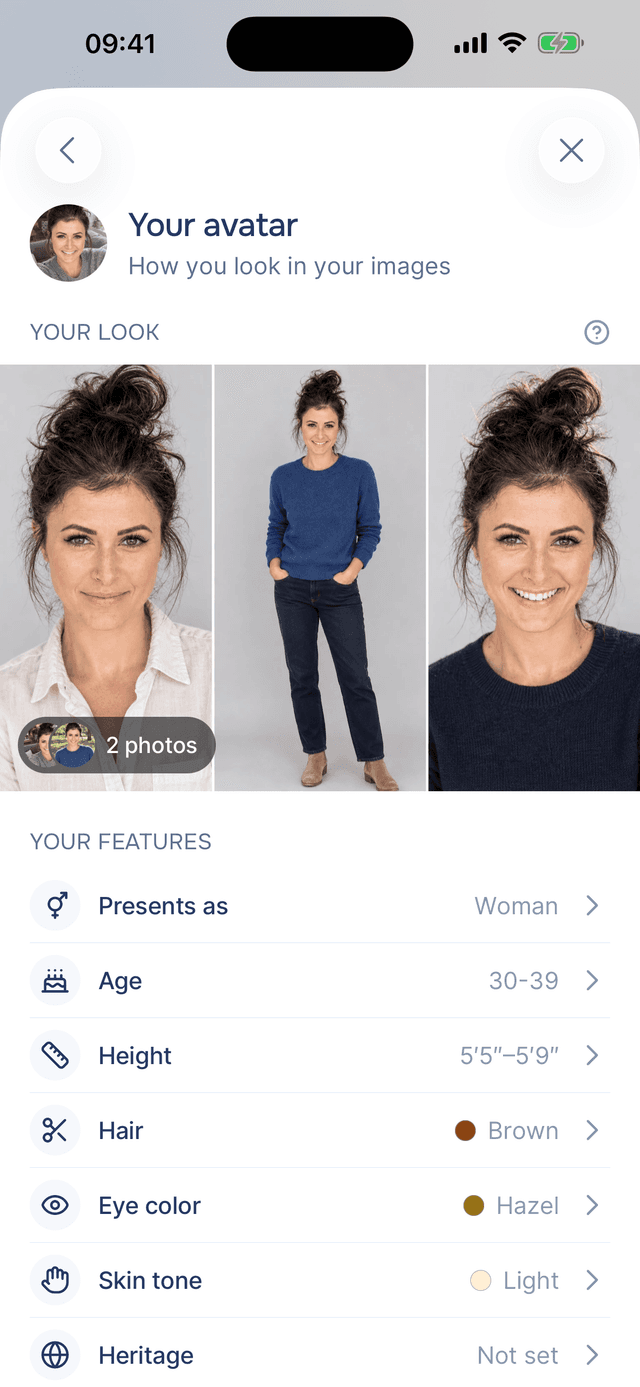
Your avatar is how Onsen draws you in your journal images. It has two parts:
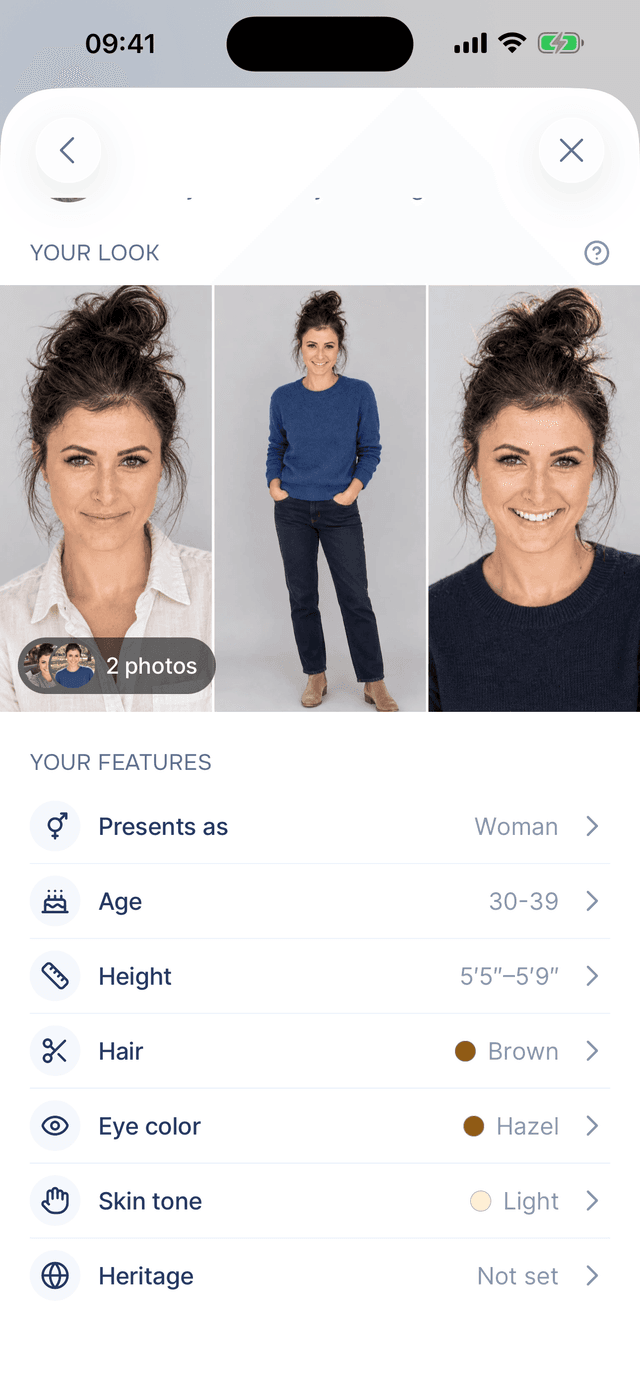
- Your look — three clear pictures of you, drawn from 2 or 3 photos of yourself.
- Your features — age, how you present, height, hair, eyes, skin tone, heritage and facial hair.
You first set it up in the Create Your Avatar experience. Everything can be changed later here.
To open it, tap Settings, then Your avatar in the Your world section.
How photos personalize your images
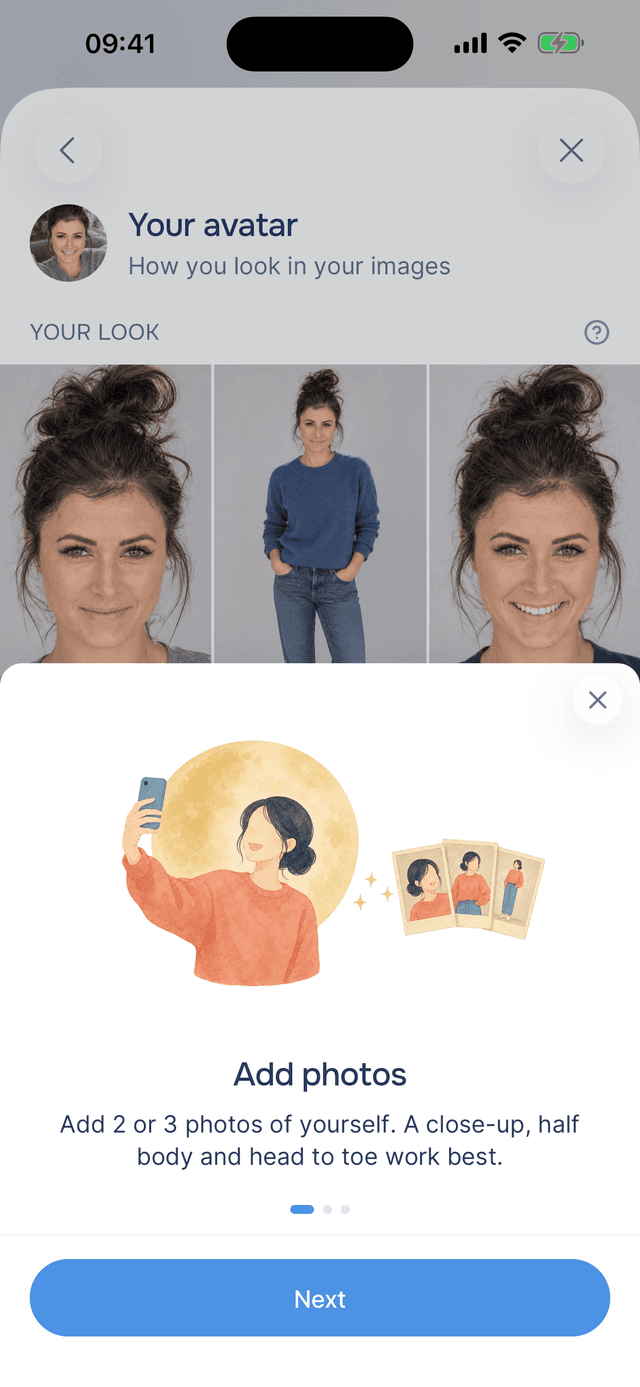
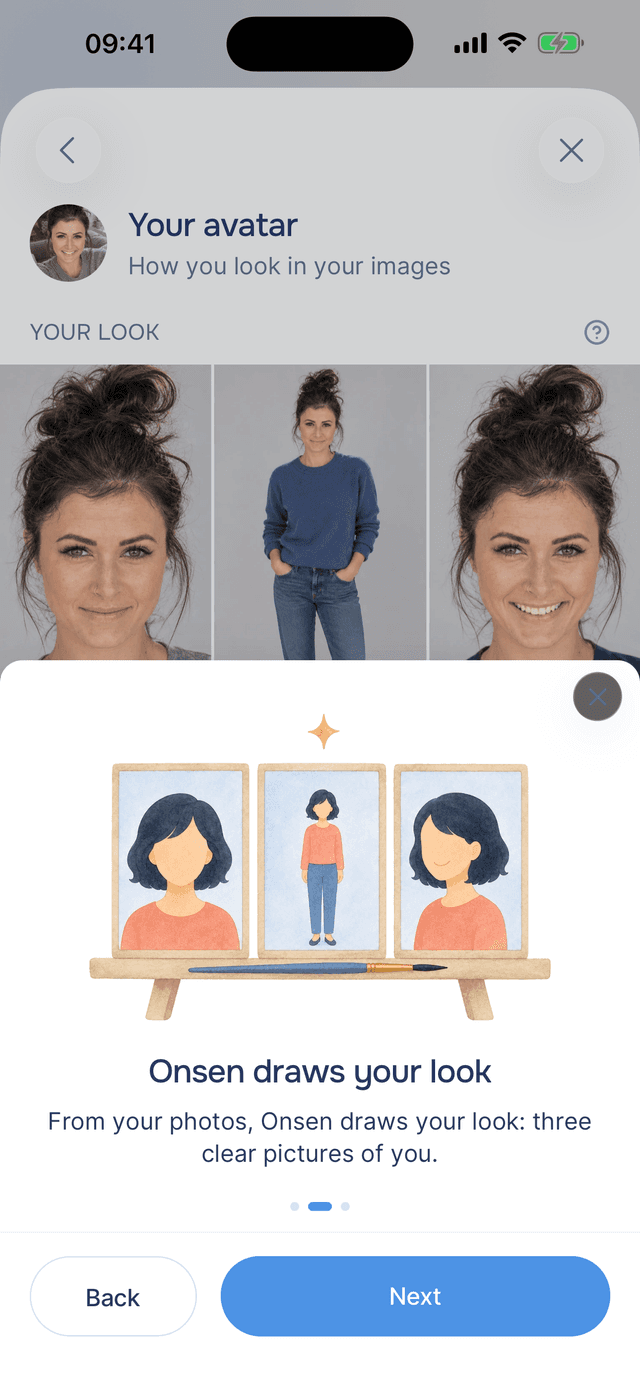
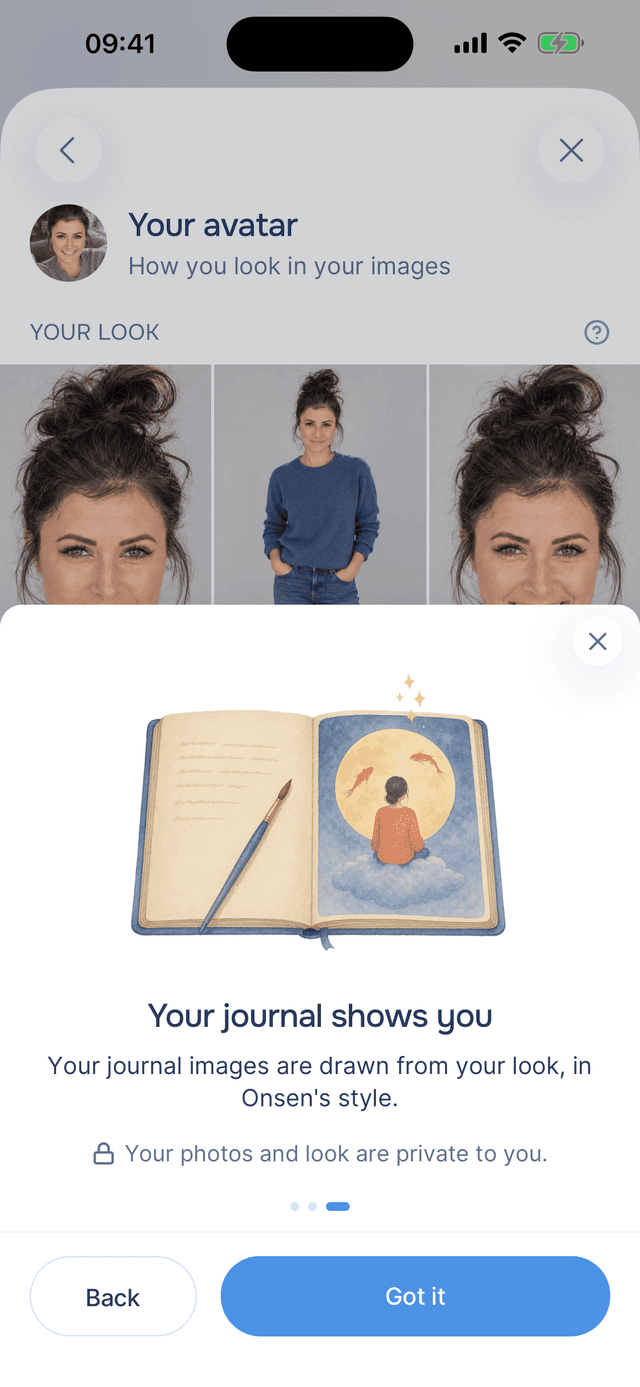
Tap beside Your look for a short explainer in three pages:
- Add photos — 2 or 3 photos of yourself. A close-up, half body and head to toe work best.
- Onsen draws your look — three clear pictures of you, drawn from your photos.
- Your journal shows you — your journal images are drawn from your look, in Onsen's style. Your photos and look are private to you.
Your look
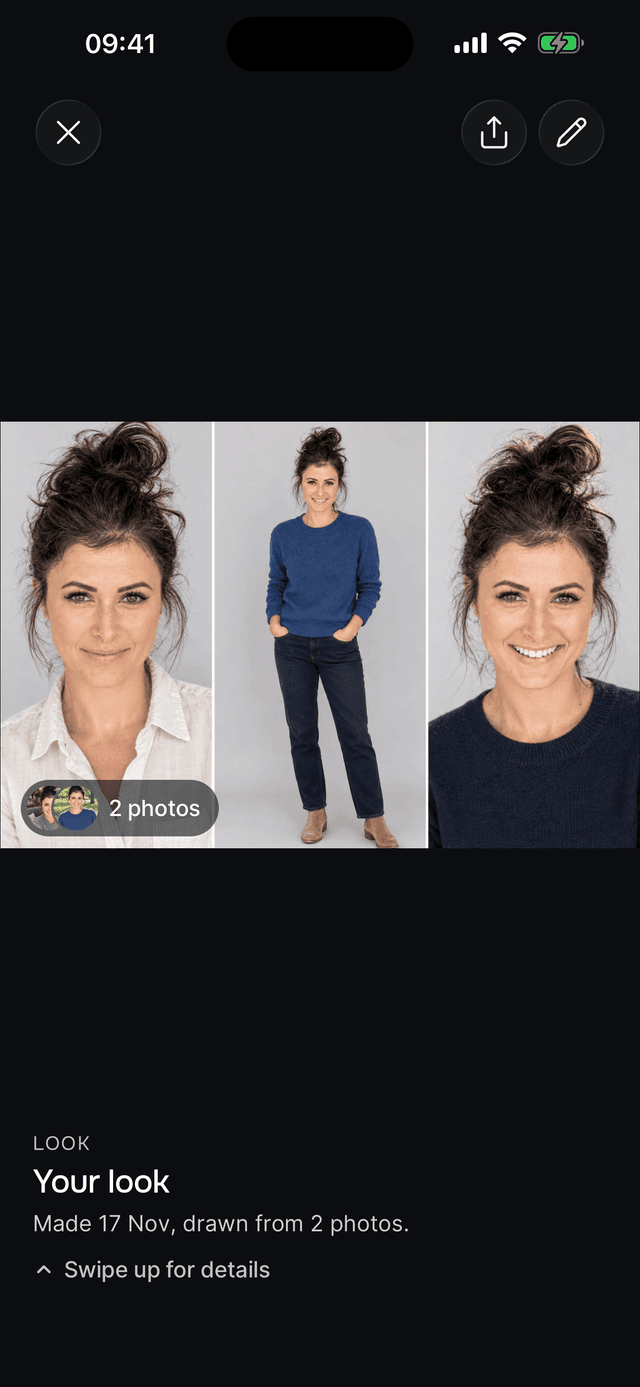
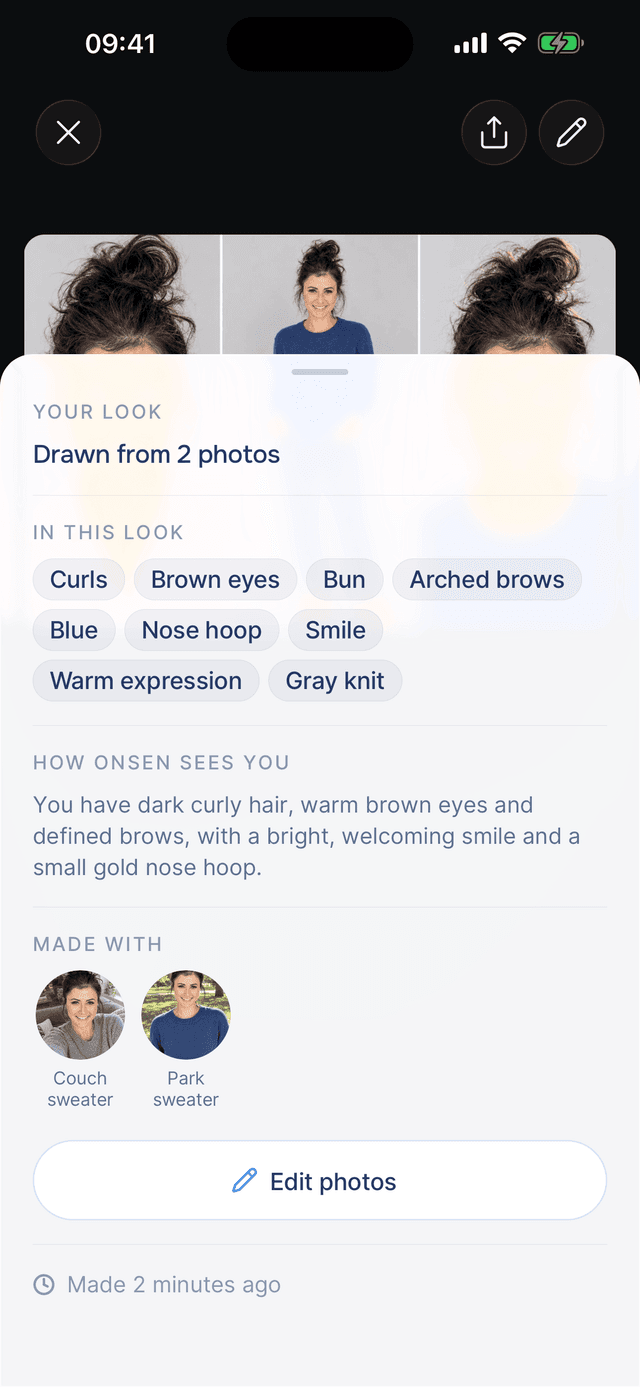
Tap your look to open it full screen. It shows when it was made and how many photos it was drawn from. Swipe up for the details:
- In this look — the details Onsen picked out, such as hair, eyes and clothes.
- How Onsen sees you — a short description of you.
- Made with — the photos the look was drawn from.
- Edit photos
Share at the top lets you share or save your look.
Your photos
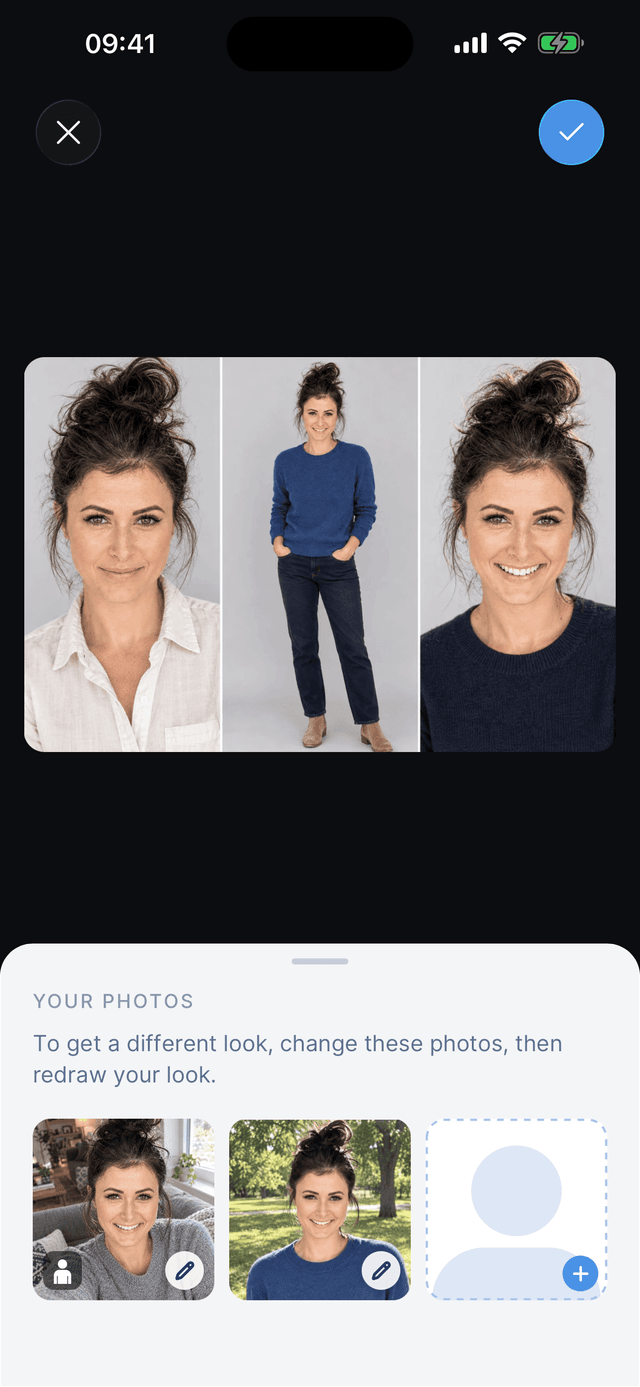
Open your look and tap , or Edit photos in its details, to change the photos it is drawn from. Your photos shows up to 3 slots: "To get a different look, change these photos, then redraw your look."
- Tap an empty slot to add a photo: Take a photo opens Onsen's in-app camera on the front camera, or Choose from your photos.
- Tap on a photo to open it.
- Tap when you're done.
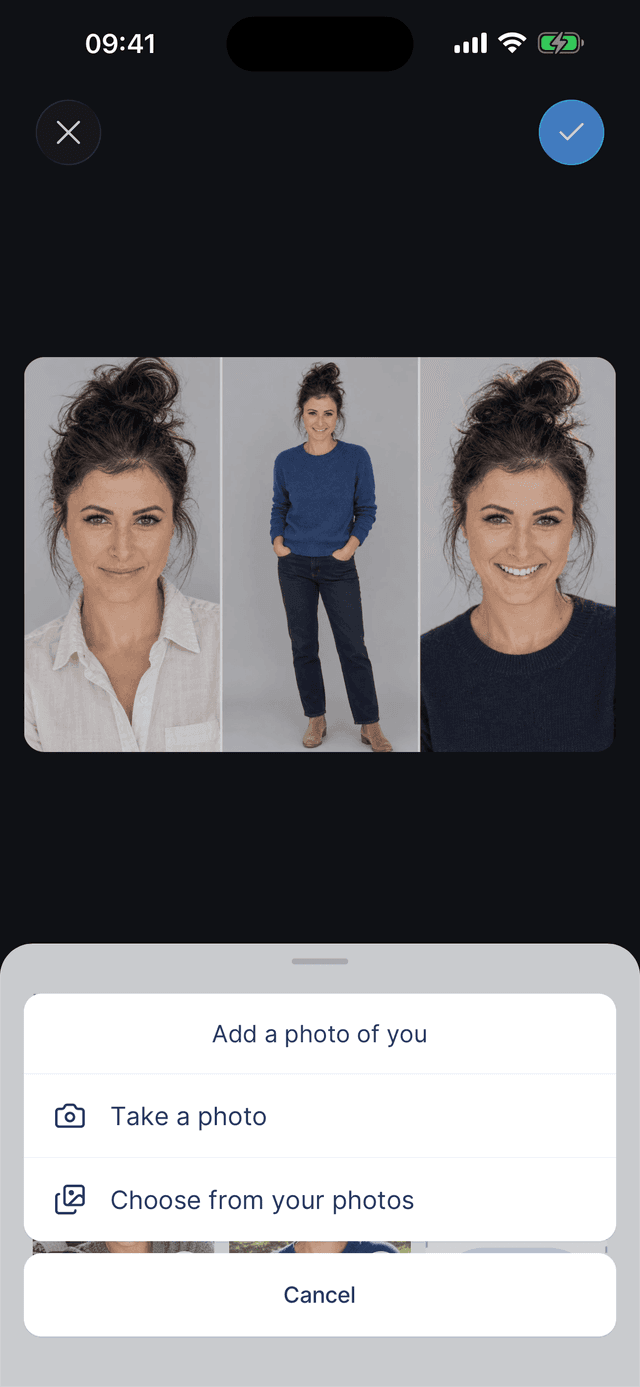
Onsen checks every new photo before keeping it. A photo with more than one person in it, or one that doesn't look like the same person, isn't kept, and Onsen tells you why.
A photo's details
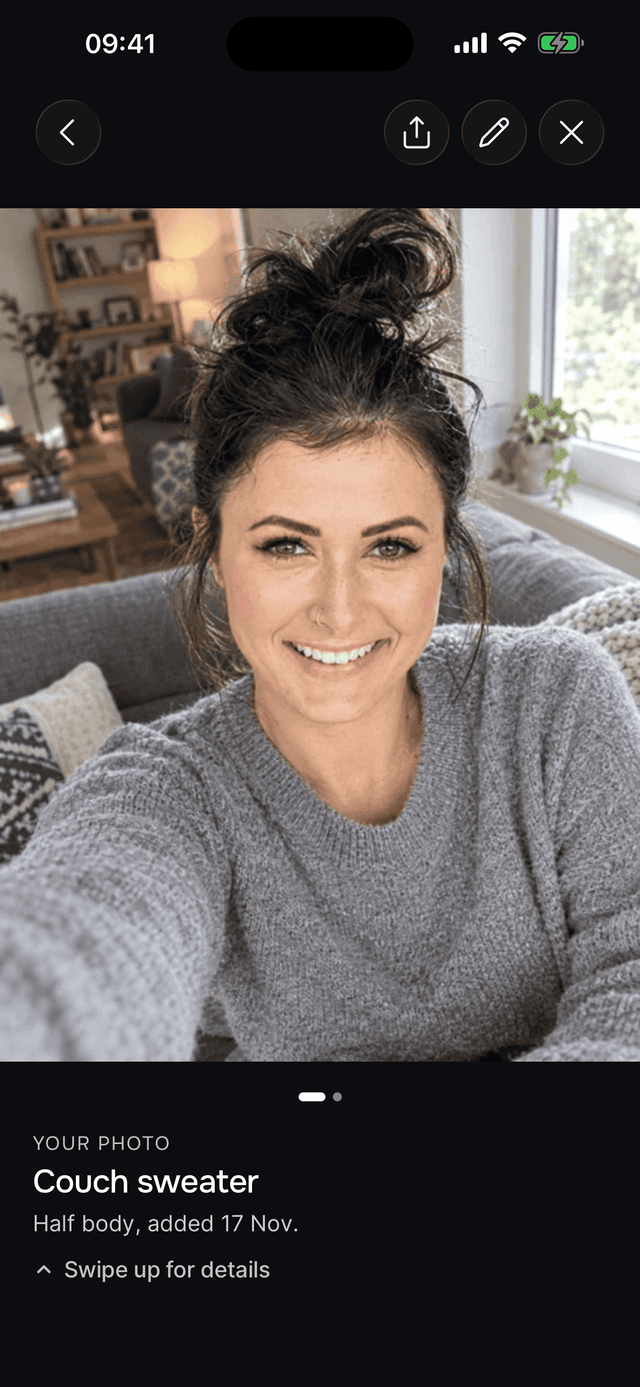
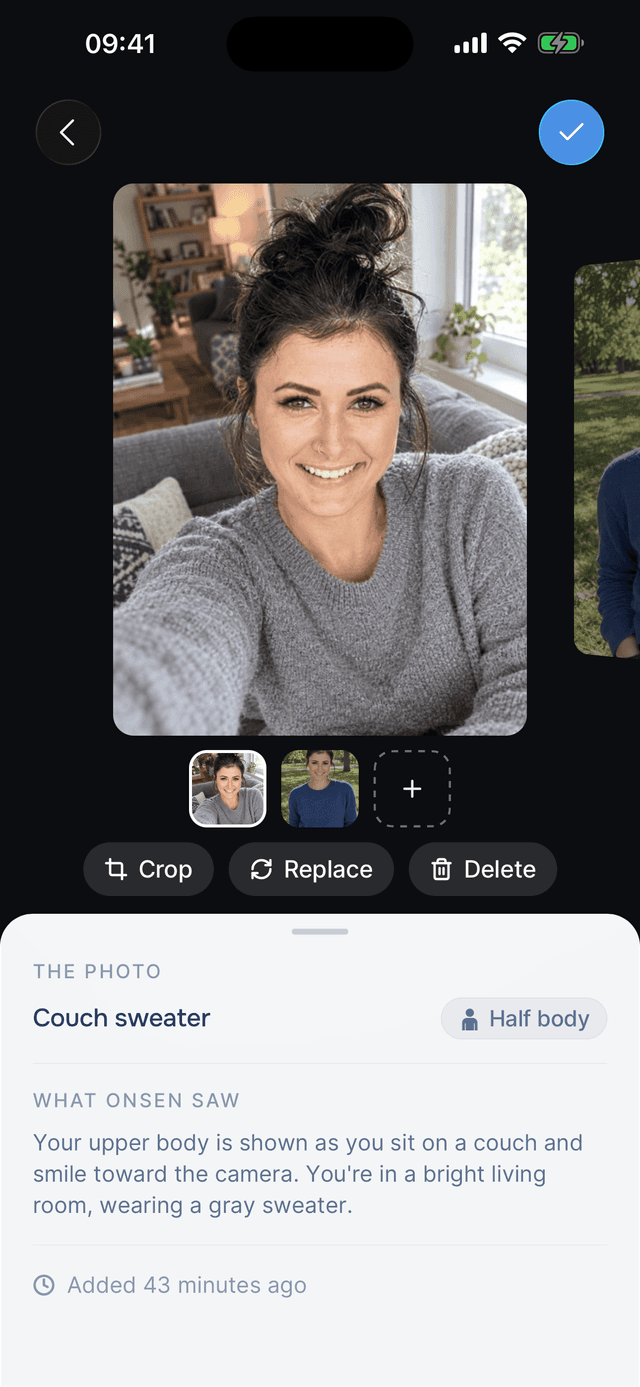
Open a photo to see it full screen, with the name Onsen gave it (like "Couch sweater"), its framing — close-up, half body or head to toe — and when you added it. Tap for its details and actions:
- Crop — change the crop. The crop editor opens on the whole photo.
- Replace — swap it for another photo: Take a photo or Choose from your photos.
- Delete — remove it.
- What Onsen saw — a short description of the photo.
Redrawing your look
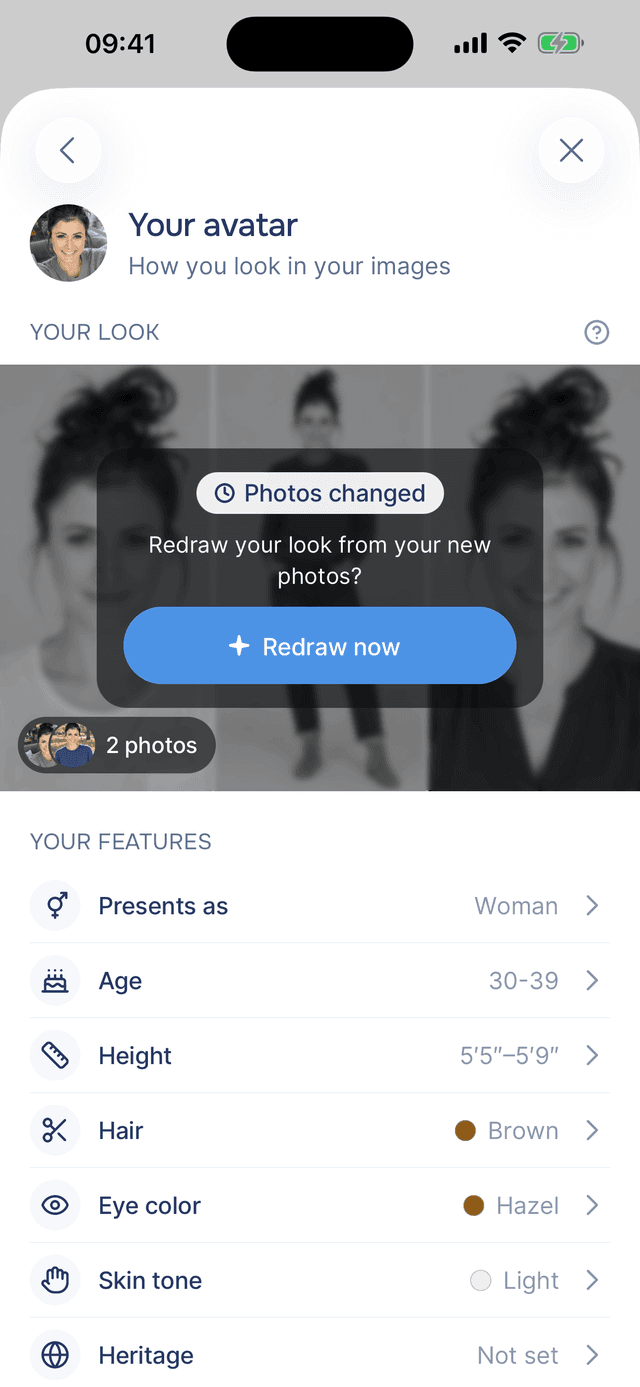
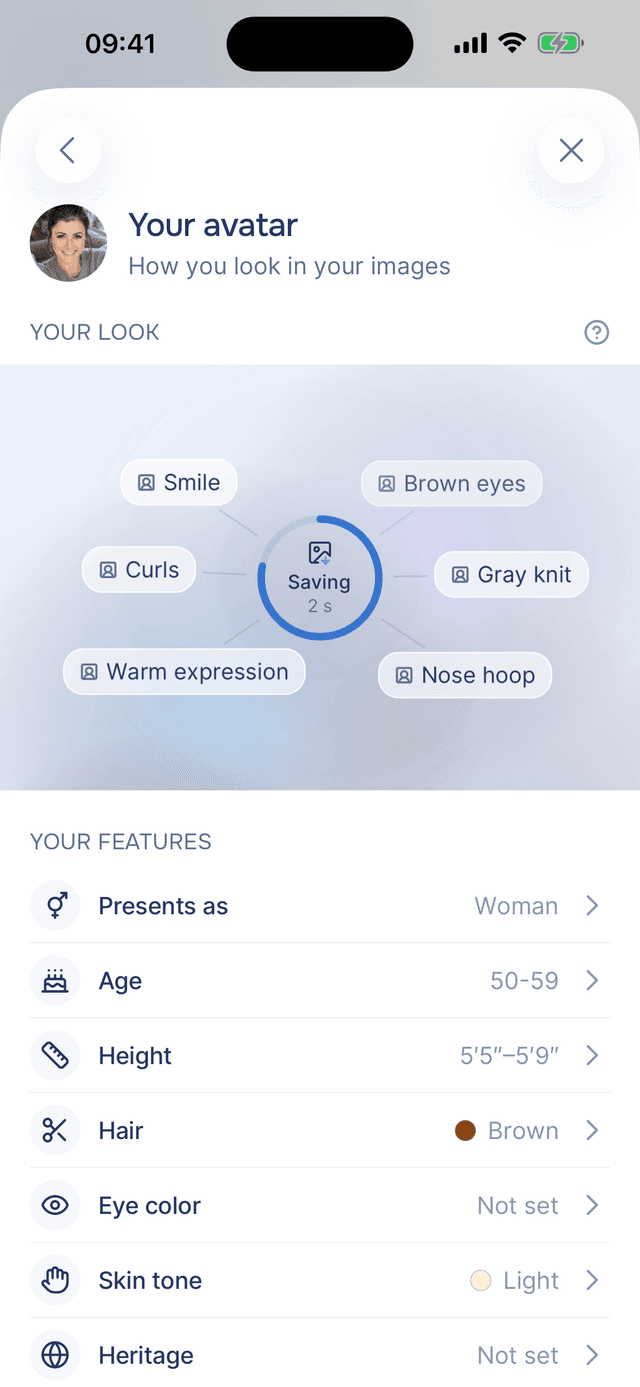
After you change your photos, your look says Photos changed — it was drawn from your old photos. Tap Redraw now and Onsen draws it again from your new ones. While it works, a ring shows each stage — reading your photos, drawing, saving — with the details it picks out appearing around it.
A look needs at least 2 photos. With only one, Onsen asks you to add one more. If you've reached your image limit, Onsen tells you instead of drawing.
Your features
Your features lists each feature with its icon and current value:
- Presents as — Man, Woman or In between: how you are drawn, not who you are
- Age
- Height — in feet and inches or centimeters, depending on your phone's region
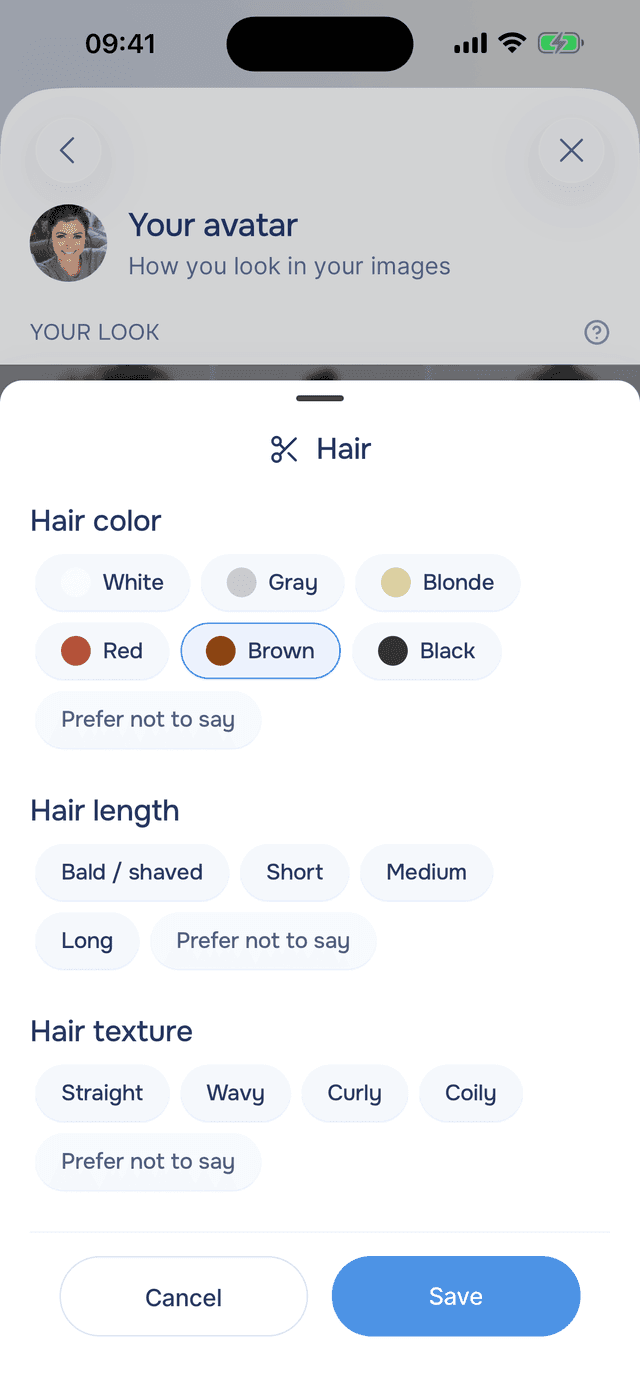
- Hair — color, length and texture
- Eye color
- Skin tone
- Heritage
- Facial hair — not shown when it doesn't apply
Tap a feature to change it, then tap Save. Each one also has Prefer not to say. Your next journal images use the change: "Saved. Write a new entry to see the change."
Fill in from my photos
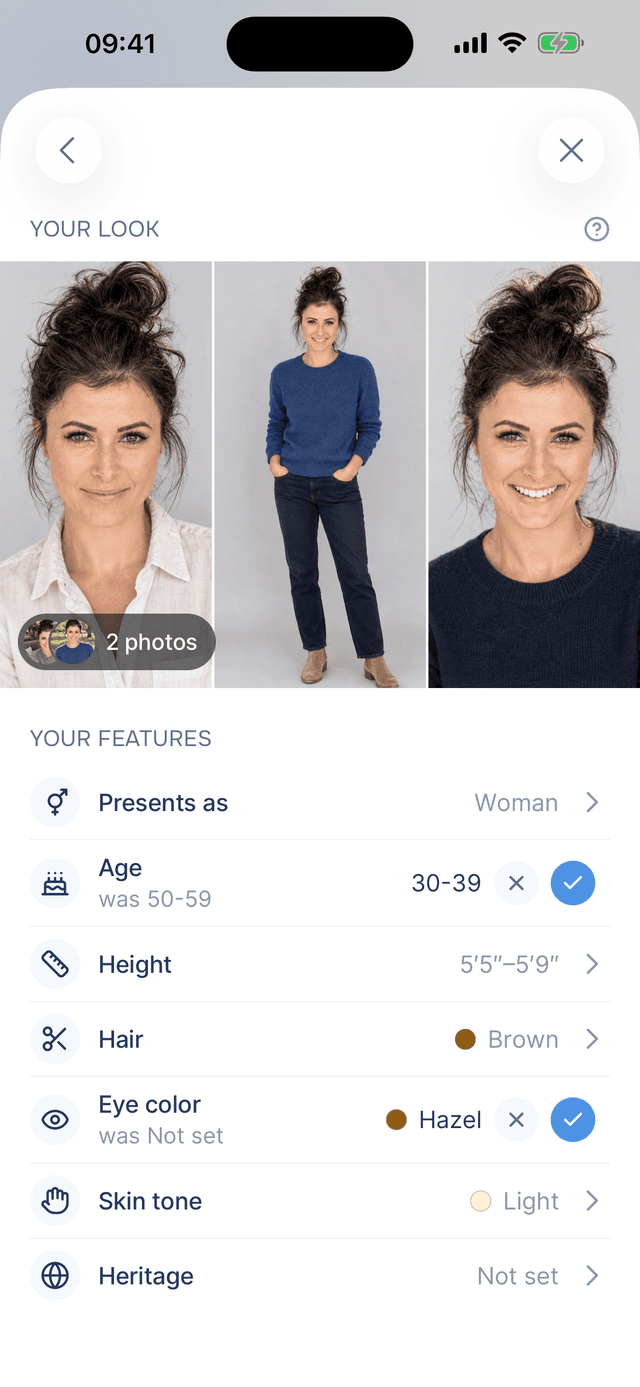
After you change your photos, Fill in from my photos appears under your features. Onsen reads your photos and suggests changes. Each suggestion appears on its row, with what it was before — for example "Age 30–39, was 50–59":
- Tap to use it.
- Tap to keep yours.
If your photos agree with your features, Onsen says "Your photos match what is here." You can use it once for each new set of photos. A feature you set to Prefer not to say is never changed.
Privacy
Your photos and your look are private to you. Onsen uses them only to draw you in your images. Deleting your account permanently removes them along with the rest of your data. See the Privacy Policy for full details.
Tips
- Mix your shots — a close-up, half body and head to toe give Onsen your face and your build.
- Redraw after changing photos — your images keep using the old look until you do.
- Check suggestions one by one — Fill in from my photos is a starting point; keep anything you know is right.
- Height is yours to add — a photo can't show it reliably.