

Shared Entries
Review everything you've shared and everything shared with you — change permissions, review public links, and stop sharing, all in one place.
Overview
Sharing happens entry by entry, but staying in control shouldn't mean opening entries one by one. Settings → Shared Entries gathers all of it on a single screen, split by direction into two tabs: Shared by me — every entry you've shared and who has it — and Shared with me — every entry someone has shared with you. Tap a tab or swipe between them; each shows its count, so you always know how much is out in the world.
To open it, go to Settings and tap Shared Entries in the Account section.
Shared by Me
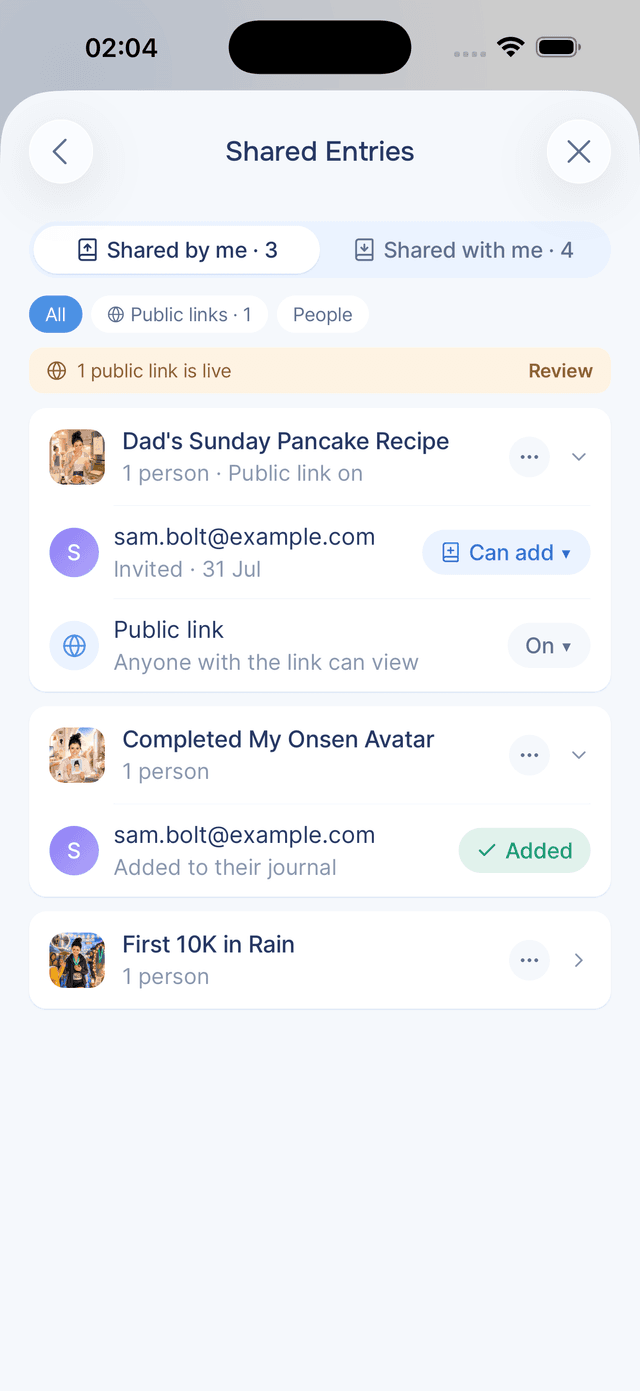
Your outgoing shares are grouped one card per entry, with the entry's artwork and title at the top and a count of where it's gone. Tap a card to expand it into a row for each place:
- People you've invited, each with their permission — Can add, Can view, or a green Added once the entry is in their journal.
- The entry's public link, marked with a globe, if you've created one.
Tap a person's row to change their permission (until they've added the entry), copy their personal link, or Stop sharing. Tap the public link row to copy it, share it, or turn it off. The button on the card opens the entry itself or stops all of its sharing at once. Everything here works exactly like the entry's own share sheet — same permissions, same promises.
Reviewing Your Public Links
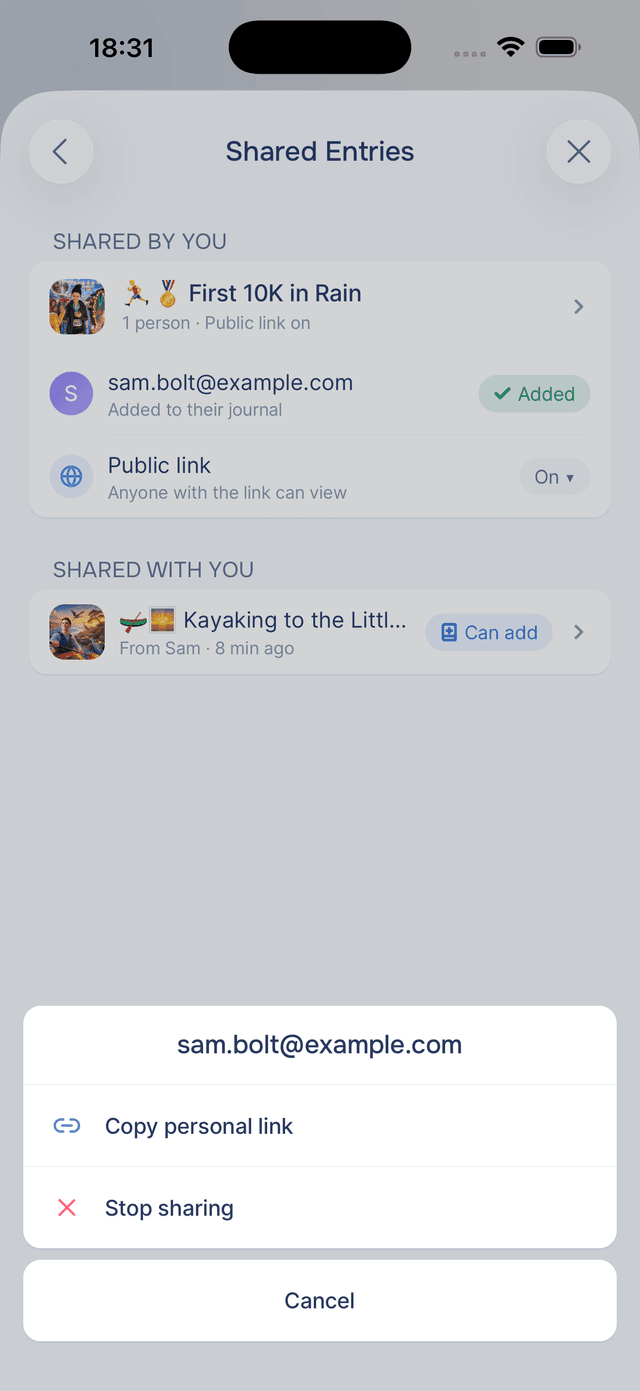
Public links are the widest doors, so they get their own spotlight. When any are live, a soft banner above the list says how many — tap Review (or the Public links chip) and the tab narrows to just the entries with a live link, ready to check or turn off. The People chip is the mirror view, and All brings everything back.
Stopping All Sharing for an Entry
Shared an entry with several people and want it back? Tap the card's button and choose Stop all sharing. Every invite and the public link stop working at once, and the entry is removed from any journals it was added to — the same full retraction as stopping shares one by one, in a single tap.
Shared with Me
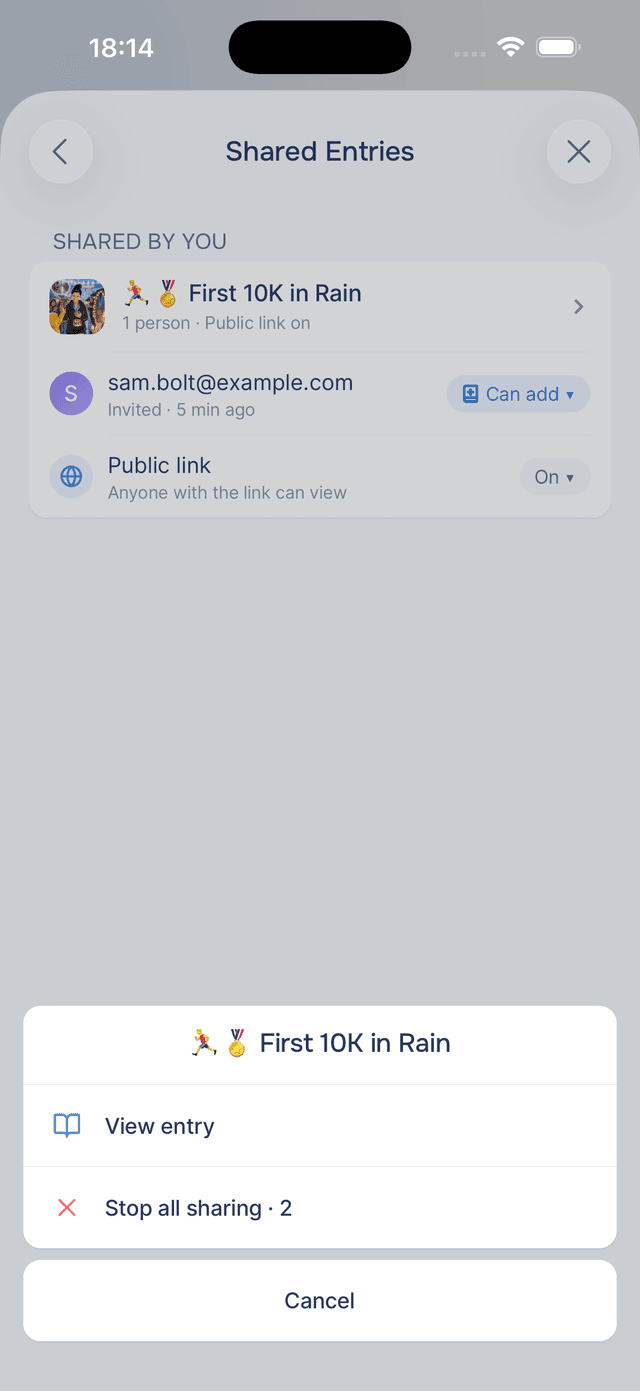
The second tab lists every active share you hold — invites you haven't accepted yet, view-only entries, and the ones already in your journal. Each row shows the entry's artwork, who it's from, and where things stand: Can add, View only, or Added.
This is your way back to any shared entry without digging the link out of an email. Tap a pending or view-only row to open it — and if it's one you can add, the Add to My Journal button will be right there waiting. See Receiving Shared Entries for what adding means.
Removing an Entry You Added
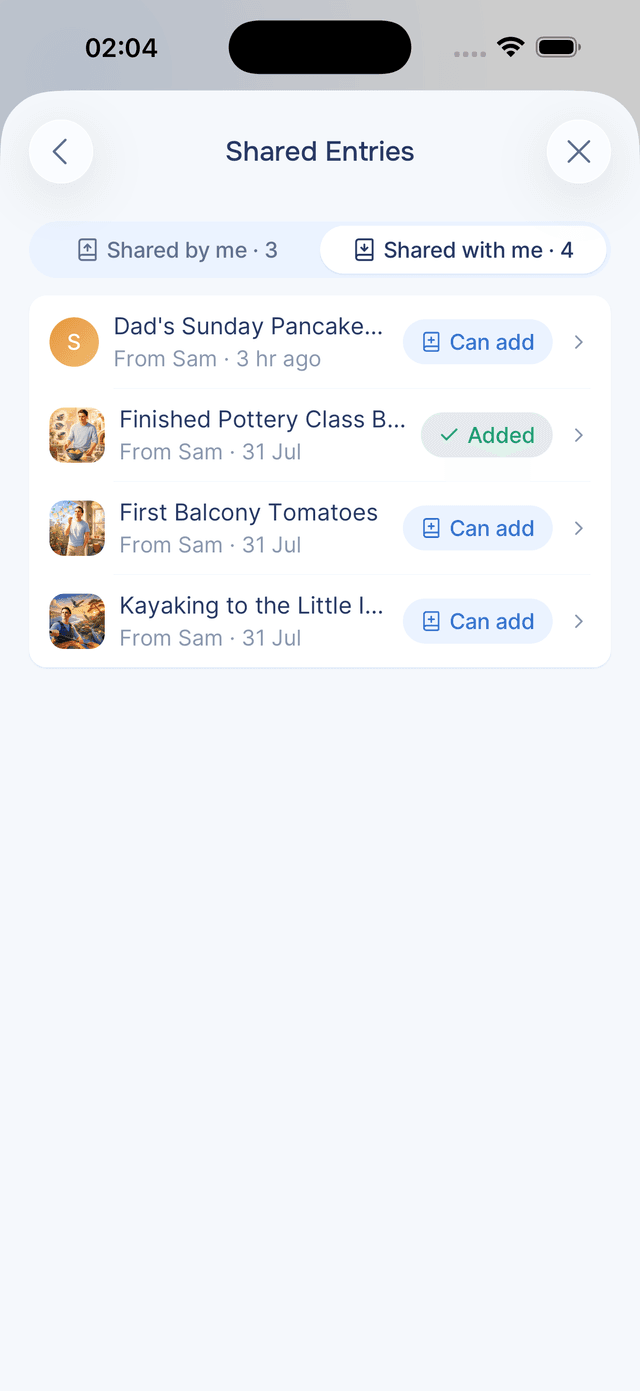
Changed your mind about an entry you added from a share? Tap its Added row and choose Remove from My Journal. The entry and what Onsen remembered from it are removed — and as long as the share is still active, you can add it back any time from the same row.
Keeping the List Fresh
Pull down to refresh either tab. If you share generously, each tab shows its newest twenty and offers Show more at the bottom to load the rest.
Tips
- Do a sharing check-in now and then — the tab counts and the public-links banner give you the whole picture in one glance, the way you'd review app permissions.
- Permissions lock once added — while an invite is pending you can switch between Can add and Can view here; after they add the entry, stopping the share is the remaining control.
- "Not now" isn't "never" — invites you set aside wait under Shared with me until you're ready, or until the sharer stops sharing.