

Sharing Entries
Share a journal entry with someone you trust — as a personal invite or a public link — and stay in control of it forever.
Overview
Some entries are worth sharing — a breakthrough you want a friend to see, a memory that belongs to both of you, a reflection your partner should read. Onsen lets you share any journal entry in two ways: a personal invite to one specific person, or a public link anyone can view. Either way, you stay in control: you decide what each person can do with your entry, and you can stop sharing at any moment — even after they've added it to their own journal.
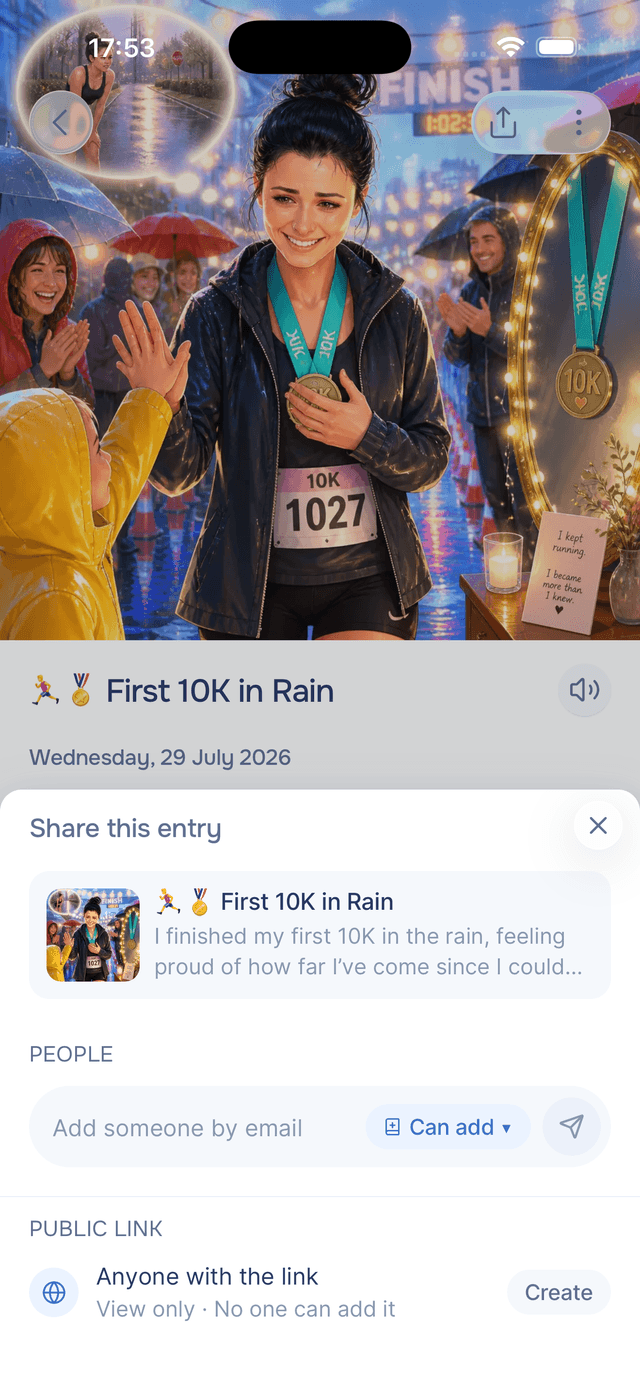
Sharing an Entry
There are three ways to start sharing:
- Tap the share button at the top of any entry.
- Open the entry menu with and choose Share.
- Long-press an entry card in your journal and choose Share from the context menu.
All three open the same share sheet, which also shows everyone who already has the entry — so sharing and managing happen in one place.
Inviting Someone
Type an email address, pick what they can do, and tap to send. Your invite arrives by email, and if they already use Onsen, they also get a notification in the app.
Each invite creates a personal link that only works for that person — even if it gets forwarded, only the account with the email address you entered can open the entry. That means it's safe to send however you like: you can also copy their personal link from the share sheet and paste it into a chat yourself.
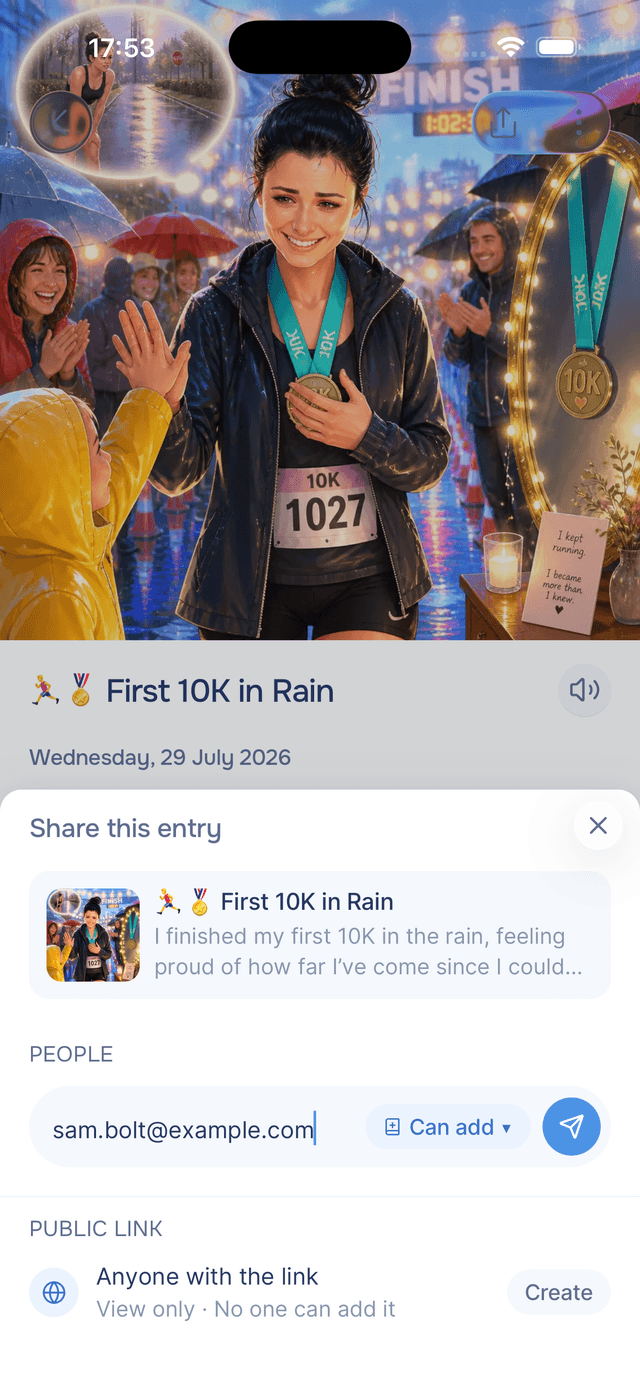
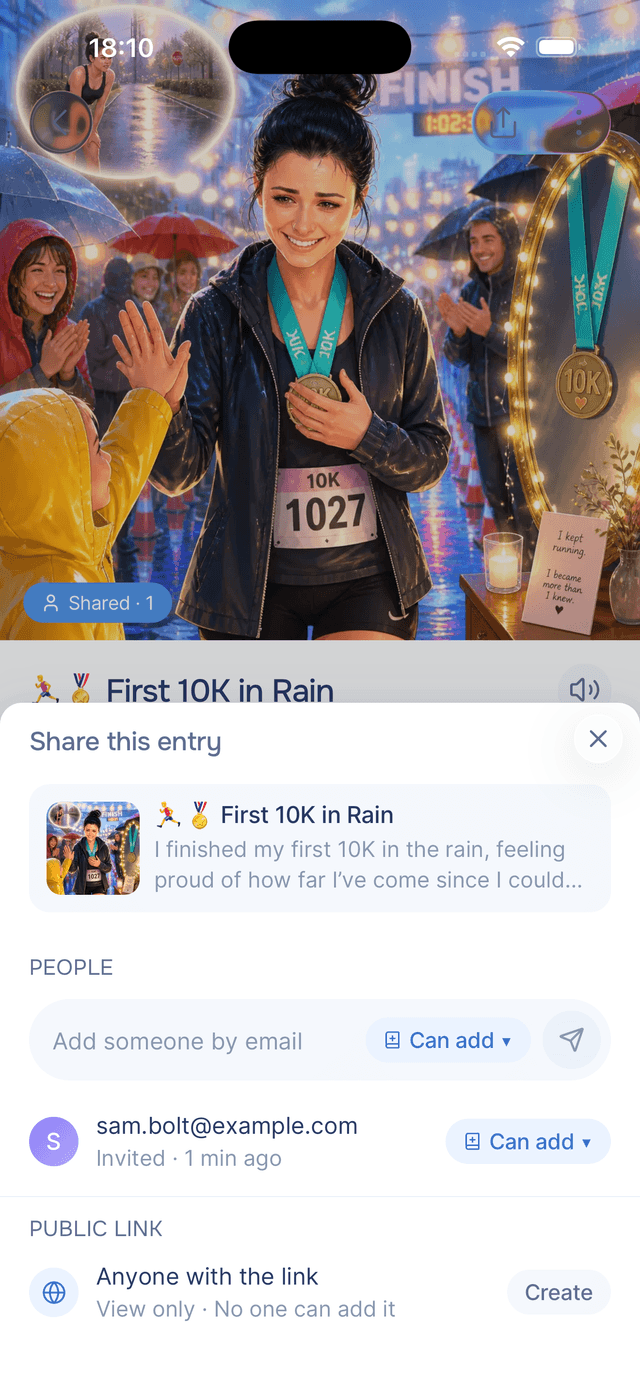
To keep inboxes friendly, you can send up to 10 invites per day.
Choosing What They Can Do
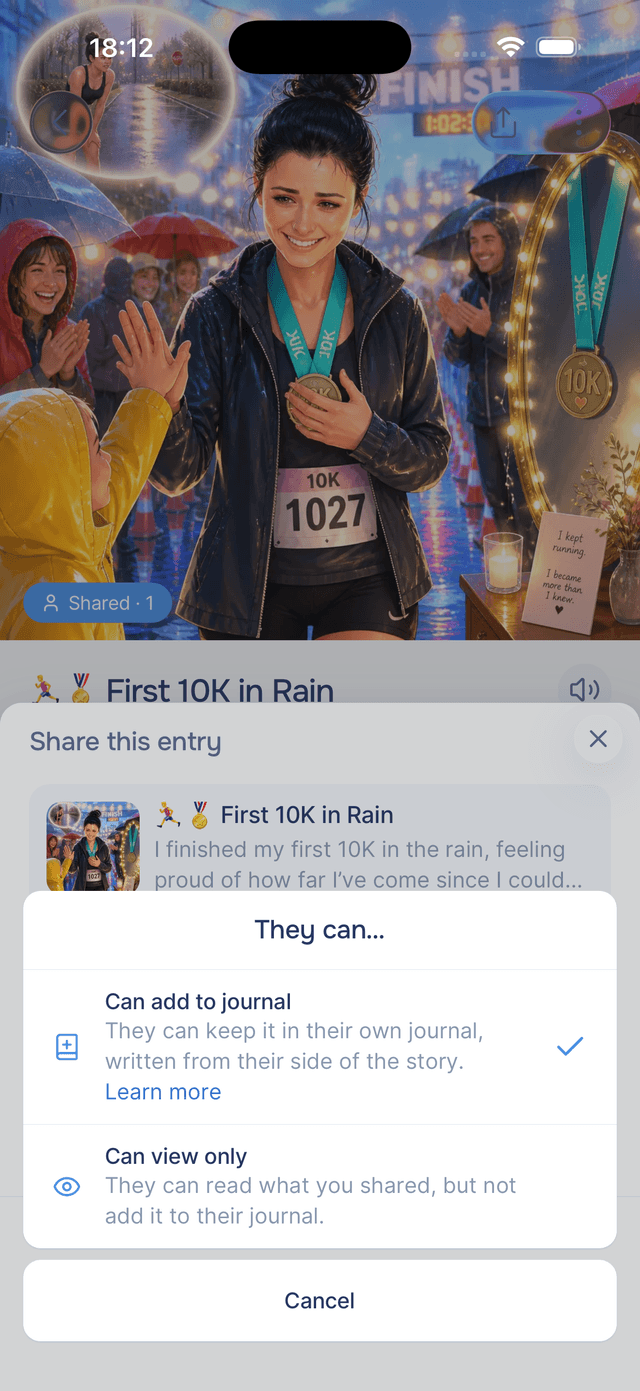
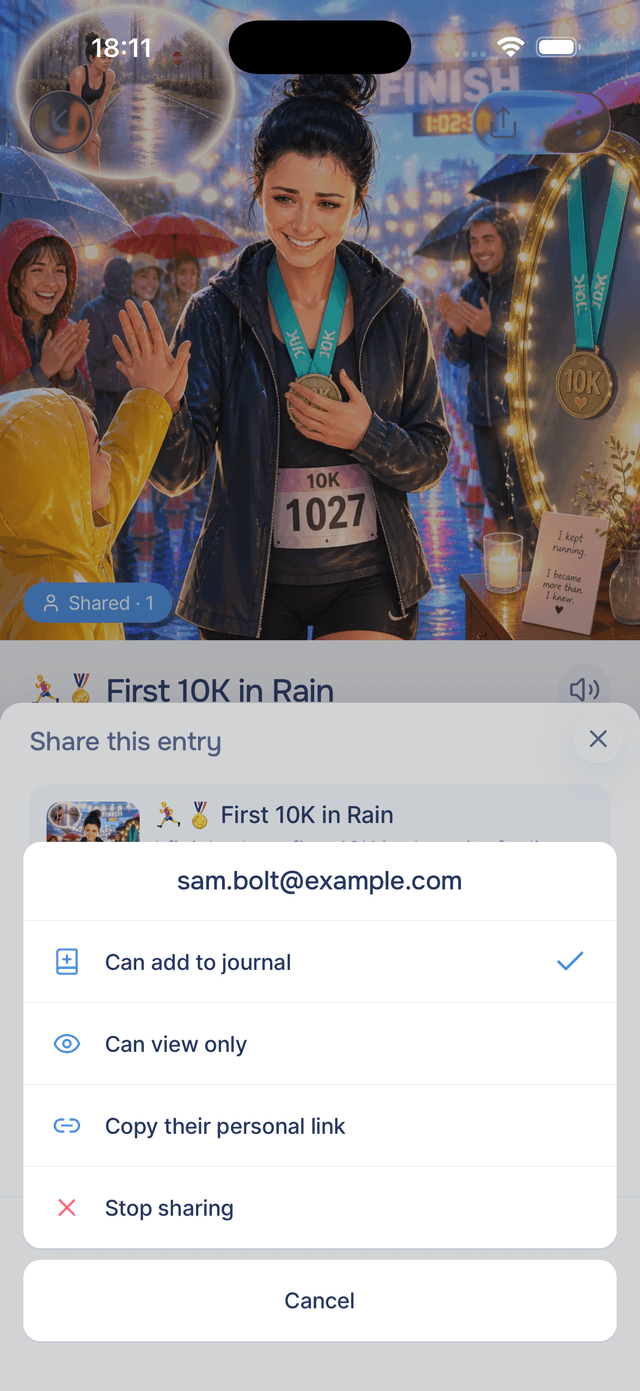
Every invite carries a permission, and you can tell them apart at a glance by their icons:
| Permission | What it means |
|---|---|
| Can add to journal | They can read your entry and add it to their own journal, where it becomes part of their story too. See Receiving Shared Entries for what that looks like on their side. |
| Can view only | They can read what you shared, but not add it to their journal. |
You can change a person's permission at any time by tapping their row in the share sheet — until they add the entry. Once they've added it, their row shows a green Added, and the permission is settled: the only control left is stopping the share, which removes the entry from their journal too.
The Public Link
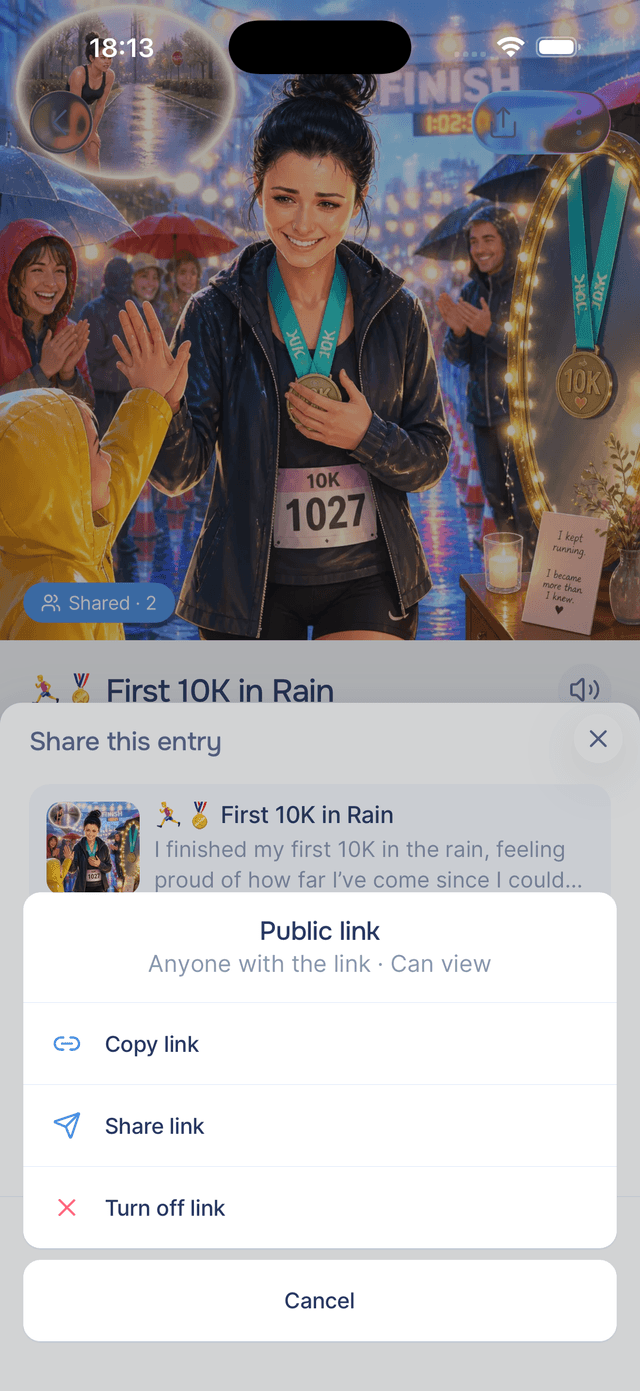
The Public link section of the share sheet creates a single link for the entry that anyone can open — it renders as a beautiful web page, no Onsen account needed. Public links are always view-only: no one can add a publicly shared entry to their journal.
Each entry has one public link. If you turn it off and later share publicly again, you get a fresh link — the old one stays dead. Tap the public link row to copy it, share it through any app, or turn it off.
What They See
A share is a snapshot: the entry's text, title, and artwork exactly as they are at the moment you share. If you later edit the entry or regenerate its image, what you shared doesn't change — people see what you chose to show them, nothing more and nothing less.
Seeing What You've Shared
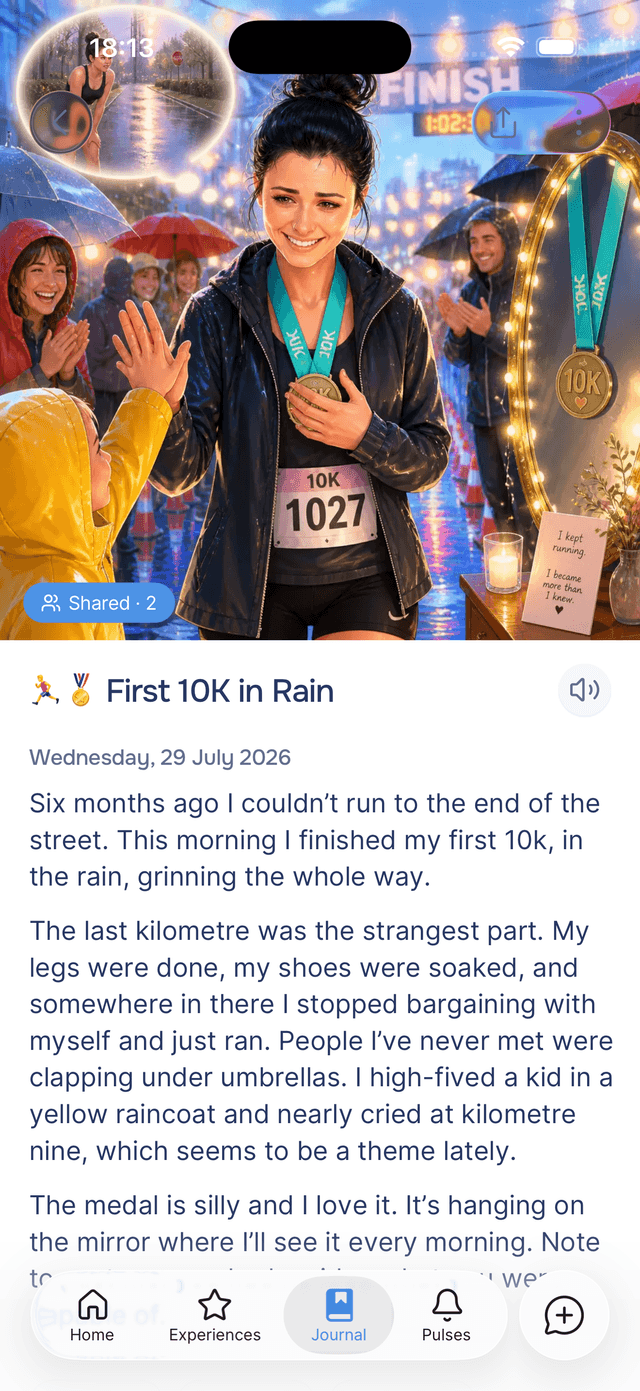
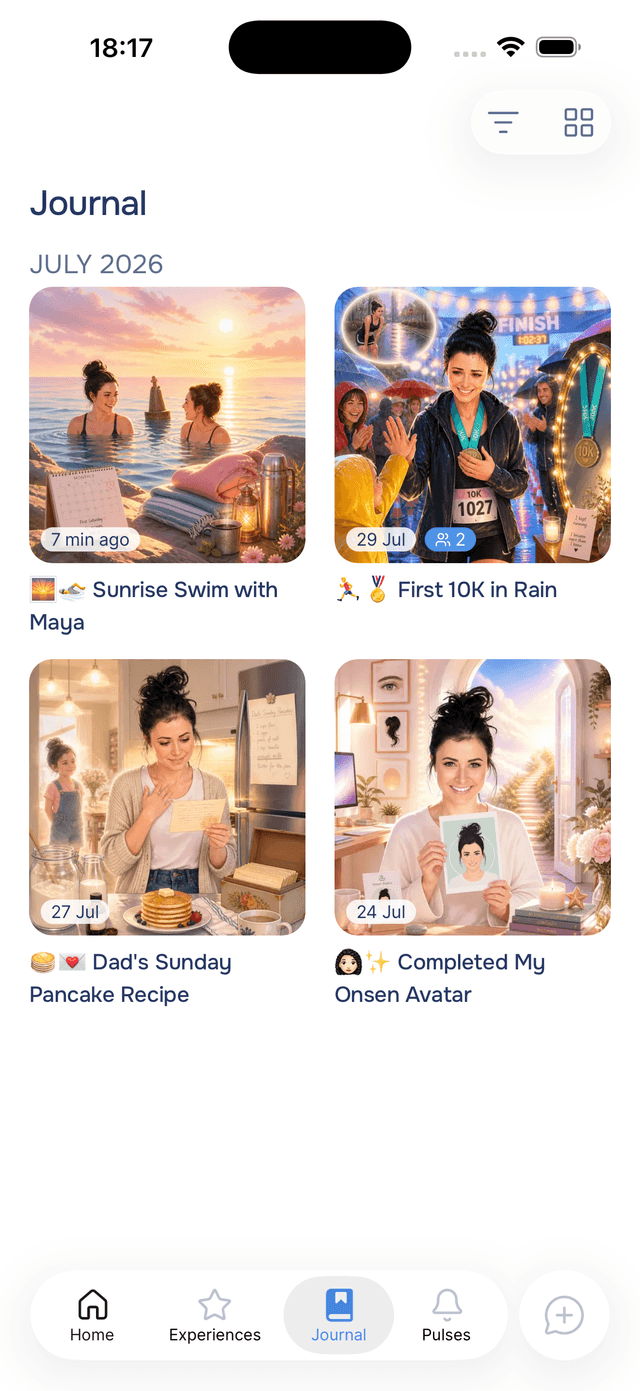
Shared entries carry a small blue pill so you always know what's out in the world:
- On your journal cards and the entry page, the pill reads Shared · 2 — the number of people and links that currently have the entry. On the entry page, tapping the pill opens the share sheet.
- In the entry menu, the Share row shows the same count.
Stopping a Share
You keep final say forever. From the share sheet, tap a person's row and choose Stop sharing — their link stops working, and if they added the entry to their journal, it's removed from there too, along with anything Onsen learned from it in their conversations. Turning off the public link works the same way: the page disappears for everyone.
Sharing with several people? Open Settings → Shared Entries, tap the entry, and choose Stop all sharing to retract every invite and the public link in one go.
Managing All Your Shares
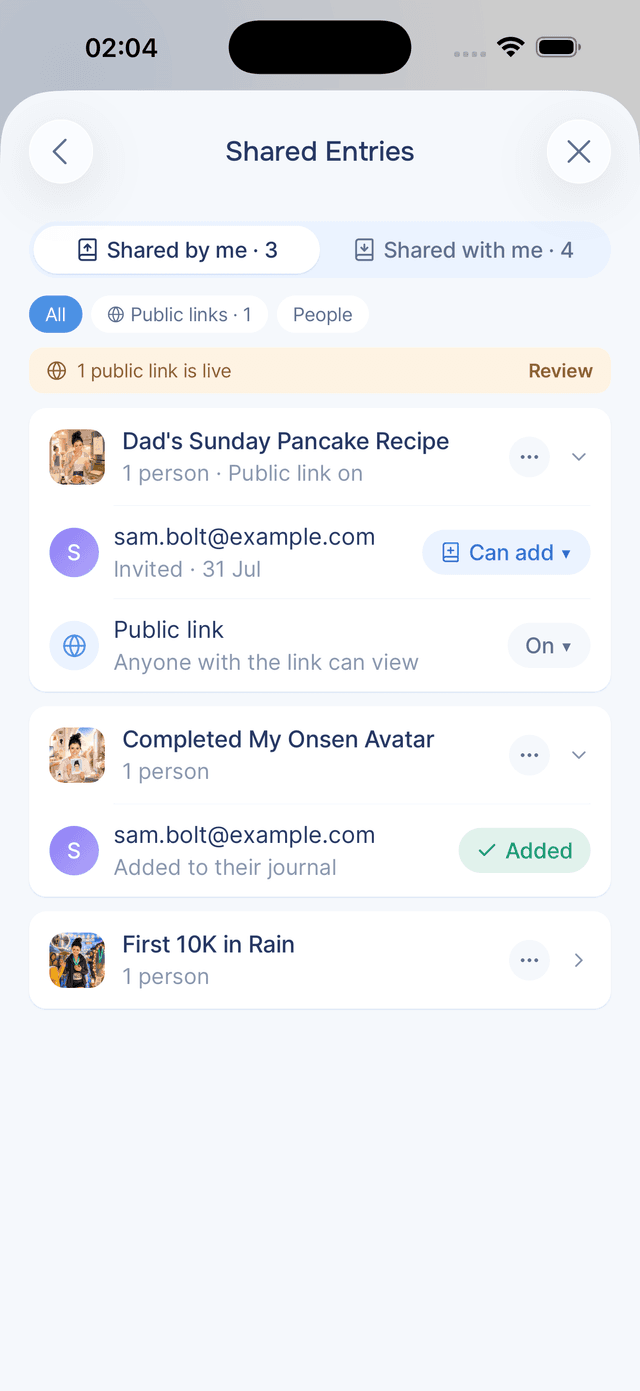
Settings → Shared Entries lists everything you've shared, grouped by entry — every person, their permission, and each entry's public link — plus everything shared with you. It's the easiest place to review what's out there and pull anything back. See Shared Entries in Settings for the full tour.
Tips
- Default to personal invites — a personal link only works for the person you sent it to, so it can't wander. Save the public link for things you'd be happy for anyone to read.
- Use "Can view only" for tender things — they can read it, sit with it, and talk to you about it, without it entering their journal.
- Check the pill before you edit — the share is a snapshot, so edits won't reach people who already have it. If you want them to see the new version, stop the old share and share again.
- You can always take it back — stopping a share removes the entry everywhere it went, including from journals it was added to. That promise is the heart of how sharing works in Onsen.