

Receiving Shared Entries
Open an entry someone shared with you, add it to your journal in your own voice, and find it again later.
Overview
When someone shares a journal entry with you, you get more than a link — you get the chance to make their moment part of your own story. Open the invite, read the entry exactly as they wrote it, and if they've allowed it, add it to your journal. Onsen writes your copy from your side of the story, with their words quoted inside, so your journal stays truthfully yours.

Opening a Share Link
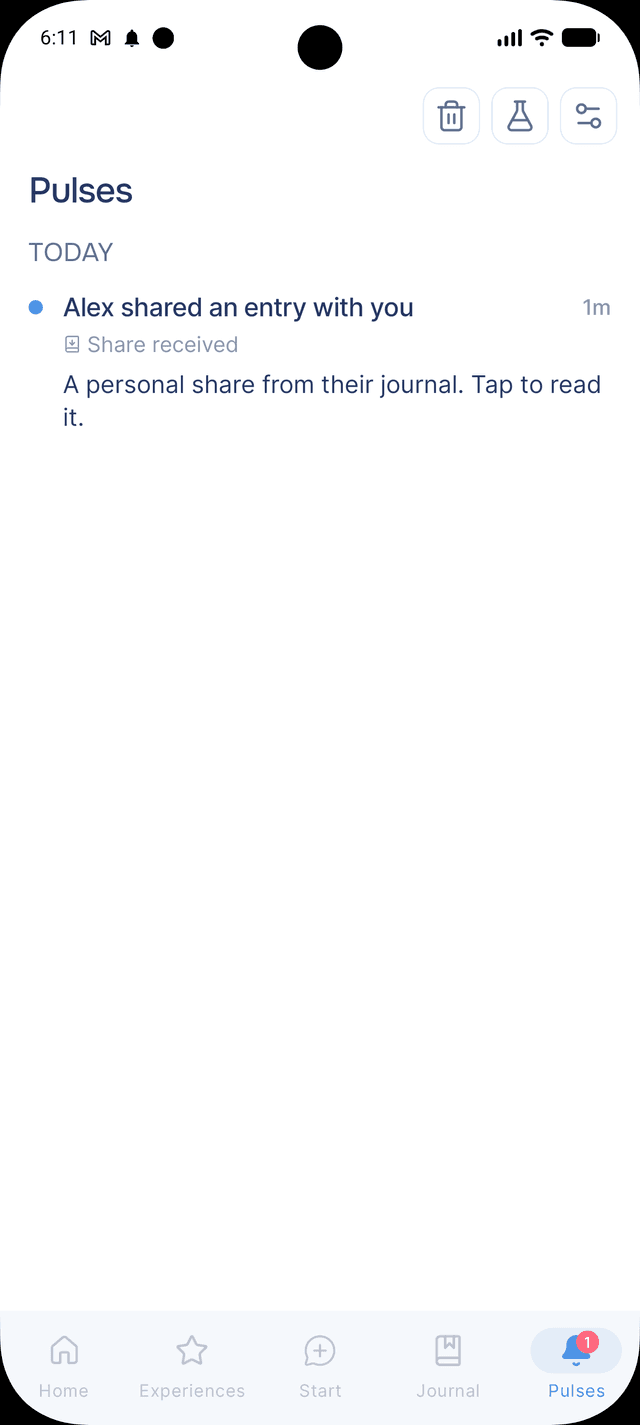
Invites arrive by email, and as an Onsen notification if you already have the app. Tapping the link opens the entry right in Onsen — full artwork, title, and text, presented just like a journal entry.
One thing to know: a personal invite is tied to the email address it was sent to. If the entry won't open, make sure you're signed in to Onsen with that same address — a forwarded link shows nothing to anyone else, which is exactly what keeps shared entries private.
Adding It to Your Journal
If the sharer chose Can add to journal, you'll see Add to My Journal. Tap it, and Onsen creates your own entry about receiving the share — written from your perspective, with the sharer's original words quoted inside. It gets the shared artwork, its own AI insights, and a place in your journal like any other entry. From then on, Onsen remembers it in your conversations too, so your guide knows about the moment your friend shared with you.
Not ready? Tap Not Now — the invite keeps working, and you can come back to it any time from Settings.

Curious how it works? Tap How does this work? on the share screen for a quick explanation before you decide.
View-Only Shares
Some entries are shared just to be read. When the sharer chose Can view only, there's no Add button — you can read the entry, sit with it, and talk to them about it, and that's the whole gift. You can reopen it whenever you like from Settings.
Shared Copies Are a Little Different
An entry you added from a share is a faithful record of what someone handed you, so it works a bit differently from entries you wrote:
- It carries a Shared by pill with the sharer's name, on the journal card and the entry page.
- The text and artwork can't be edited or regenerated — they stay what the sharer actually shared. Insights can still be regenerated, and you can rename or delete the entry like any other.
- If you delete your copy and the share is still active, you can add it again later.
Filtering Your Journal
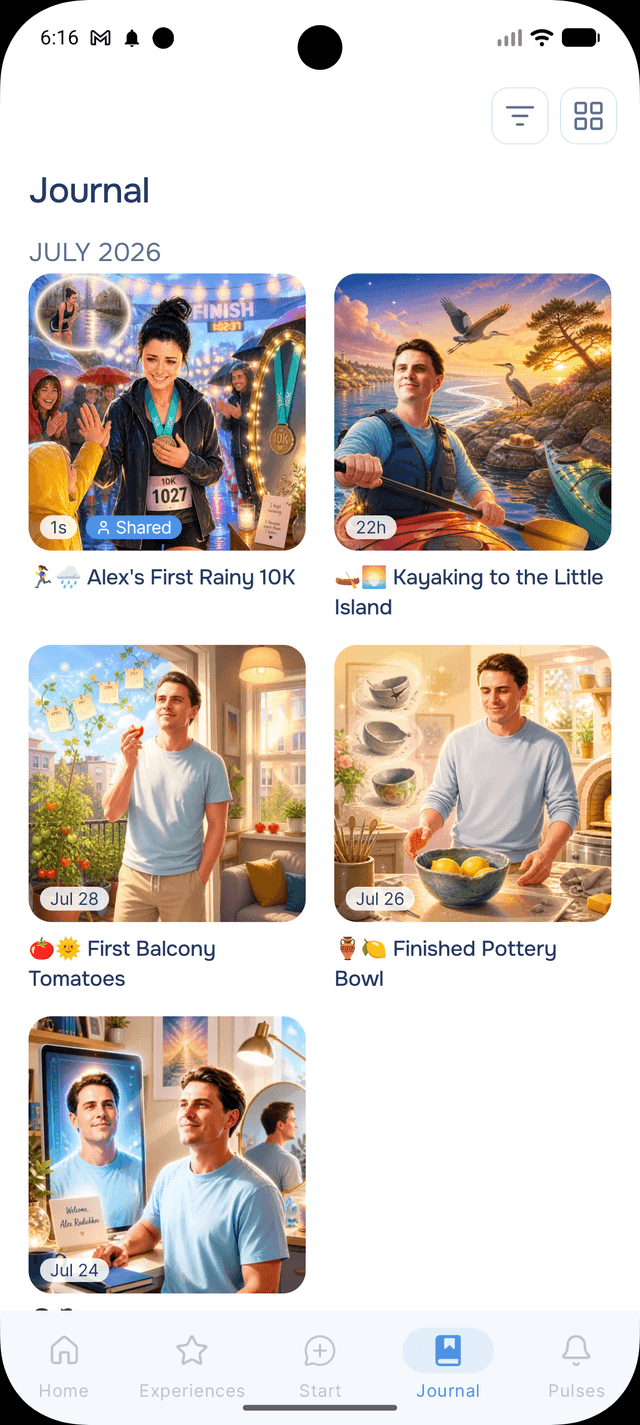
As shared entries join your own, the journal filter helps you see each side of your story. Tap at the top of your journal and choose:
- All entries — everything, together.
- My entries — just what you wrote.
- Shared with me — just the entries you added from shares.
- Shared by me — just your entries that are currently shared with others.
While a filter is active, a small pill under the Journal title reminds you the view is narrowed — tap its to see everything again. Your choice is remembered between visits.

Your Shared Entries in Settings
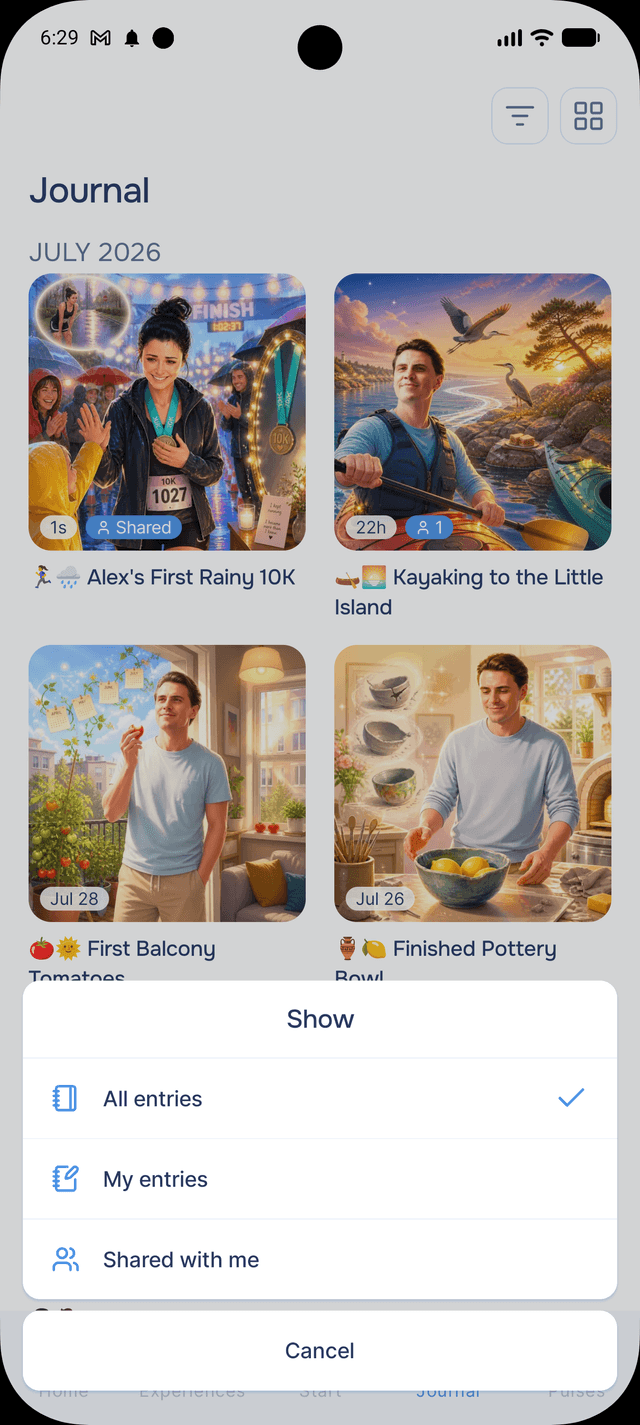
Settings → Shared Entries keeps both sides of sharing in one place. For receiving, the tab that matters is Shared with me: every active share you hold, whether or not you've added it. This is your way back to a view-only entry or an invite you tapped Not Now on, without digging through email — tap any row to open it again, and remove an added entry from your journal from the same place.
If a Shared Entry Disappears
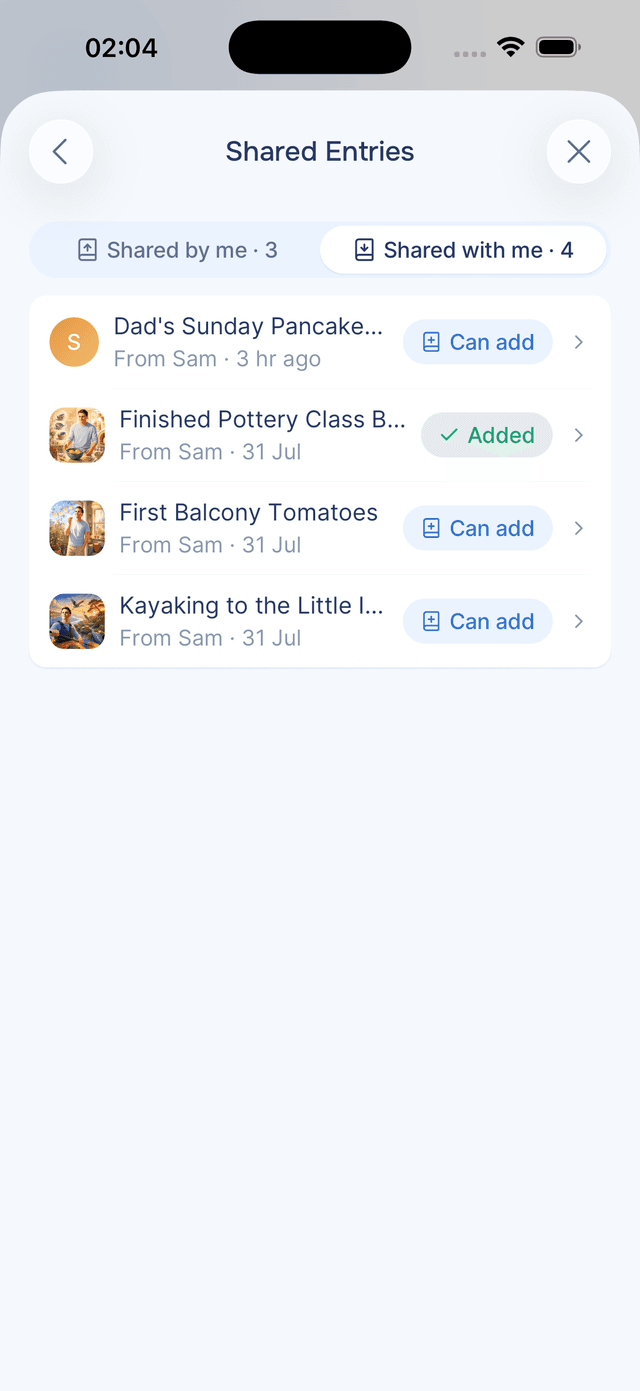
Sharing in Onsen always stays in the sharer's hands — they can stop a share at any time, and when they do, the link stops working and the entry (and what Onsen remembered from it) leaves your journal. If an entry you added is suddenly gone, that's what happened. The moment was still real; the record was theirs to share and theirs to keep.
Tips
- Sign in with the invited email — a personal share opens only for the account it was addressed to. If it won't open, that's the first thing to check.
- You don't have to decide right away — invites wait for you in Settings → Shared Entries under Shared with me.
- Your copy is yours to reflect on — it gets its own AI insights and joins Onsen's memory, so you can talk to your guide about it like anything else in your journal.
- Use the filter to revisit — Shared with me collects everything people have given you, in one warm little shelf of your journal.
Sharing Entries
Share a journal entry with someone you trust — as a personal invite or a public link — and stay in control of it forever.
The Progress Tab
See how your wellbeing is changing over time — the days you keep showing up, the garden that grows with them, where your check-in scores are heading, and what you are working on.