

Creating Entries
Three ways to create journal entries — from free-form chats, guided experiences, and freeform writing.
Overview
There are three main ways journal entries get created in Onsen, depending on how much guidance you want and what kind of experience you are in.
1. From Free-form Conversations
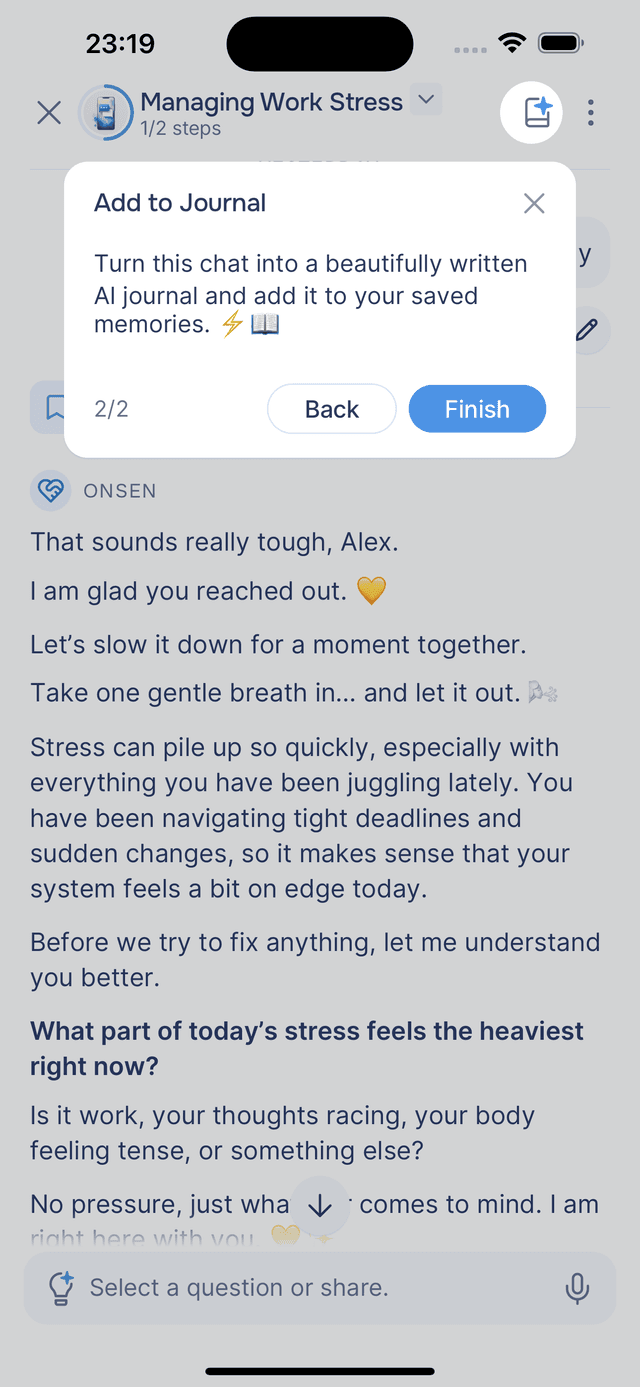
In Just Chat and Guided Journaling, you lead the conversation and decide when to save. Tap the Add to Journal button in the top-right corner whenever the conversation feels worth keeping — the AI reads through the full chat and writes a first-person journal entry in your voice.
This is entirely on demand. You can chat as long as you like and save at any point, or not at all. See Saving to Journal for how the process works.
2. At the End of Guided Experiences
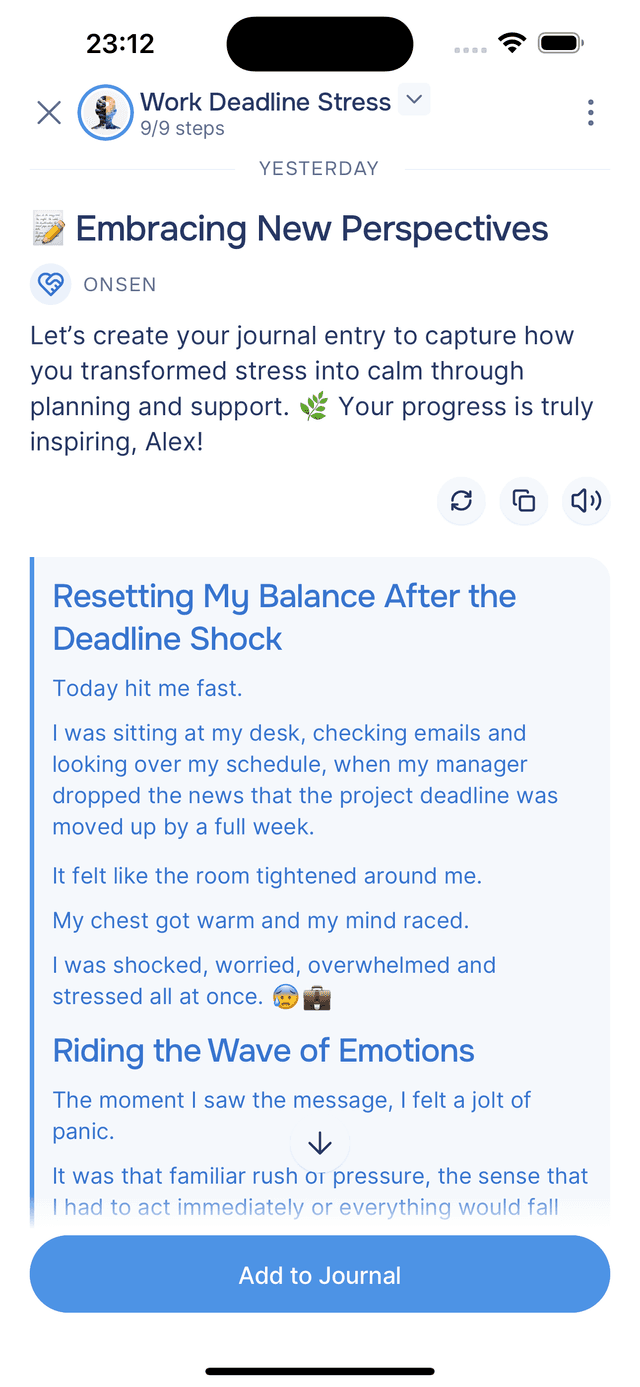
Most structured experiences — like Clear Negative Thoughts, Gratitude Letter, meditations, and check-ins — include saving to your journal as the final step. After completing the experience, the AI summarizes what you worked through and offers to save it. This happens automatically as part of the flow, so your progress and reflections are captured without any extra effort.
3. Freeform Journaling
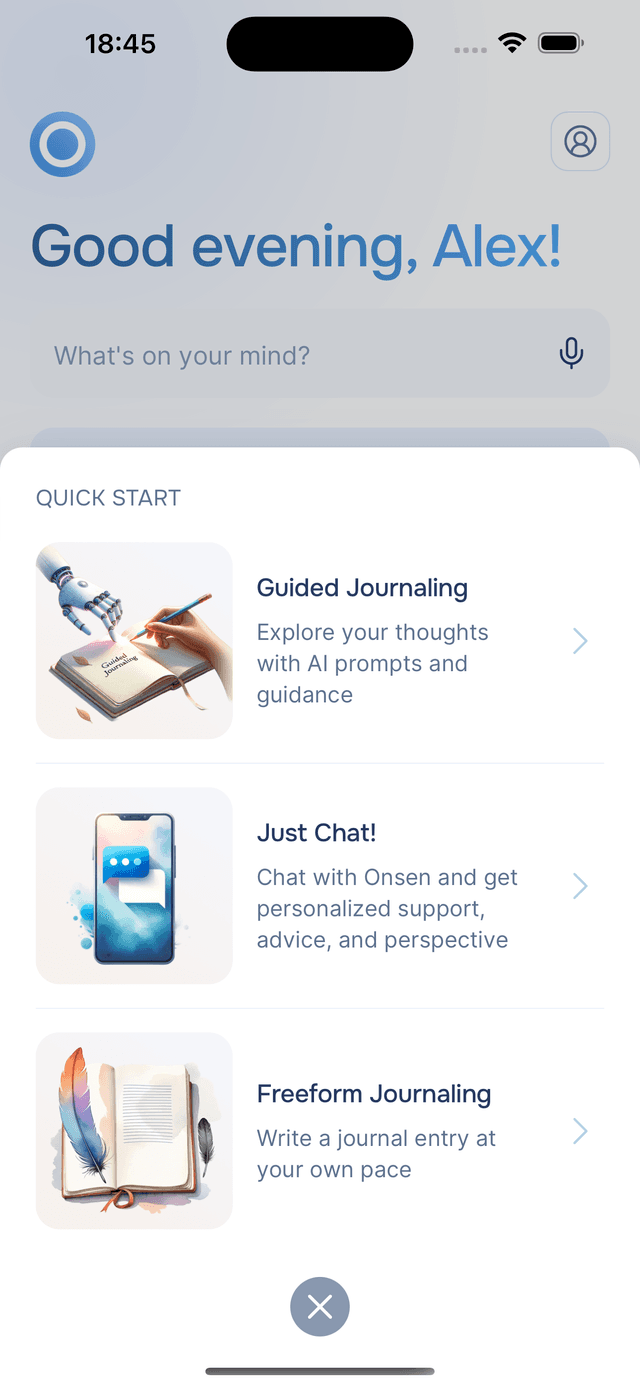
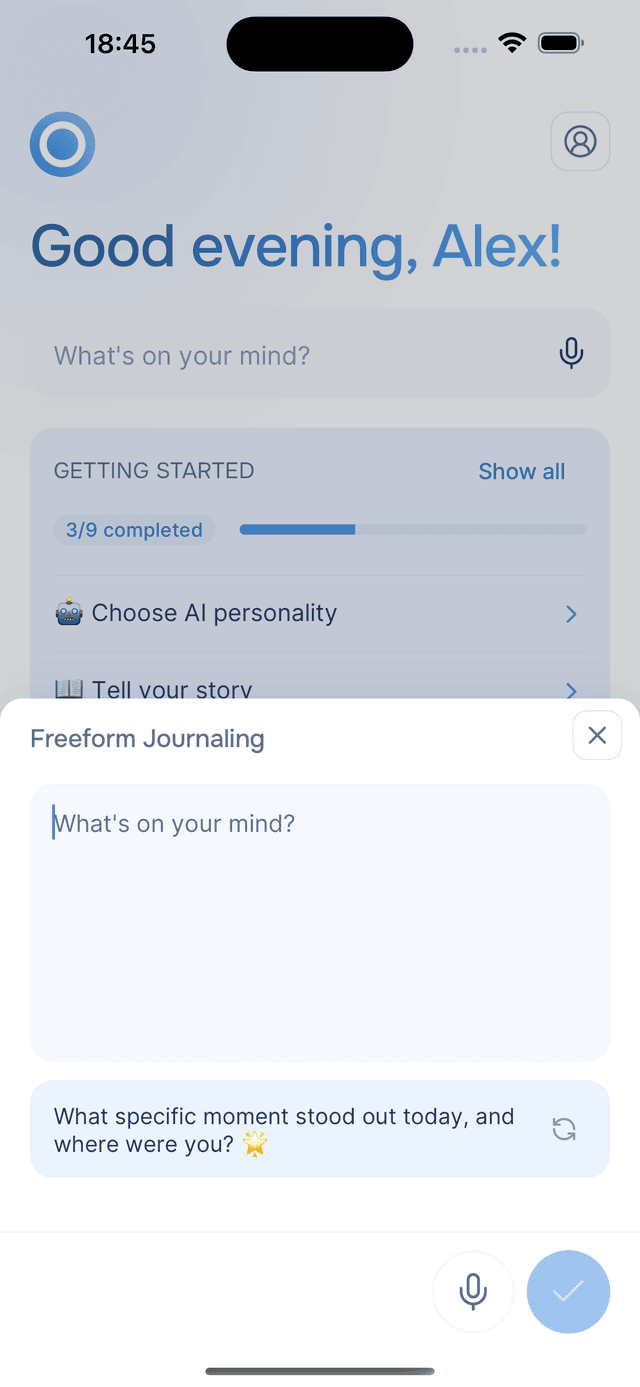
If you prefer to write on your own without an AI conversation, choose Freeform Journaling from the Quick Start menu. A text editor opens where you can type or speak your thoughts directly, with AI-generated prompts to inspire you along the way. When you save, Onsen processes your text to generate insights automatically. See Freeform Journaling for the full details.
After You Create an Entry
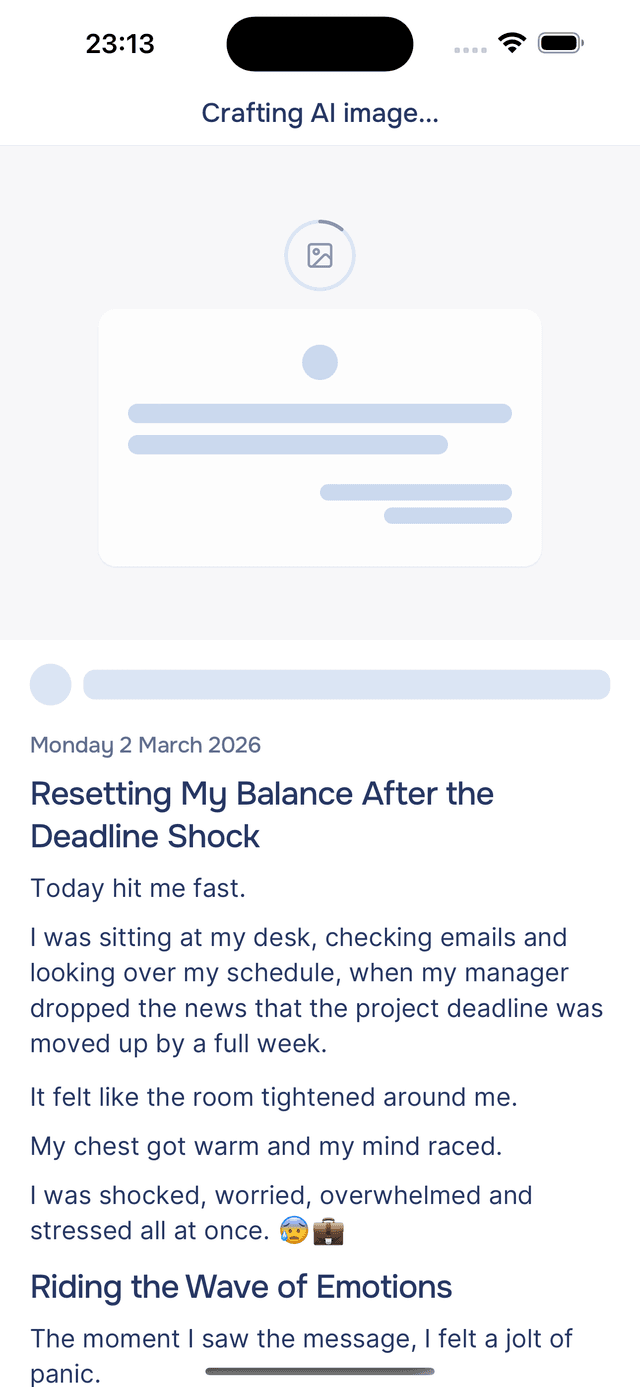
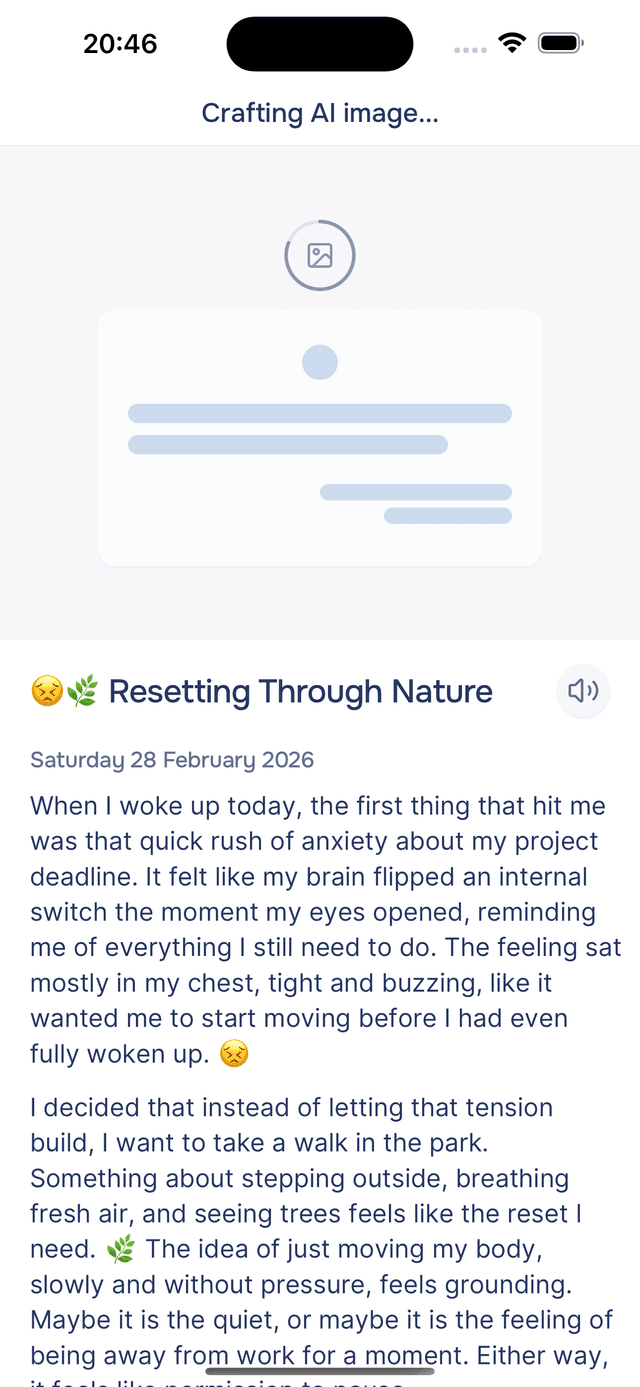
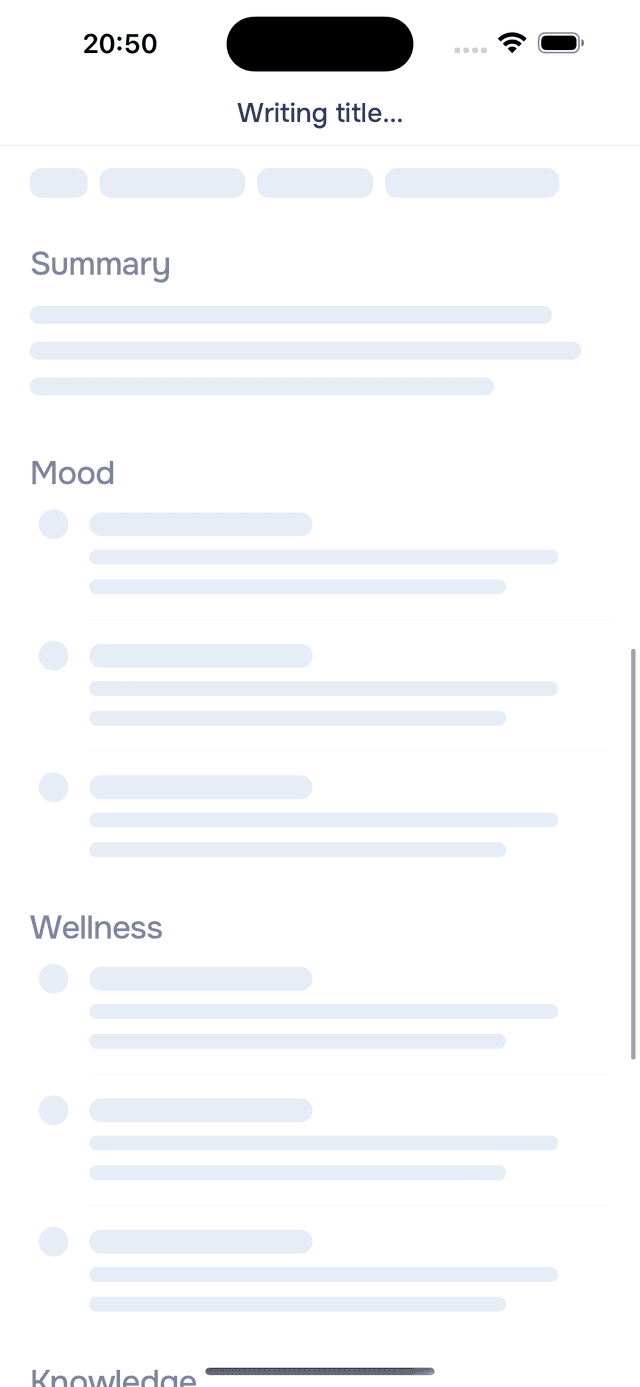
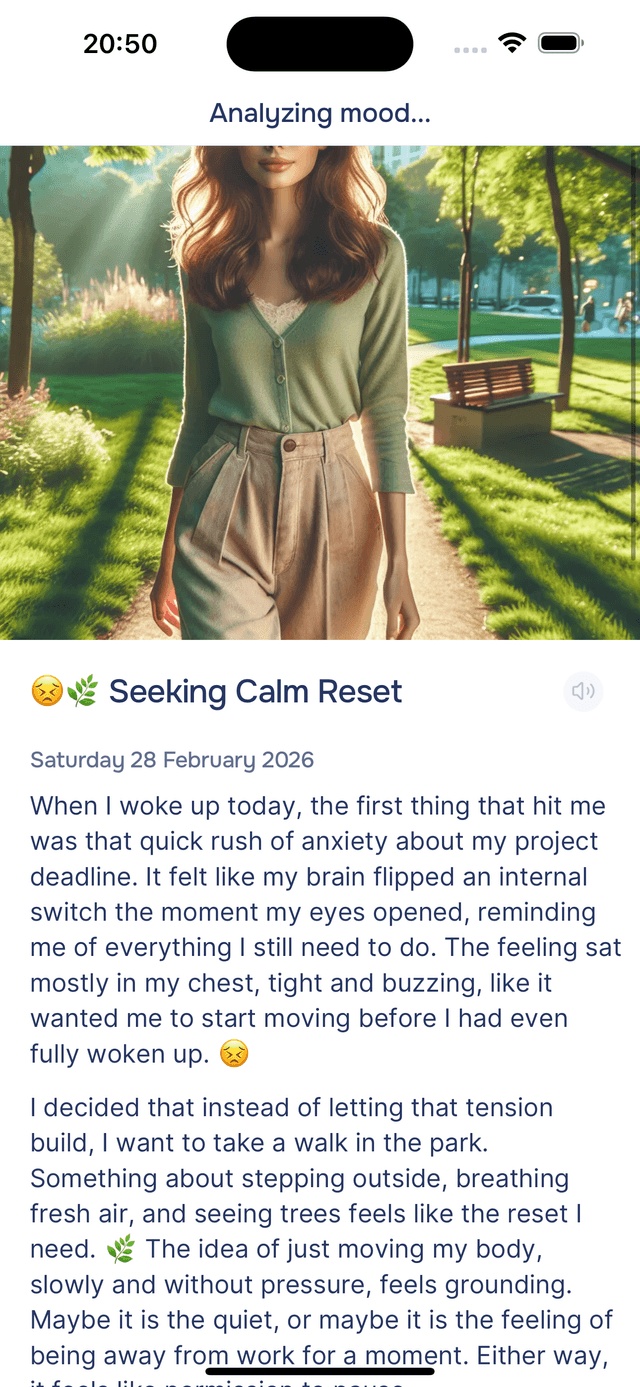
Regardless of how you create an entry, Onsen takes you to the entry details screen and immediately begins processing your text with AI. You will see this happen in real time — the header shows status messages like "Writing title...", "Analyzing mood...", and "Crafting AI image..." as each step runs. Placeholder shimmers fill the screen while insights are being generated, and each section populates as it completes.
AI-Generated Image
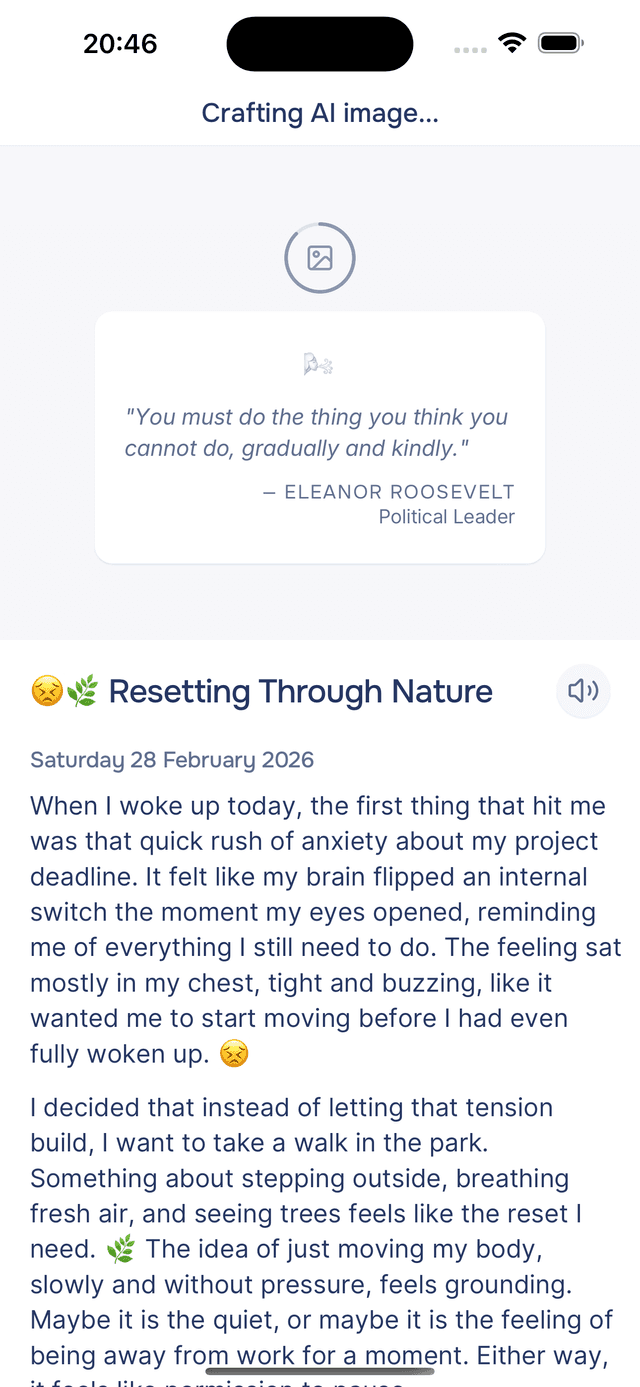
The AI begins by generating a unique image for your entry — a piece of visual art created from the themes, emotions, and content of what you wrote. Over time it becomes personalised with your own photos, so the people, pets, and places in the art start to look like yours. The image appears at the top of your entry and can take up to a minute to generate. You will see playful status messages like "Crafting AI image...", "Final brushstrokes...", and "Your masterpiece awaits..." while it works. While you wait, an inspirational quote related to your entry's themes appears below the image placeholder — a small touch to keep the moment reflective.
Extracting Insights
Once the image is ready, the AI continues processing your text to extract insights. The header cycles through status messages — "Writing title...", "Summarizing...", "Analyzing mood...", "Extracting knowledge..." — and shimmer placeholders fill the screen as each section generates. Everything populates in real time as it completes.
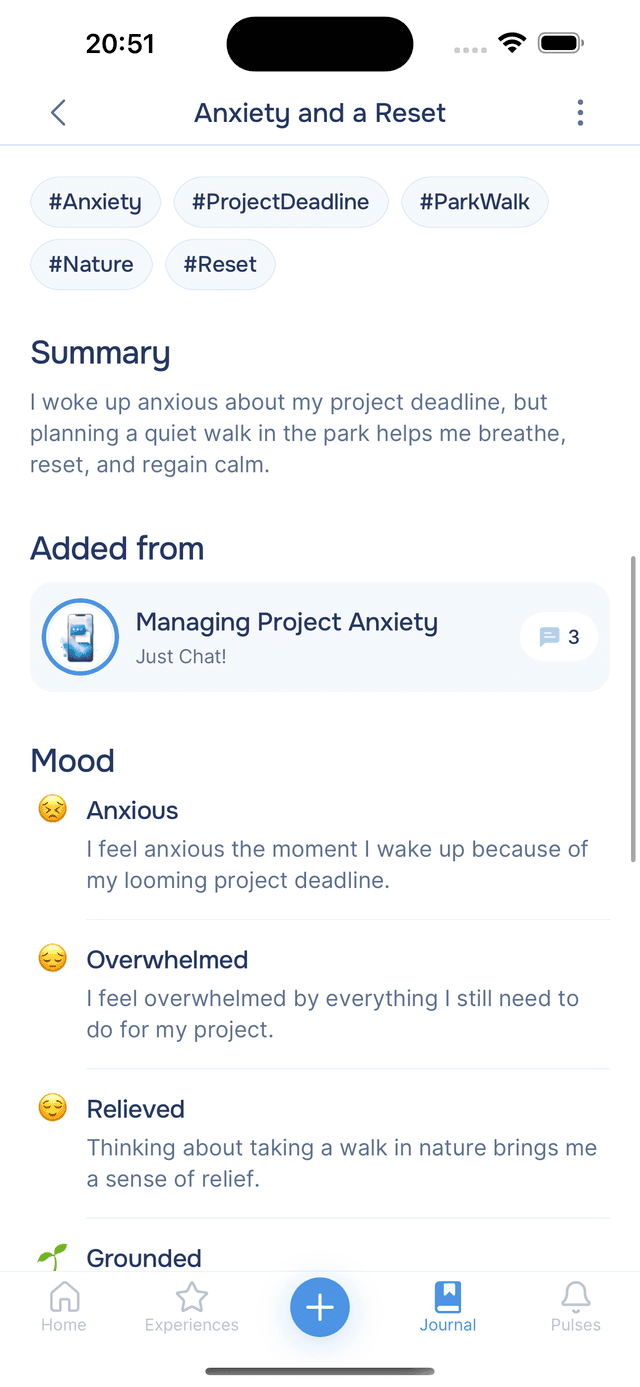
Here is what the AI extracts from your writing:
- Title — a short, descriptive name for the entry
- Hashtags — keywords and themes pulled from your text, useful for spotting patterns across entries
- Summary — a concise recap of what you wrote
- Mood — emotions the AI detected in your writing, each with a brief explanation
- Wellness — physical or mental health signals mentioned in your text
- Knowledge — people, places, facts, preferences, goals, and values the AI identified — these become part of Onsen's memory
The Finished Entry
Once everything is complete, the header shows your entry title and the full details screen is ready to explore. Your AI image sits at the top, followed by your entry text, and then all the extracted insights below.
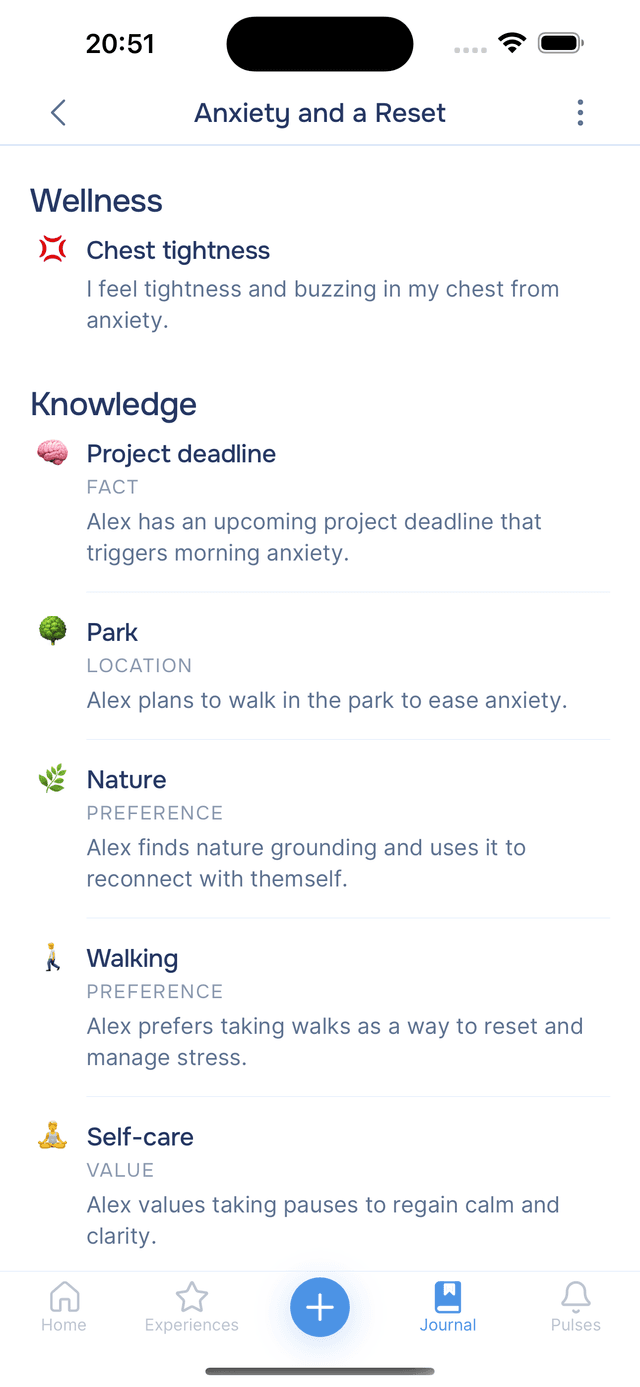
See Entry Details for a deeper look at what each insight means and how to use them.
Tips
- Start with Guided Journaling — if you are new to journaling, having the AI guide the conversation makes it easy to get started.
- Save meaningful chats — any conversation in Just Chat or Guided Journaling that resonates is worth saving. You can always edit the entry later.
- Write regularly — the more you journal, the better Onsen understands your patterns and the more personalized its insights become.