

Voice Input & Read Aloud
Speak your messages and listen to AI responses with built-in voice features.
Overview
Sometimes typing does not capture what you want to say. Onsen supports voice in both directions — you can speak your messages using voice input, and you can listen to the AI guide's responses using Read Aloud. Both work across chats and guided experiences.
Voice Input
Instead of typing, tap the microphone button to record your message. You will find it at the right side of the input bar — in a free-form chat it sits next to the text field, and in a guided experience it appears alongside the send button.
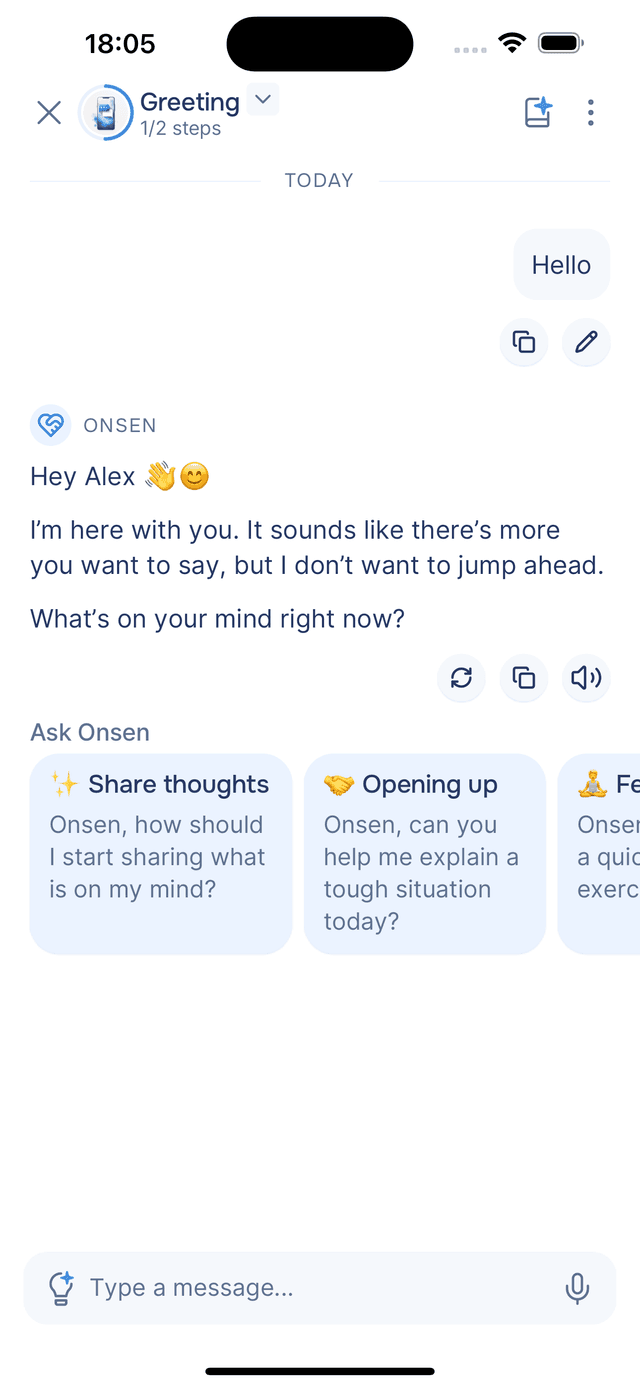
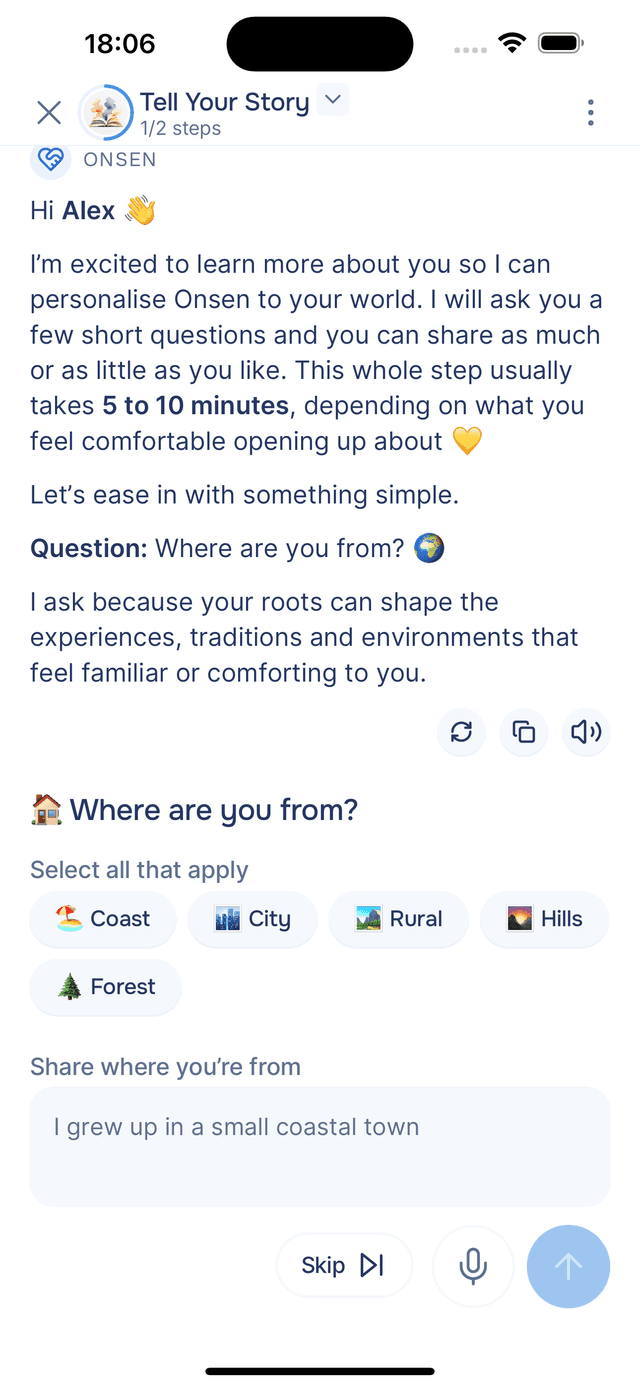
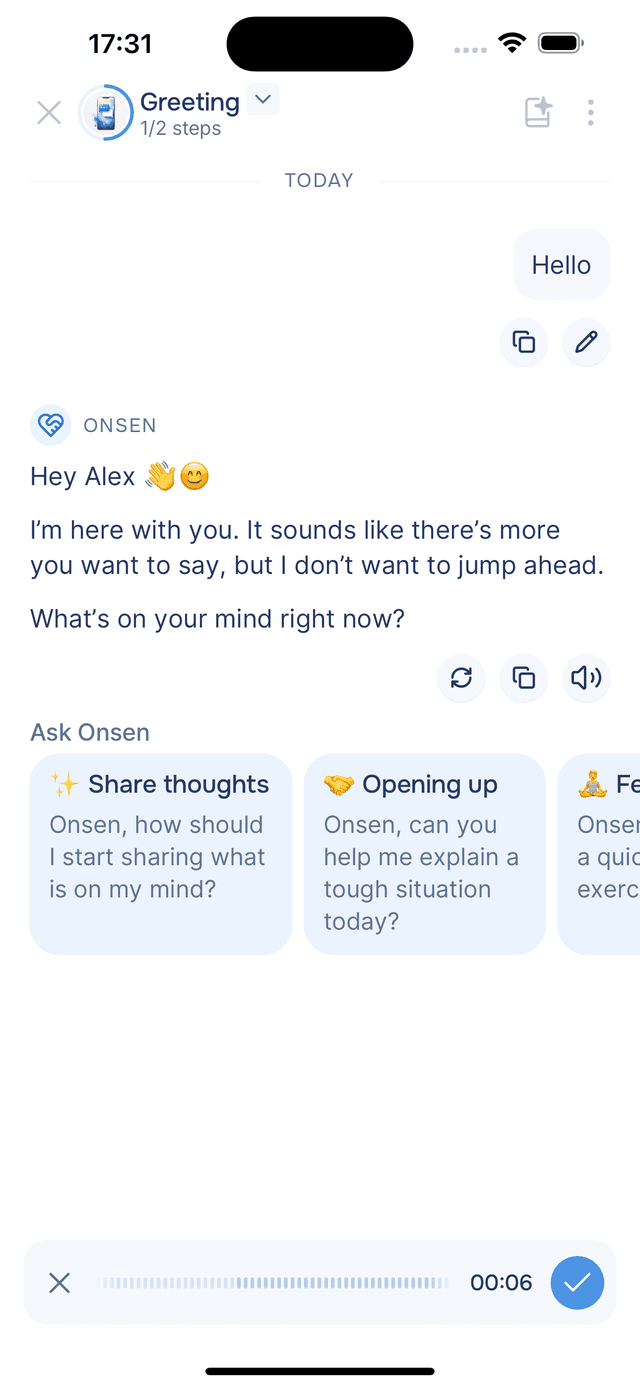
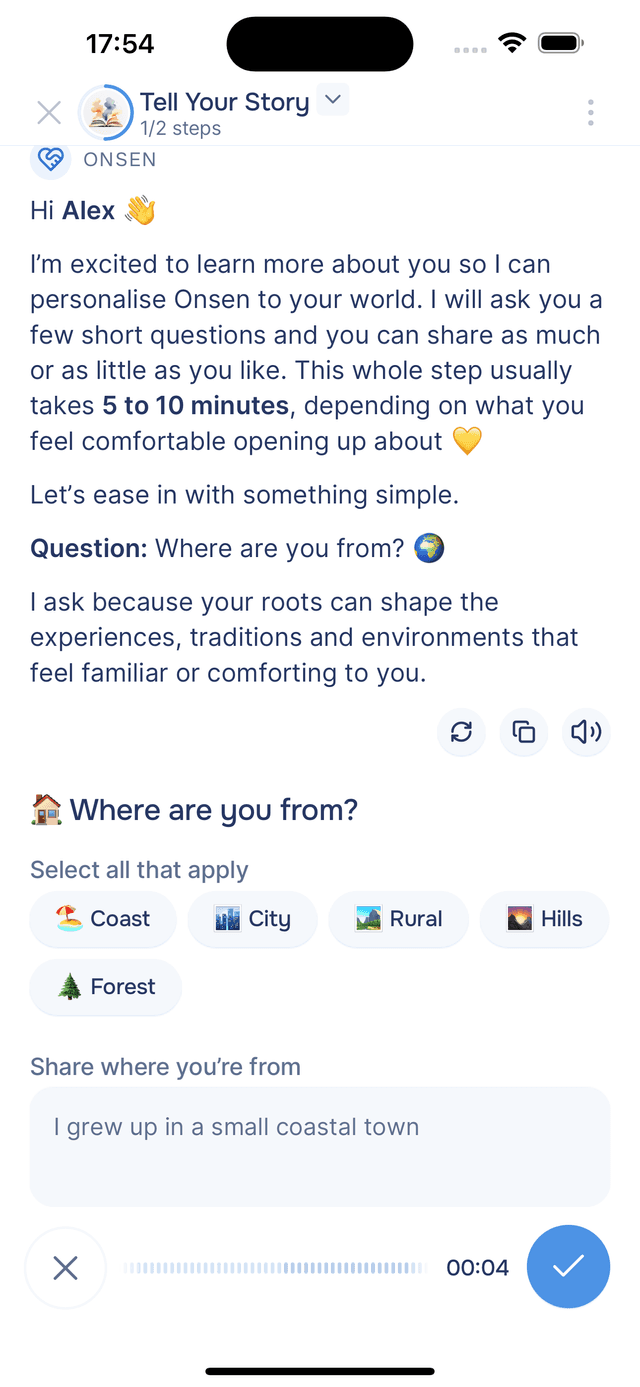
Speak naturally — you will see a waveform and timer while recording. When you are done, tap the submit button to send. The recording is transcribed to text and appears in the input field so you can review and edit it before sending.
To cancel a recording, tap the cancel button to the left of the waveform.
Combining Voice and Text
Voice transcriptions are appended to any text you have already typed, separated by a line break. You can type part of a message and dictate the rest, or record multiple voice segments in a row — whatever feels natural.
Microphone Permissions
Onsen needs microphone access to record. If you have not granted it yet, a system prompt will ask for permission the first time. Voice transcription also requires an internet connection. If you have reached your transcription usage limit, you will see a notification — check your usage in Settings.
Read Aloud
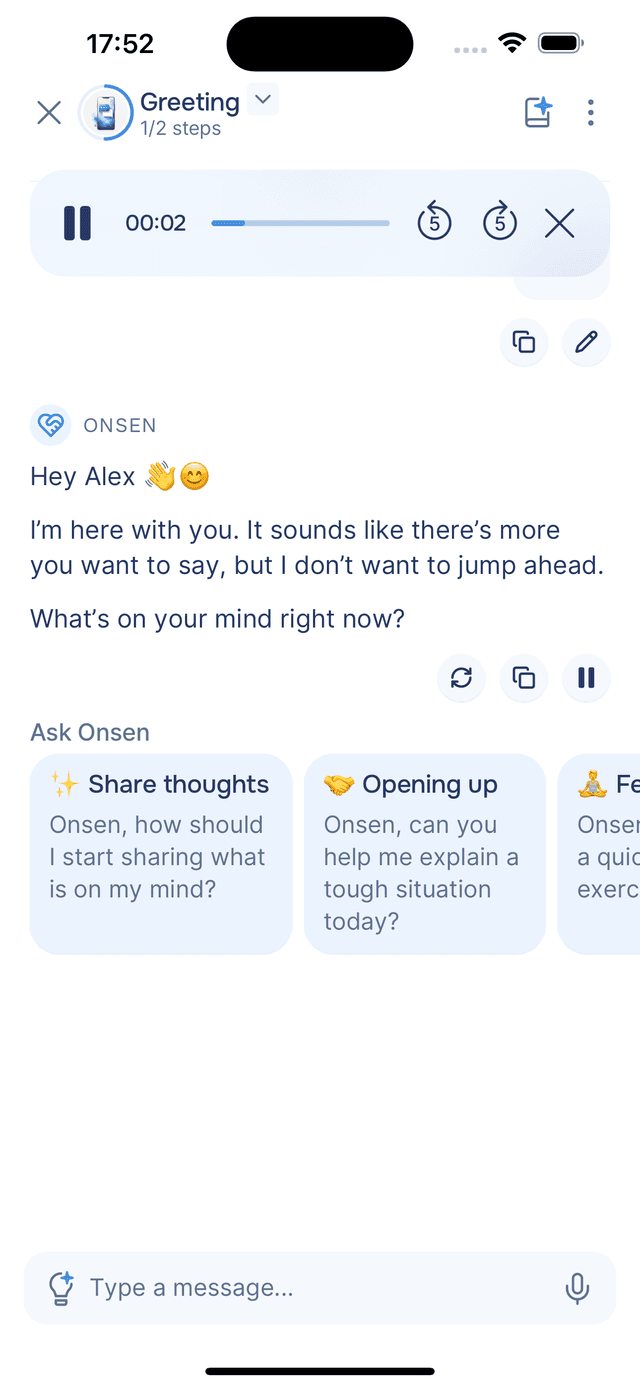
Want to listen instead of read? Tap the speaker icon below any AI response to hear it read aloud. A playback bar appears at the top of the screen with controls:
- Play / Pause — start or pause playback
- Rewind 5s / Skip 5s — jump back or forward
- Close — stop and dismiss the bar
Read Aloud works on any AI message, including older ones — scroll up and tap the speaker icon on any past response.
Auto-Speech
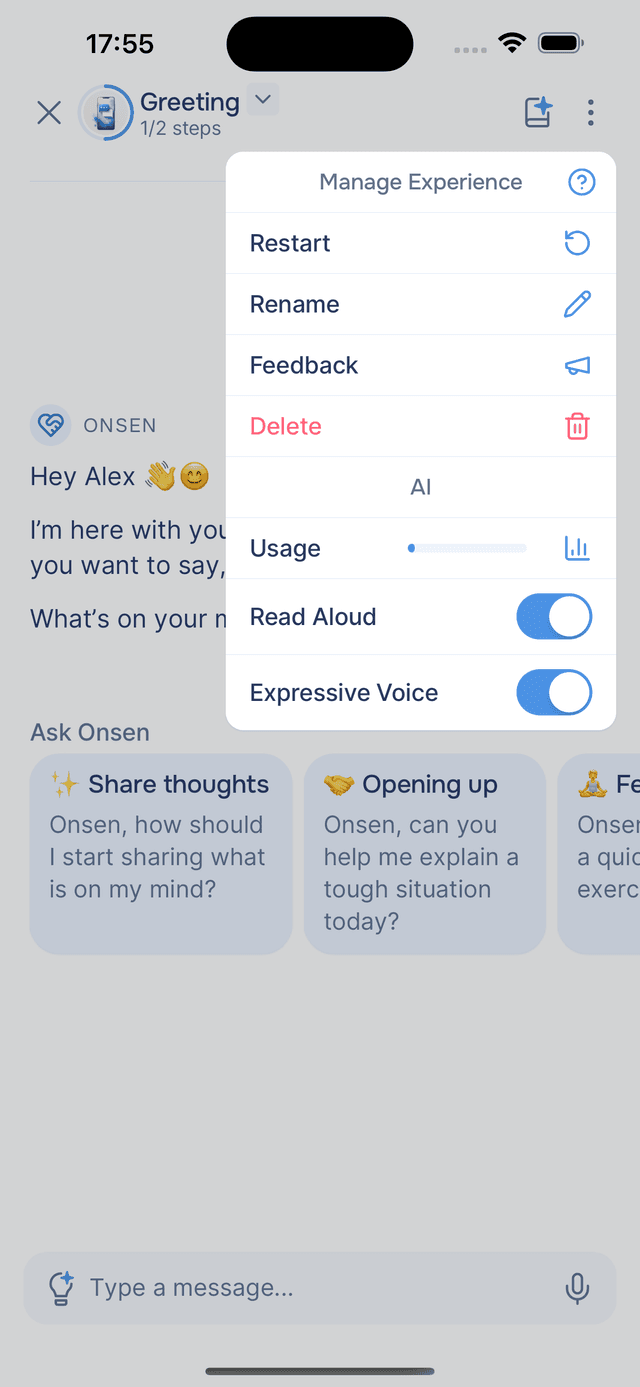
You can have every new AI message read aloud automatically — no need to tap the speaker icon each time. To enable it, tap the menu in the top-right corner of the chat screen and turn on the Read Aloud toggle. Each new response will be read aloud as soon as it finishes generating. Turn the toggle off to go back to manual playback.
Some experiences — like meditations and relaxation exercises — start Read Aloud automatically regardless of the toggle, so you can close your eyes and just listen. You can still stop playback at any time by tapping close on the playback bar.
Expressive Voice
Read Aloud supports an Expressive Voice toggle in the same experience menu. When enabled, spoken responses include emotional intonation, natural pacing, and richer expression — making conversations feel more like talking to a real person. Expressive Voice works with both Standard and HD voices. HD voices are a Premium feature that offer higher-quality audio with even more natural delivery.
Tips
- Speak at a normal pace — in a quiet environment for the best transcription.
- Mix and match — voice and text work together in the same conversation. Use whichever feels right.
- Listen on the go — Read Aloud is great for revisiting conversations during a walk or commute.