

Managing Your Chats
Restart, rename, delete, adjust voice settings, and check usage — all from the options menu inside any chat or experience.
Overview
Every chat and guided experience has an options menu you can open at any time. It gives you quick access to manage the conversation, adjust AI voice settings, and check your usage — all without leaving the screen.
Opening the Menu
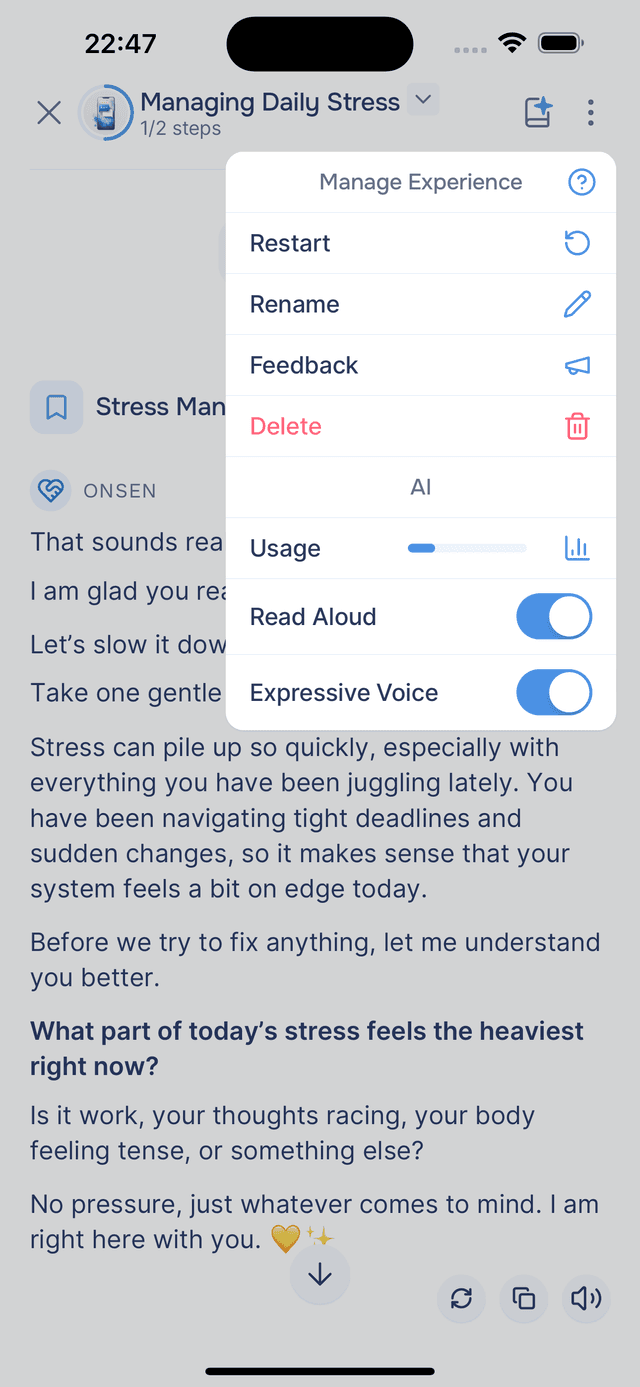
Tap the icon in the top-right corner of any active chat or experience to open the Manage Experience menu.
Menu Options
| Option | What it does |
|---|---|
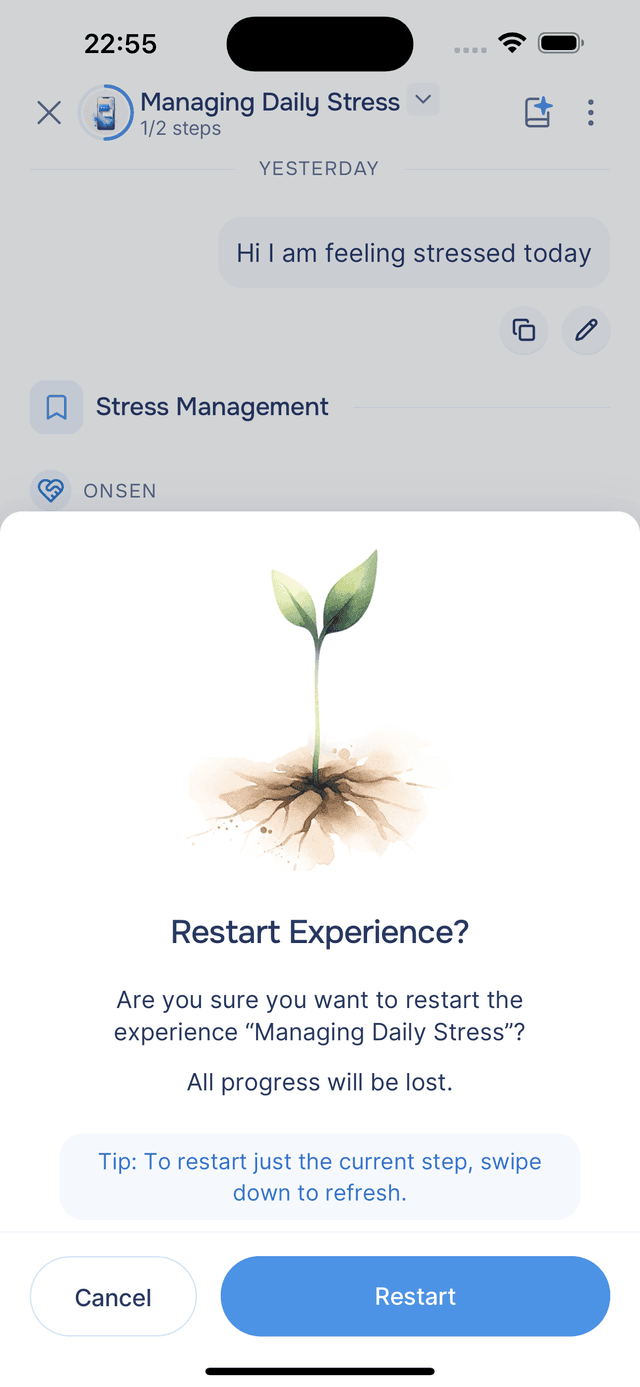
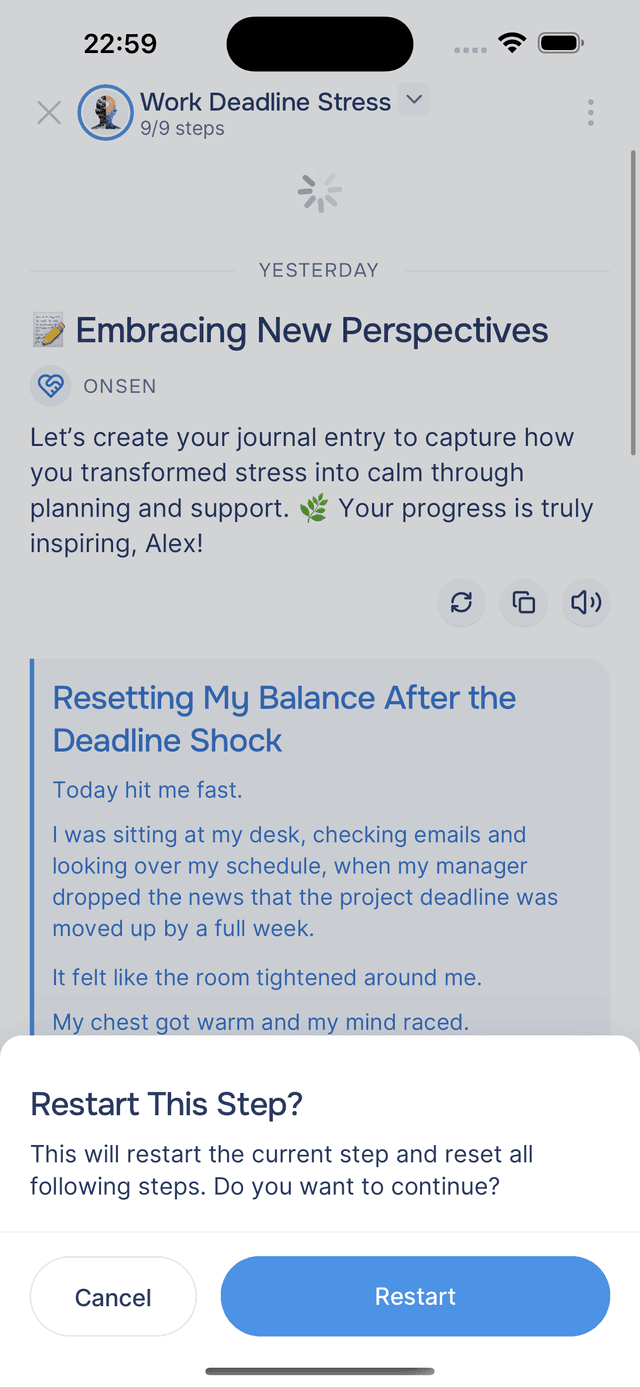
| Restart | Restarts the experience from the beginning. You will be asked to confirm first. If you only want to redo the current step, swipe down to refresh instead. |
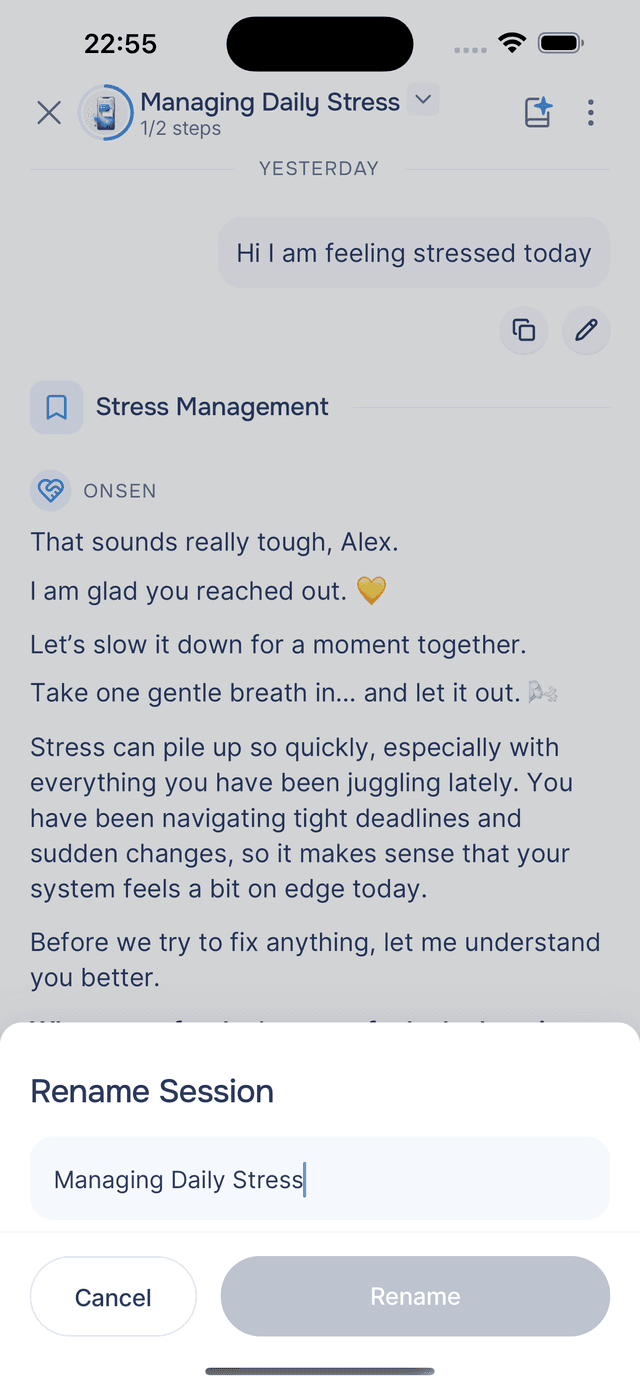
| Rename | Give the conversation a custom title. The AI generates one automatically, so you usually don't need to — but you can always change it to something more meaningful, like "Monday check-in" or "Gratitude before bed". |
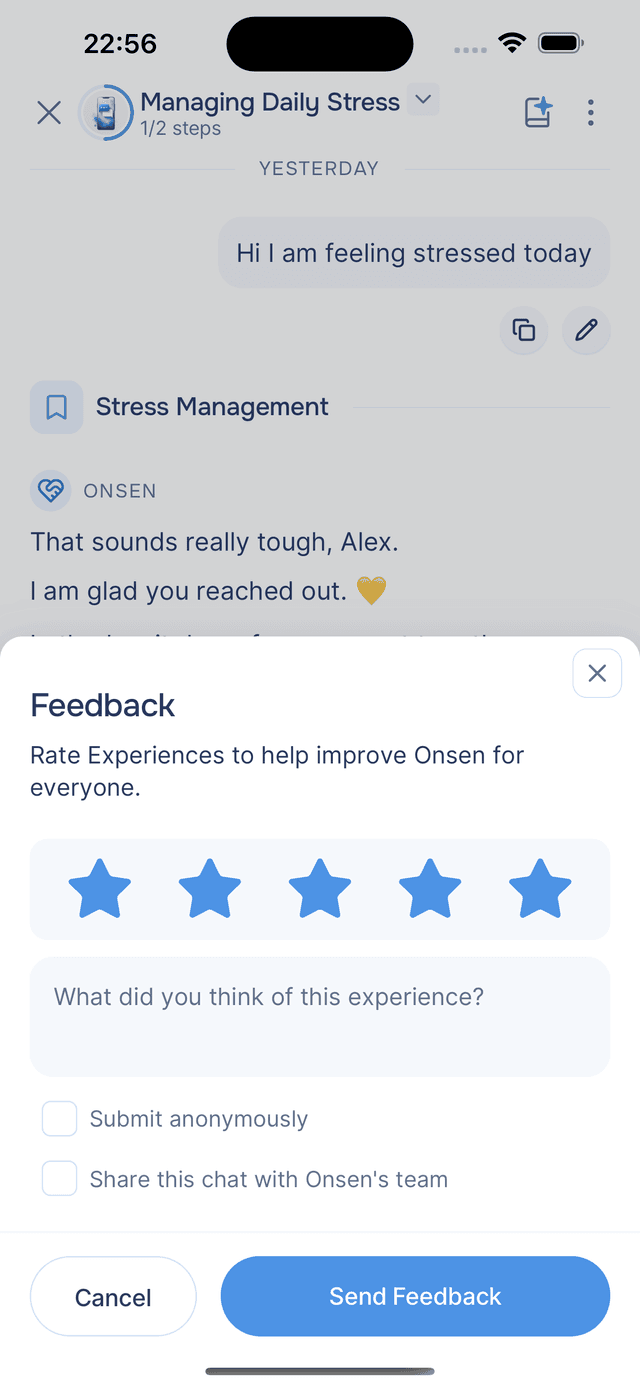
| Feedback | Share feedback about the experience with the Onsen team. The form includes context about which experience and step you are on. You can also give feedback on individual messages via message tools. |
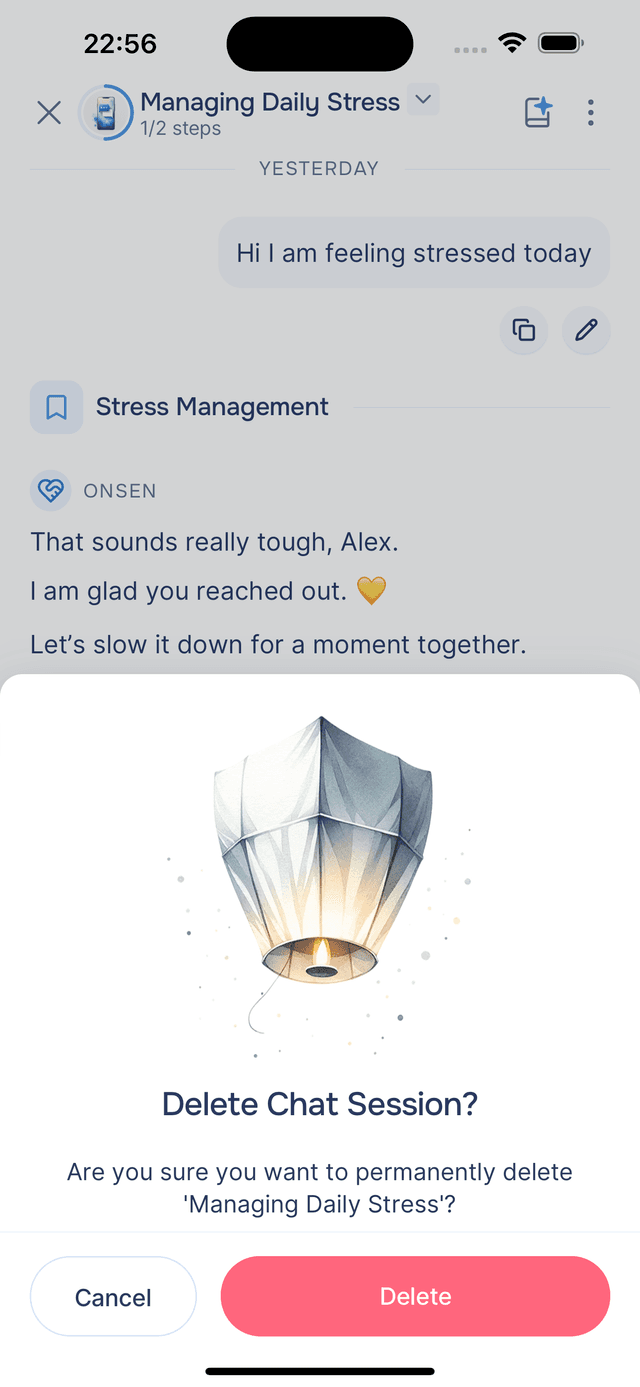
| Delete | Permanently removes the conversation and all its progress. Saved journal entries are not affected. |
| Usage | Opens your usage statistics screen. A small progress bar next to the option shows your current usage at a glance — blue, yellow, or red. |
| Read Aloud | A toggle that automatically reads every new AI response aloud. Some experiences (like meditations) enable this by default. See Read Aloud for details. |
| Expressive Voice | A toggle for a more natural, emotionally expressive voice with richer intonation, enabled by default. Works with both Standard and HD voices. See Expressive Voice for details. |
Restarting a Step
If you only want to redo the current step — not the entire experience — you have two options:
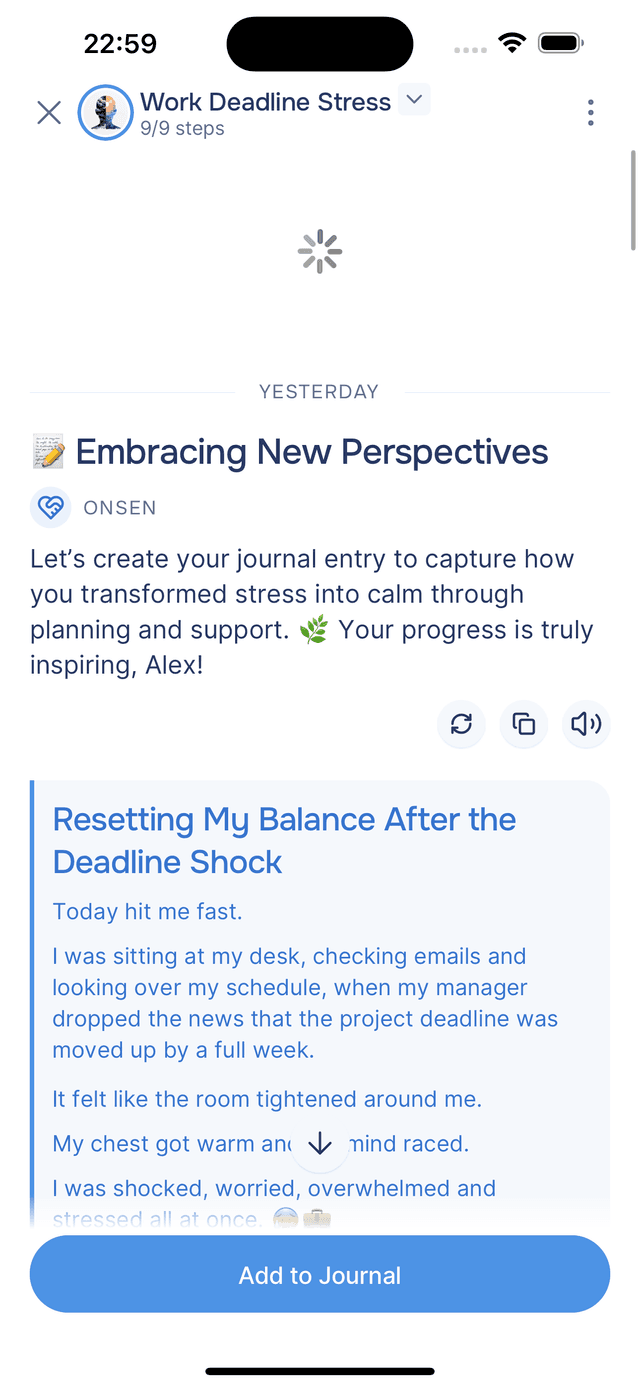
- Swipe down when scrolled to the top of the chat to trigger a step refresh
- Tap the options icon and choose Restart step
Both rerun just that step from the beginning while keeping all your earlier progress intact.
Tips
- Rename if needed — the AI automatically generates a title for each conversation, so you usually don't need to worry about it. But you can always rename if you want something more specific.
- Use Restart sparingly — if you just want to redo one step, swipe down to refresh or use Restart step from the menu instead of restarting the whole experience.
- Check usage mid-conversation — the progress bar next to Usage lets you see at a glance how much room you have left without leaving the chat.