

Message Tools
Copy, regenerate, edit, read aloud, and give feedback on messages during your conversations.
Overview
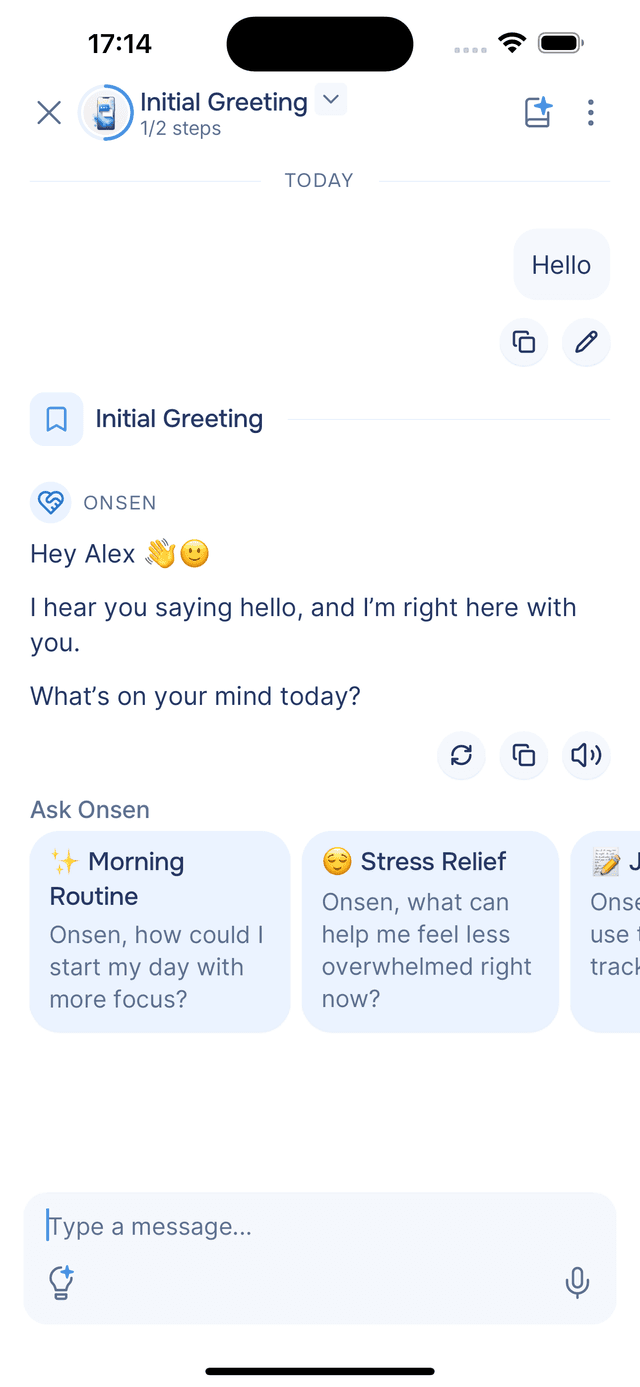
Every message in a conversation comes with a set of tools you can use to interact with it. AI messages and your own messages each have different options — all accessible with a quick tap or long press.
AI Message Tools
Below every AI response, you will see a row of small action buttons:
- Regenerate — get a different response. The AI takes another pass at answering, so you can compare or try again if the first reply did not land right.
- Copy — copies the full message text to your clipboard. A checkmark appears briefly to confirm.
- Read Aloud — hear the message spoken aloud. A playback bar appears at the top of the screen with play, pause, rewind, and skip controls. See Voice Input and Read Aloud for details.
Long-Press Menu
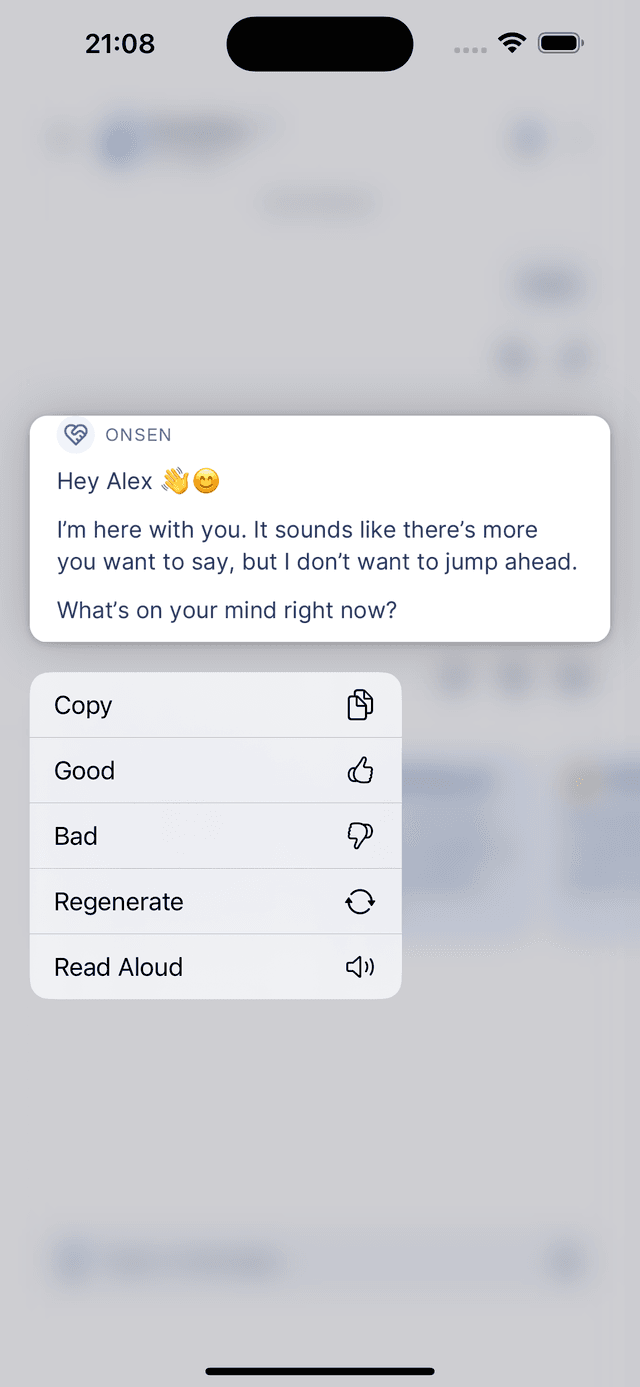
Long-pressing an AI message opens an expanded menu with additional options:
- Copy — same as the inline button.
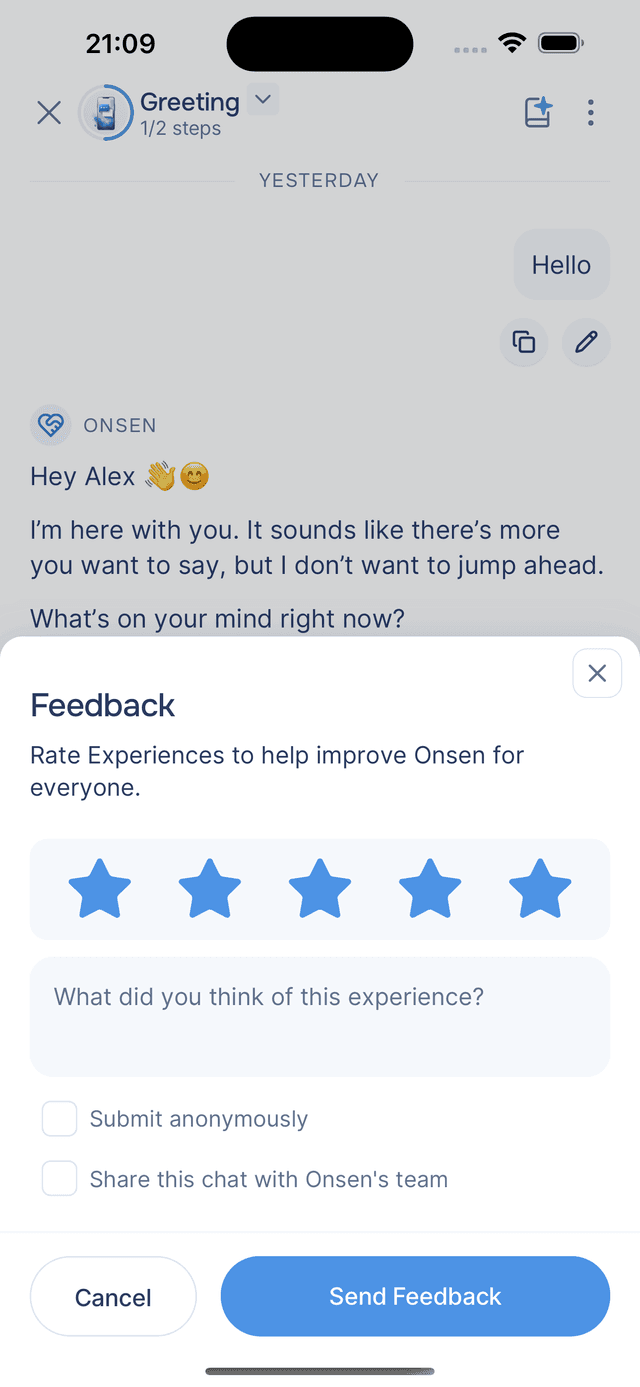
- Good — rate the response positively. Opens the feedback form with a 5-star rating pre-filled.
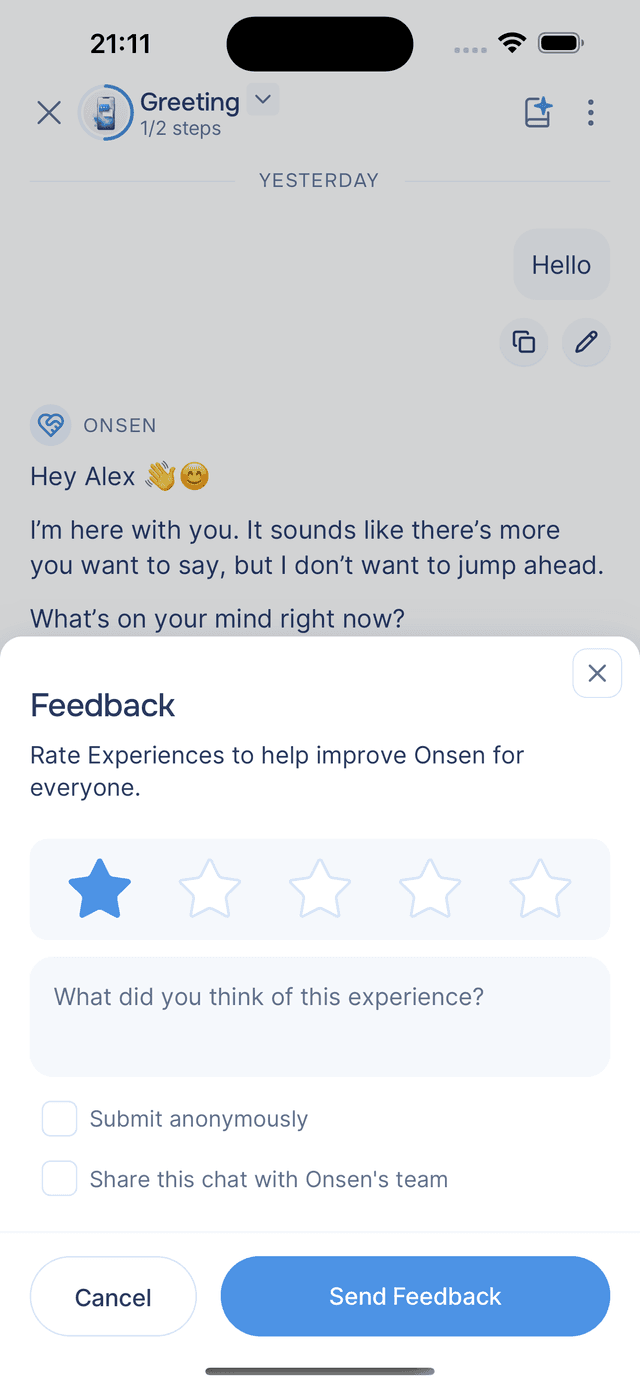
- Bad — rate the response negatively. Opens the feedback form with a 1-star rating pre-filled.
- Regenerate — same as the inline button.
- Read Aloud — same as the inline button.
Your Message Tools
Your own messages show two inline buttons:
- Copy — copies your message text to the clipboard.
- Edit — opens your message in an editor so you can rephrase it. After saving, the AI regenerates its response based on your updated text. Any messages that came after the edited one are removed, so the conversation continues fresh from that point. If your message had image attachments, they show as thumbnails in the editor — tap to drop any you don't want to keep. You can edit the text and remove images, but you can't add new images while editing.
Feedback
Tapping Good or Bad on an AI message opens the feedback form. You can also reach it from the experience menu.
The form includes:
- Star rating — tap one to five stars to rate the response. Your initial choice from the long-press menu is pre-filled, but you can change it.
- Comment — an optional text field to describe what you liked or what could be better.
- Submit anonymously — check this if you prefer not to attach your account to the feedback.
- Share this chat with Onsen's team — check this to give the team context about the conversation. This helps improve the AI's responses.
Tap Send Feedback when you are done, or Cancel to dismiss.
Tips
- Regenerate freely — if a response does not land right, tap regenerate to try again. You can regenerate as many times as you like.
- Edit to redirect — editing a message and re-sending is a great way to take the conversation in a different direction without starting over.
- Feedback helps everyone — even a quick thumbs-up or thumbs-down helps improve the AI for all users.