

In-App Camera
Snap a photo without leaving Onsen — for chat messages and setting up your avatar.
Overview
Onsen has its own camera built in, so you can take a photo right where you need it without switching to your phone's camera app and back. It shows up in two places: when you attach a photo to a chat message, and when you take a selfie while setting up your avatar.
Opening the Camera
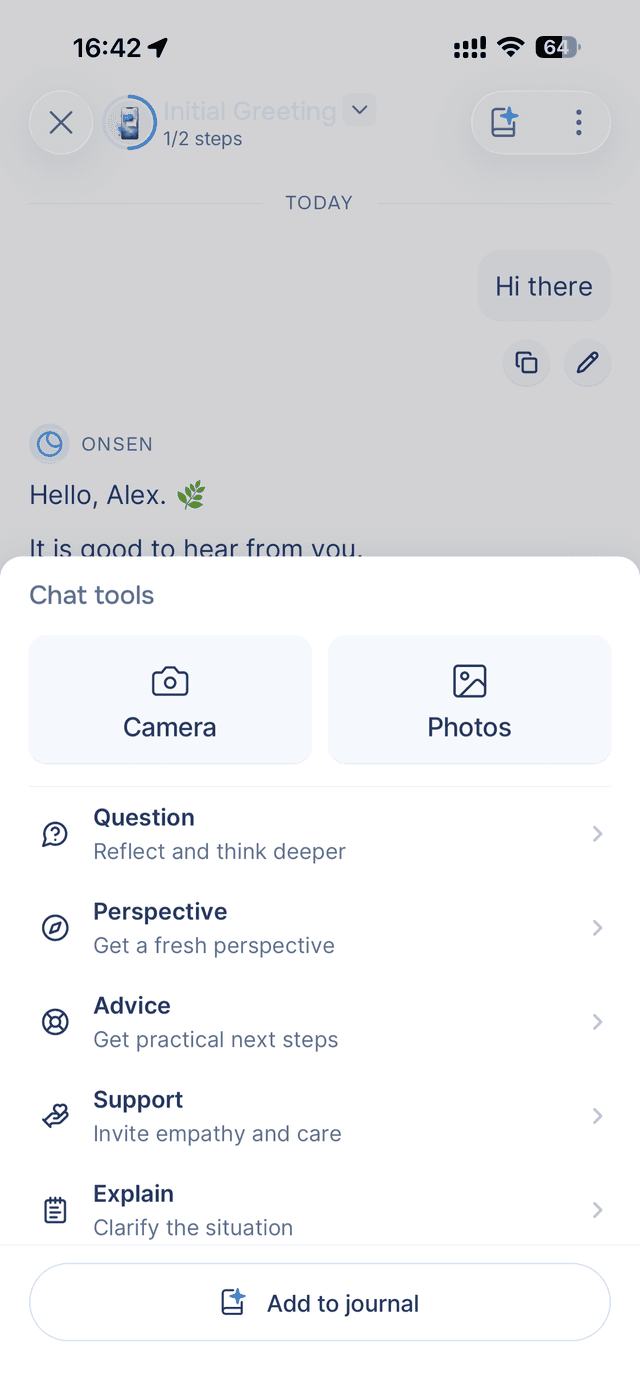
In chat — tap the button next to the message input, then tap Camera on the Chat tools sheet.
During avatar setup — when Onsen asks for a selfie, choose to take a new photo. The camera opens on the front lens, ready for a self-portrait.
The first time you open it, your phone asks for permission to use the camera. Tap Allow. If you skip it, the camera closes without taking a photo — you can turn access back on later in your device Settings.
Camera Controls
Everything is one tap away:
- Flip — switch between the front and back cameras.
- Zoom — pinch to zoom in and out across the full range your phone supports. A small indicator shows your current zoom level.
- Flash — tap to cycle through off, auto, and on. Flash fires when you take the shot, not while you're framing, and it stays off on the front camera.
- Grid — a rule-of-thirds grid to help you line up your shot. It's on by default; tap to hide it.
- Shutter — the round button at the bottom takes the photo.
What You See Is What You Get
The viewfinder is framed to match the exact photo you'll get — a 3:4 portrait — so there's no surprise crop after you tap the shutter. Whatever sits inside the frame is what gets captured.
After You Take a Photo
Your photo appears as a thumbnail ready to use — above the message bar in chat, or in your avatar setup. From there you can take another, pick from your library to mix sources, or send it on. To back out without taking a photo, tap to close the camera.
Taking a selfie for your avatar is always free. Using the camera to attach photos to a chat message is part of image attachments, a Premium feature.
Tips
- Use the grid for balance — line up horizons or faces along the grid lines for a more natural shot.
- Front camera for selfies, back for the world — tap flip to switch. Avatar setup starts on the front camera automatically.
- Good light makes the difference — whether it's a selfie for your avatar or a photo for your guide, soft natural light gives the clearest result.