

Interactive Elements
Action cards, grids, selector lists, suggested prompts, surveys, and more — the building blocks of guided conversations.
Overview
Your AI guide does more than just respond with text. During conversations — especially guided experiences — it can present interactive elements that make the exchange feel more like a real dialogue. You might tap cards, select from a grid, answer survey questions, edit suggested text, or choose from prompts. These elements appear naturally as part of the flow and adapt to what the experience needs.
Chat Prompts
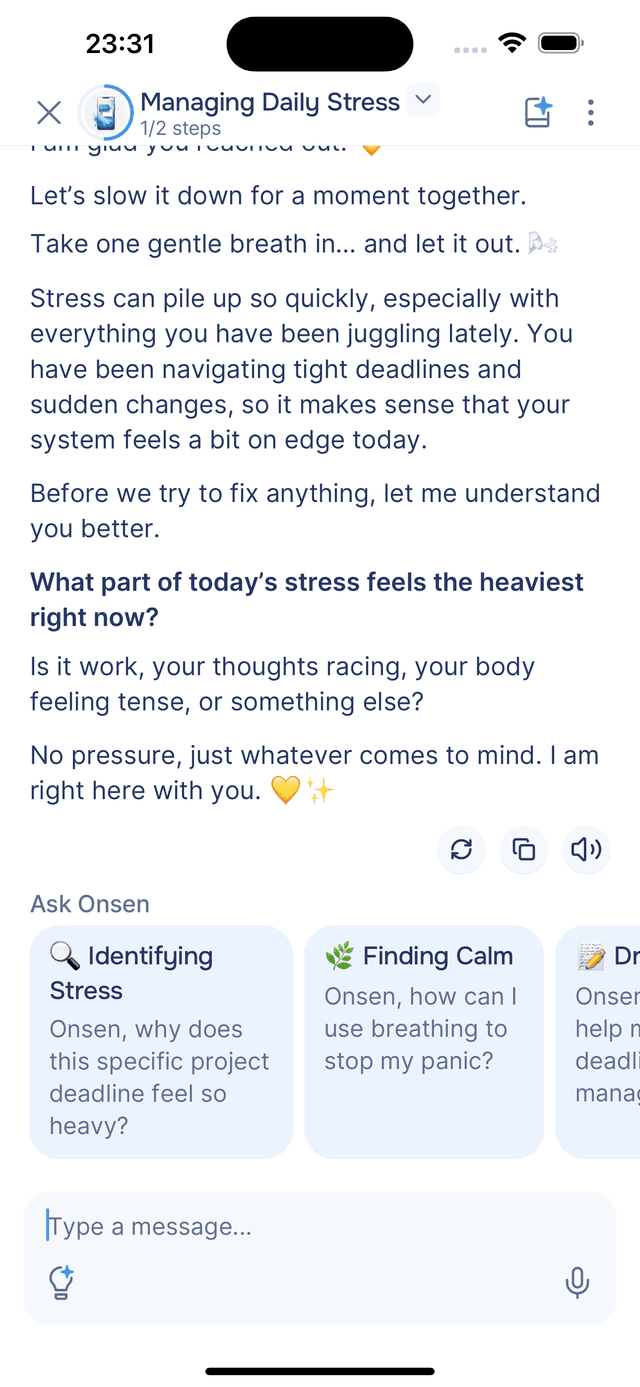
In free-form conversations, the AI may suggest prompts to keep the conversation going. There are two types:
"Ask Onsen" Prompts
These always start with "Onsen," followed by a question based on your conversation context and previous journaling activity. Tap one to send it as your message, or ignore them and type whatever you like — share something, ask a different question, or take the conversation in a new direction.
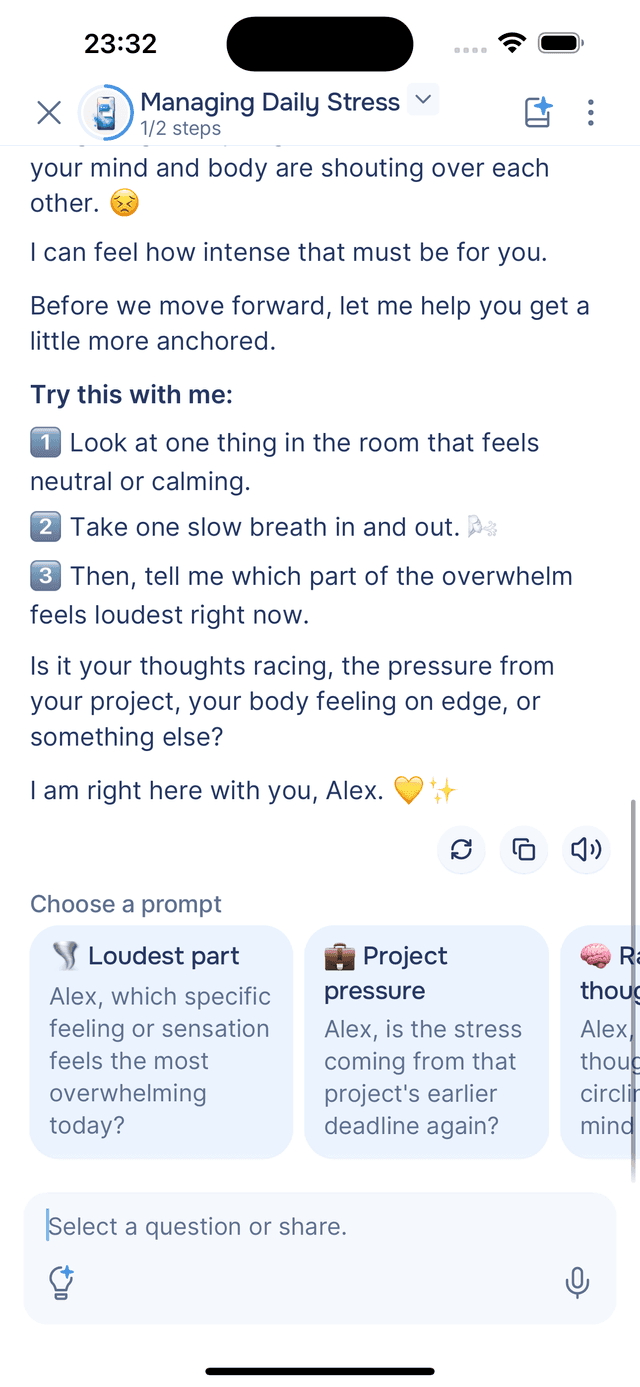
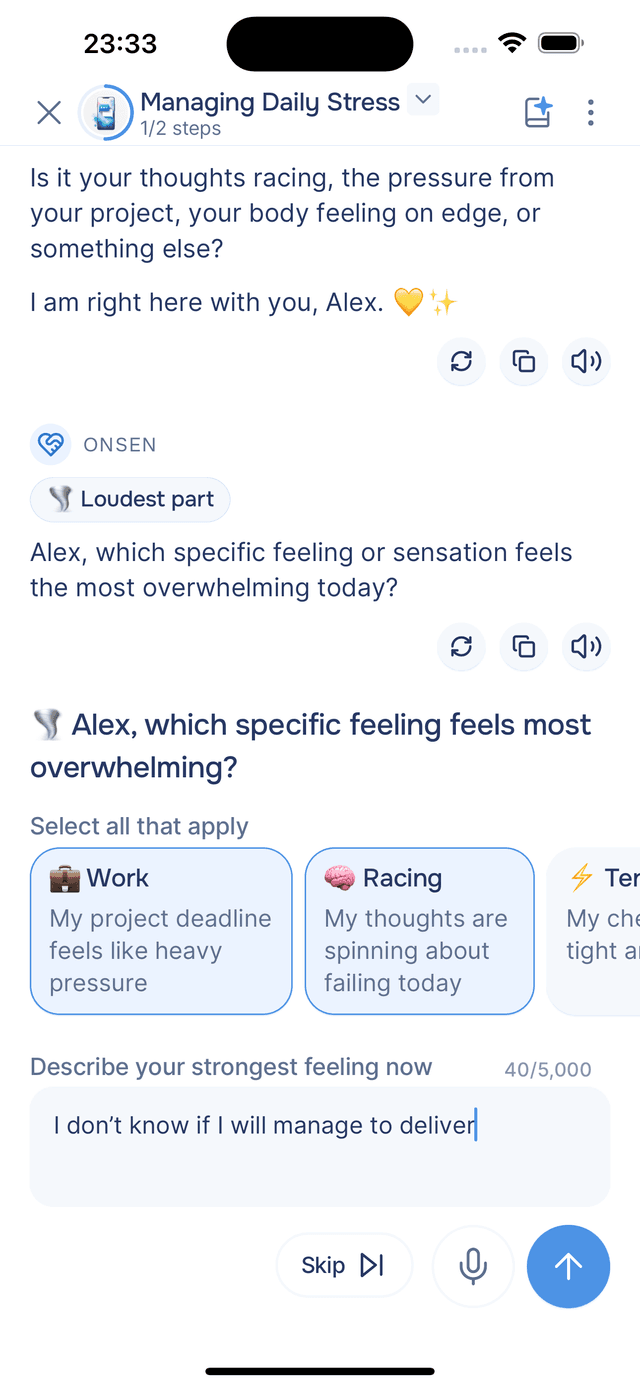
Reflection Prompts
These always start with your name, followed by a question from Onsen that helps you think about a specific angle of what you have been discussing. After selecting one, Onsen elaborates on the topic and then asks you to respond. You can pick from one or more of the provided suggestions or type your own thoughts directly.
At a Glance
| "Ask Onsen" Prompts | Reflection Prompts | |
|---|---|---|
| Starts with | "Onsen, ..." | Your name |
| Direction | You ask Onsen a question | Onsen asks you a question |
| Based on | Conversation context and journaling activity | What you have been discussing |
| After tapping | Onsen answers your question | Onsen expands on the topic, then you respond |
Action Cards
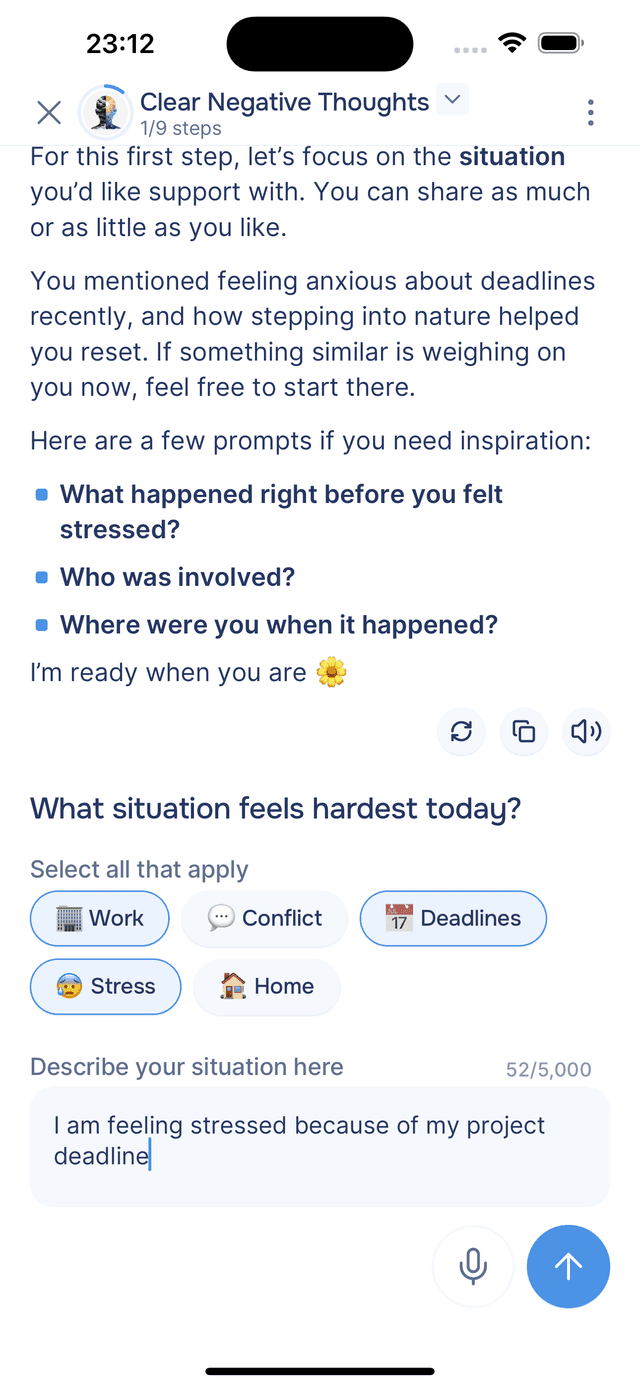
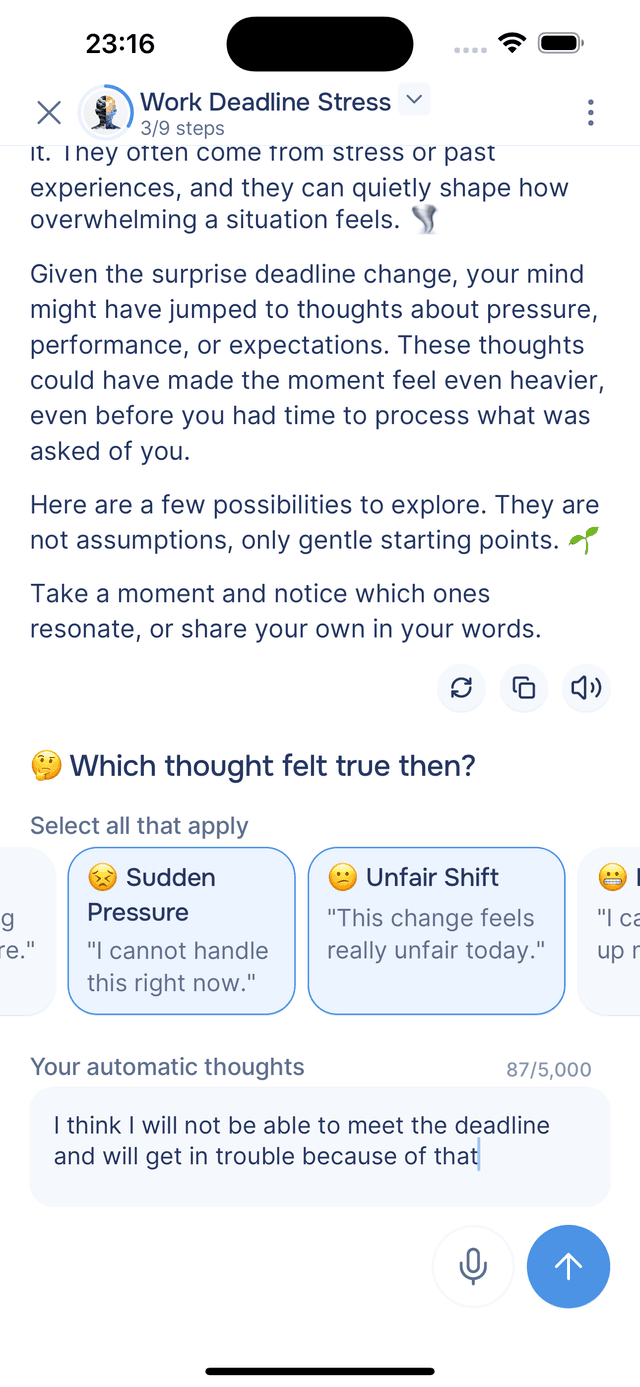
Action cards are tappable options with a title and short description. They appear when the AI wants you to share your thoughts — pick as many as feel right, then add your own input in the text field below. Some steps use short tags instead of full cards, but the idea is the same: select what applies and elaborate in your own words.
For example, in the Situation step of Clear Negative Thoughts, you pick tags like Work or Deadlines to categorize what happened, then share the details. In the Thoughts step, you select the automatic thoughts that resonated and describe what went through your mind.
Quick-Reply Buttons
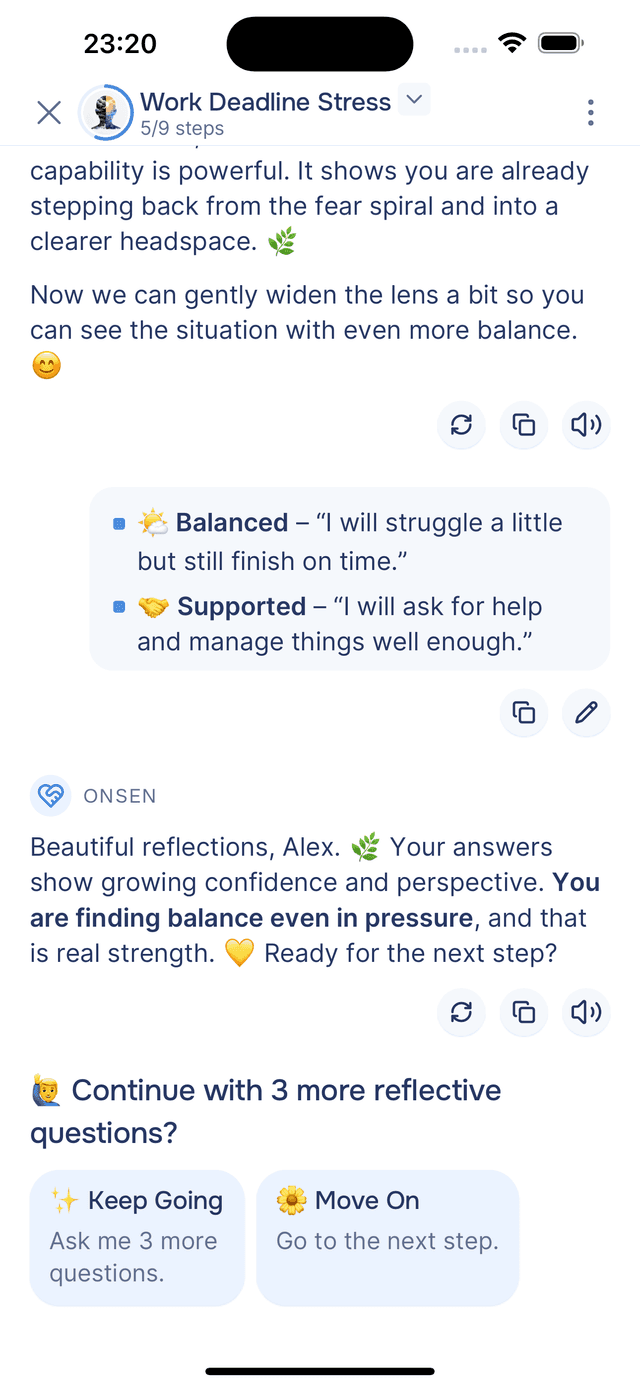
Sometimes the AI offers a simple choice to keep the conversation moving. Tap one and the experience continues in that direction. For example, in the Reflection step of Clear Negative Thoughts, you decide whether to continue with more Socratic questions or skip ahead to the next step.
Continue Buttons
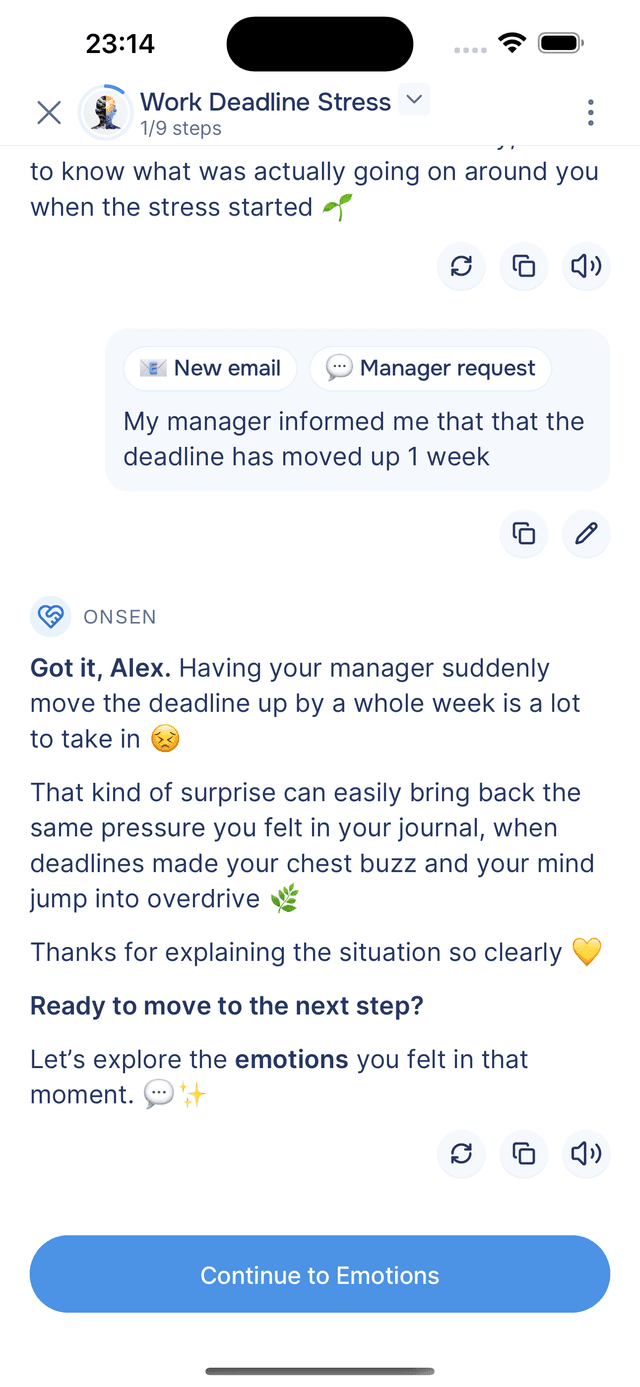
At certain points in the conversation, the AI may show a Continue button that takes you to the next part of the experience. This gives you time to read and absorb the AI's response before moving on — you control the pace. In Clear Negative Thoughts, you will see Continue to Emotions after completing the Situation step, for example.
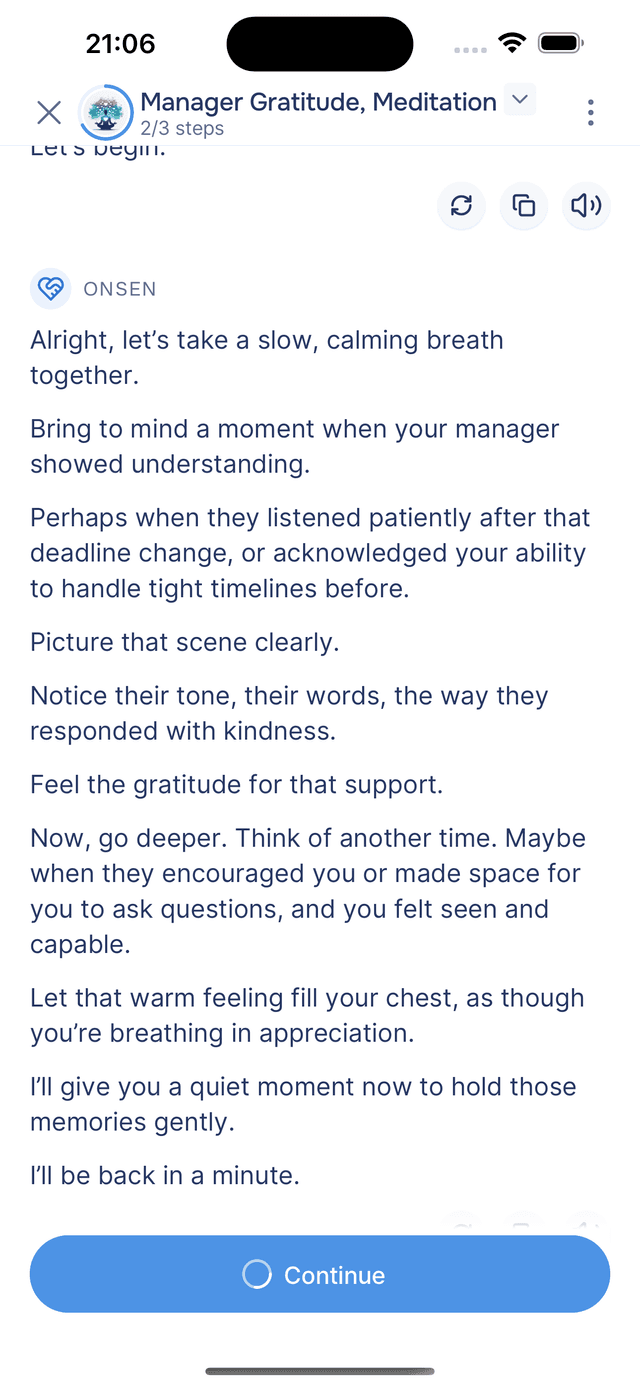
Some experiences — especially meditations — use a timed variant with a circular progress indicator. The button auto-advances after a pause (up to a minute), giving you time to sit with the moment. You can also tap it to continue early. For instance, in the Gratitude Meditation, these pauses give you space between guided rounds.
Grid
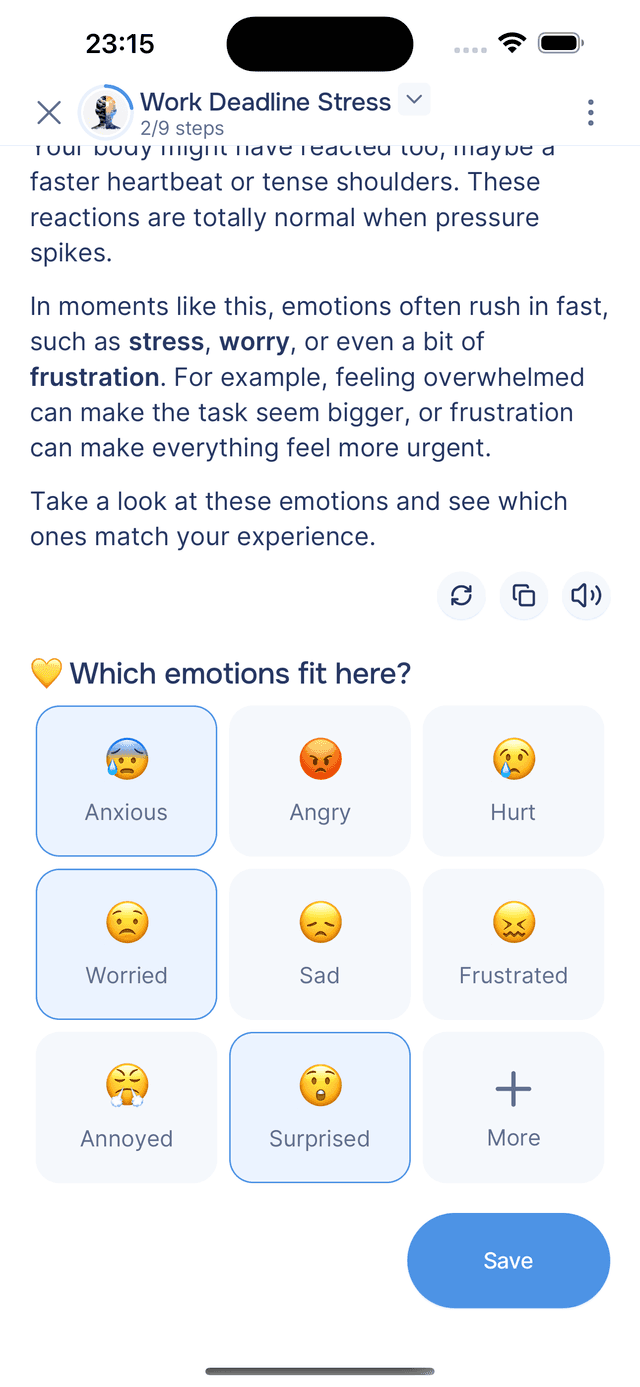
Some steps present a grid of visual options you can browse and tap. If nothing on screen fits, look for a More option to browse additional choices. Hit Save when you are ready. For instance, the Emotions step of Clear Negative Thoughts uses this to let you pick from a grid of emotions with emoji icons.
Button Groups
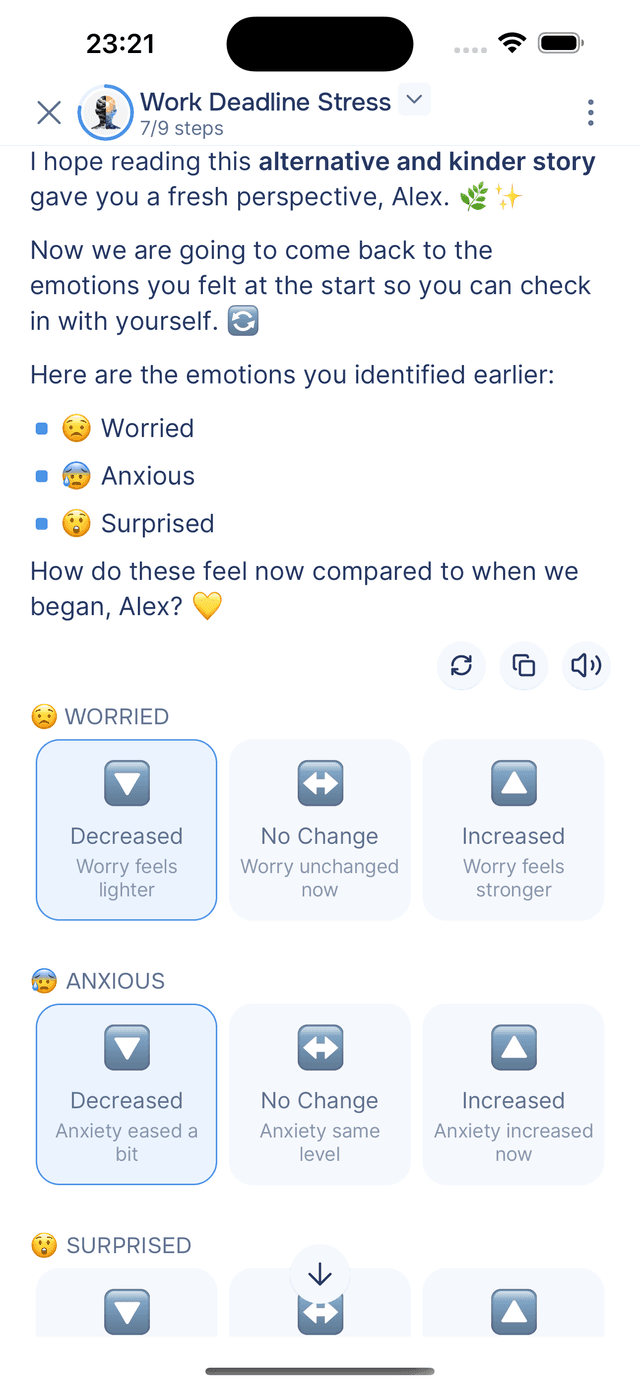
When the AI needs you to rate or evaluate several items at once, it groups them — each with its own set of options. Tap one choice per group and scroll down to complete them all. For example, in the Emotions Revisited step of Clear Negative Thoughts, each emotion you named earlier appears with ⬇️ Decreased, ↔️ No Change, or ⬆️ Increased options so you can reflect on what shifted.
Option Lists
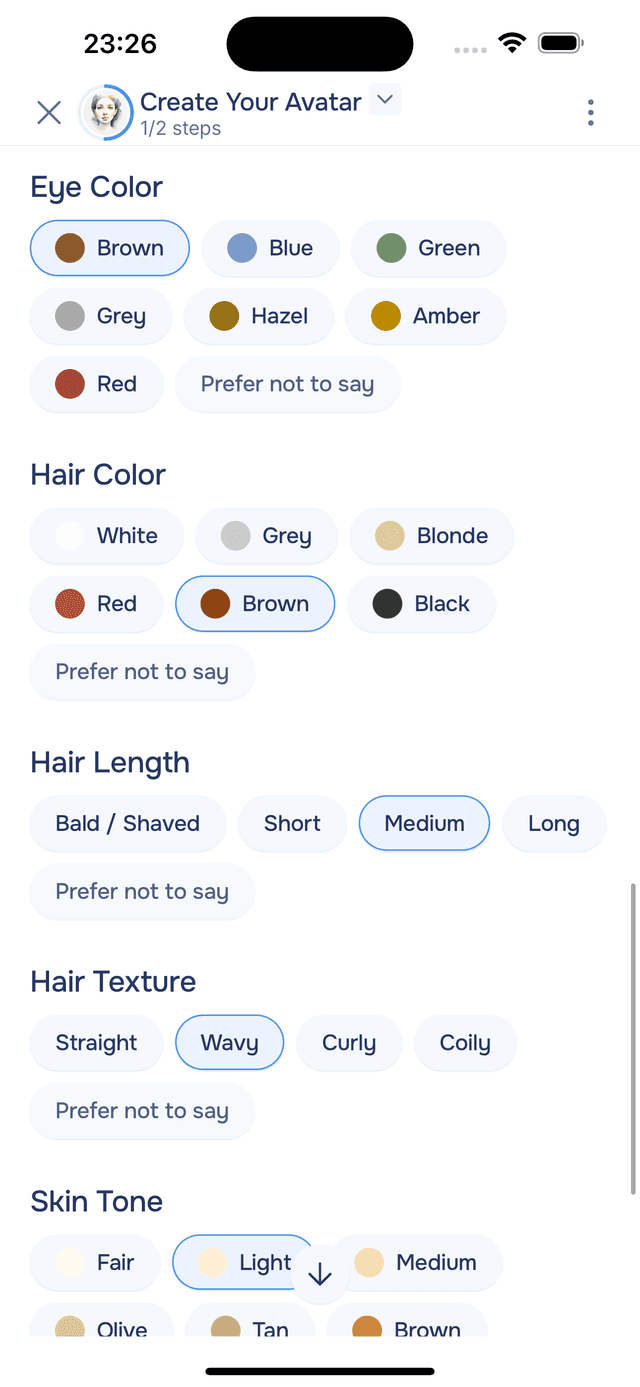
Option lists present a structured set of single-select options organized by category. Scroll through the groups and tap your choice in each — pre-selected options are highlighted based on what the AI suggested, but you can change anything. For instance, in Design Your Avatar, you use option lists to design your avatar's appearance: eye color, hair color, skin tone, and more.
Editing Suggested Text
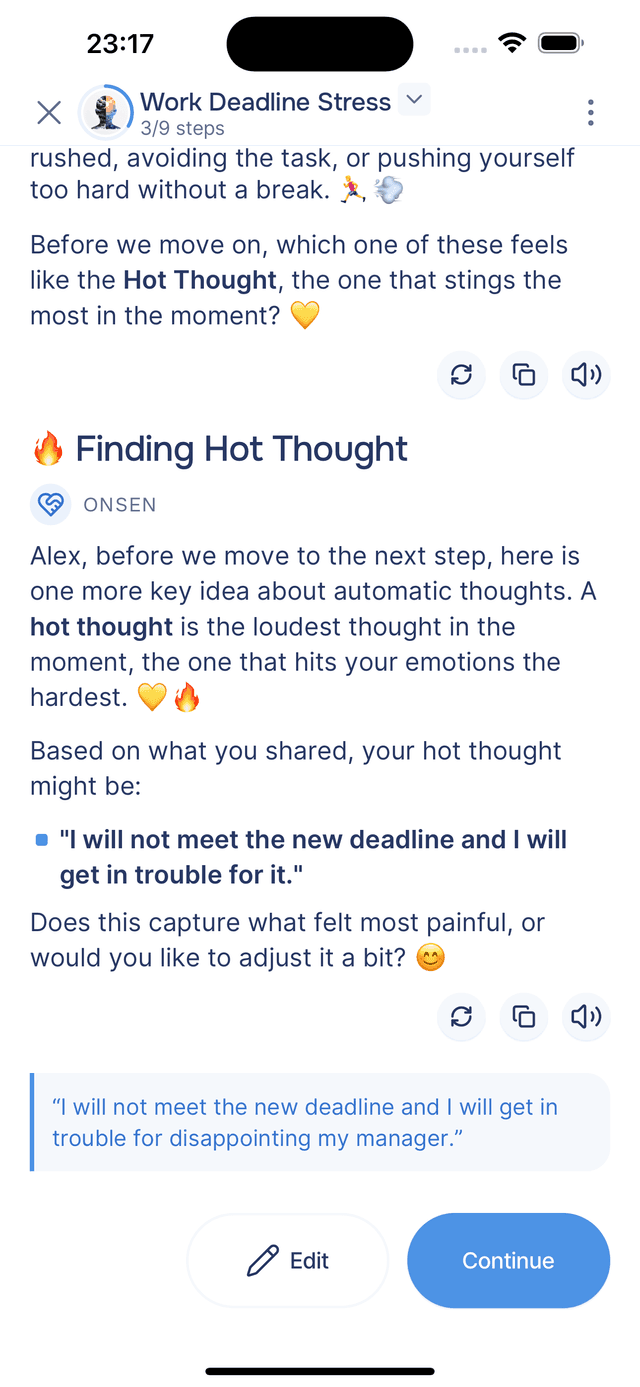
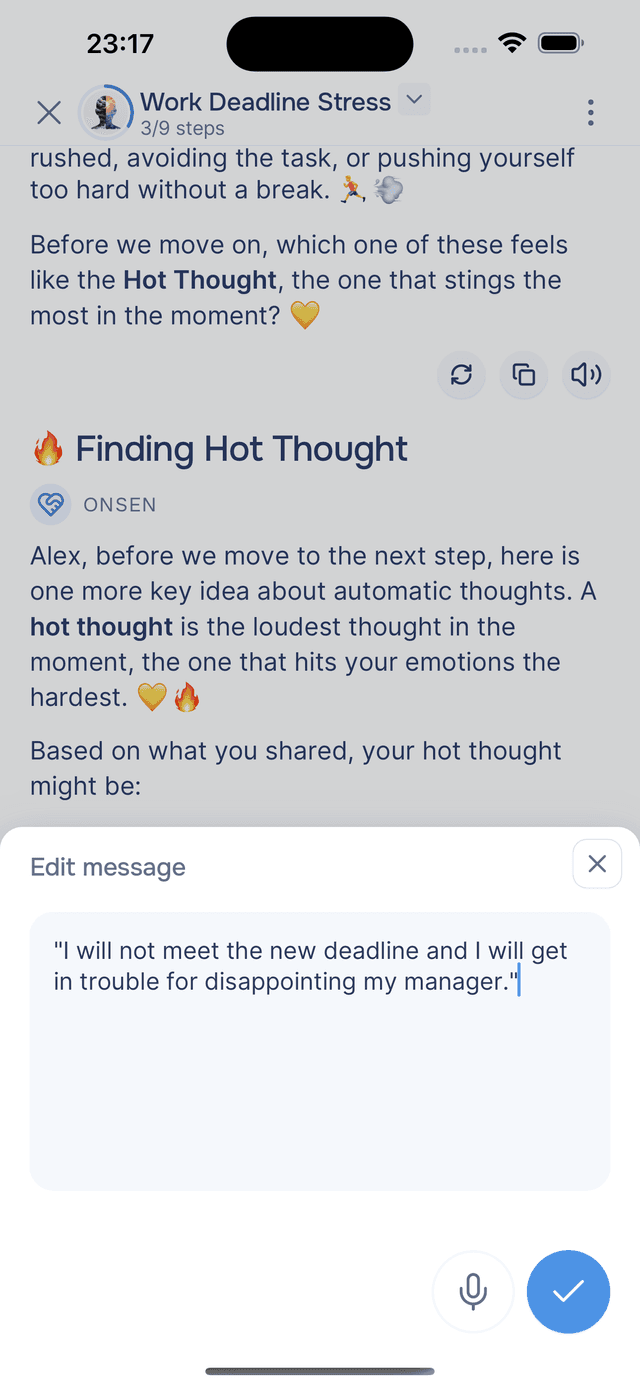
Sometimes the AI drafts something for you — like a rephrased thought or a summary — and asks if you would like to adjust it. You will see the suggested text with Edit and Continue buttons. Tap Edit to open the text in a full editor where you can rewrite it however you like, or tap Continue to accept it as-is. For example, in the Thoughts step of Clear Negative Thoughts, the AI suggests a revised Hot Thought that you can refine before moving on.
Surveys and Check-ins
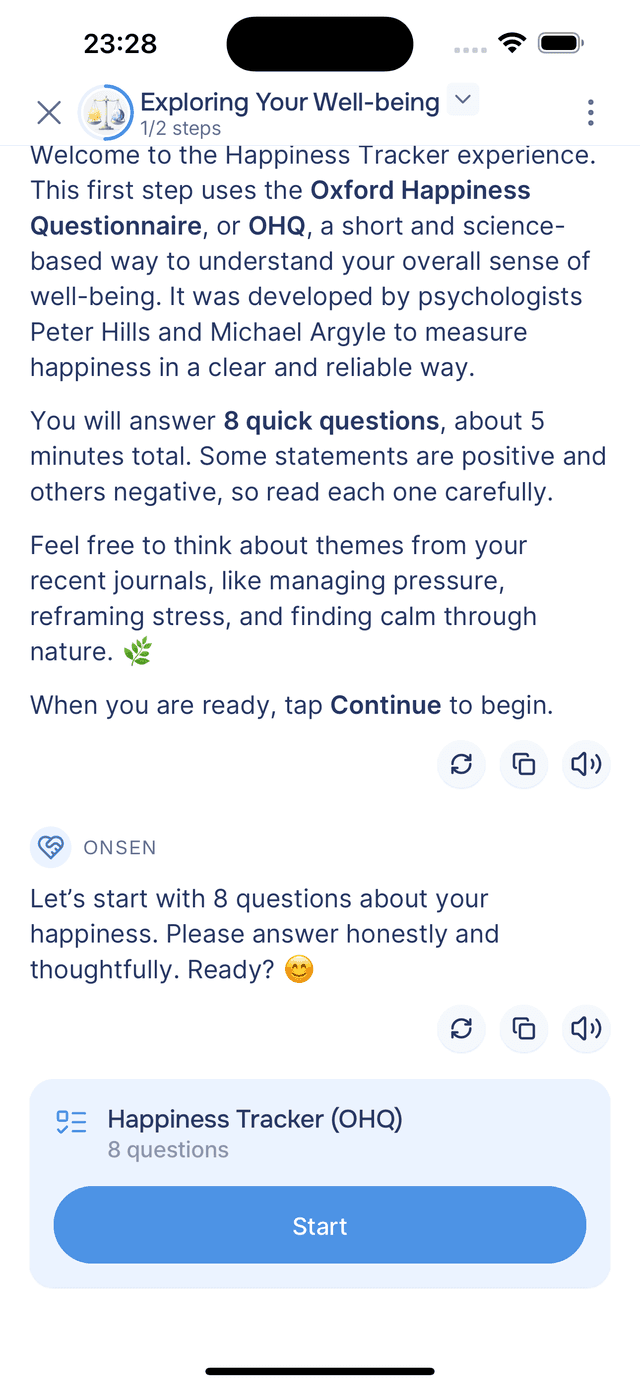
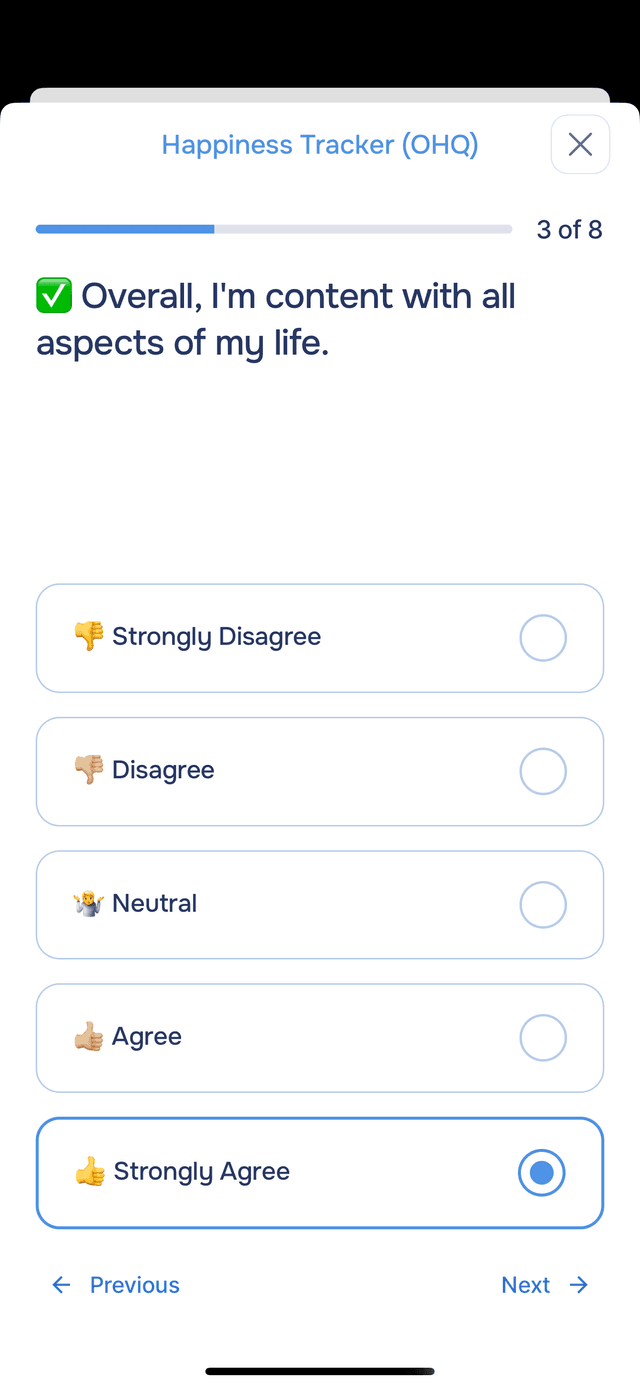
Some experiences include structured questionnaires — like the Happiness Check-in, Stress Check-in, and Gratitude Check-in. These open as a dedicated survey with a progress bar, one question at a time. Tap your answer and use the Previous / Next buttons to navigate. Your results are summarized by the AI when you finish.
Photos
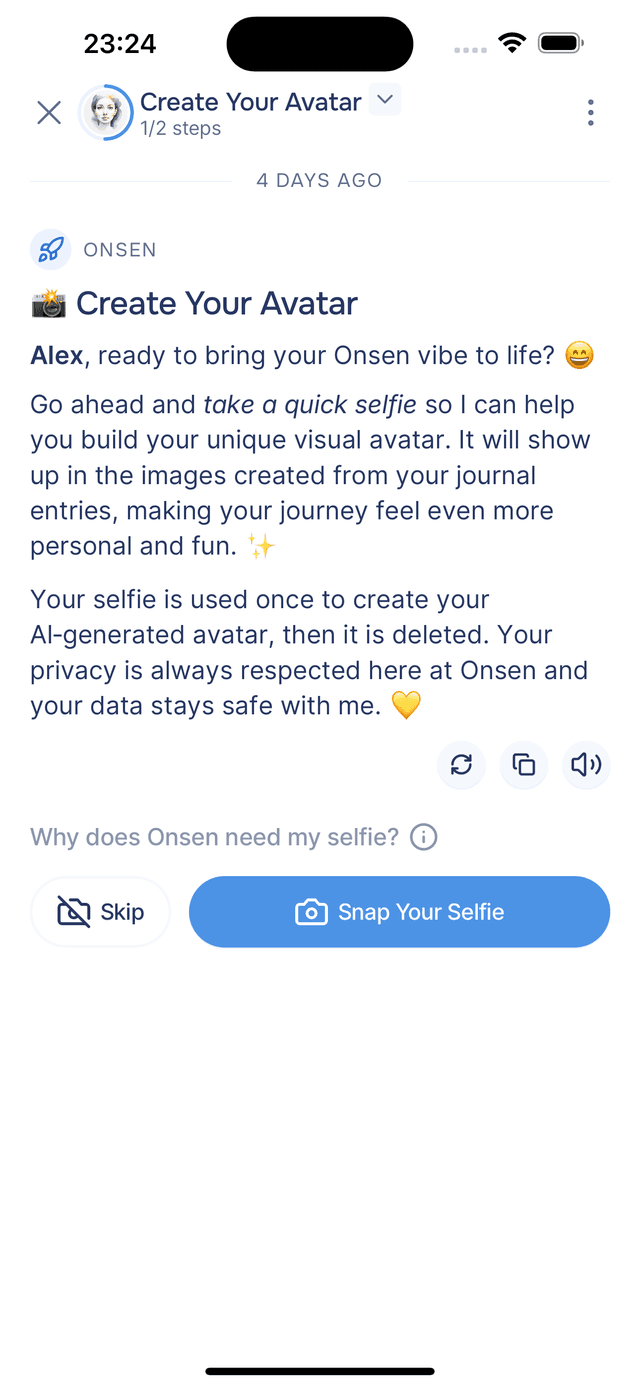
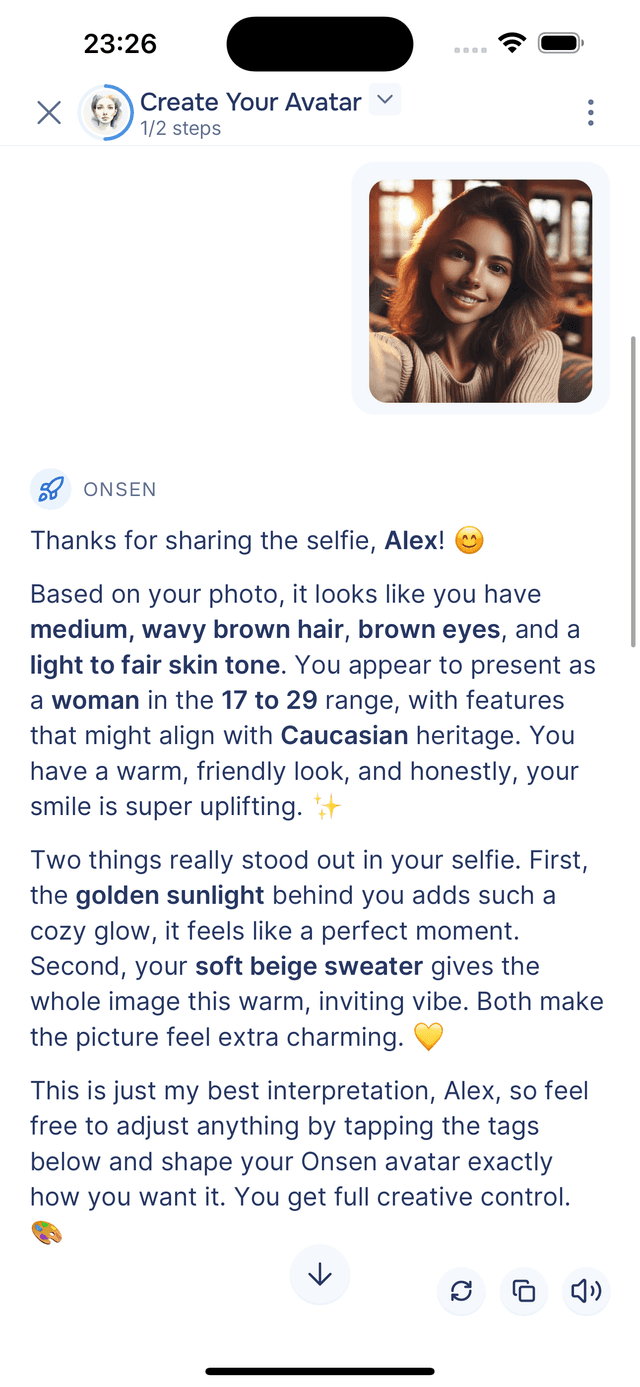
A few experiences ask you to add a photo. For instance, in Design Your Avatar, you add a photo of yourself so the AI can describe your features and generate a personalized avatar. Tap the camera button to take or upload a photo, or skip if you prefer not to. Your photo is kept as part of your avatar so it can be used as a face reference in personalised journal entry images — see the Privacy Policy for full details.
Tips
- Interactive elements are suggestions, not requirements — you can always type or speak your own response instead.
- Take your time — Continue buttons let you move at your own pace. There is no rush.
- See also — Message Tools for copy, regenerate, edit, feedback, and read aloud options on every message.