

Starting a Chat
Begin a conversation with your AI guide, send messages by text or voice, and navigate between chats.
Overview
Chatting with Onsen is like texting a thoughtful friend who always has time for you. Start a conversation whenever something is on your mind, and your AI guide will listen, respond, and help you work through it.
Ways to Start a Conversation
You have a couple of options:
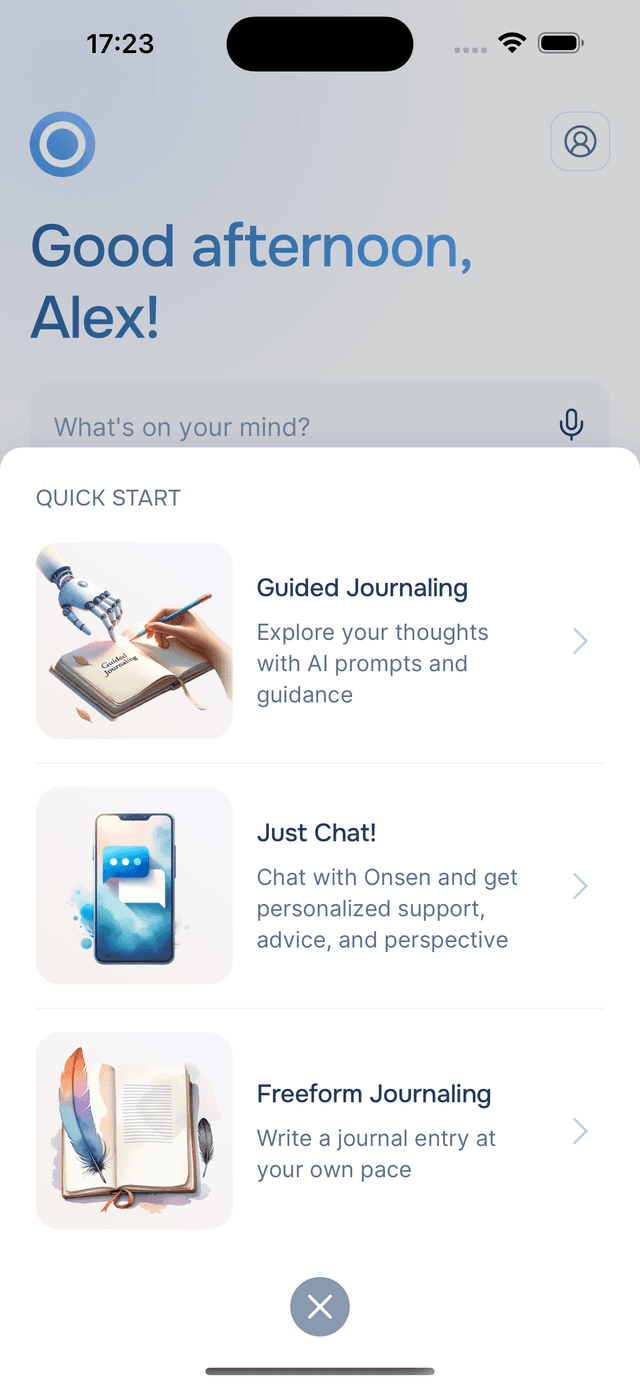
- Quick-start menu — tap the button in the center of the bottom tab bar. Select Just Chat for an open-ended conversation, or Guided Journaling to write with AI prompts and guidance.
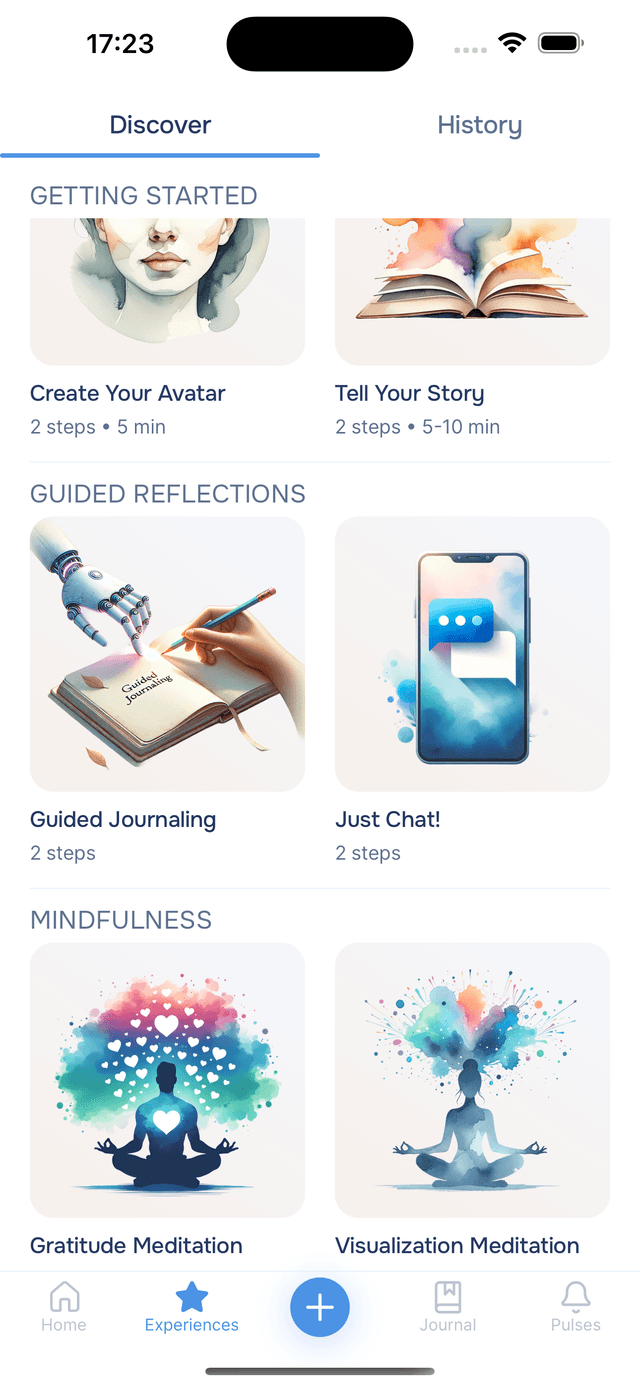
- Experiences tab — go to the Experiences tab and look under the Guided Reflections category to find Just Chat and Guided Journaling.
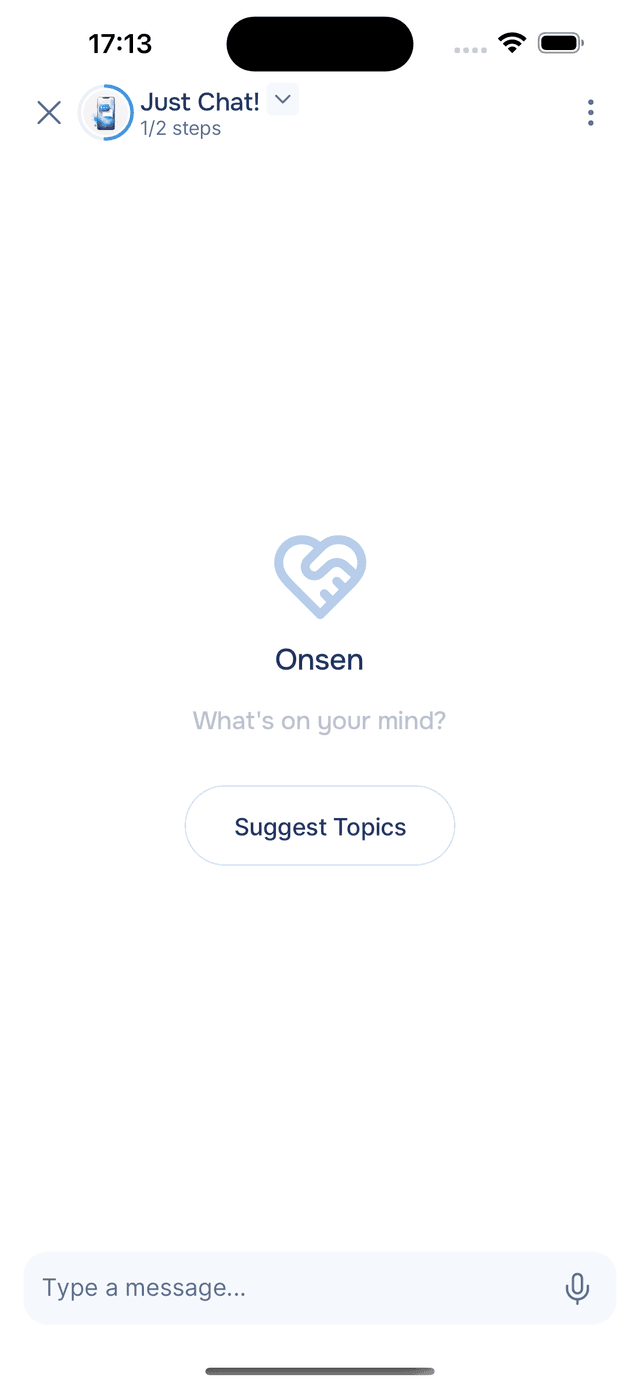
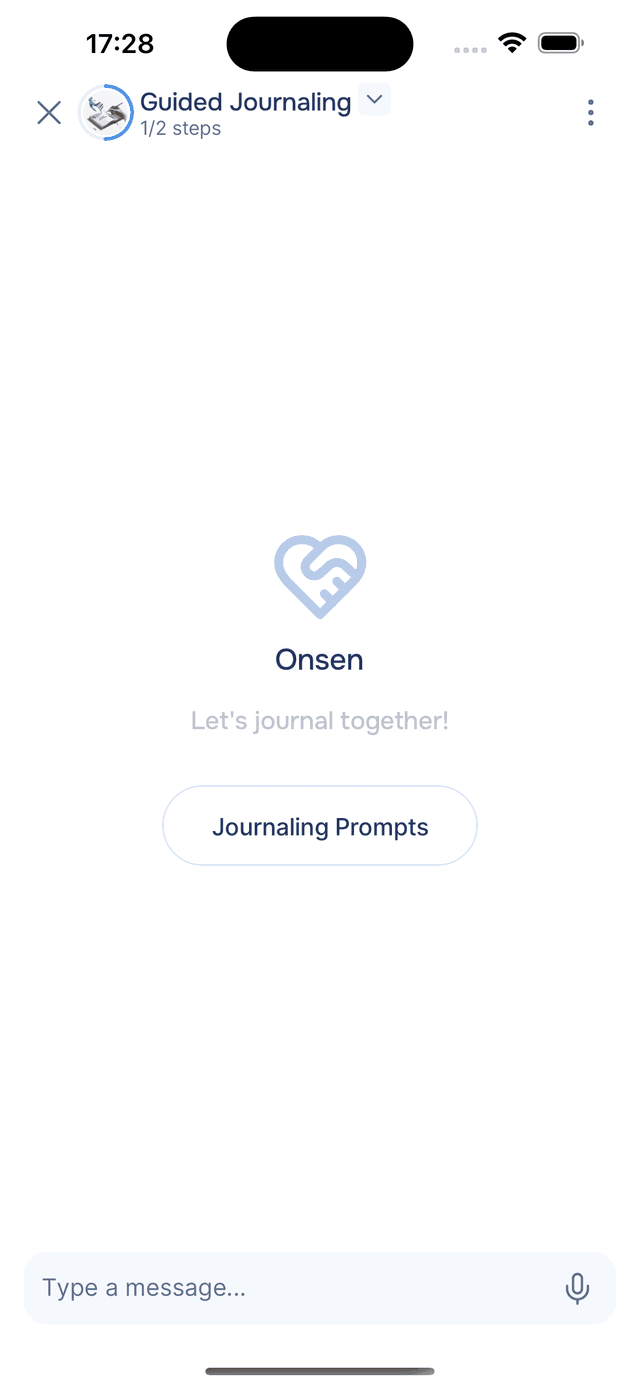
When a new chat opens, your AI guide is ready to listen. In Just Chat, tap Suggest Topics if you are not sure where to begin. In Guided Journaling, tap Journaling Prompts to get writing ideas.
The Chat Screen
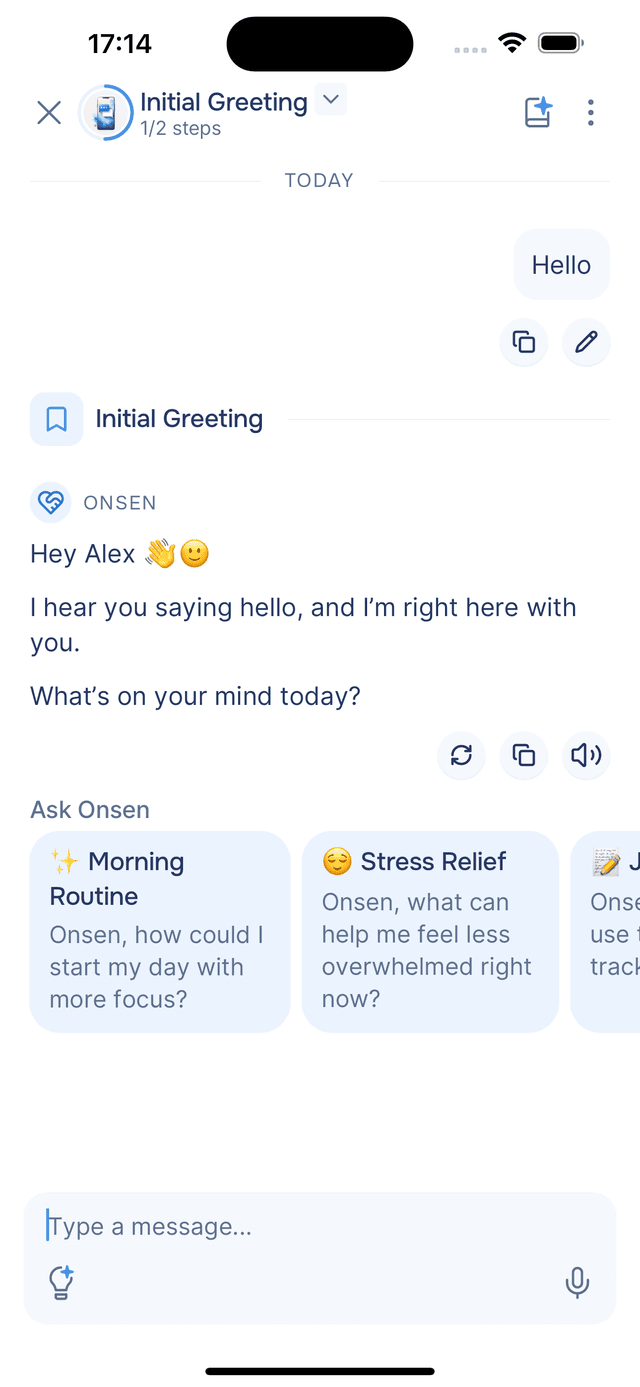
Here is what a typical conversation looks like:
- Header — shows the experience name, step progress, and a menu for settings like Read Aloud and Expressive Voice.
- Your messages appear on the right with Copy and Edit buttons underneath.
- AI responses appear on the left with Regenerate, Copy, and Read Aloud buttons underneath.
- Suggested prompts — the AI may offer "Ask Onsen" cards to help you continue the conversation.
- Input bar — type your message at the bottom, or tap to record a voice message. The button opens AI Prompts.
Sending Messages
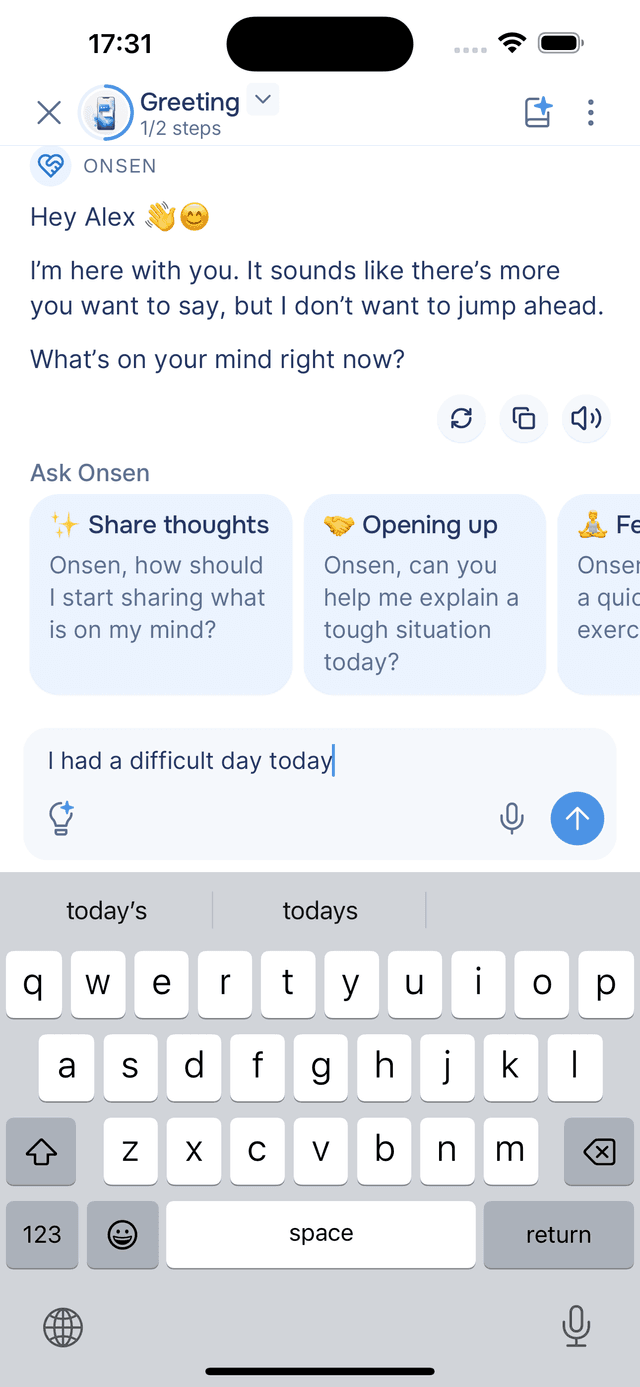
Type whatever is on your mind in the text field at the bottom of the screen and tap to send. Your message appears on the right, and your AI guide's response streams in on the left in real time.
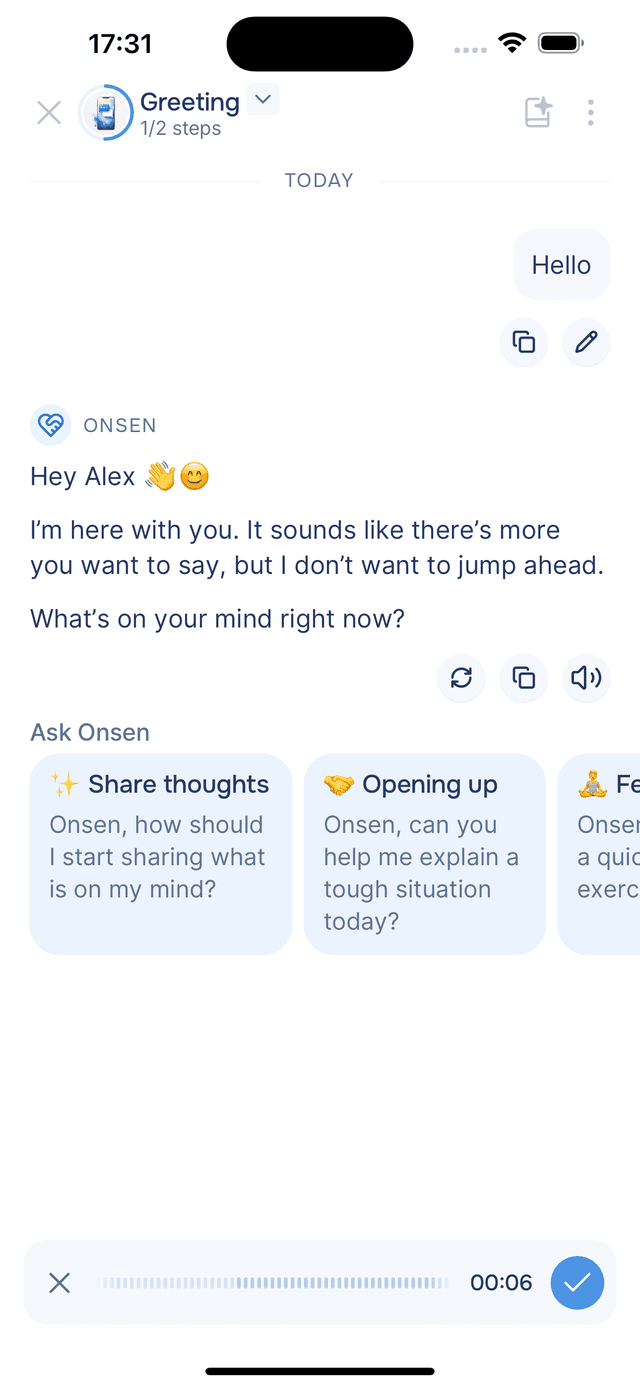
You can also tap to record a voice message instead of typing — or mix both in the same conversation. See Voice Input and Read Aloud for details.
There is a 10,000-character limit per message. A counter appears as you get close, and turns red if you go over.
Stopping a Response
If the AI guide is mid-response and you want to interrupt, tap the stop button that appears in place of the send button. The response stops where it is, and you can continue the conversation.
Switching Between Conversations
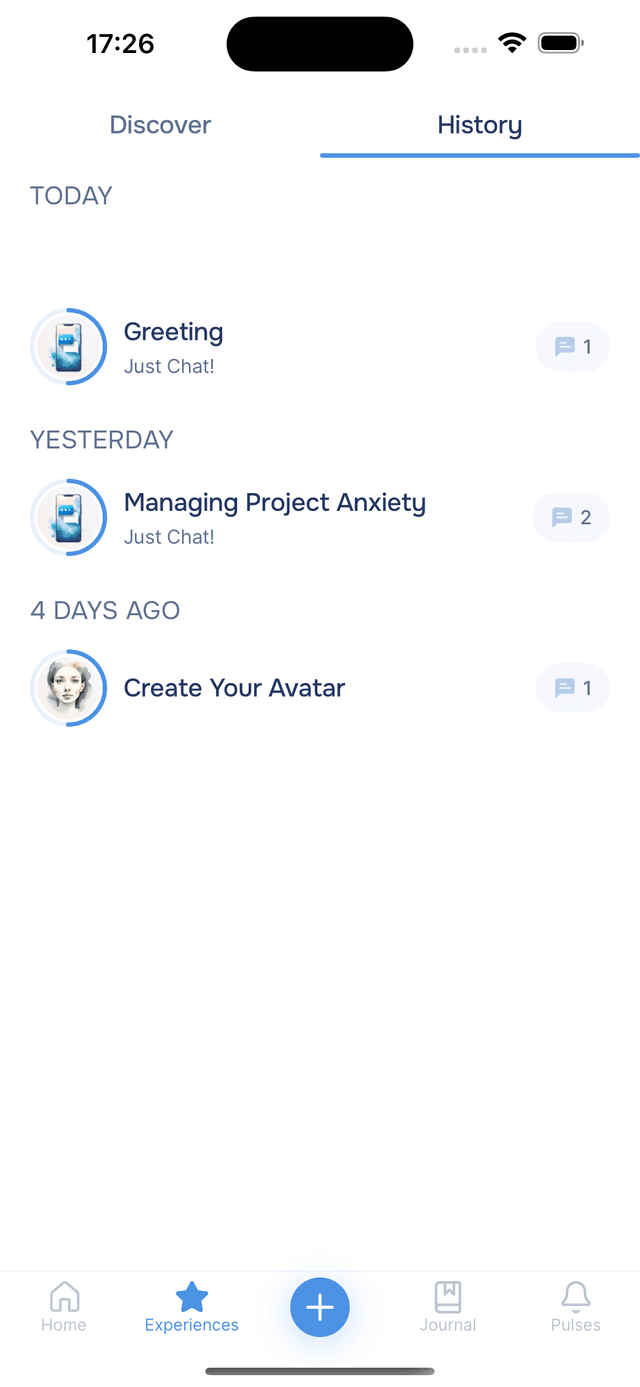
Onsen keeps all your conversations saved, so you can have multiple going at once. Find them in the History tab on the Experiences screen, or under Resume Experiences on the Home screen. Your place in each conversation is saved automatically — switch back and forth without losing anything.
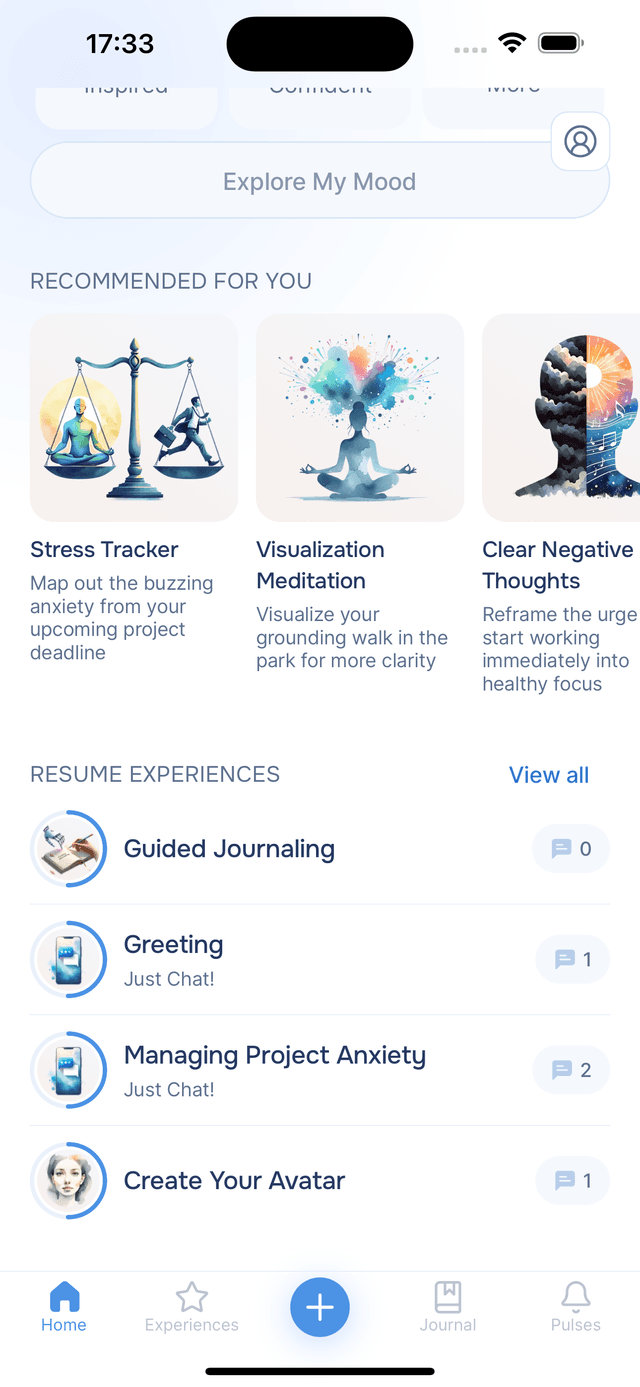
Want a fresh start? Tap the quick-start button at any time to begin a new conversation.
Tips
- Mix text and voice freely — use whichever feels more natural in the moment.
- Your guide remembers context — no need to repeat yourself. The AI carries the full conversation history.
- Try different conversation styles — from quick check-ins to deep reflections, your guide adapts to how much you want to share.