

Image Attachments
Share photos with your AI guide so it can respond to what you're seeing.
Overview
You can attach up to 3 images to any chat message. Your AI guide looks at them along with your text and responds to what you've shown — describing a place you visited, reading the body language of a photo of you and a friend, helping you reflect on a memory, or just talking about whatever you're sharing.
Image attachments are a Premium feature. Your images are private to your account, kept securely so your guide can keep referring back to them, and deleted when you remove the message or your account. The full data-handling detail is in the Privacy Policy.
Attaching from your photo library
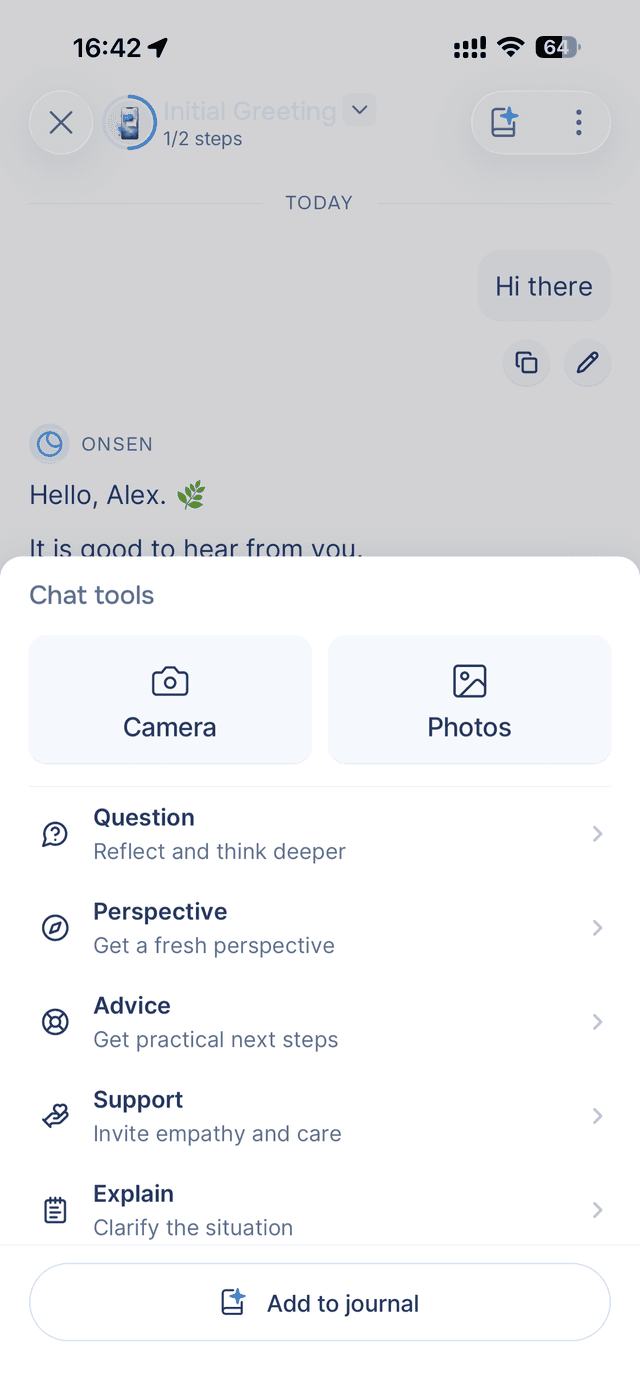
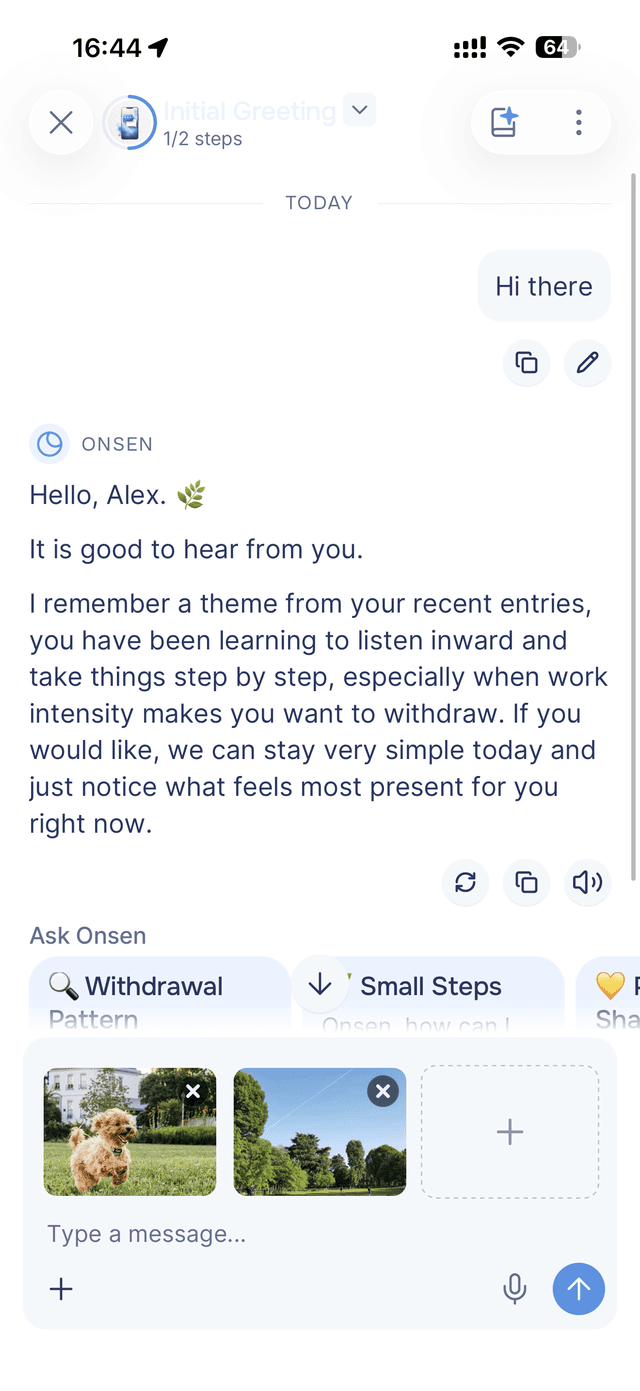
Tap the button next to the message input. The Chat tools sheet slides up. Tap Photos, then pick up to 3 images from your library. They appear as thumbnails above the message bar. Type a message (or leave it blank) and send when you're ready.
Taking a photo
From the same Chat tools sheet, tap Camera instead. Onsen's in-app camera opens. Snap the photo, confirm, and it appears as a thumbnail above the message bar. You can take more photos or pick from your library to mix sources, up to 3 total.
Removing before sending
Tap the small on any thumbnail to remove it before sending. The other thumbnails stay put. If you change your mind, tap again to attach more.
Editing a message that has images
Long-press your sent message and tap Edit. The editor opens with the original text and your attached images shown as thumbnails. You can change the text and tap on any image to remove it. You can't add new images while editing — to do that, send a fresh message instead.
When you save the edit, the AI re-runs with your updated message and the remaining images. Anything that came after the edited message is removed, so the conversation continues fresh from that point.
What happens to your images
When you attach an image, it's uploaded to Onsen's secure storage in the EU (AWS Ireland) under a folder only your account can access. Your guide reads it to compose a reply, and the image stays part of the conversation history so it can keep being referenced as the chat continues.
When you delete the message, the image is deleted with it. When you delete your account, all your attached images are erased within 30 days — same as everything else. See the Privacy Policy for full details.
Limits and Premium
- Up to 3 images per message. If you need to share more, split them across two messages.
- Premium feature. On the Free plan, the button still surfaces the AI prompts list, but the Camera and Photos tiles are gated behind Premium. See the Plans page.
- Counts toward your monthly cap. Image attachments use the same image quota as AI-generated images — you can check your remaining usage in Settings → Usage.
Tips
- Good lighting helps the AI describe accurately — a clear, well-lit photo lets your guide notice more detail.
- You can send images without text — if you just want your guide to react to what's in the photo, attach and send. The reply will respond to the image.
- Crop sensitive context out before sharing — your images are private to your account, but it's still worth being thoughtful about what's in frame, especially if other people appear.
- One subject per message works well — if you want to talk about three different things, three messages will give you clearer responses than one with three loosely-related photos.