

Searching Your Journal
Find any entry by the words you wrote or the way it felt, browse by the people and places Onsen knows, and pick up recent searches.
Some days you remember the exact phrase you wrote. Other days all you remember is that you felt stretched thin and it was around the time you changed jobs. Onsen search handles both — it looks for your words and for your meaning at the same time, so you do not have to remember how you phrased something to find it again.
Opening Search
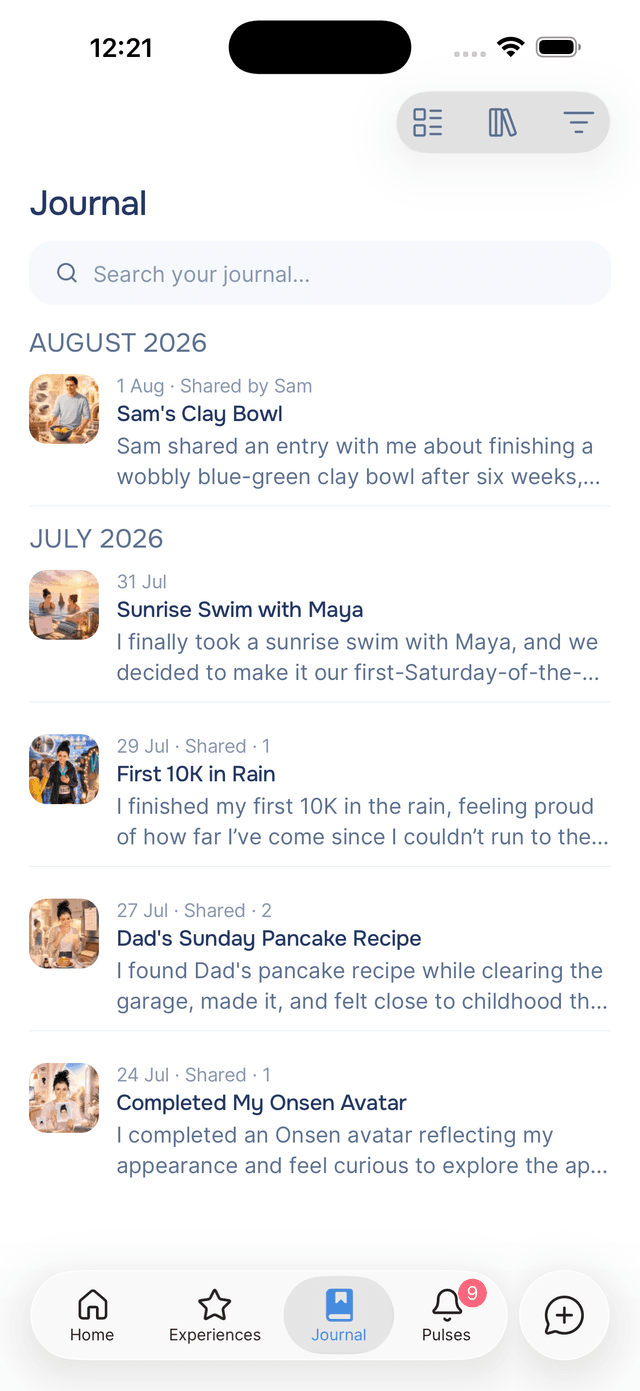
Tap the Search your journal… field at the top of your journal. It sits under the big Journal title, and once you scroll it moves up into the bar so it is always within reach.
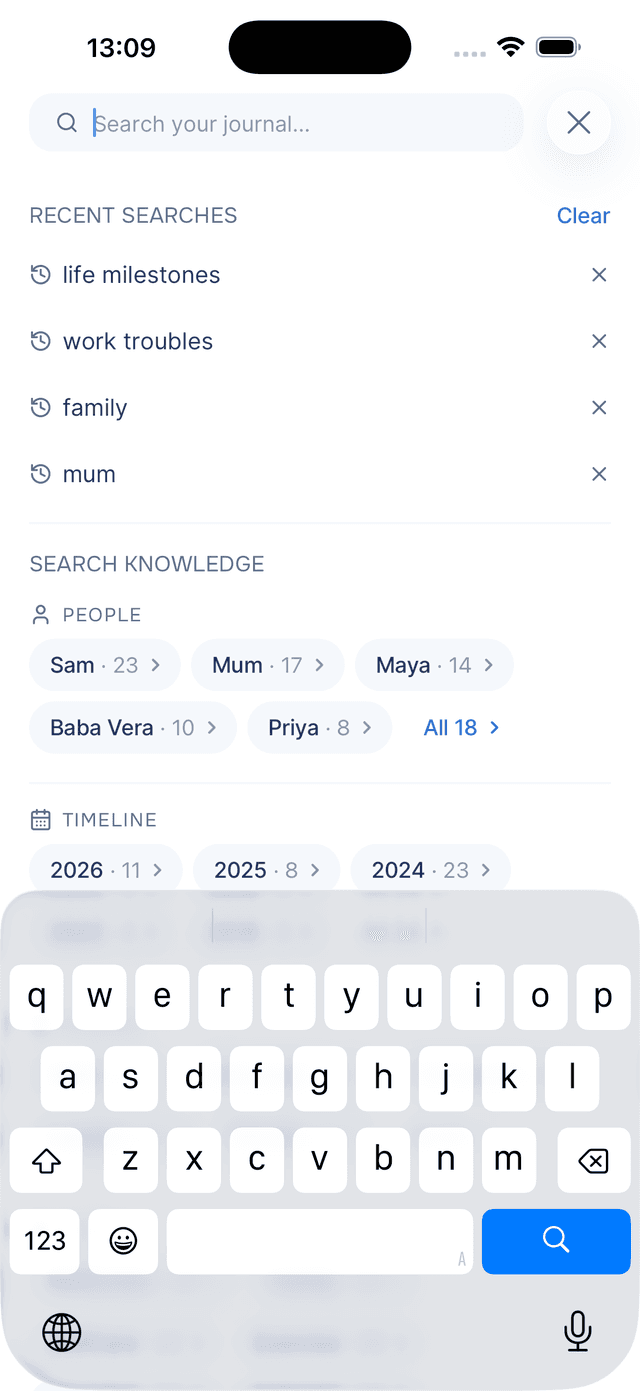
The search screen is a place of its own. The field becomes the title, the keyboard opens for you, and close on the right takes you back to your journal exactly where you left it.
Recent Searches
Your last five searches sit at the top, newest first, so a search you run often is one tap away. Tap next to any of them to remove it, or Clear to wipe the list.
Recent searches never leave your phone. They are not synced, not shared, and not part of your account.
Browsing by People, Places and Moods
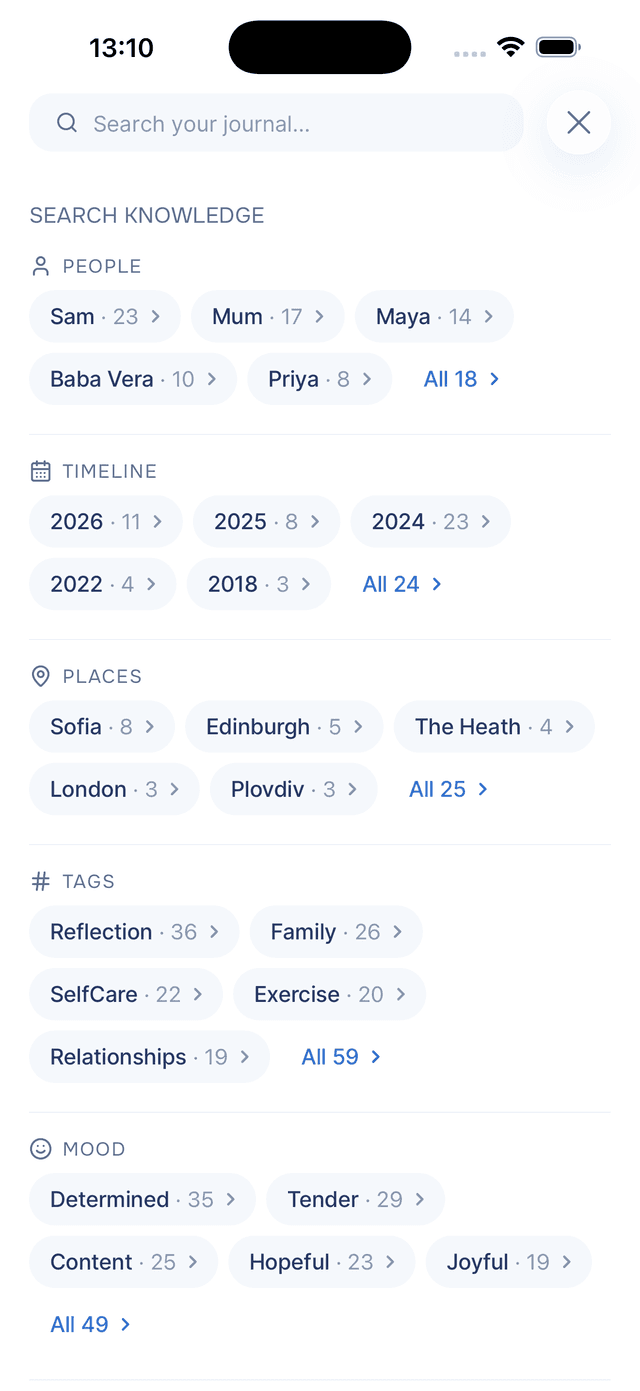
Under Search knowledge you will find a row for each thing Onsen has learned about — People, Timeline, Places, Tags, Mood, Wellness, Moments, Animals, and Companies & groups. Each row shows a handful of chips with a name and how many entries mention it, like Mum · 42.
This is the fastest way in when you are not looking for a phrase but for a person. Tap Mum and you get every entry that mentions her. The Timeline row works the same way with your fullest years, so tapping 2016 · 8 drops you straight into that year. When a family holds more than the row shows, the last chip reads All 214 and opens the full list, and Browse all knowledge at the bottom opens Knowledge itself.
Searching by Words or by Feeling
Start typing and results replace the browse rows after two characters. Two things happen at once behind that single field.
The first pass hunts for your actual words, and it cares where it finds them — a match in the title or a hashtag counts for more than one buried deep in a long entry. The second pass searches for meaning. Type felt overwhelmed at work and it surfaces the evening you wrote about staying late again and dreading the inbox, even though you never used the word "overwhelmed". Entries that both passes agree on rise to the top.
That means you can search the way you actually remember things. argument with my sister, couldn't sleep, or first day all work, and so does an exact phrase you know you wrote.
Reading Your Results
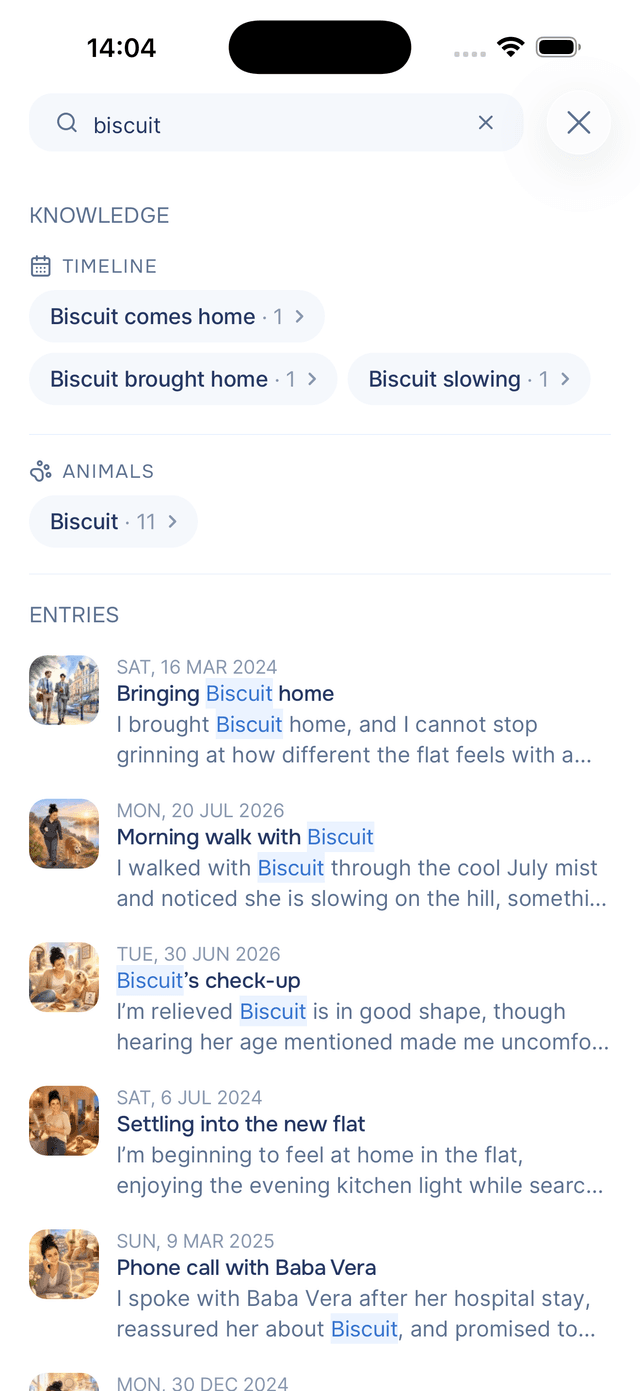
Results arrive in two groups. Knowledge comes first as chips — the people, places and tags whose names match what you typed, ordered by how often they come up. Tap one to open everything about that person or place instead of a single entry.
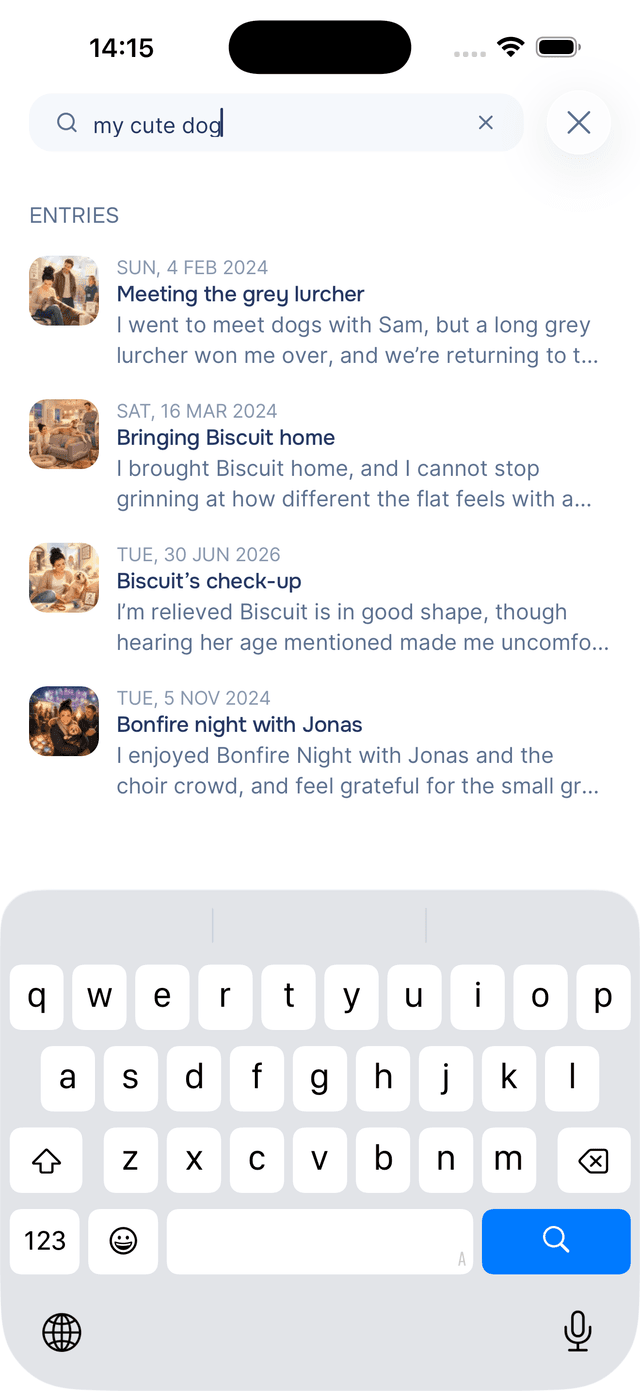
Entries follows, one row each: the artwork thumbnail, the date, the title, and a two-line snippet. When your words appear in the entry, the snippet is lifted from around the match and the matching words are tinted so you can see why the entry surfaced. When an entry matched on meaning alone, you get its summary instead. Scroll to load more, and tap any result to open it — Back returns you to your results.
Tips
- Fewer words usually work better —
sister weddingfinds more thanthe weekend of my sister's weddingbecause every extra word is another thing to match. - Describe the feeling when the facts escape you —
felt proud of myselfis a perfectly good search, and it is often the one that works. - Use the knowledge chips as shortcuts — if you find yourself searching a person's name over and over, tap their chip instead and get their whole story in one place.
- Search ignores your journal filters — searching looks across everything, so you do not need to clear filters first.