

Managing Entries
Edit your journal text, rename entries, delete ones you no longer need, and re-generate an entry's knowledge and plan.
Overview
Your journal entries are yours to shape. You can edit the text, change the title, delete entries, or ask the AI to re-analyze what you wrote. When you update your text, the AI automatically refreshes its insights to match.
Opening the Menu
Tap the icon in the top-right corner of any entry to open the Manage Entry menu.
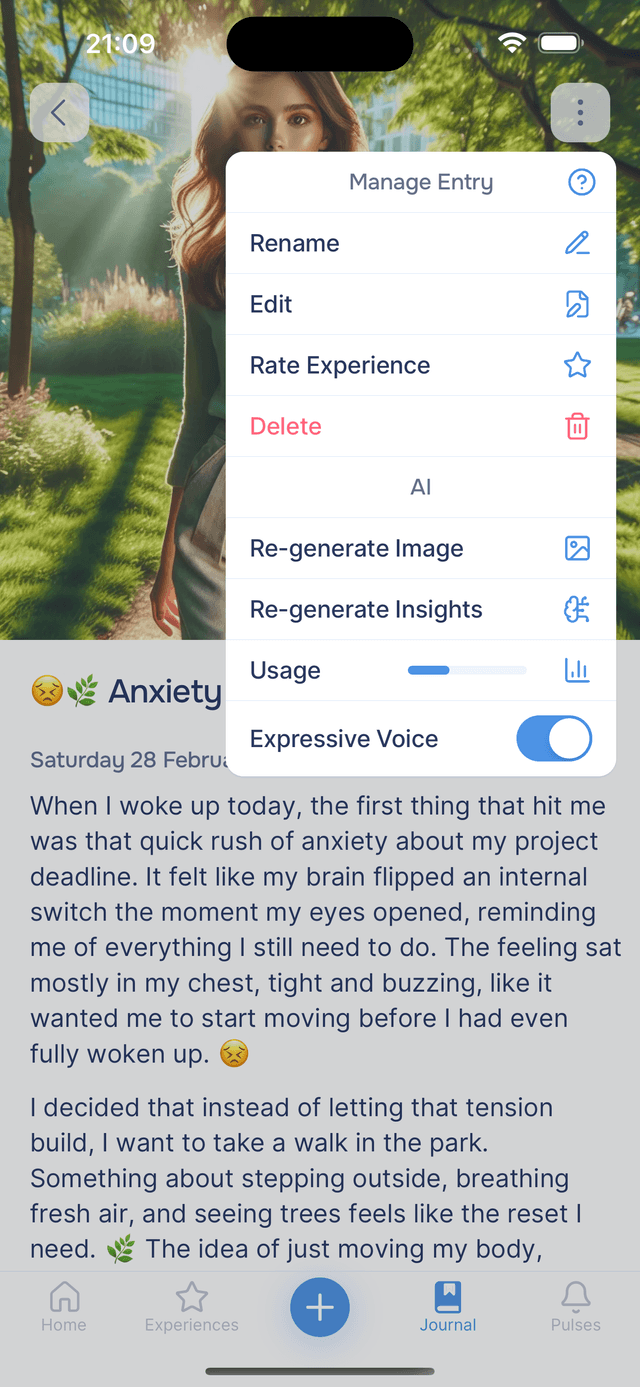
Menu Options
| Option | What it does |
|---|---|
| Rename | Give the entry a custom title. The AI generates one automatically, but you can change it to something more meaningful — like "Monday reflection" or "Gratitude before bed". |
| Edit | Opens the entry text in an editor so you can rewrite or refine it. After saving, the AI reprocesses the updated text to regenerate fresh insights. |
| Share | Opens the share sheet to share the entry with someone or manage who already has it. A small pill next to the option shows how many people and links currently have the entry. |
| Rate Experience | Rate the guided experience that created this entry. Only appears for entries created from a guided experience. |
| Delete | Permanently removes the entry, its AI insights, and any associated image. A brief Undo notification appears in case you tapped by mistake. |
| AI | |
| Generate Image | Creates a new AI-generated image for the entry based on your text. If the entry already has an image, this option shows as Re-generate Image. |
| Generate Insights | Runs the AI analysis on an entry that has none yet: summary, mood, hashtags, wellness, knowledge items and anything for your plan. Once the entry has insights, this option shows as Re-generate Knowledge, which reads your text again for the knowledge alone. |
| Re-generate Plan | Reads the entry again for anything that belongs on your plan, against your plan as it stands today. Counts towards your Entry Insights usage, like Re-generate Knowledge. |
| Usage | Opens your usage statistics. A small progress bar next to the option shows your current usage at a glance — blue, yellow, or red. |
| Expressive Voice | A toggle for a more natural, emotionally expressive voice when using Read Aloud. See Expressive Voice for details. |
On an entry that was shared with you, Edit and image regeneration aren't available — your copy stays a faithful record of what the sharer actually shared. You can still rename it, delete it, and re-generate its knowledge and plan.
Editing an Entry
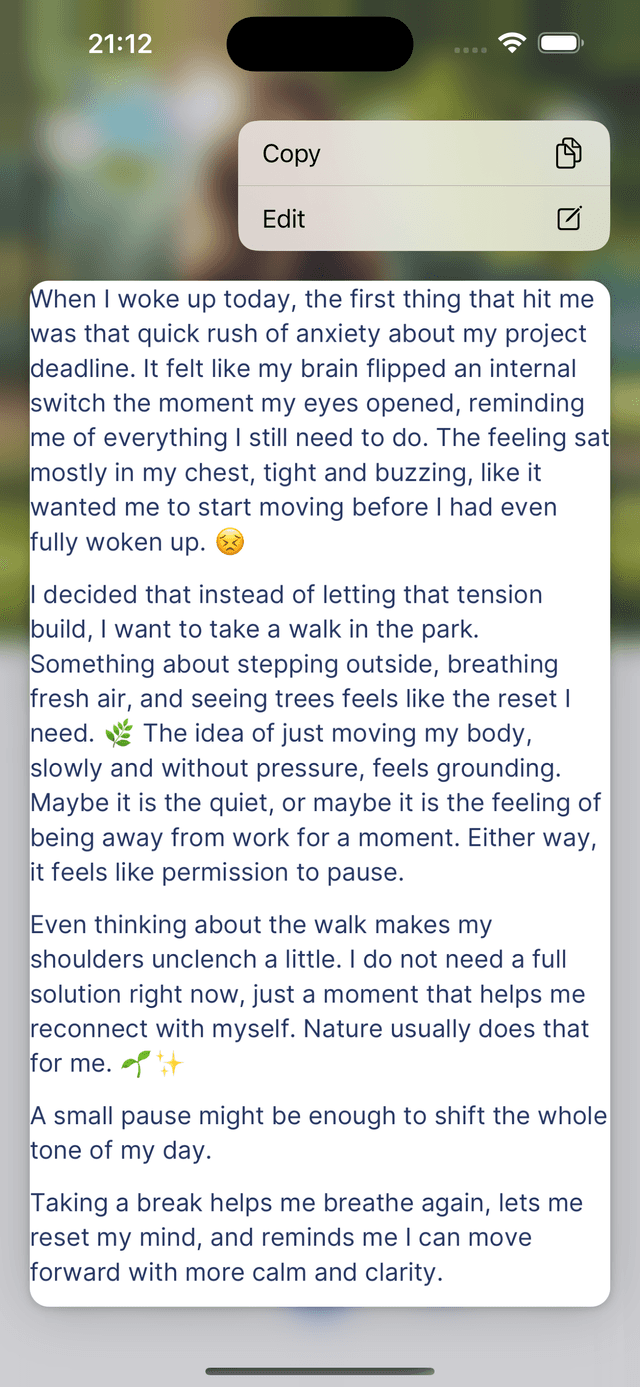
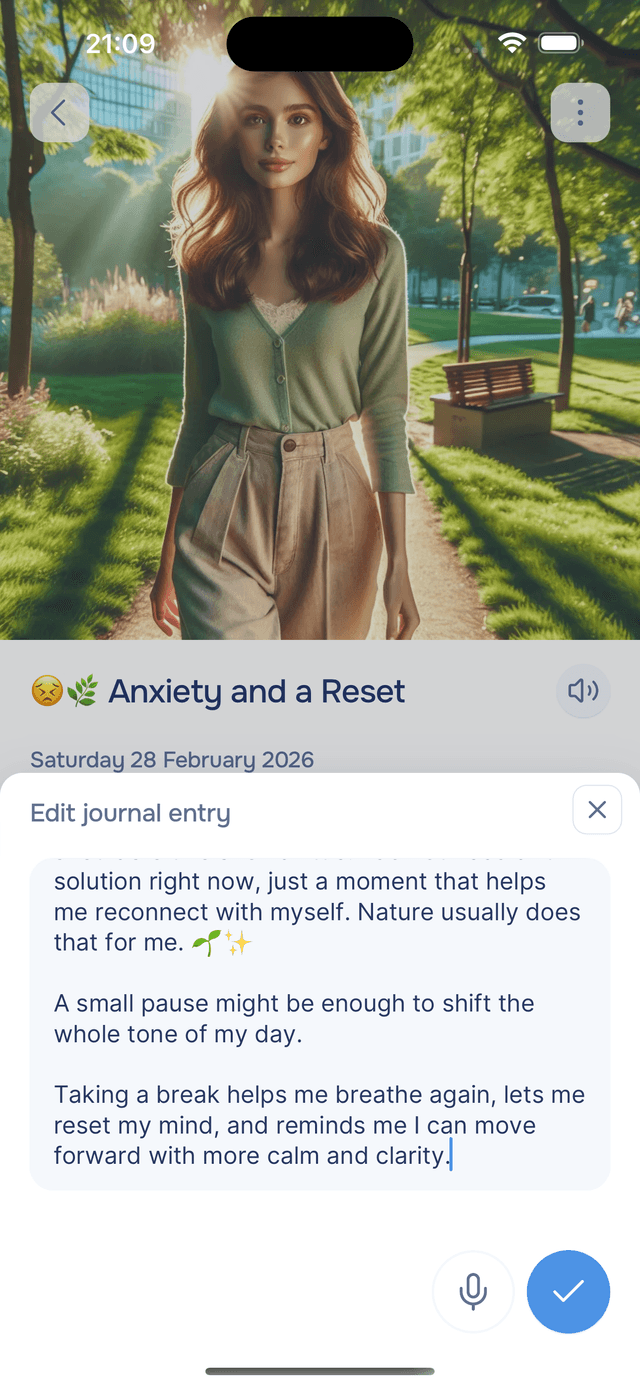
Tap Edit from the menu to open the text editor with your current entry. You can also long-press the entry text itself to get a quick Copy / Edit shortcut. Make your changes — you can type or speak — then tap to save. The AI automatically reprocesses the updated text to regenerate fresh insights (summary, hashtags, mood, wellness, and knowledge items), so everything stays in sync with what you wrote.
Renaming an Entry
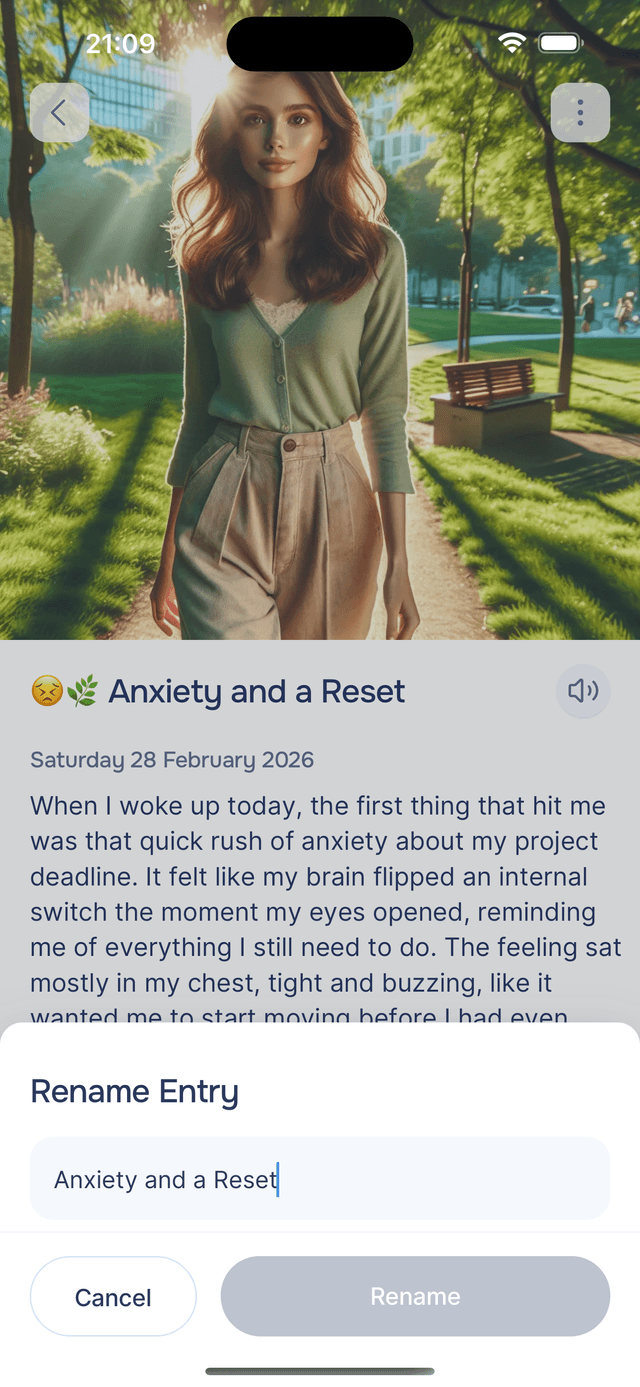
Tap Rename to change the entry title. You can also long-press an entry card in the journal list and choose Rename from the context menu. Descriptive names like "Work stress check-in" or "Evening gratitude" make it easier to find specific entries later.
Deleting an Entry
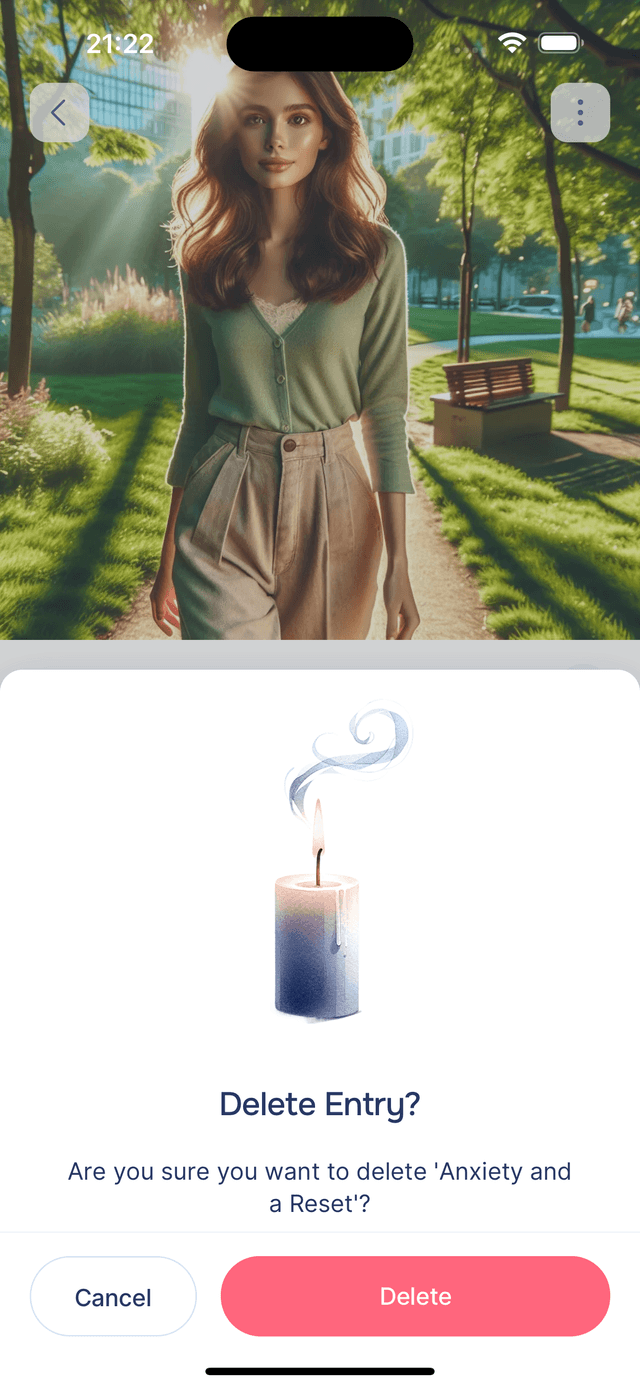
Tap Delete from the menu, or long-press an entry card and choose Delete. A confirmation dialog asks you to confirm before anything is removed. Once deleted, the entry, its AI insights, and any associated image are permanently gone.

Rating an Experience
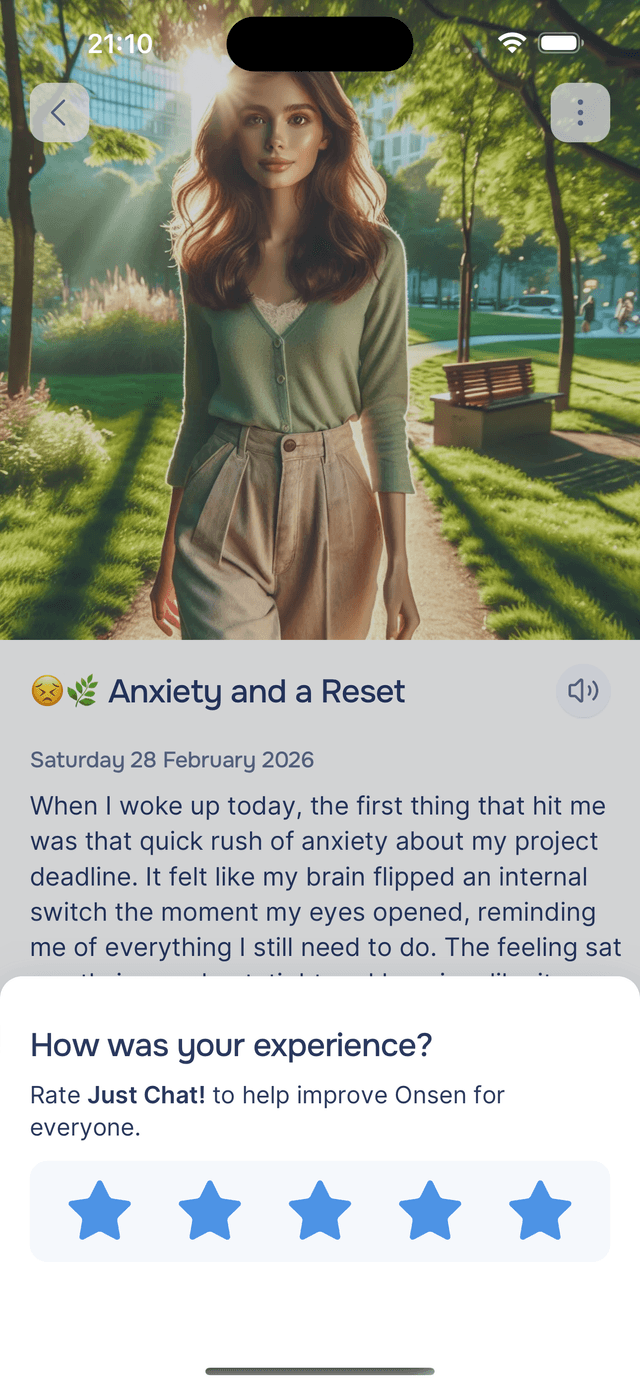
If the entry was created from a guided experience, the menu includes Rate Experience. Tap it to rate the experience with 1–5 stars and optionally add a comment. You can submit anonymously if you prefer. Your feedback helps improve Onsen for everyone.

Tips
- Rename for easy recall — custom names like "Monday morning reflection" are easier to find than AI-generated titles.
- Edit freely — the AI re-analyzes your text every time you save, so your insights always reflect your latest writing.
- Regenerate when needed — if insights seem off or you want a fresh perspective, tap Re-generate Knowledge or Re-generate Plan without editing the text.