

Usage
Check your usage across messages, voice, images, and insights — and see when limits reset.
Overview
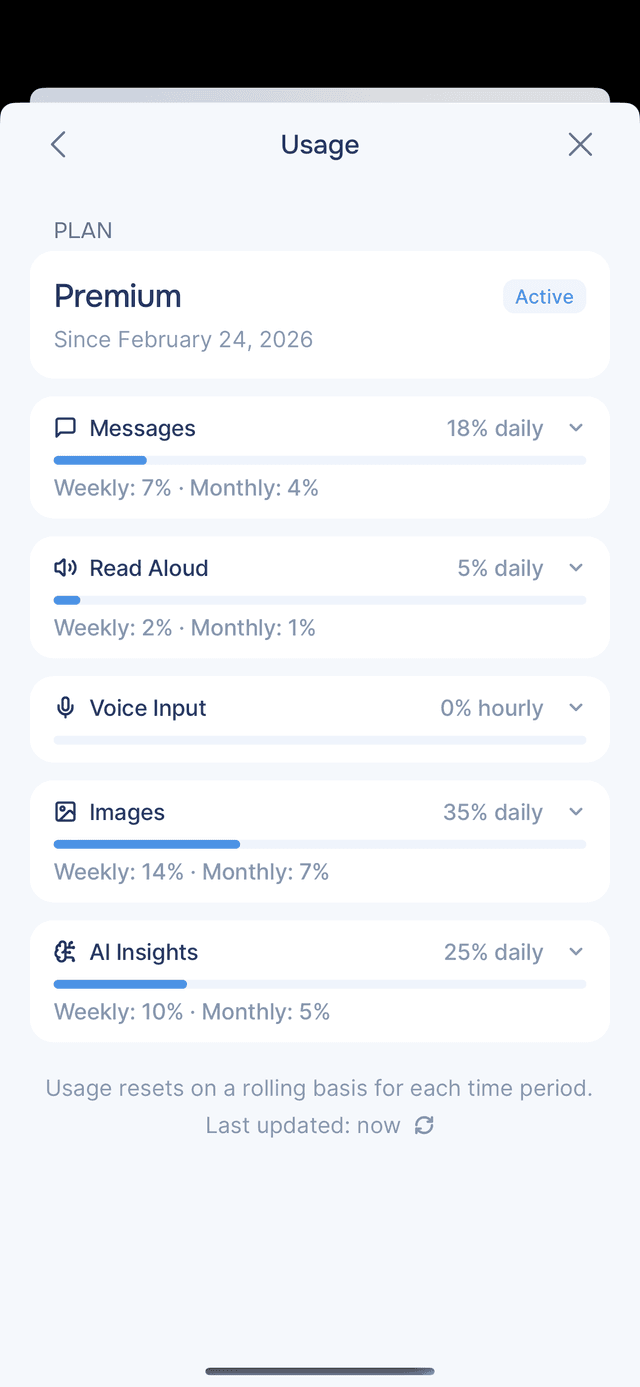
The Usage screen shows how much of your plan you have used across each action type. Go to Settings → Usage to see your current plan, a breakdown by category, and when each limit resets.
Your Plan
At the top of the screen you will see your current plan (Free or Premium) with its status and start date. See Plans for a full comparison of what each plan includes.
Usage Categories
Each category shows a progress bar and your current usage as a percentage. The categories are:
| Category | What it tracks |
|---|---|
| Messages | Chat messages sent in conversations and experiences |
| Read Aloud | AI voice playback of messages (text-to-speech) |
| Voice Input | Voice-to-text transcription when you speak |
| Images | AI-generated artwork for journal entries |
| Entry Insights | Summaries, mood, hashtags, knowledge and plan changes from your entries |
Expanded View
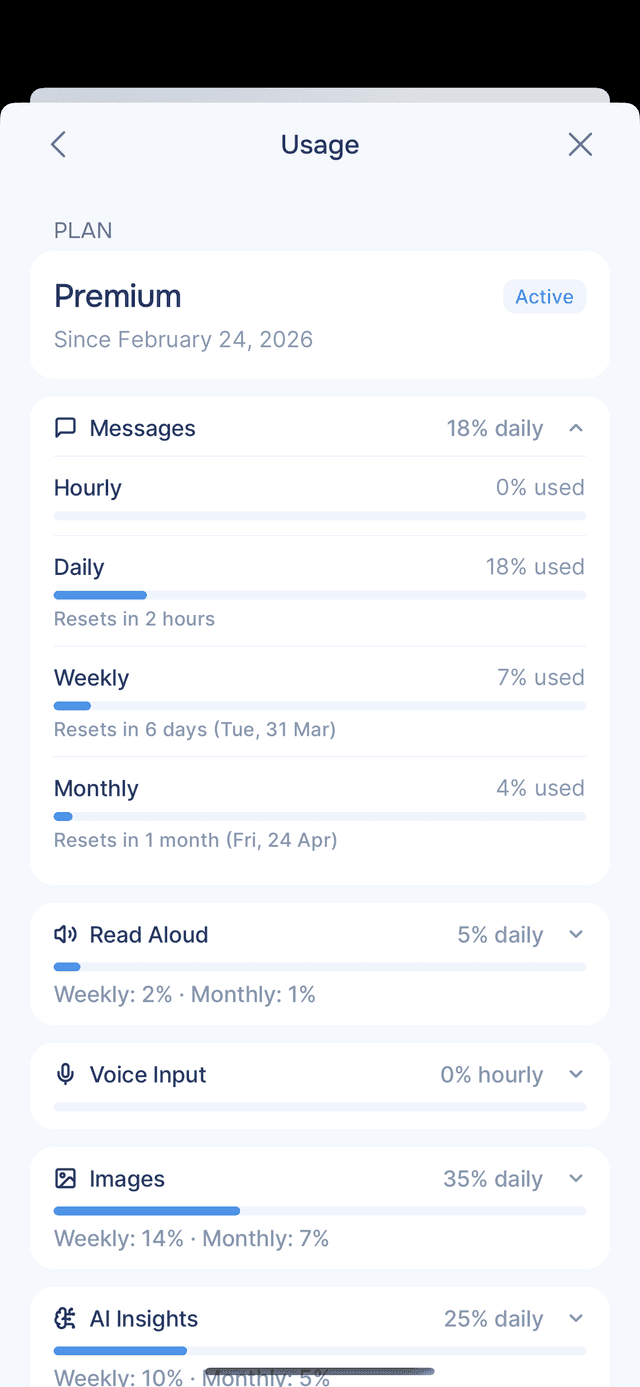
Tap any category to expand it and see a detailed breakdown by time period — hourly, daily, weekly, and monthly. Each period shows its own usage percentage and when it resets (for example, "Resets in 2 hours" or "Resets in 6 days").
Progress Bar Colors
| Color | Meaning |
|---|---|
| Blue | Normal usage, well below the limit |
| Yellow | Approaching the limit (70%+ used) |
| Red | Near or at the limit (90%+ used) |
Tips
- Check usage mid-conversation — a small progress bar also appears next to Usage in the experience menu, so you can glance at it without leaving the chat.
- Hitting limits often? — Premium gives you 10× the capacity across all categories.
- Want to understand how limits work? — see Usage Limits for details on rolling time windows, what happens when you reach a limit, and how resets work.