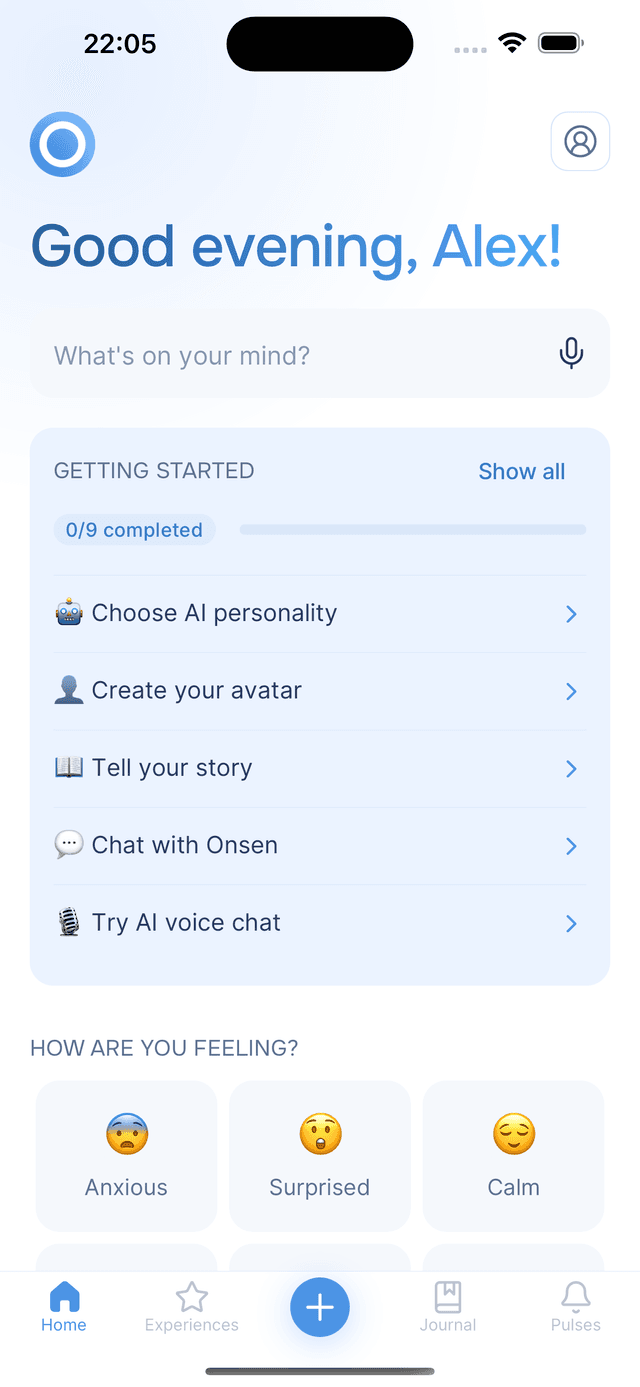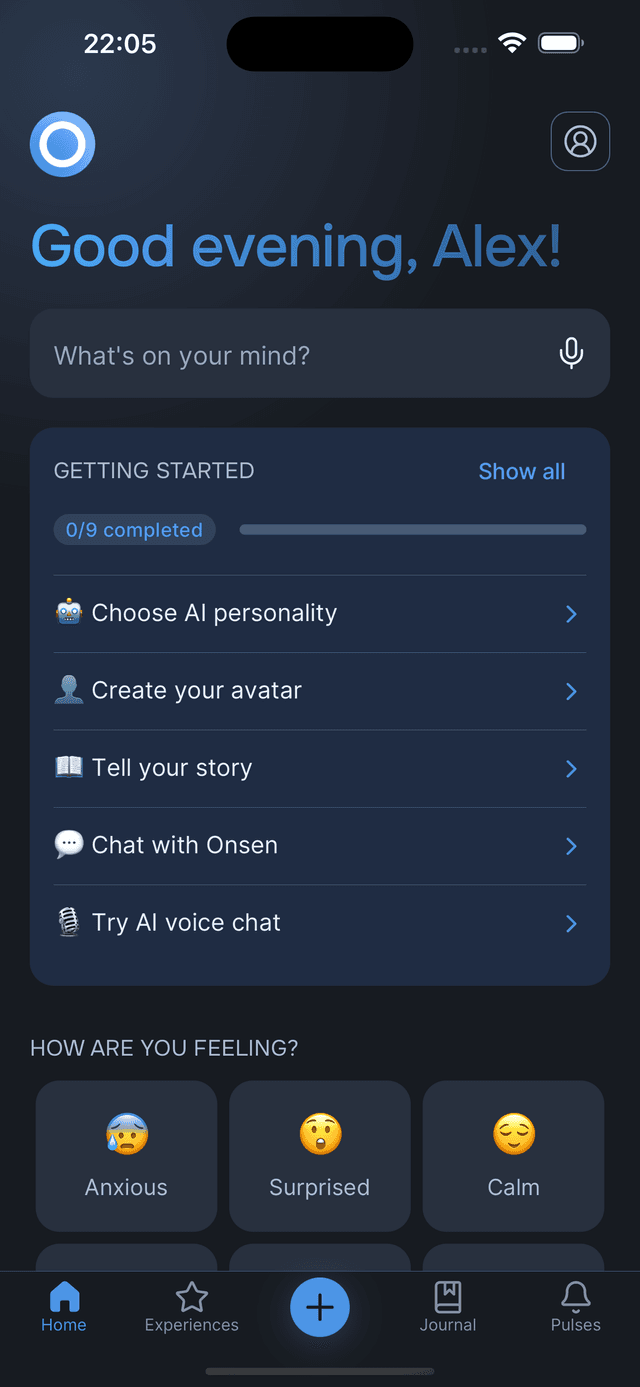

Appearance & Language
Change Onsen's language and color theme.
Overview
Make Onsen feel like yours by choosing your preferred language and color theme. Both are in the App section of Settings.
Language
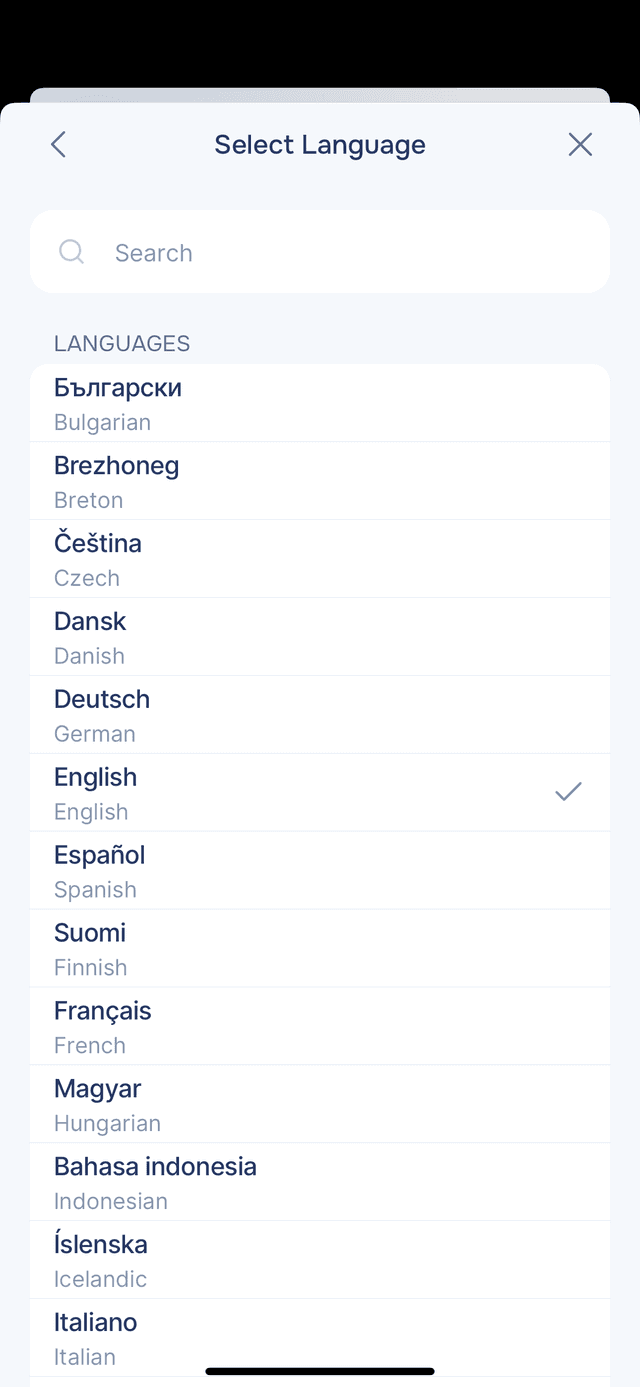
Onsen supports multiple languages. Changing your language tells your AI guide to respond in the selected language going forward — in conversations, journal entries, and experience guidance.
Go to Settings → Language and pick from the searchable list. You can search by native name, your current language, or English. The change takes effect immediately — your AI guide will start responding in the selected language in future conversations. Existing entries and past conversations stay in the language they were originally written in.
Color Theme
Go to Settings → Color Theme and tap your preference. The change applies immediately.
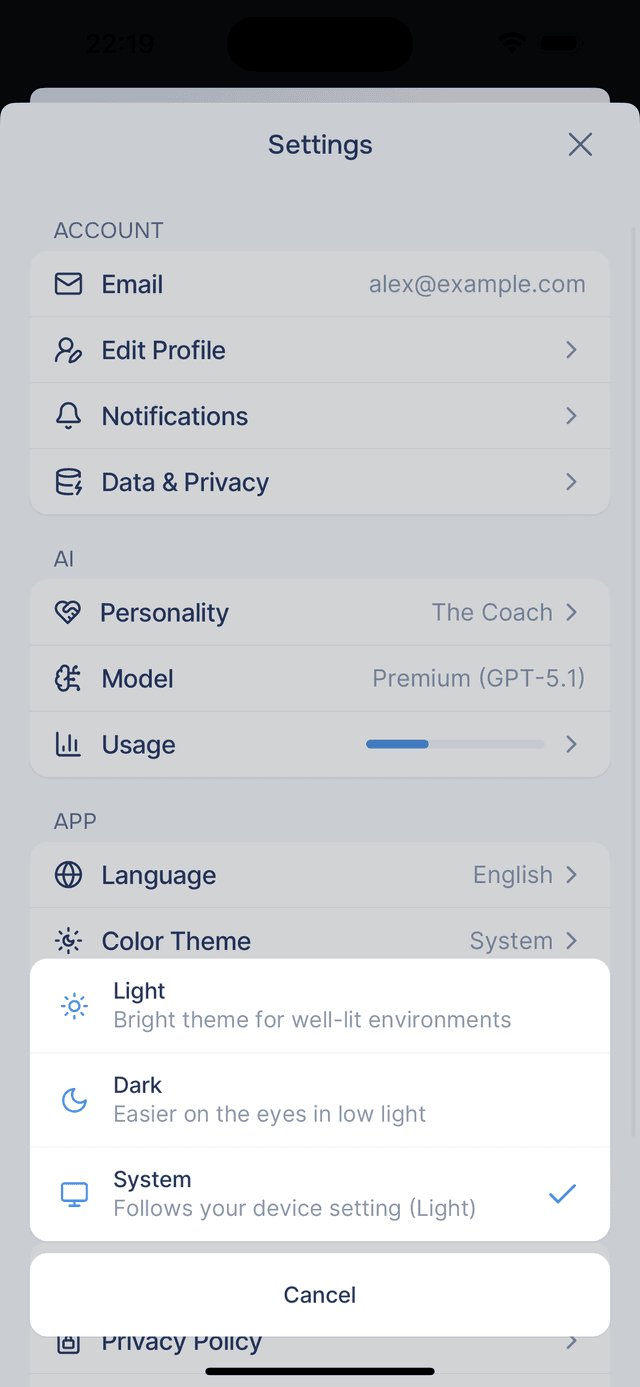
Onsen supports three options:
| Option | What it does |
|---|---|
| Light | A bright theme for well-lit environments |
| Dark | Easier on the eyes in low light |
| System | Follows your device's current setting automatically |