

Deleting Your Account
What deleting your Onsen account removes, how to take a copy first, and the confirmation steps.
If you want to leave, Onsen will not make it difficult. It will make it clear — you get to see exactly what disappears, and you get the chance to take a copy of it first.
Where to Find It
Open Settings, tap the card with your name at the top to open Account, then scroll to Delete Account at the bottom.
What Gets Deleted
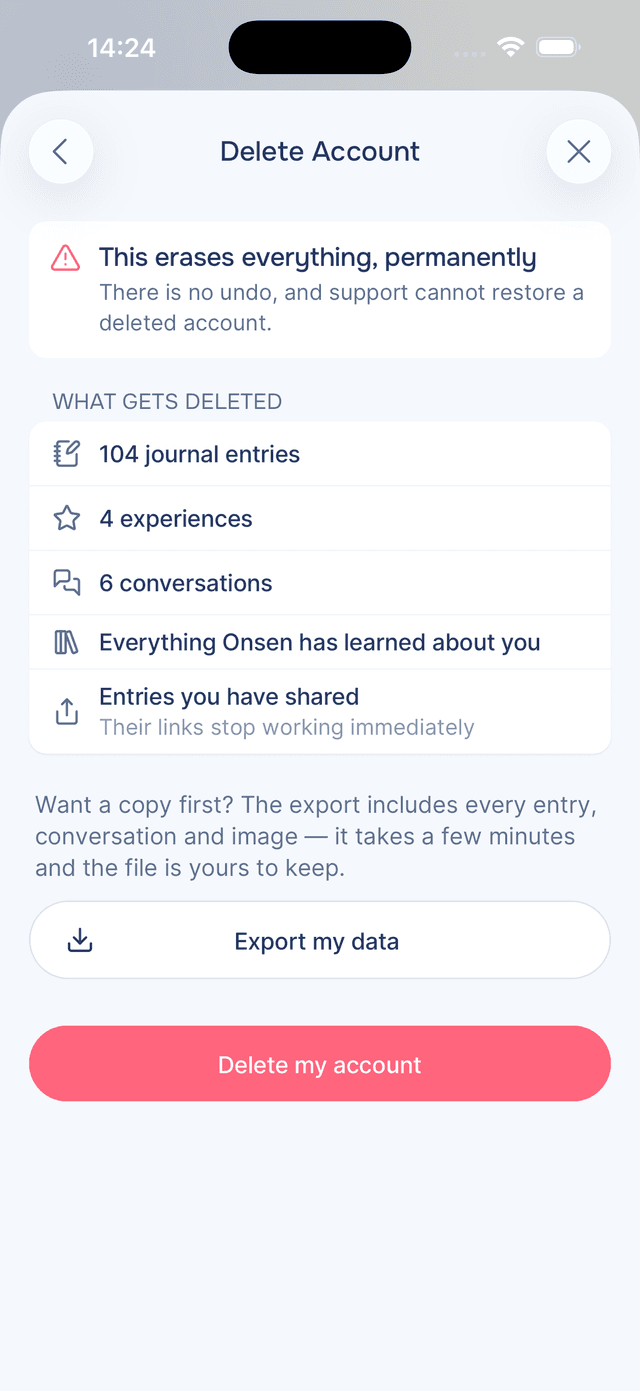
The delete screen counts your own data back to you rather than describing it in the abstract — "412 journal entries", "38 experiences", "27 conversations", everything Onsen has learned about you, and the entries you have shared. Any links you have shared stop working immediately.
There is no undo, and support cannot restore a deleted account. That is the whole reason the screen exists.
Take a Copy First
The same screen offers Export my data before you go any further. The export gives you a readable report of your journal, your conversations and your artwork, plus a data file you can keep — so leaving Onsen does not have to mean losing what you wrote in it. See Export Your Data.
Confirming
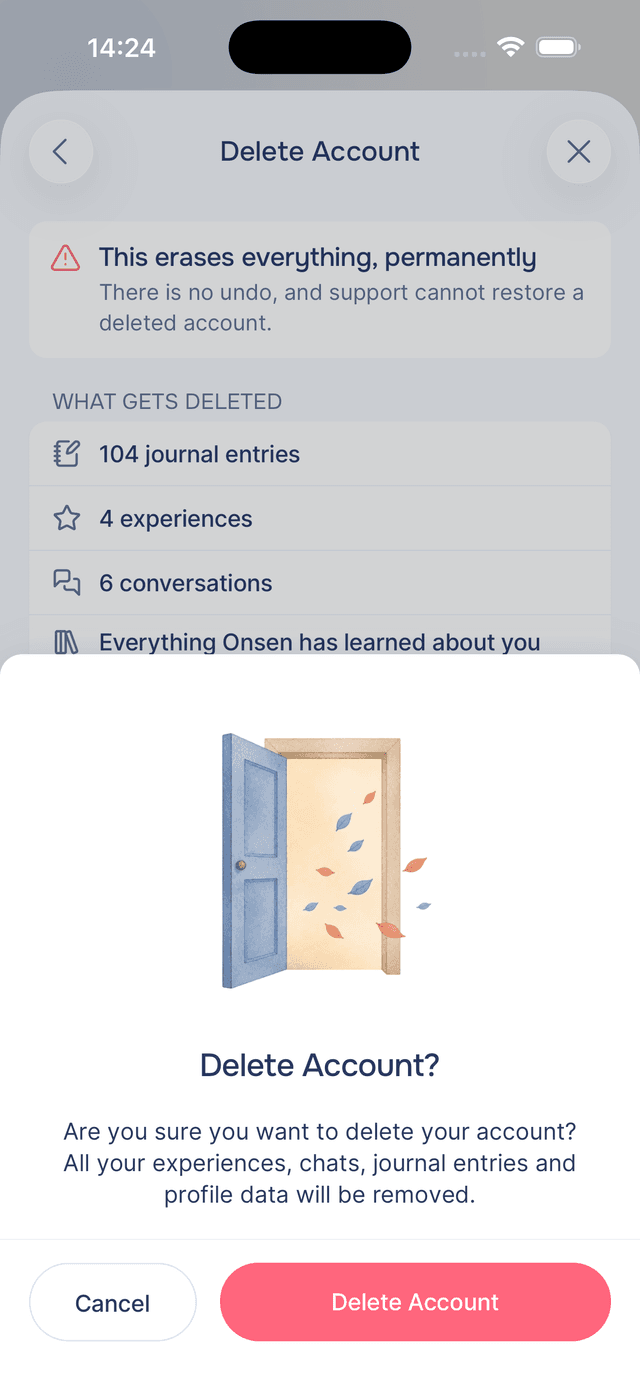
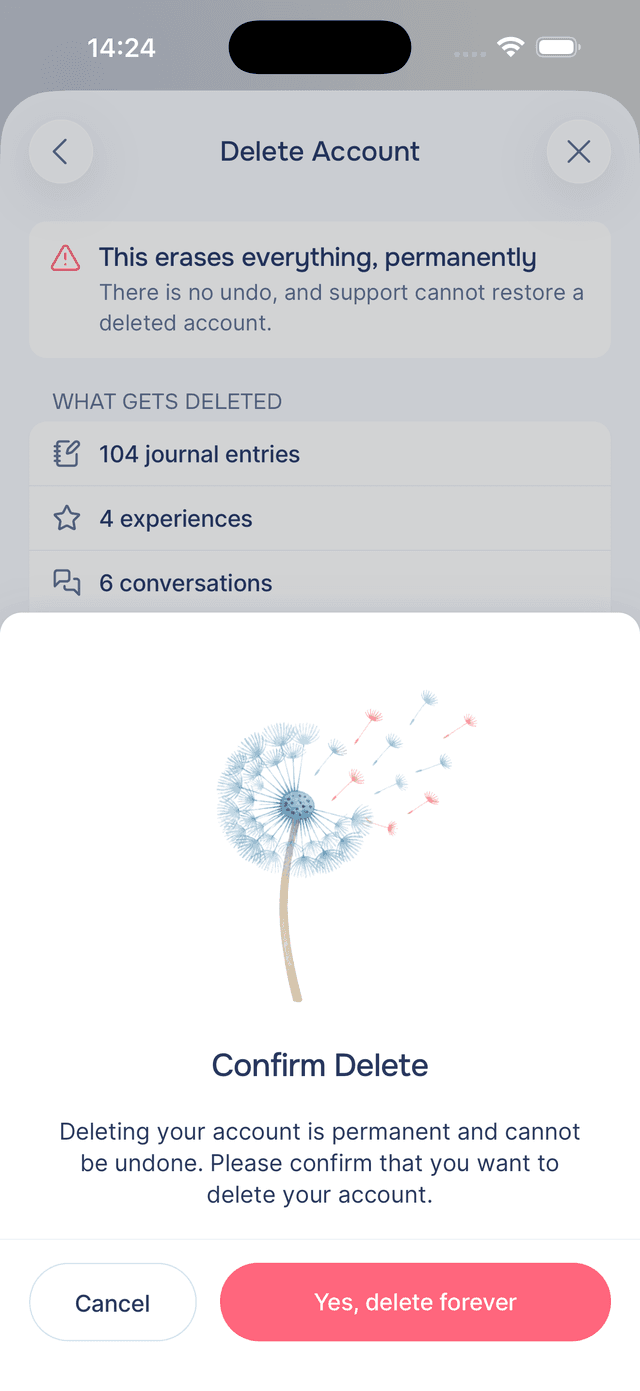
Deletion takes three deliberate taps: an initial confirmation, a second one where the button reads Yes, delete forever, and a final notice once it is done, which signs you out.
Tips
- Export first, always — it costs a minute and there is no second chance afterwards.
- Signing out is not deleting — if you just want off your phone for a while, sign out. Your data stays and waits for you.
- Want less data held rather than none? Forgetting individual knowledge items or deleting specific entries may be what you actually want.