

Sign-in and security
Change your email, set or change a password, add a passkey, turn on 2-step verification, see your devices, and sign out everywhere.
Overview
Sign-in and security is where you look after how you get into Onsen: the email you sign in with, an optional password, passkeys, 2-step verification, and the devices you're signed in on.
To open it, tap Settings, then the card with your name at the top to open Account, then Sign-in and security.
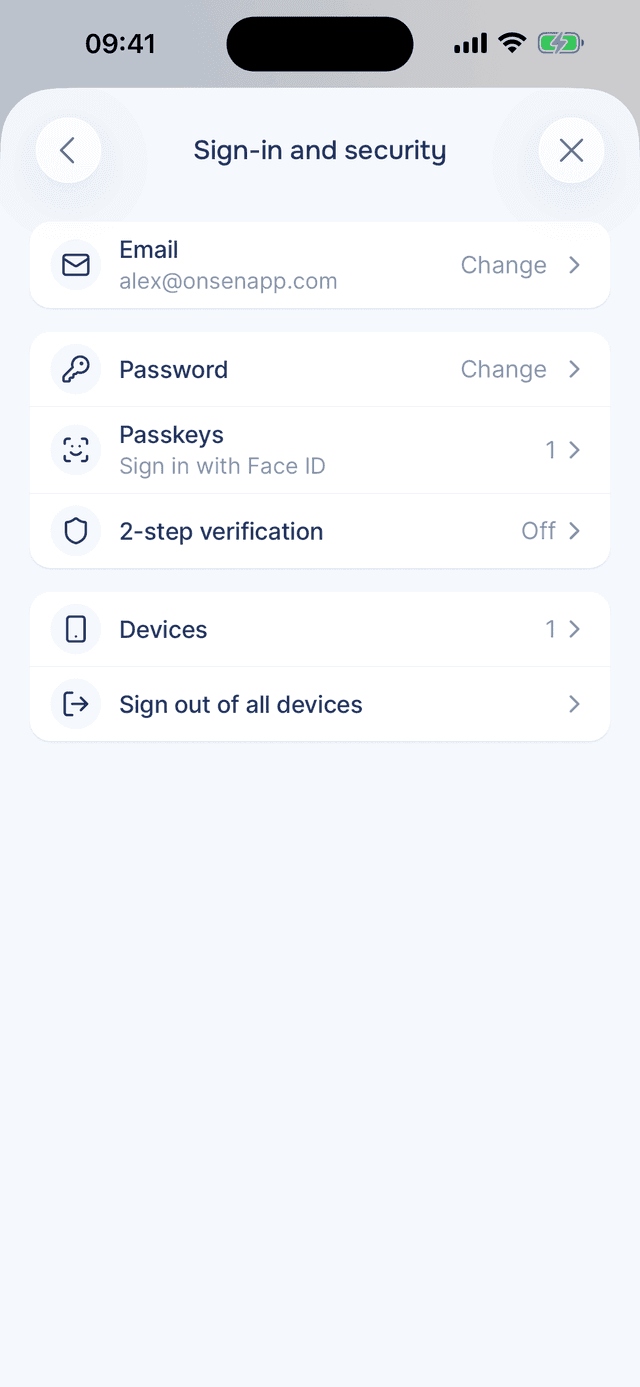
| Row | What it shows |
|---|---|
| The address you sign in with, and Change | |
| Password | Change, or Not set if you don't have one |
| Passkeys | Sign in with Face ID, and how many passkeys you have, or Add. The words and icon follow how your phone unlocks |
| 2-step verification | On or Off. The icon turns into when it's on |
| Devices | How many devices you're signed in on |
| Sign out of all devices | Signs you out everywhere |
Every step has a help button in the top corner with a short explainer.
Changing your email
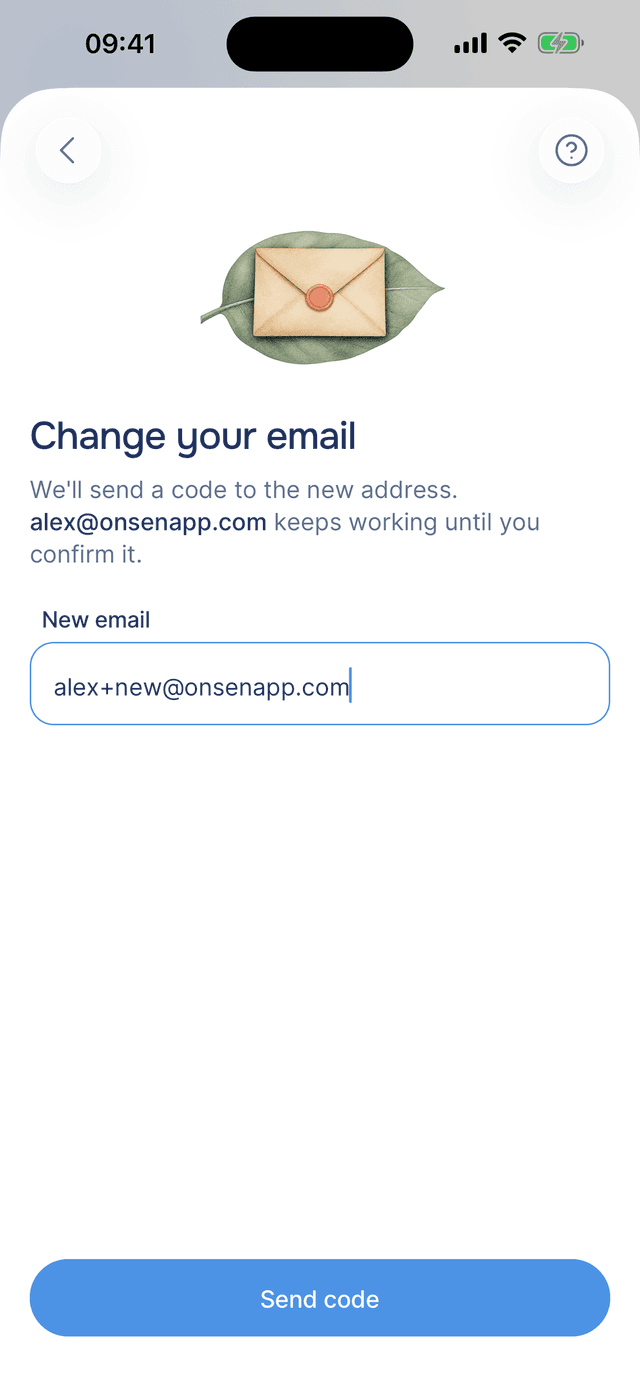
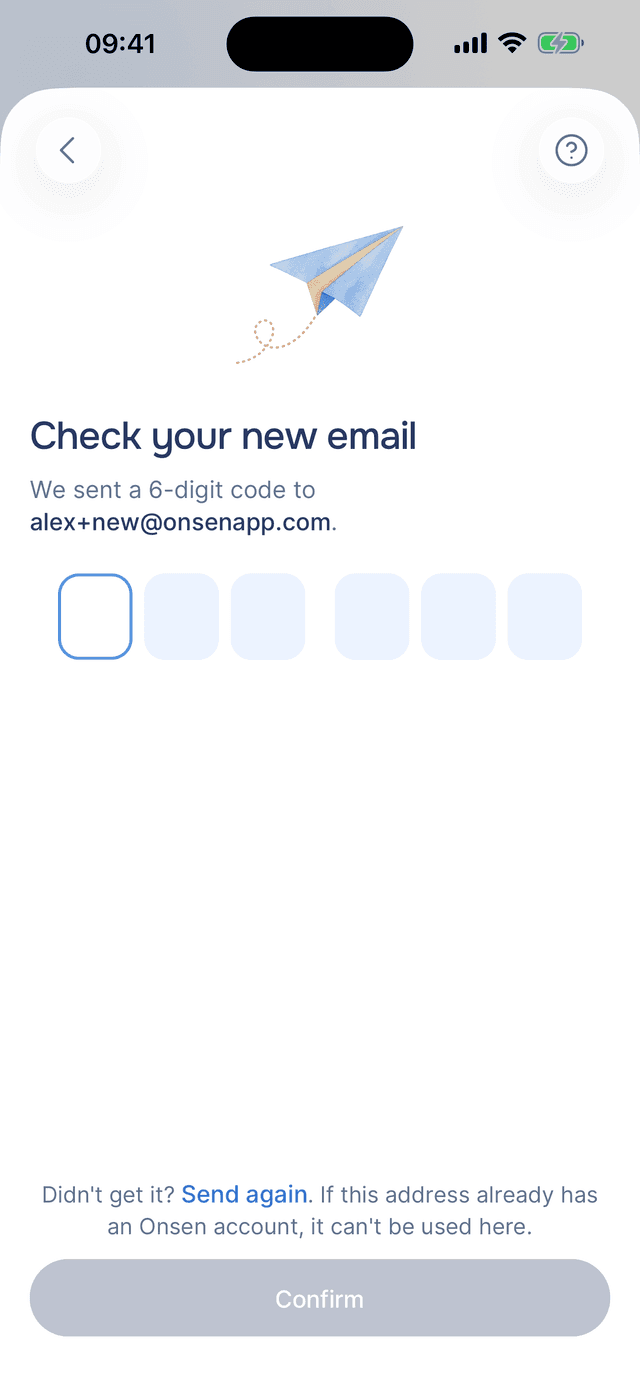
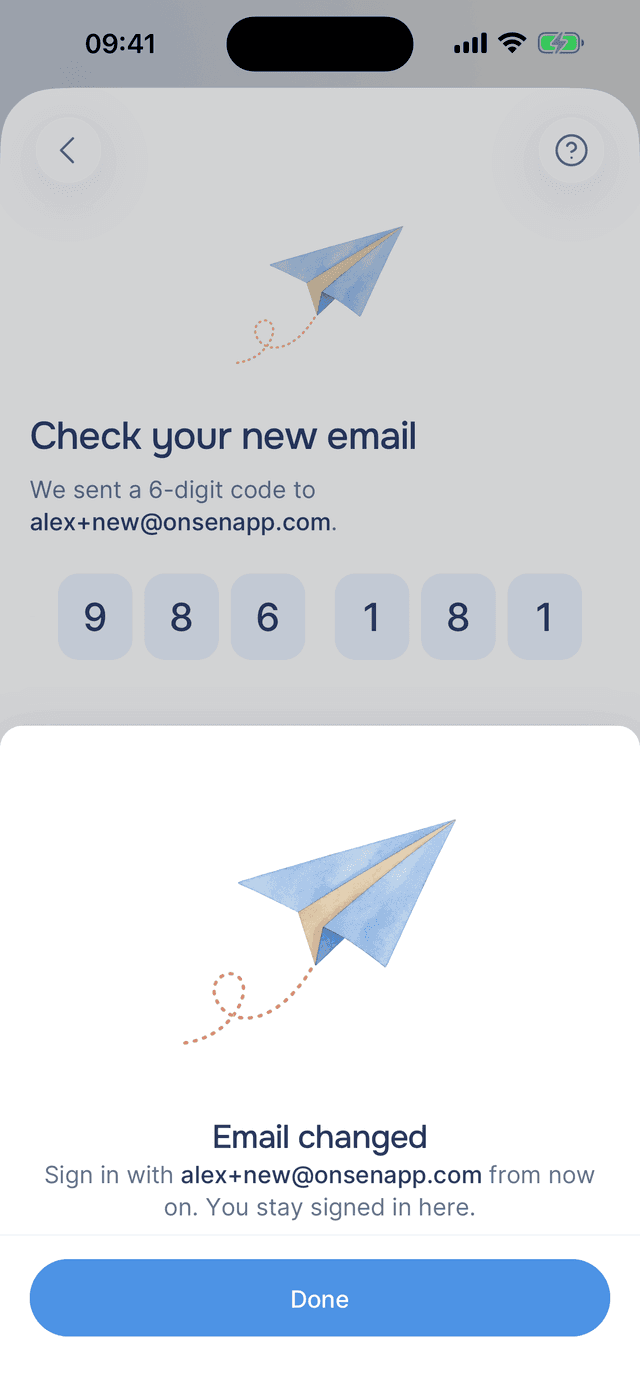
Tap Change on the Email row, type your new address in New email, and tap Send code. Onsen emails a 6-digit code to the new address. Enter it on Check your new email and tap Confirm. Email changed confirms it.
- Your old address keeps working until you confirm the new one.
- If you sign in with Apple or Google, that keeps working after the change.
- No code? Tap Send again under the code boxes. An address that already has an Onsen account can't be used.
Your password
Onsen doesn't need a password: email codes, Apple and Google sign you in. You can still set one, and you need one for 2-step verification. Tap the Password row.
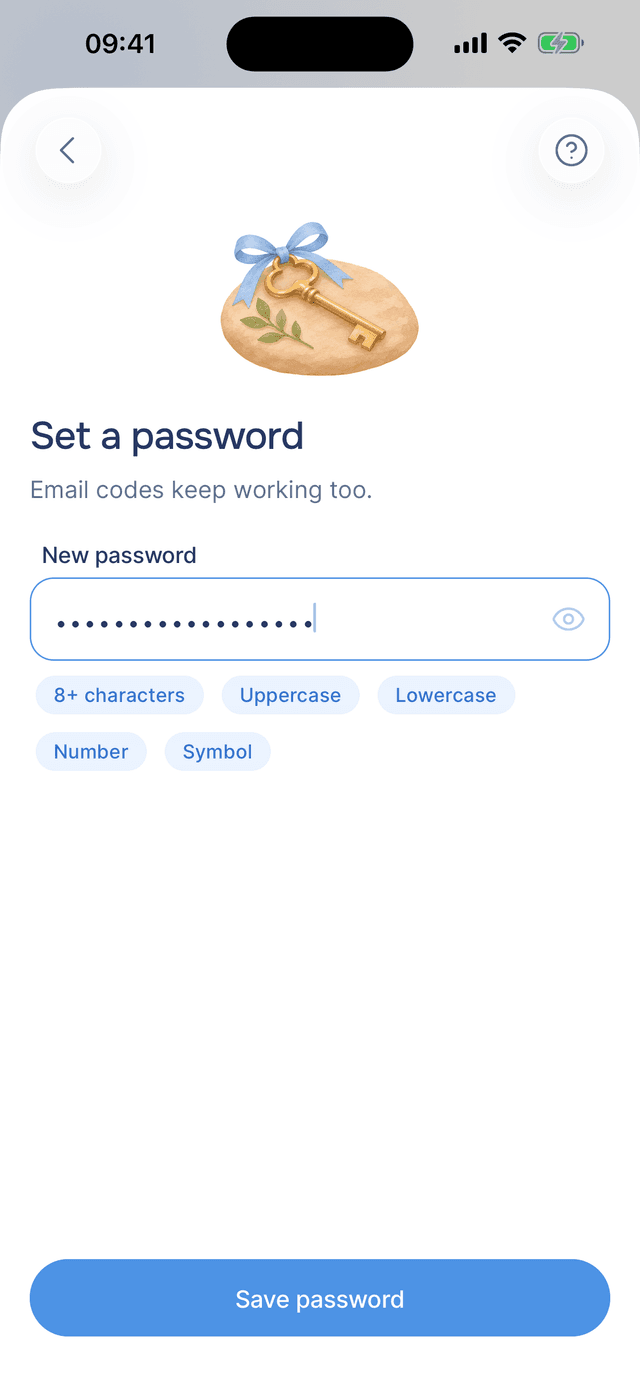
- No password yet: Set a password, type it in New password, and tap Save password. No code is needed. Email codes keep working too.
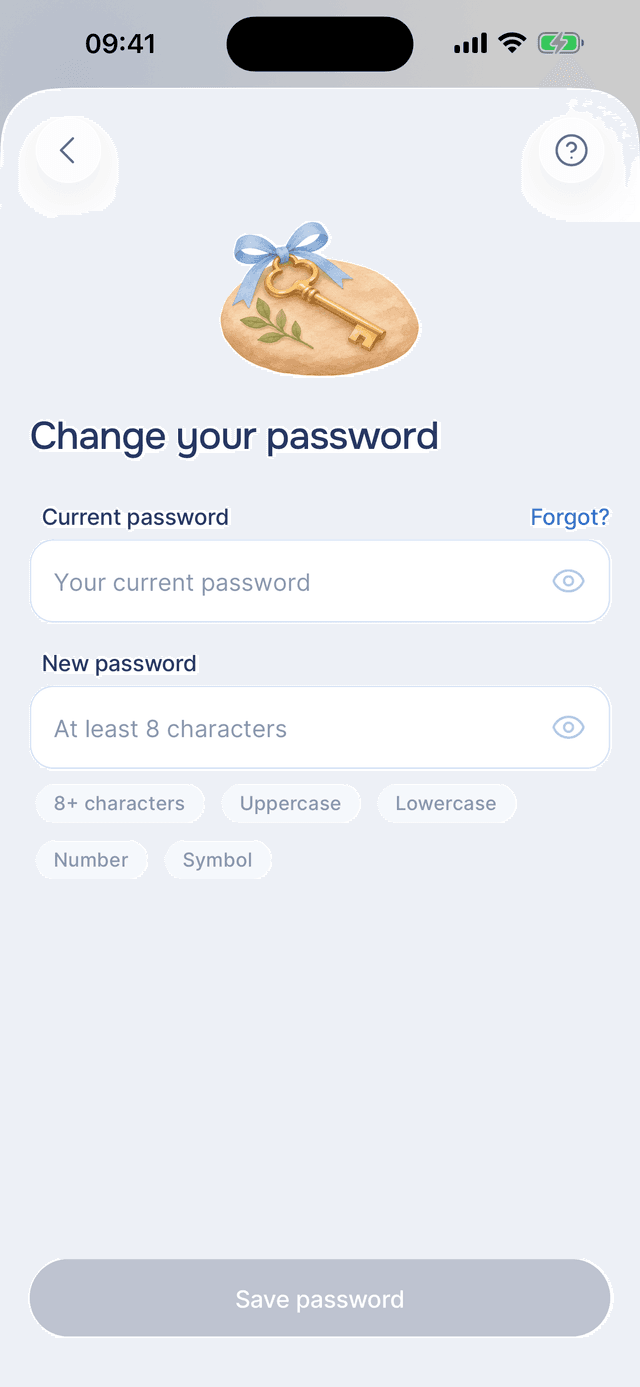
- Changing it: Change your password asks for your Current password and a New password. Forgot the current one? Tap Forgot? beside the Current password label.
- Forgot it, or you sign in with Apple or Google: Onsen emails you a code. Enter the code and your new password on Set a password.
A password needs 8 or more characters, with upper and lower case letters, a number and a symbol. Your phone can suggest a strong one and save it for you.
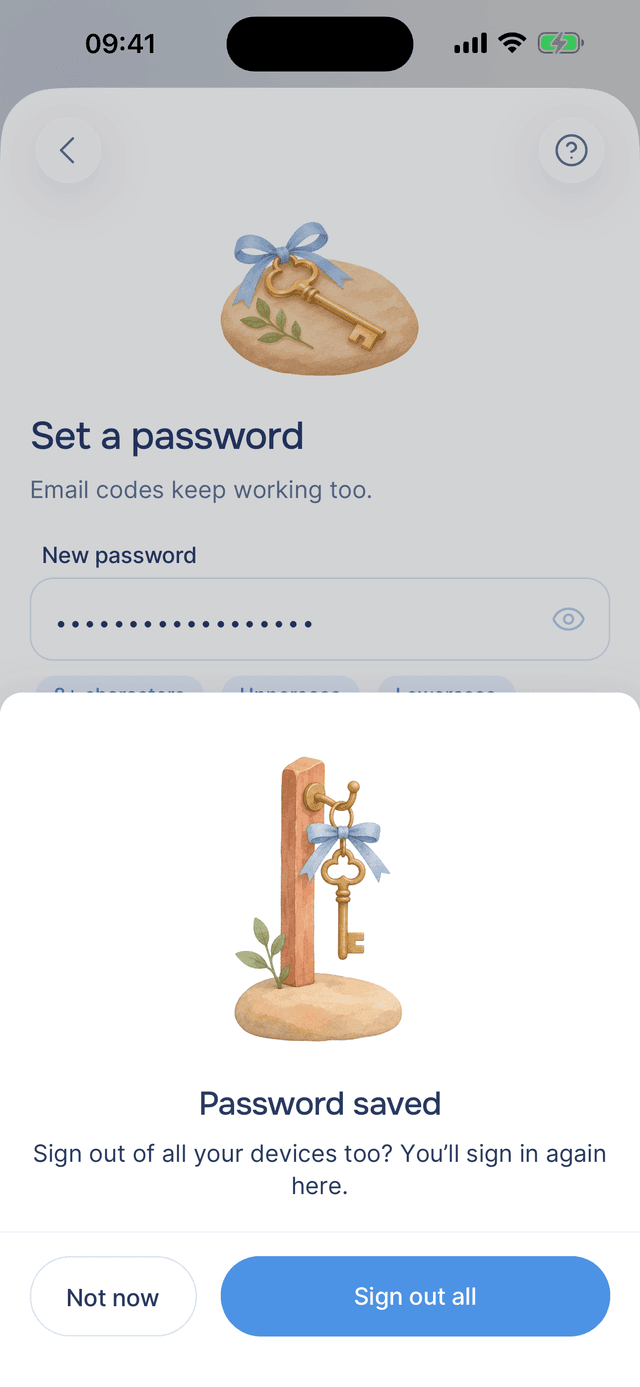
After you save, Password saved asks whether to sign out of all your devices too. Sign out all signs out every device, this one too, and you sign in again here with your new password. Not now keeps everything as it is.
Passkeys
A passkey signs you in with Face ID, your fingerprint or your passcode, with no email code to wait for. Tap Passkeys to add one, see where each is saved, or remove one. Email codes keep working. See Passkeys.
2-step verification
2-step verification adds a second step after your password: a 6-digit code from an authenticator app on your phone. It keeps your account safe even if someone learns your password. A passkey counts as 2-step verification on its own. Turning it on, signing in with it, and turning it off are on their own page: 2-step verification.
Devices
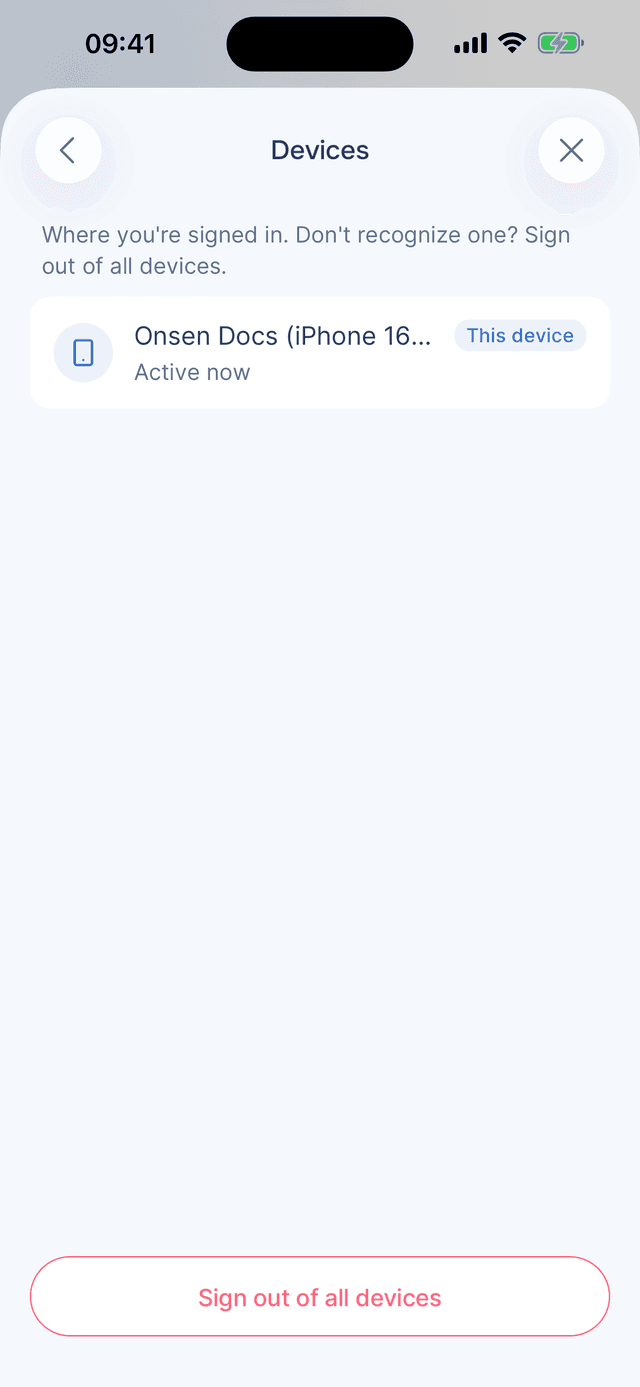
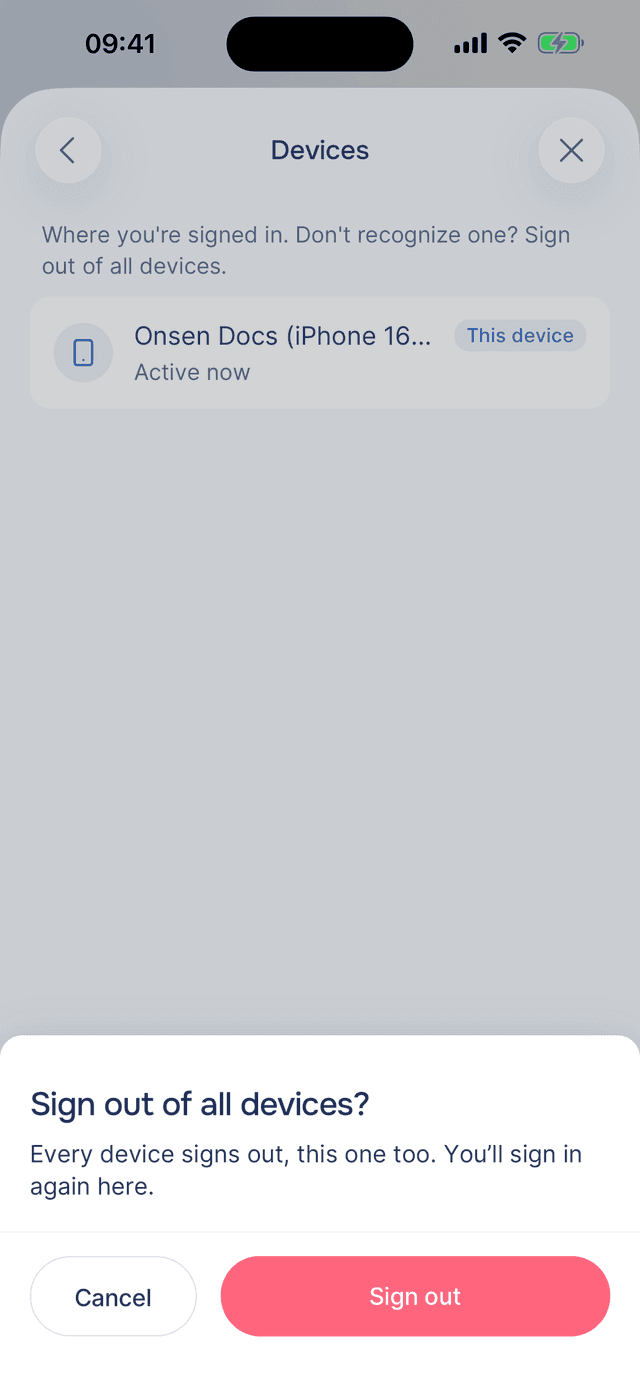
Tap Devices to see where you're signed in to Onsen. Each device shows its name and when it last signed in. The phone you're holding comes first, marked This device and Active now.
- A device you haven't signed in on for over a year isn't listed.
- When you sign out of Onsen on a phone, it leaves the list.
Don't recognize one? Tap Sign out of all devices at the bottom of the screen, then change your password.
Signing out of all devices
Sign out of all devices, on Sign-in and security or at the bottom of Devices, signs you out everywhere, this phone too. Onsen asks first: "Every device signs out, this one too. You'll sign in again here." Tap Sign out to confirm. Your other devices sign out within about 30 seconds, and nothing in your account is lost.
Tips
- Changing phones? Your entries and chats live in your account, not on the phone. Sign in on the new one and they're all there.
- Lost a phone? Sign out of all devices from another phone, remove its passkey, then change your password if you have one.
- Prefer no password? That's fine. Email codes, passkeys, Apple and Google keep you signed in safely. You only need a password for 2-step verification.