

2-step verification
Add a code from an authenticator app to your password, so your account stays safe even if someone learns it.
Overview
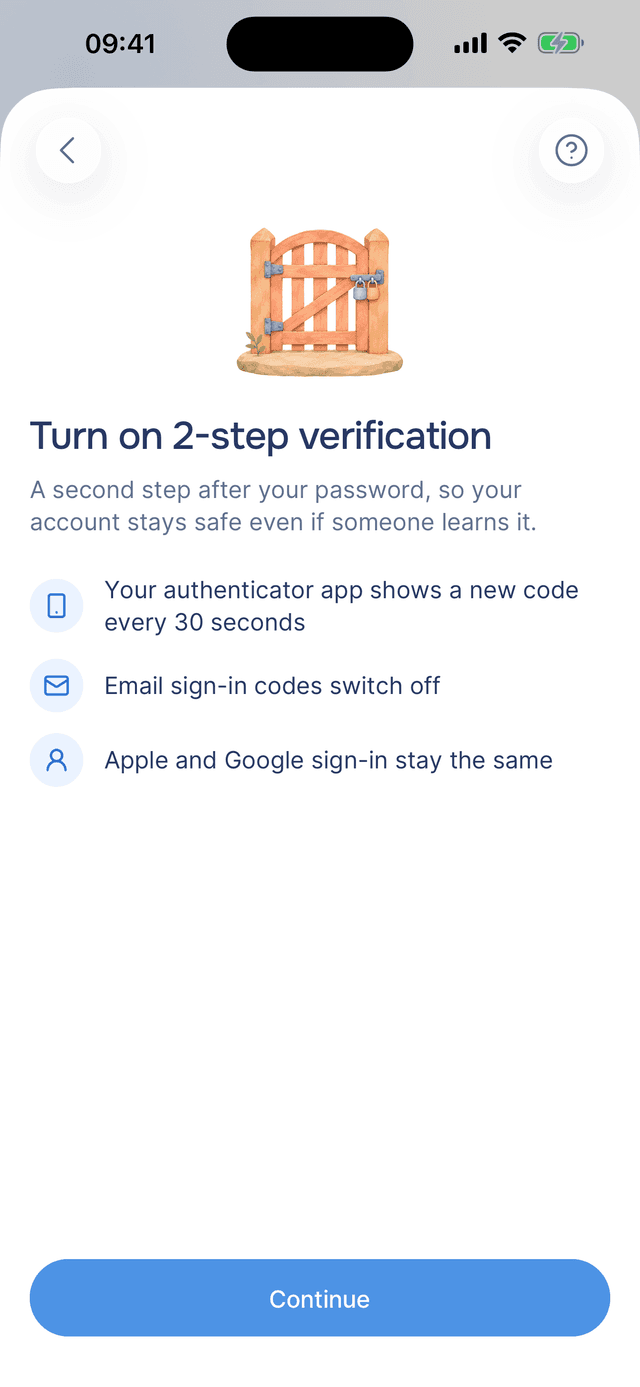
With 2-step verification on, you sign in with your password, then a 6-digit code from an authenticator app on your phone. The app shows a new code every 30 seconds, so a stolen password alone isn't enough to get in.
- Any authenticator app works — for example Apple Passwords on iPhone or Google Authenticator. Any app that makes 6-digit codes will do.
- Email sign-in codes switch off — with 2-step verification on, you sign in with your password and a code instead. That's why you set a password first.
- Apple and Google sign-in don't change — if you sign in with Apple or Google, you keep doing that.
- A passkey counts as 2-step verification — with a passkey, you sign in with Face ID or your fingerprint alone: no password, no authenticator code.
Turning on 2-step verification
Tap Settings › your name › Sign-in and security › 2-step verification.
-
Turn on 2-step verification explains what changes. Tap Continue.
-
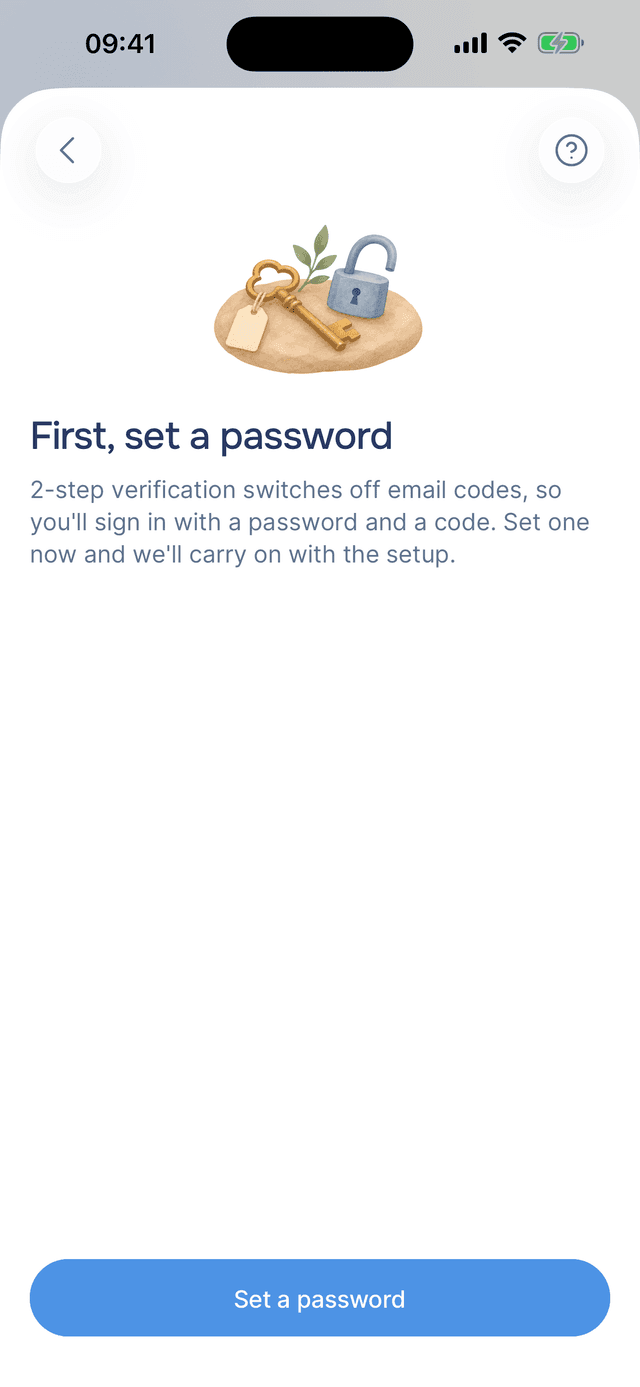
First, set a password — only if you don't have one yet. Tap Set a password, choose one, and the setup carries on.
-
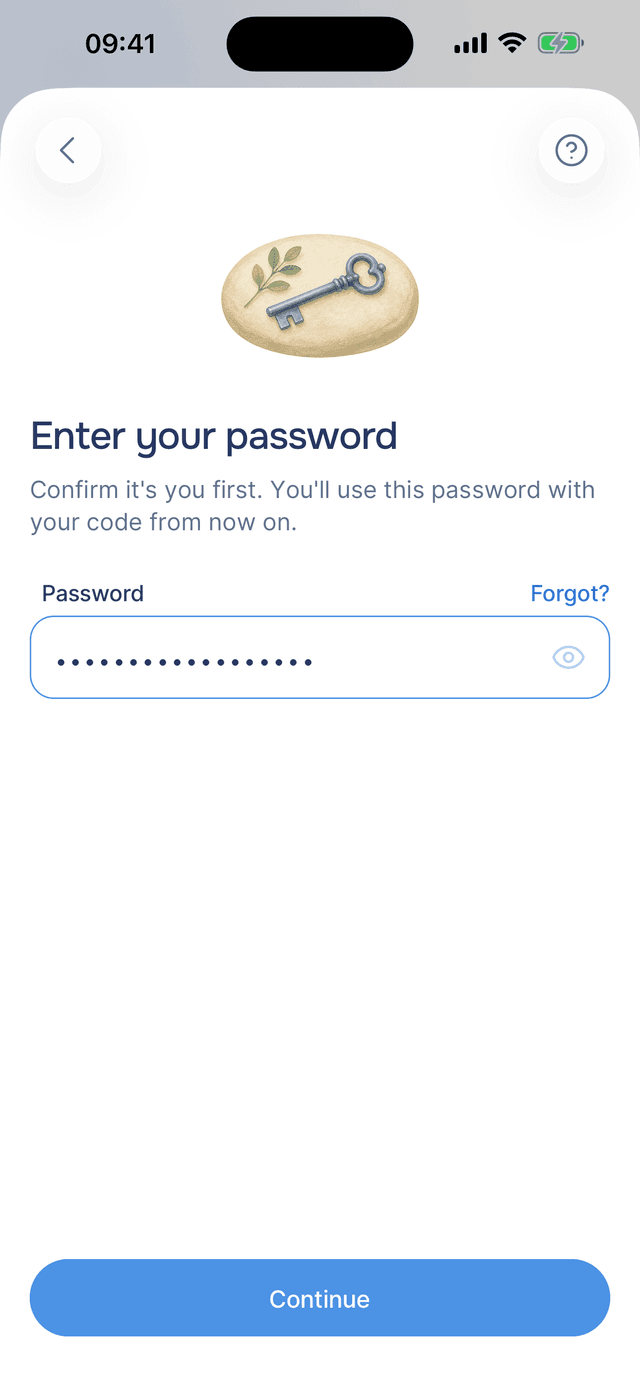
Enter your password — confirm it's you, then tap Continue.
-
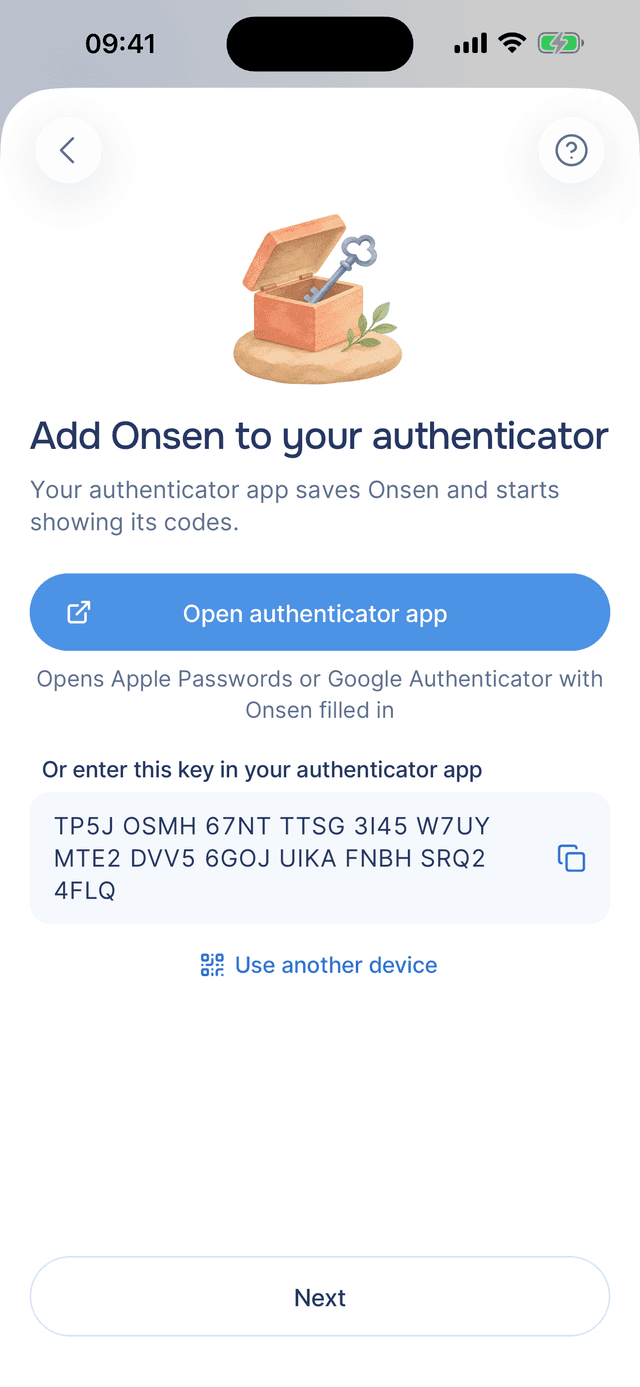
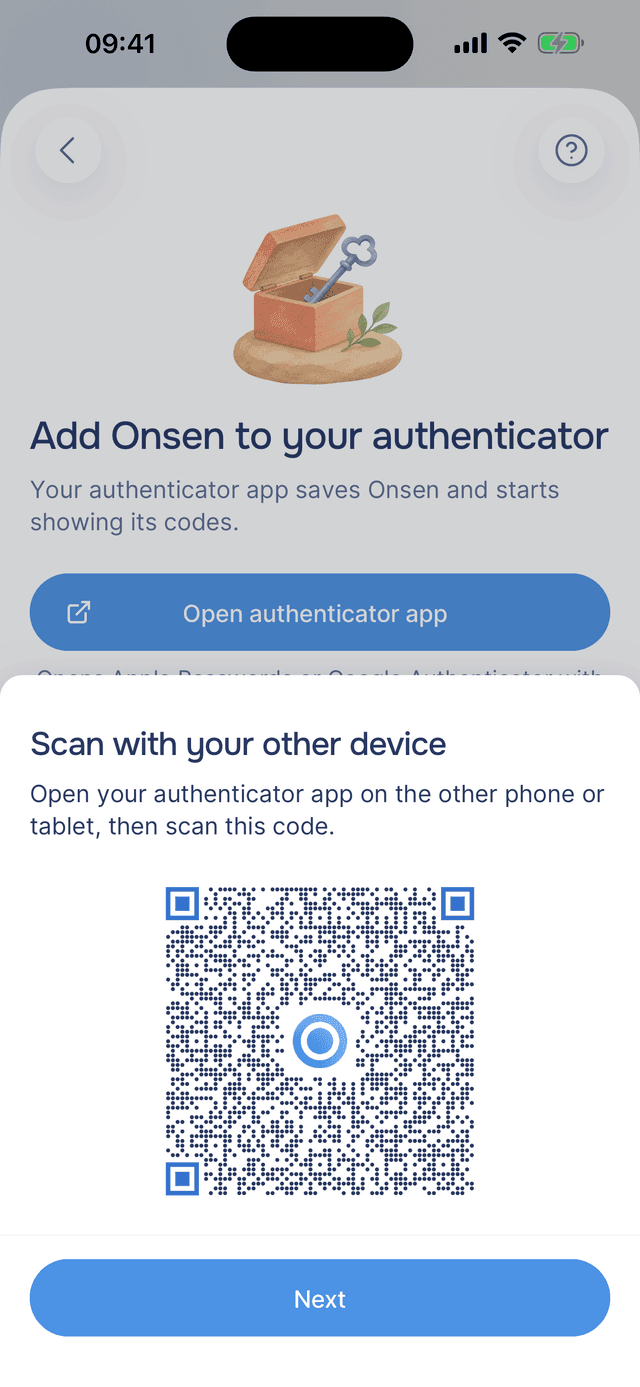
Add Onsen to your authenticator. Pick one:
- Open authenticator app opens Apple Passwords or Google Authenticator with Onsen filled in.
- Or copy the key under Or enter this key in your authenticator app with , which turns into for a moment, and paste it into your authenticator app.
- Use another device slides up Scan with your other device: a QR code to scan with the authenticator app on another phone or tablet. Tap Next there once it's saved.
Then tap Next.
-
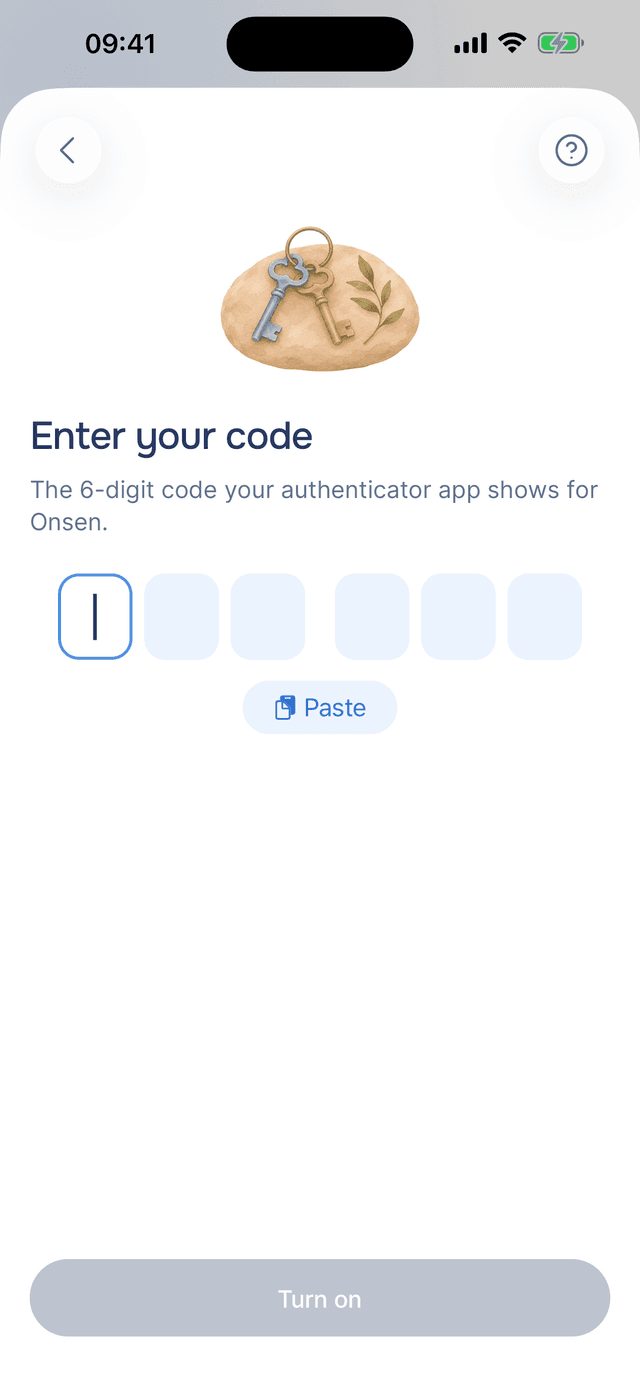
Enter your code — the 6-digit code your authenticator app shows for Onsen. Tap Turn on.
-
2-step verification is on. You stay signed in on this phone. Next time you sign in with your password, Onsen asks for a code. Tap Done.
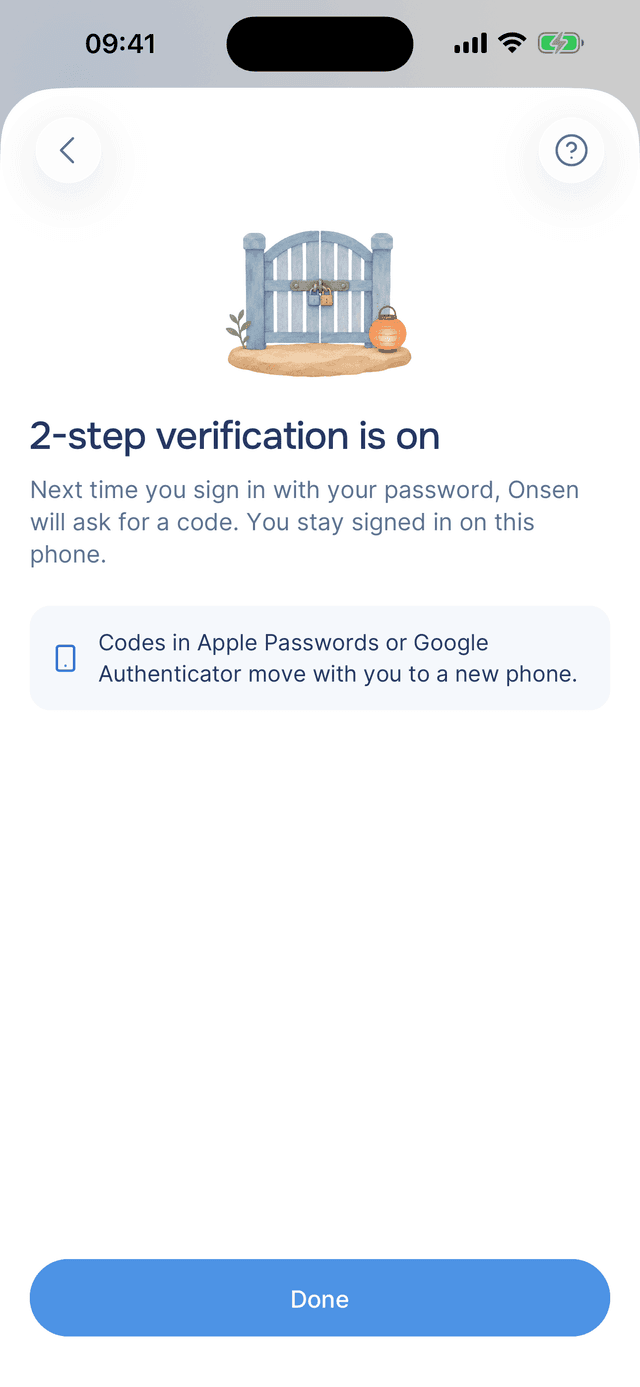
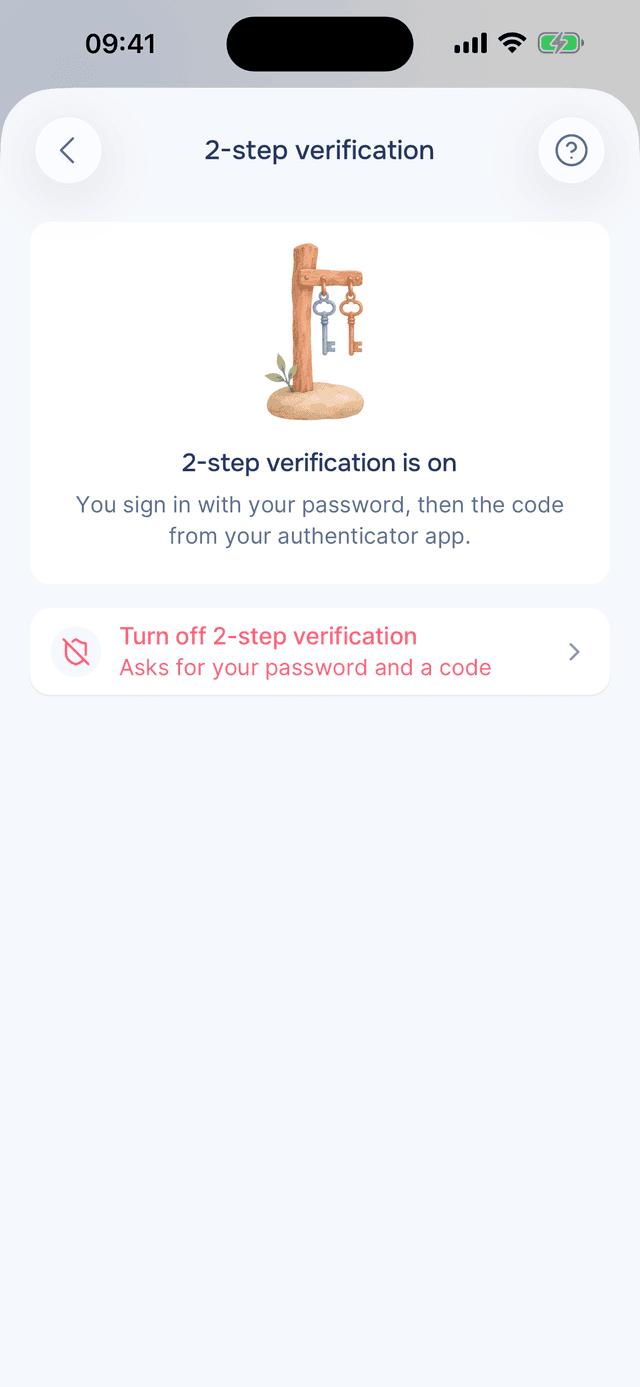
Back on Sign-in and security, the 2-step verification row says On. Tap it to see 2-step verification is on and the option to turn it off.
Signing in with 2-step verification
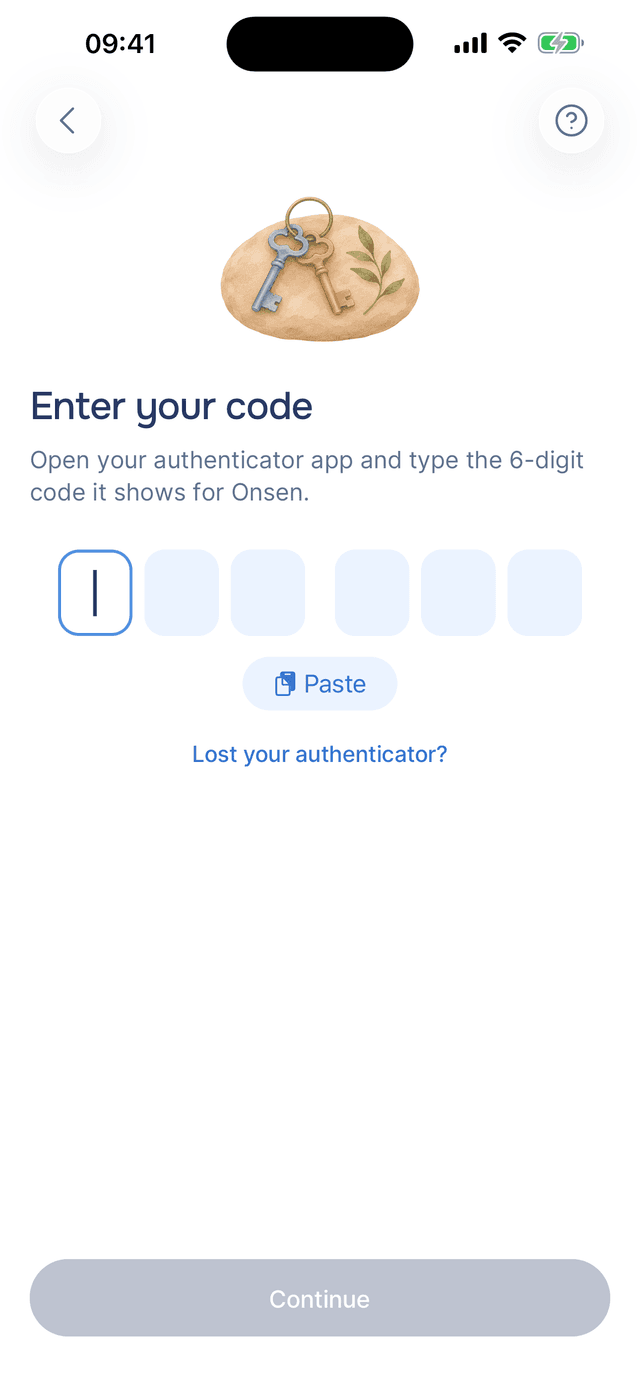
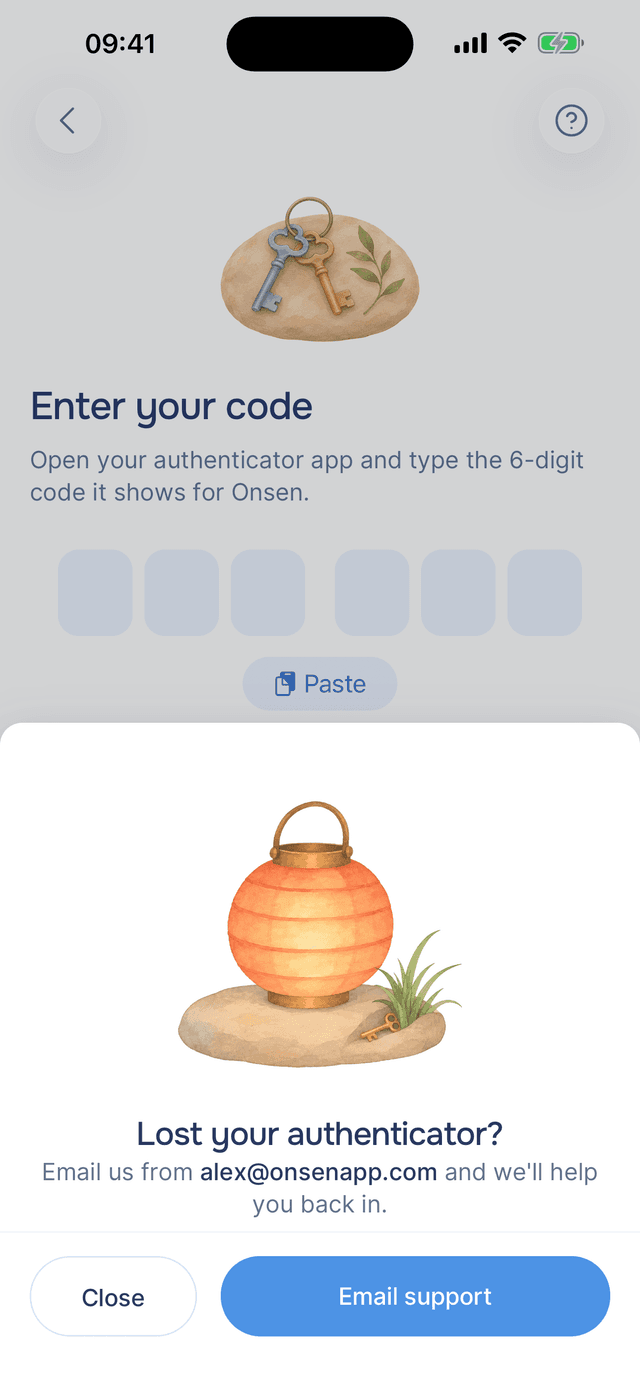
Sign in with your email and password as usual. Then Enter your code: open your authenticator app and type the 6-digit code it shows for Onsen, and tap Continue. Copied the code? Tap Paste under the boxes. If the screen waits too long, Back to password starts the sign-in again.
With a passkey, you skip both: Continue on the email screen opens your phone's passkey sheet, and that's all. If the sheet closes, Use password instead takes you to the password and code.
Lost your authenticator?
Got a new phone? Codes in Apple Passwords or Google Authenticator move with you to a new phone, so check there first.
If your codes are gone, tap Lost your authenticator? on the Enter your code screen, then Email support. Write to us from the email address on your account, and we'll turn 2-step verification off so you can sign in again.
Turning off 2-step verification
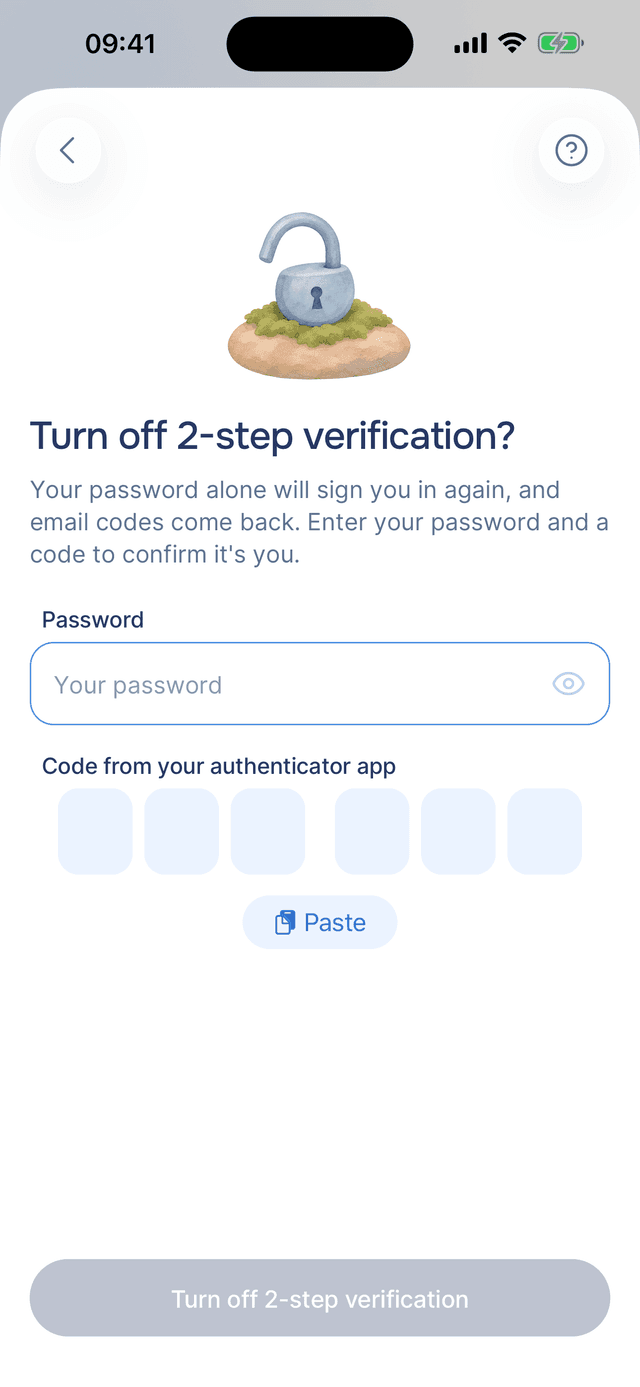
Tap the 2-step verification row, then Turn off 2-step verification. Onsen asks for your Password and a code from your authenticator app, to make sure it's you. Tap Turn off 2-step verification to confirm.
Afterwards your password alone signs you in again, and email sign-in codes come back.
Tips
- Keep your authenticator app backed up — Apple Passwords and Google Authenticator can sync your codes, so a lost phone doesn't lock you out.
- 2-step verification needs a password — if you only ever use Apple or Google to sign in, 2-step verification doesn't change anything for you.
- Codes change every 30 seconds — if one is rejected, wait for the next and type it straight away.