

Passkeys
Sign in with Face ID, your fingerprint or your passcode instead of waiting for an email code.
Overview
A passkey lets you sign in to Onsen the way you unlock your phone: with Face ID, Touch ID, your fingerprint or your passcode. There's no email code to wait for and no password to type.
- Saved in your password manager. Your phone keeps the passkey in its password manager, such as iCloud Keychain, Google Password Manager or 1Password. It's on your other devices that use the same one too.
- Email codes still work. A passkey is an extra way in, never the only one. If you lose your phone, you can still sign in with an email code.
- Counts as 2-step verification. If you've turned on 2-step verification, a passkey alone signs you in: no password and no authenticator code.
The words Onsen uses follow how your phone unlocks. On iPhone that's Face ID, Touch ID or your passcode; on Android it's biometrics or your passcode or pattern. This page uses Face ID as the example.
Adding a passkey
Tap Settings, then the card with your name, then Sign-in and security. The Passkeys row says Sign in with Face ID and Add while you have none. Its icon follows your phone's unlock: for a face, for a fingerprint, for a passcode.
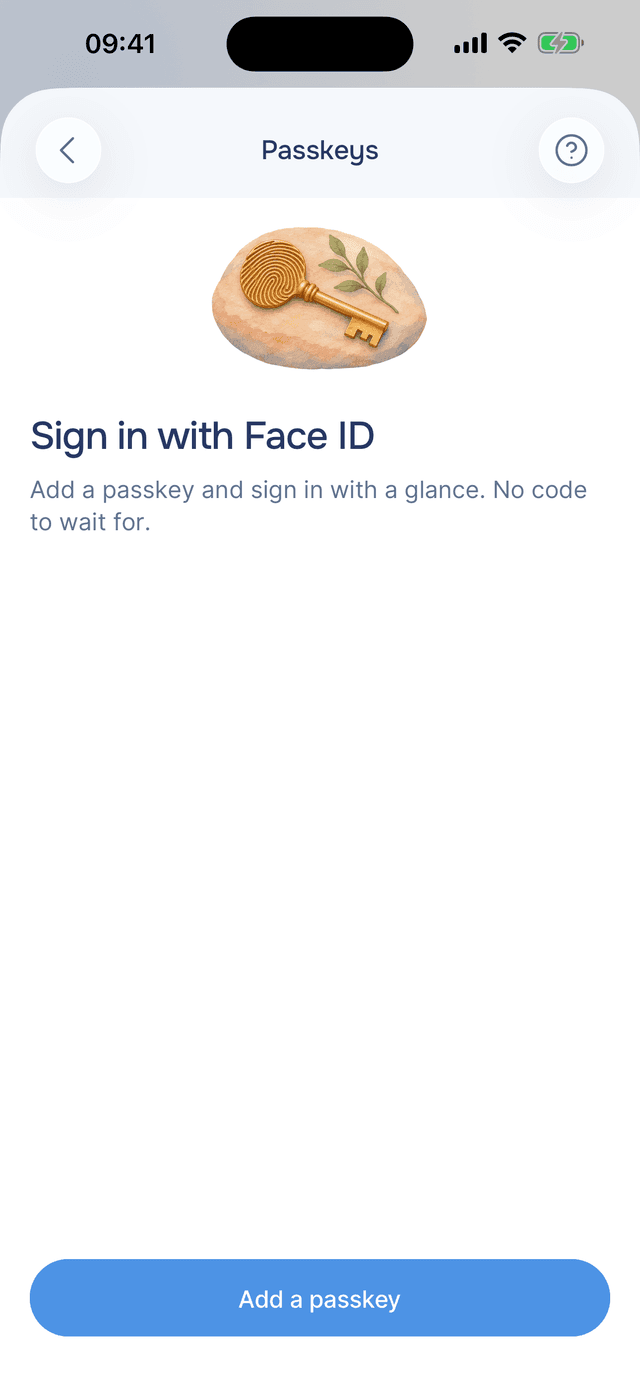
- Tap Passkeys. Sign in with Face ID says: "Add a passkey and sign in with a glance. No code to wait for."
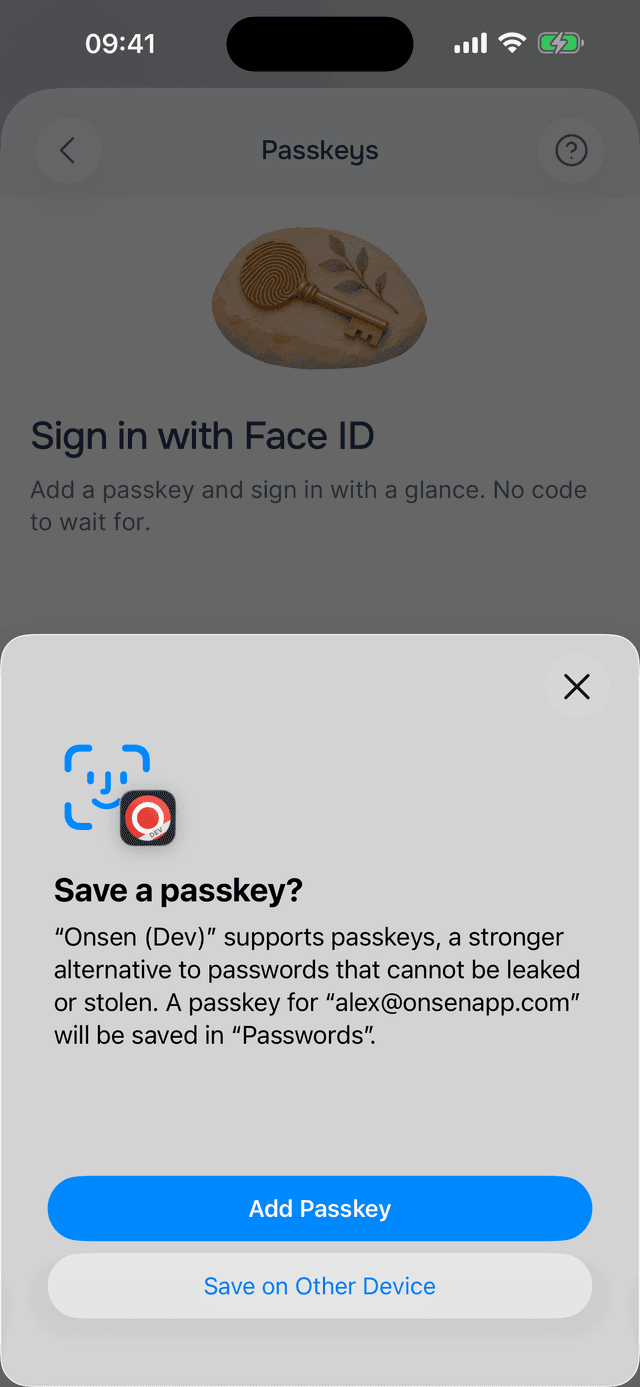
- Tap Add a passkey. Your phone's own sheet asks where to save it. Confirm with Face ID.
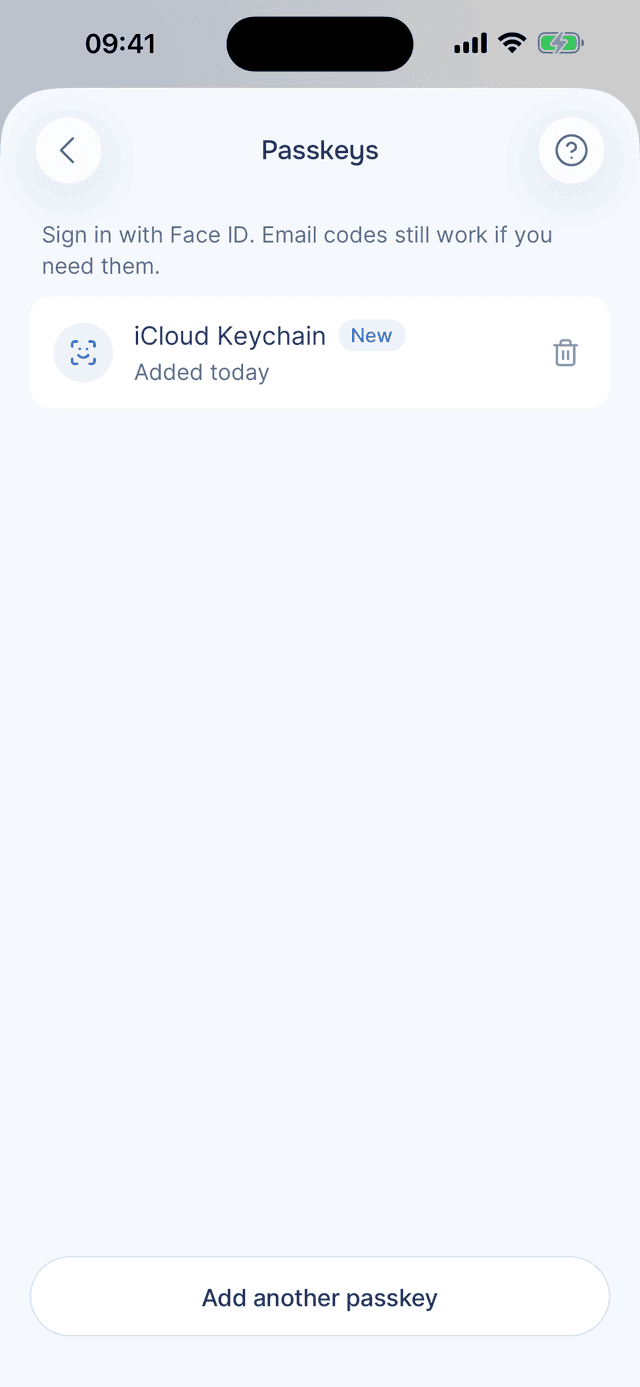
- Passkey added. Next time you sign in, your phone offers the passkey.
If you close your phone's sheet, nothing changes.
The Passkeys row only shows on phones that can make passkeys.
The offer on Home
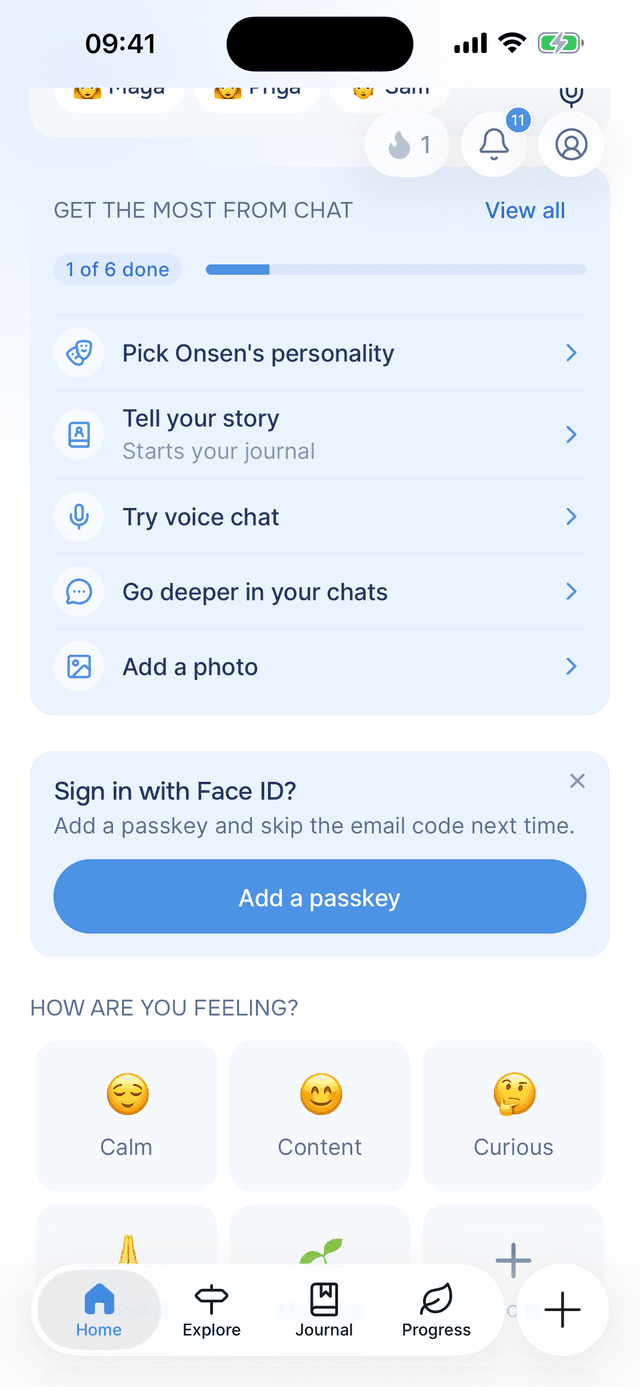
If you sign in with an email code or a password, Home may offer a passkey once you've saved your first journal entry: Sign in with Face ID?, with "Add a passkey and skip the email code next time." Tap Add a passkey to add one there and then. Tap for Not now, and the card stays away for 30 days. After you've said not now twice, it doesn't come back. You can still add a passkey in Settings at any time.
Your passkeys
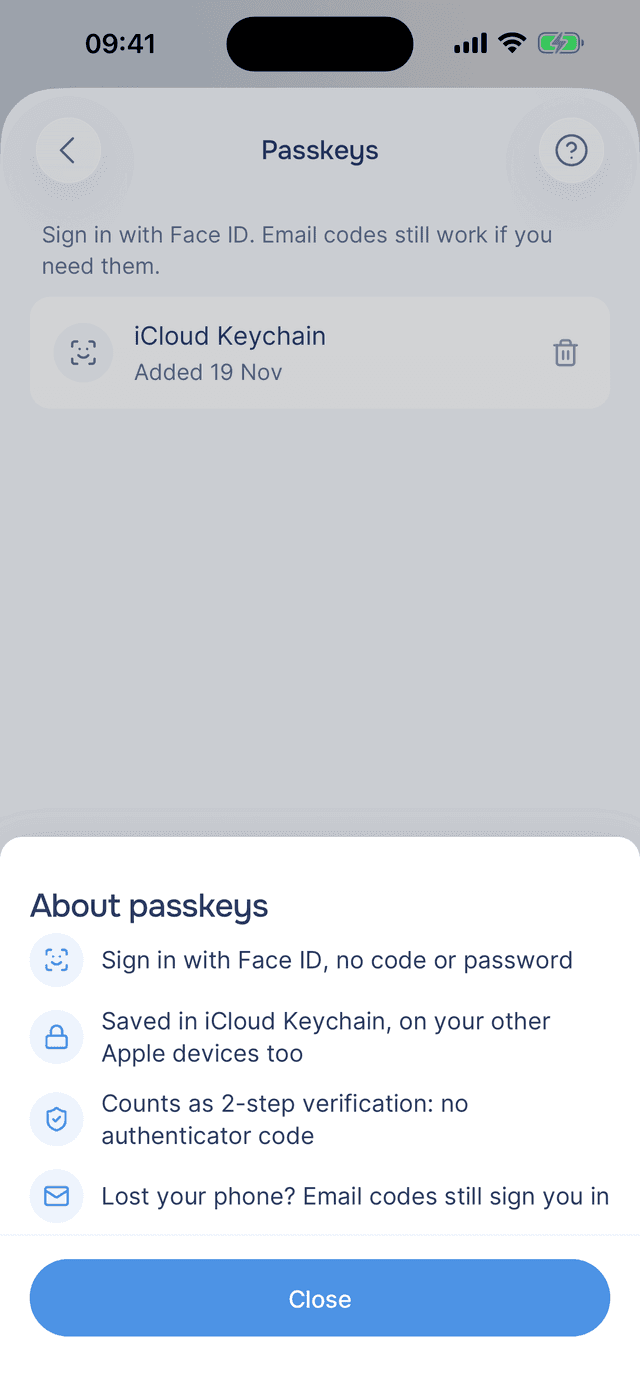
Once you have one, Passkeys lists them: "Sign in with Face ID. Email codes still work if you need them." Each passkey shows where it's saved, such as iCloud Keychain or 1Password, and when you added it, like Added today or Added 2 Oct. Two saved in the same place on the same day also show the time, so you can tell them apart. One you've just added is marked New.
- Add another passkey at the bottom adds one in another password manager, or for another phone.
- in the top corner opens About passkeys, a short explainer.
On Sign-in and security, the Passkeys row shows how many you have.
Removing a passkey
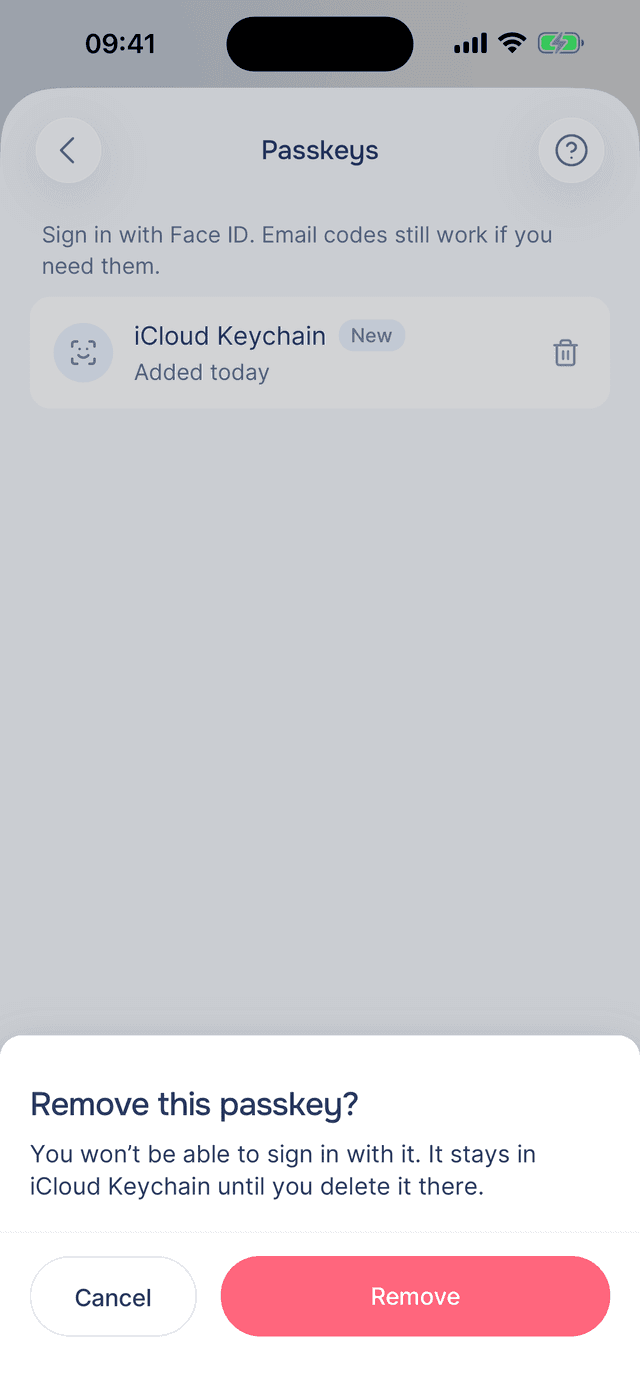
Tap beside a passkey. Remove this passkey? explains: "You won't be able to sign in with it. It stays in iCloud Keychain until you delete it there." Tap Remove.
Removing it in Onsen stops it working. To clear it from your phone too, delete it in your password manager as well.
If you use 2-step verification, removing your last passkey leaves your authenticator app as it was: you sign in with your password and a code again.
Signing in with a passkey
- Tap Continue with email and enter your email address.
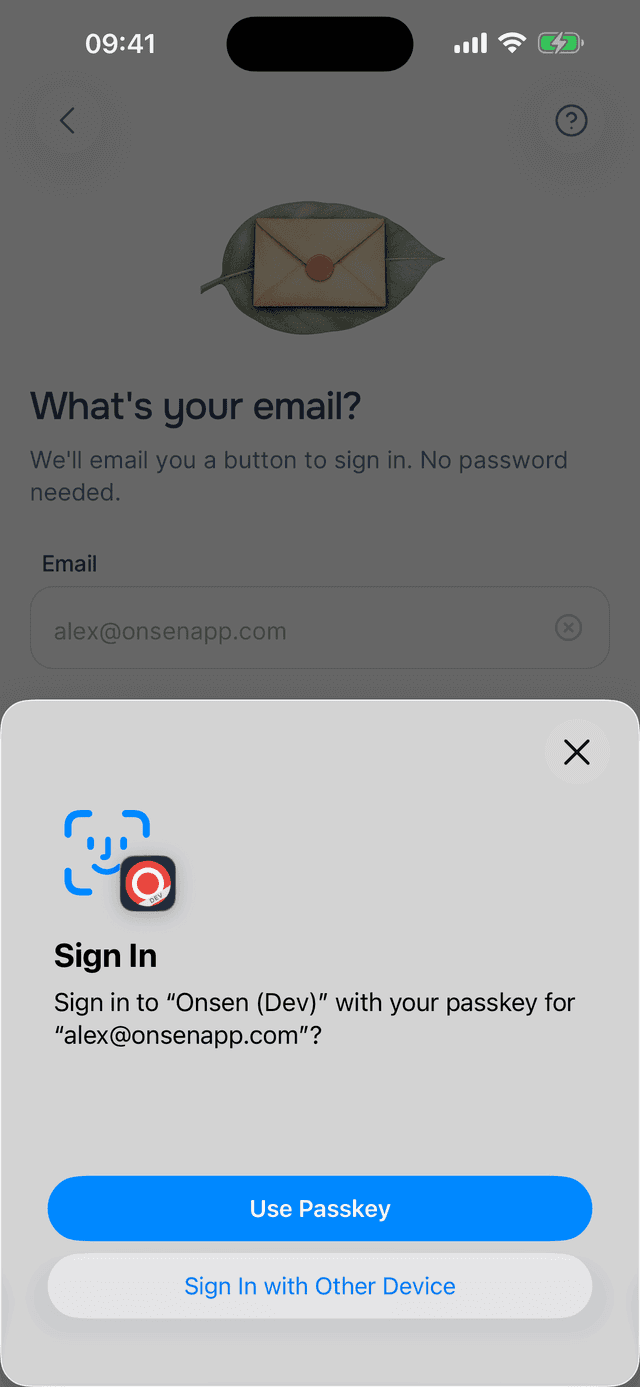
- Tap Continue. Your phone's passkey sheet opens right away. No email is sent.
- Look at your phone or touch the sensor. You're in.
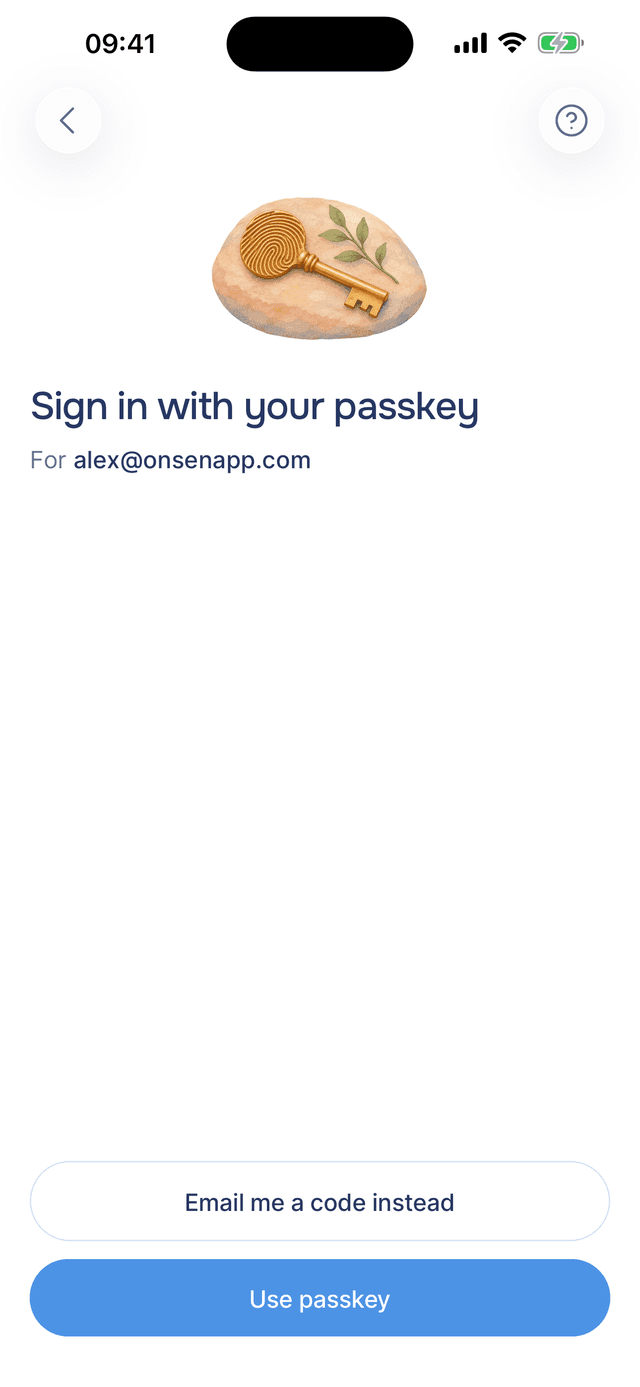
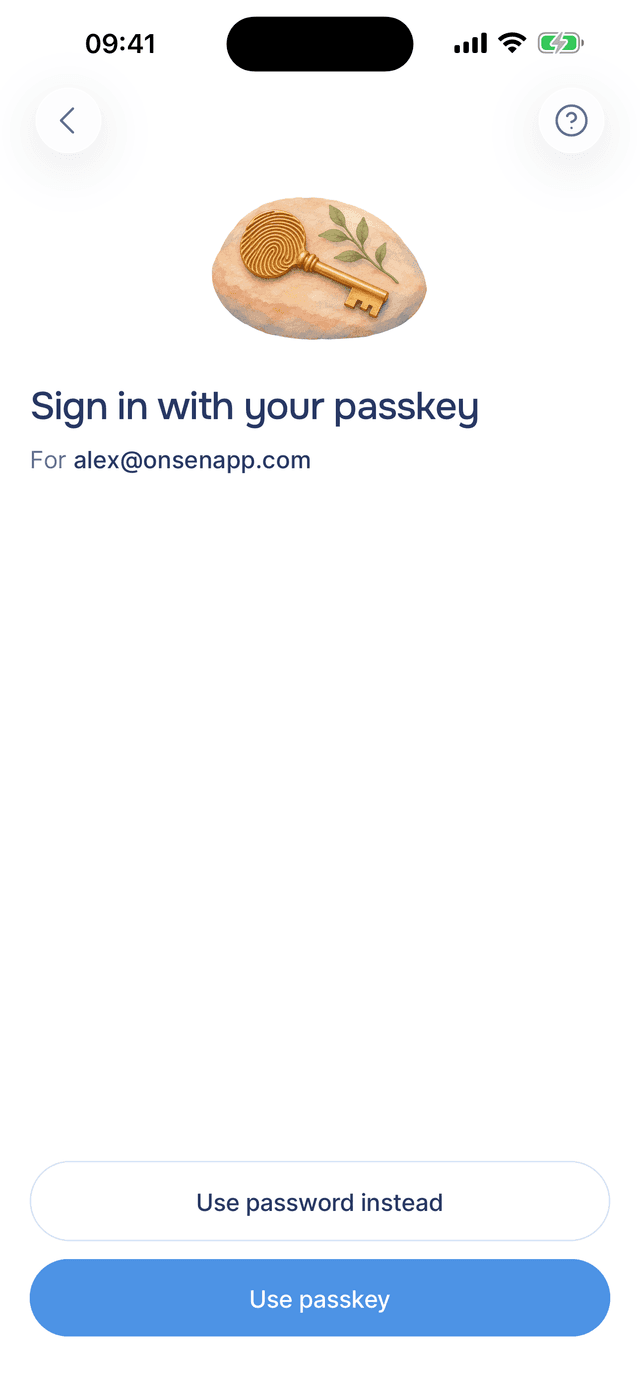
If the sheet closes or the passkey doesn't work, Sign in with your passkey gives you two ways on:
- Use passkey opens the sheet again.
- Email me a code instead sends you an email code as usual. With 2-step verification on, this says Use password instead.
On Android, if no password manager on the phone has a passkey for Onsen, the screen says No passkey for Onsen on this phone. Email me a code instead is then the main button. Use passkey is still there, for a password manager that was locked.
New or lost phone
- New phone: a passkey in iCloud Keychain moves to your other Apple devices, and one in Google Password Manager to your other Android devices. On a phone without it, sign in with an email code, then add a passkey there.
- Lost phone: sign in on another device with an email code, remove the lost phone's passkey, and sign out of all devices. With 2-step verification on, sign in with your password and an authenticator code instead.
Tips
- One passkey per password manager is enough. It follows you to your other devices that use the same one.
- Keep your email working. Email codes are how you get back in without your phone.
- Seen "This phone already has a passkey for Onsen"? You're set: sign in with it.