

Photos and looks
Add photos of the people and animals in your life, and Onsen draws them as they look in your journal images.
Overview
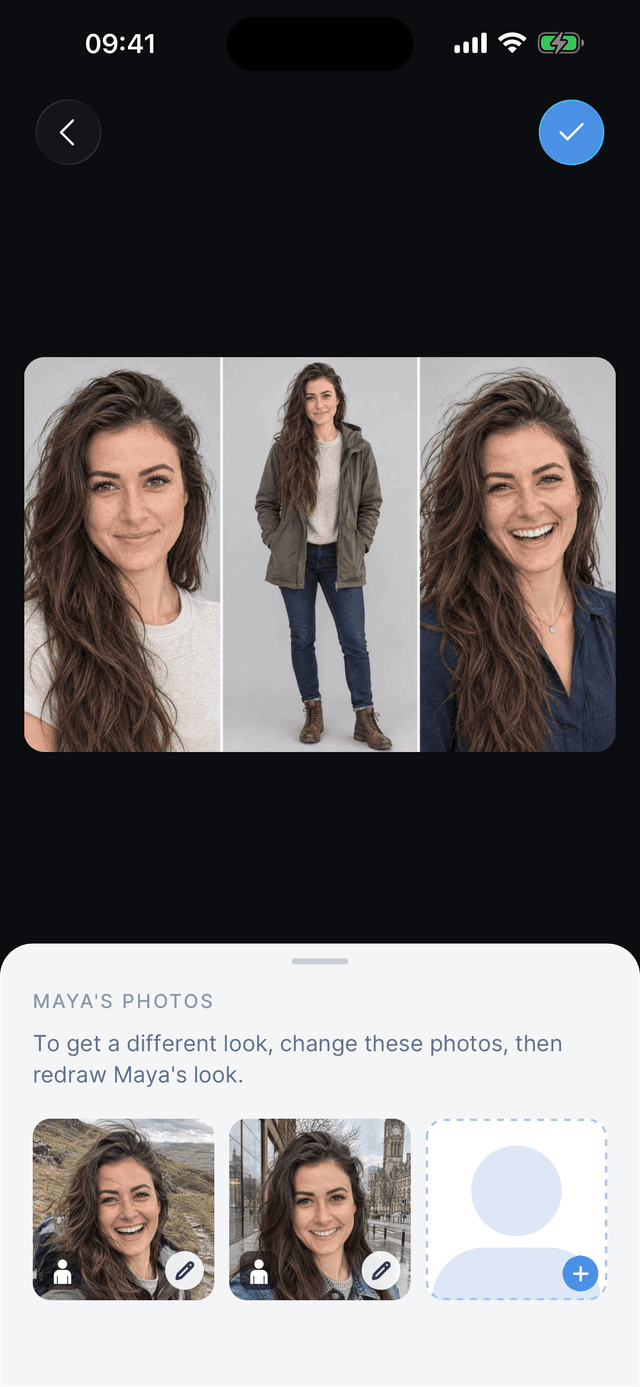
The people and animals in Knowledge can have photos. Add 2 or 3 and Onsen draws their look: three clear pictures of them, the same way it draws your own avatar. From then on, your journal images show them as they really look, instead of a stranger.
- Up to 3 photos for each person or animal. A look needs at least 2.
- Their round icon in lists and on their page becomes the smiling picture from their look.
- Only for people and animals. Places, moods and the rest have no photos.
Where to add photos
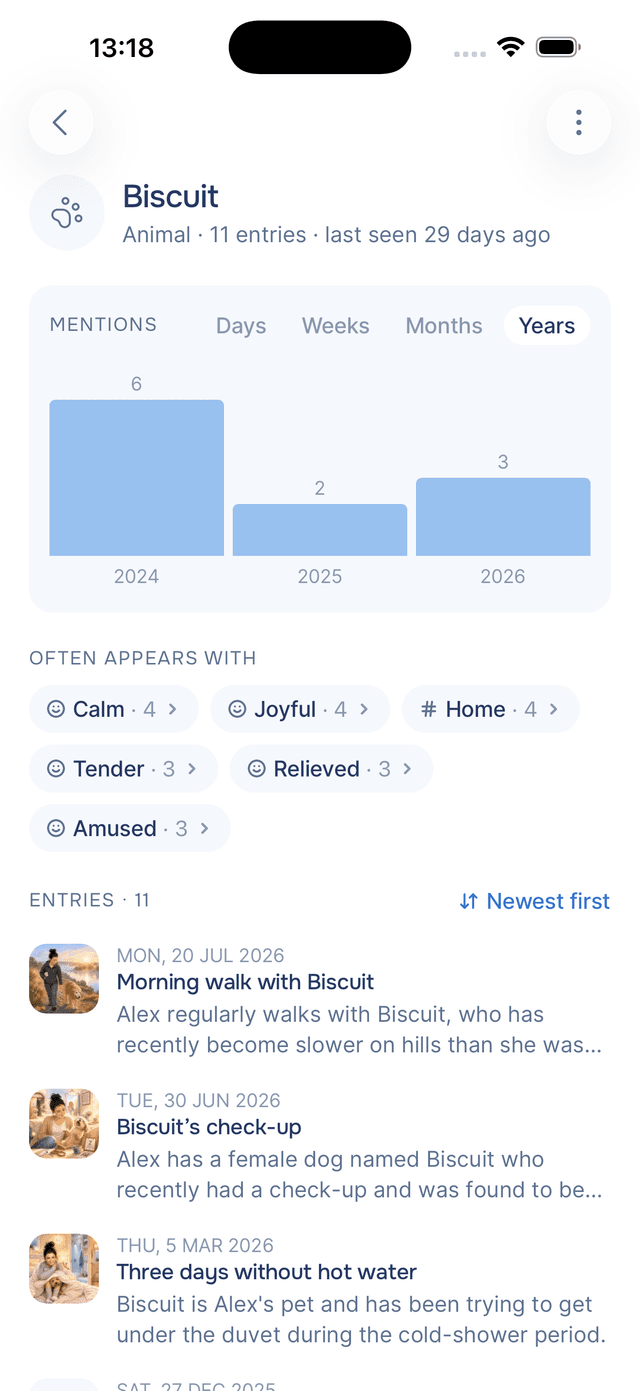
- From their page: open Knowledge in your journal, then People or Animals, then the person. Photos sits right under their name.
- From an entry: in an entry's Knowledge section, a person or animal without a photo has a small on their icon. Tap them to open their page.
- From Settings: Settings › Photos of people and animals, under Your world.
- From a list: the menu on People or Animals › Photos of people or Photos of animals.
Adding photos
An empty Photos card says "Add up to 3 photos so your journal images look like Maya." Each slot suggests a shot: Close-up, Half body and Head to toe for a person, or Close-up, Partial body and Full body for an animal.
The first time, a short explainer, How photos personalize your images, walks you through it in three pages. After that it's behind beside Photos.
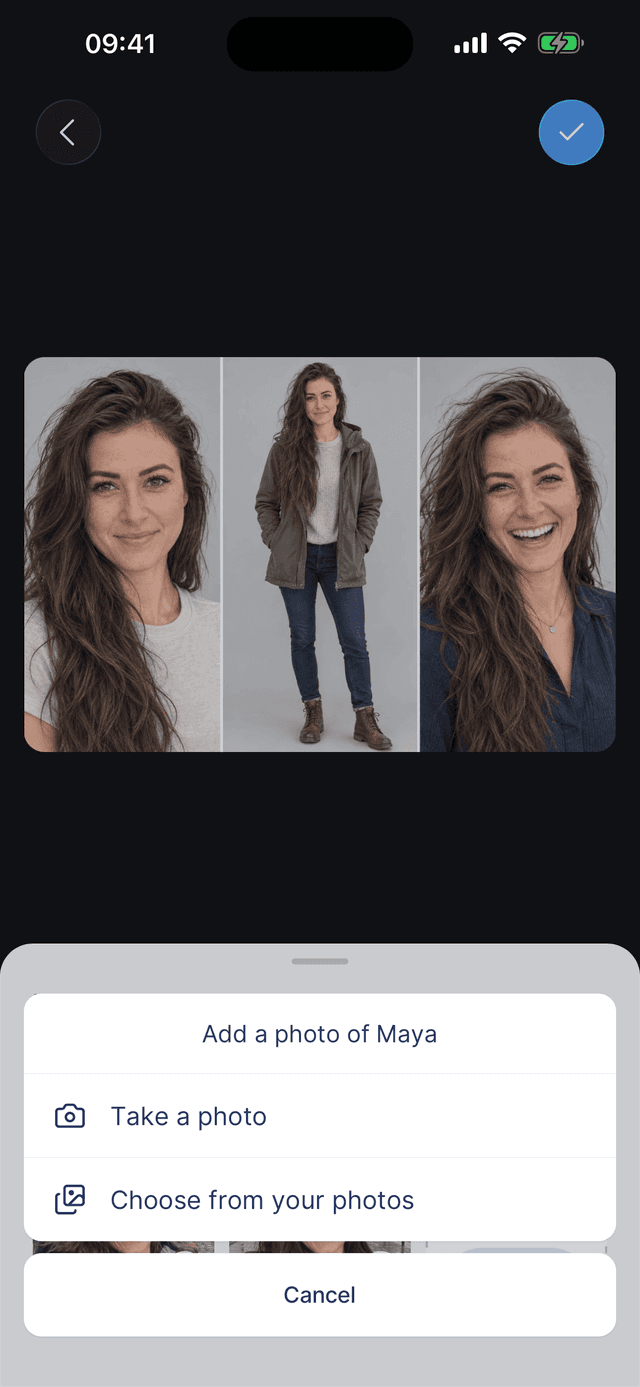
- Tap an empty slot. Add a photo of Maya offers Take a photo or Choose from your photos. You can pick several at once, up to the free slots.
- Crop or rotate if you like, then tap Use photo. Taking photos opens Onsen's in-app camera, on the back camera.
- Onsen checks each photo while it shows Checking in its slot.
When a photo can't be used
Onsen keeps only photos it can use, and says why when it can't. A photo it can't use stays in its slot with a colored ring and one line, for example when it:
- has more than one person or animal in it ("Tap it to crop it to just Maya")
- shows no face
- doesn't look like the same person as the other photos
- has already been added
Tap the photo to crop it, or to remove it. In a group photo, the crop opens framed on a face: "3 people. Tap a face to frame them". Afterwards Onsen notes "Picked Maya from 3 people", with Change if it picked the wrong one.
Changing or deleting a photo
Tap a saved photo to see it full screen, with Crop, Replace and Delete. Delete asks first, and says what happens to the look:
- "You'll need to redraw Maya's look." with 2 or more photos left
- "Maya's look will be deleted. A look needs 2 photos." with 1 left
Their look
With 2 photos or more, Onsen draws their look the next time they appear in a journal image. To draw it now, tap Draw Maya's look. It takes about 40 seconds, and a ring shows each stage.
Once there's a look, Maya's look shows its three pictures, and the photos fold into a chip on it, such as 3 photos. Tap the chip to see or change them.
- After you change the photos, the look turns grey with Photos changed. Tap Redraw now to draw it from the new ones.
- If a look can't be drawn, Onsen says so and uses their photos for now. Tap Try again.
- Drawing a look counts as an image toward your usage limits. At the limit, Onsen draws it when your limit resets.
Forgotten people and animals
If you forget someone in Knowledge, their photos and look stay, but read-only: you can't add, change or redraw them.
Privacy
Photos and looks are private to you. Onsen uses them only to draw the people and animals in your own journal images. Deleting your account permanently removes them along with the rest of your data.
Tips
- Mix your shots — a close-up and a half or full body shot give Onsen both the face and the build.
- One subject per photo — crop group photos down to the one person you're adding.
- Redraw after changing photos — your images keep using the old look until you do.