

Inside an Experience
What happens during a guided experience — from your first message to the final reflection.
Overview
Once you start an experience, your AI guide walks you through a structured conversation. Each step focuses on a specific aspect of the topic, and the AI adapts its responses based on what you share — so no two experiences are exactly the same, even for the same type.
Starting an Experience
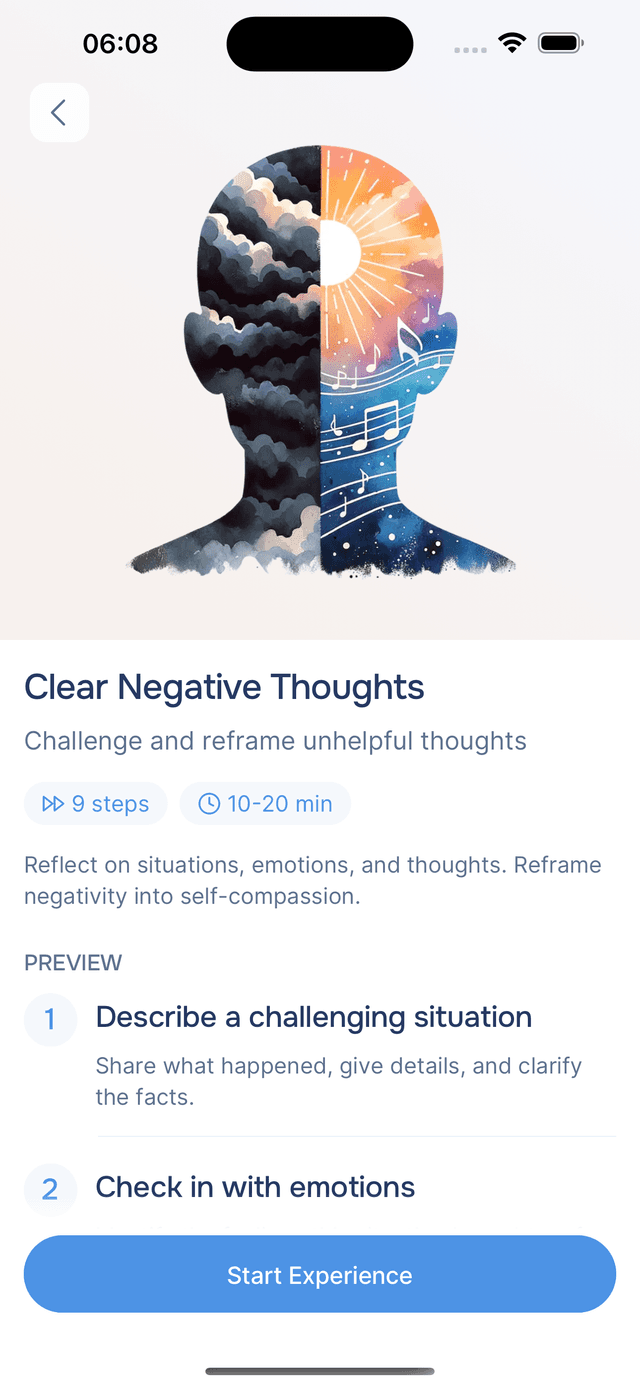
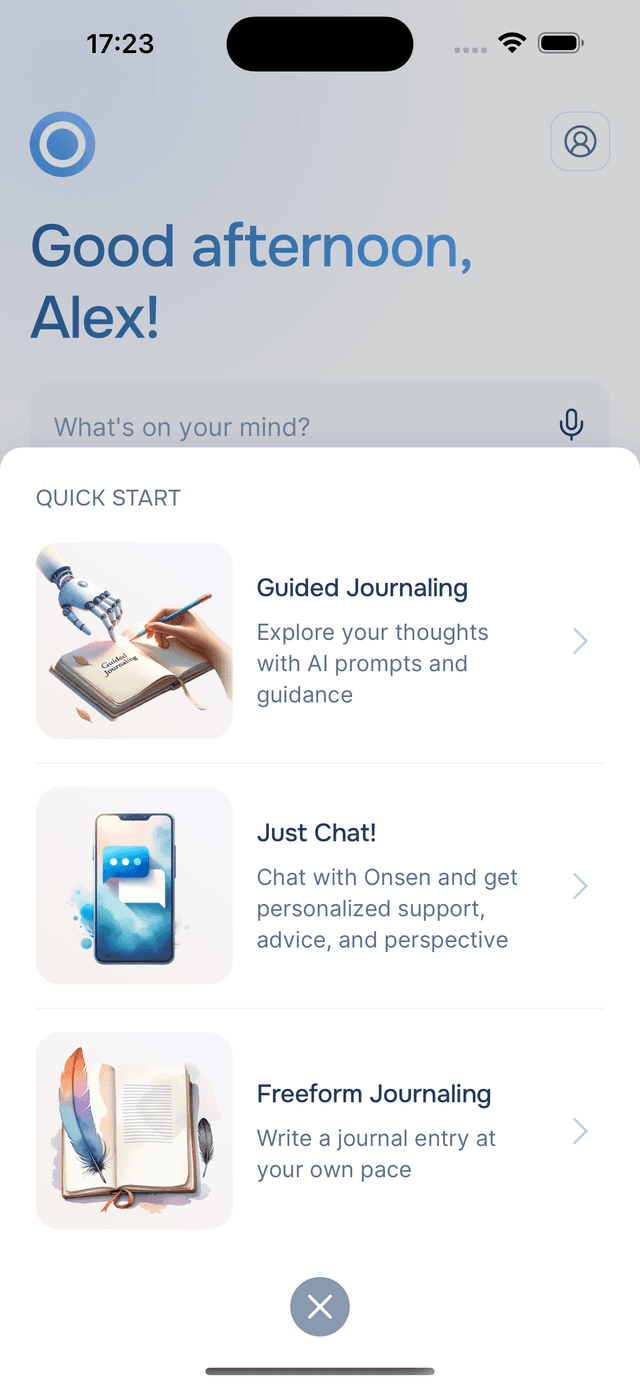
You can begin from the experience details screen (tap Start Experience after reading the description) or from the quick-start menu in the bottom navigation. Some experiences kick off with a greeting from your AI guide, while others start the conversation right away.
Step-by-Step Progression
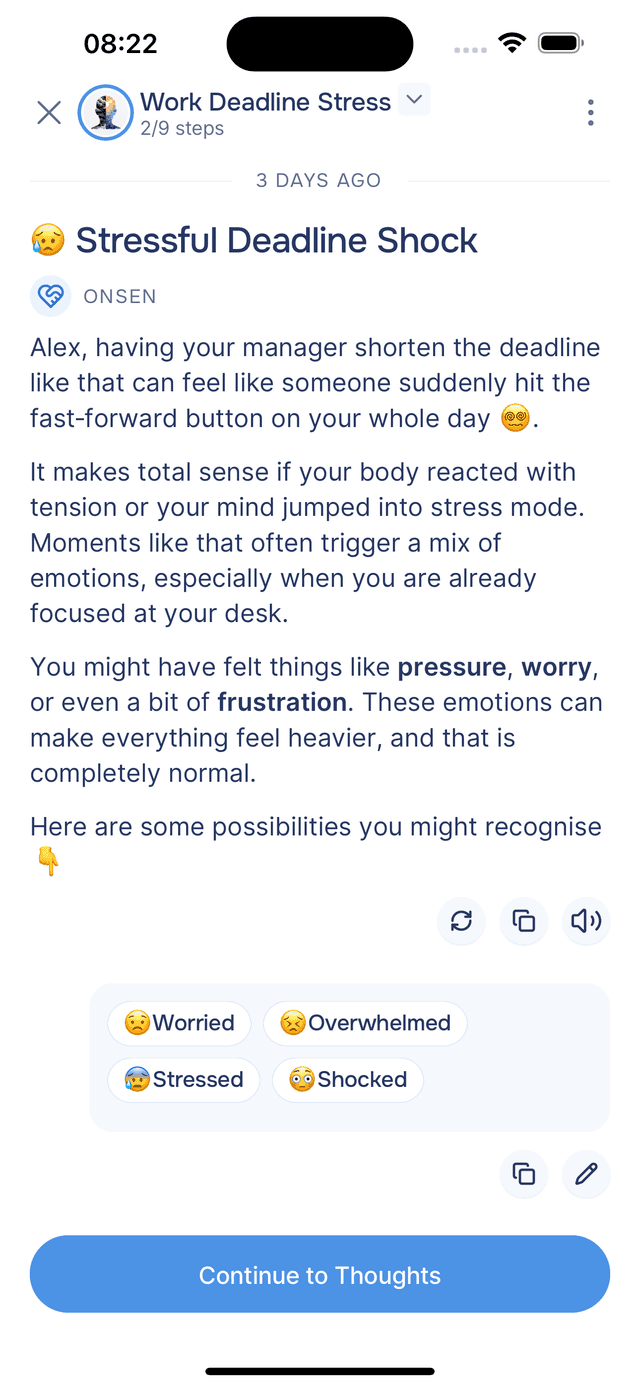
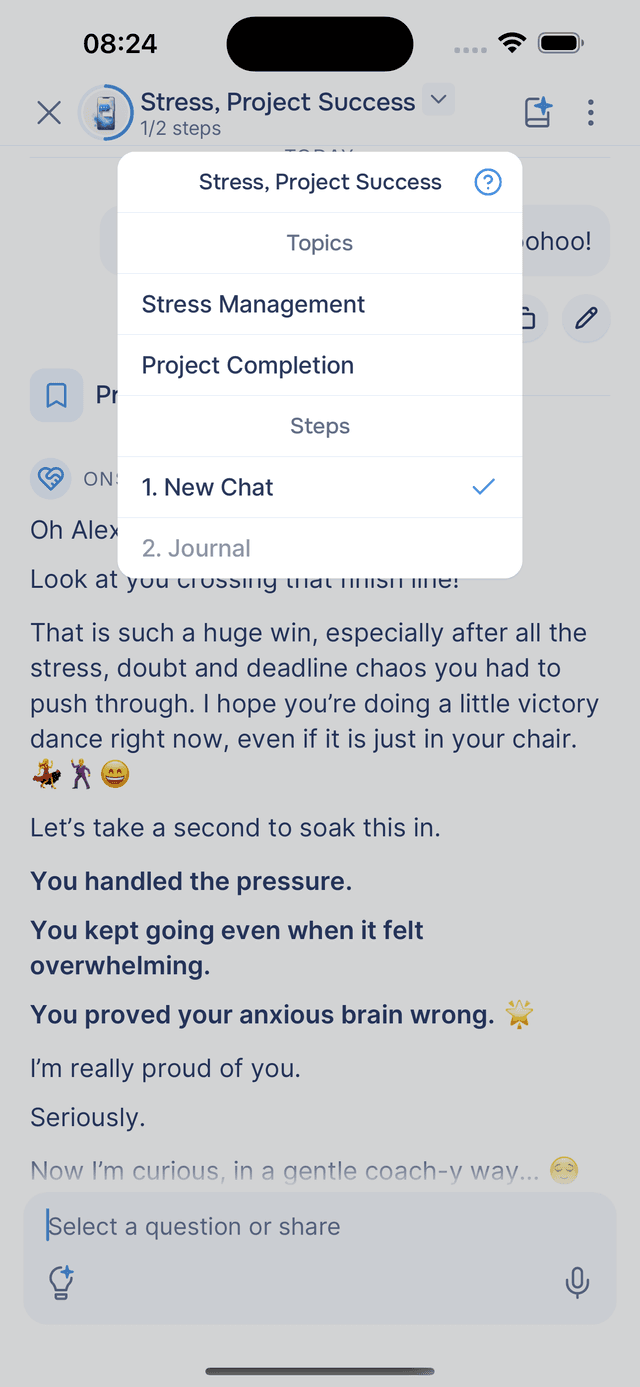
Each experience is divided into numbered steps. The header shows which step you are on (for example, "Step 2 of 5").
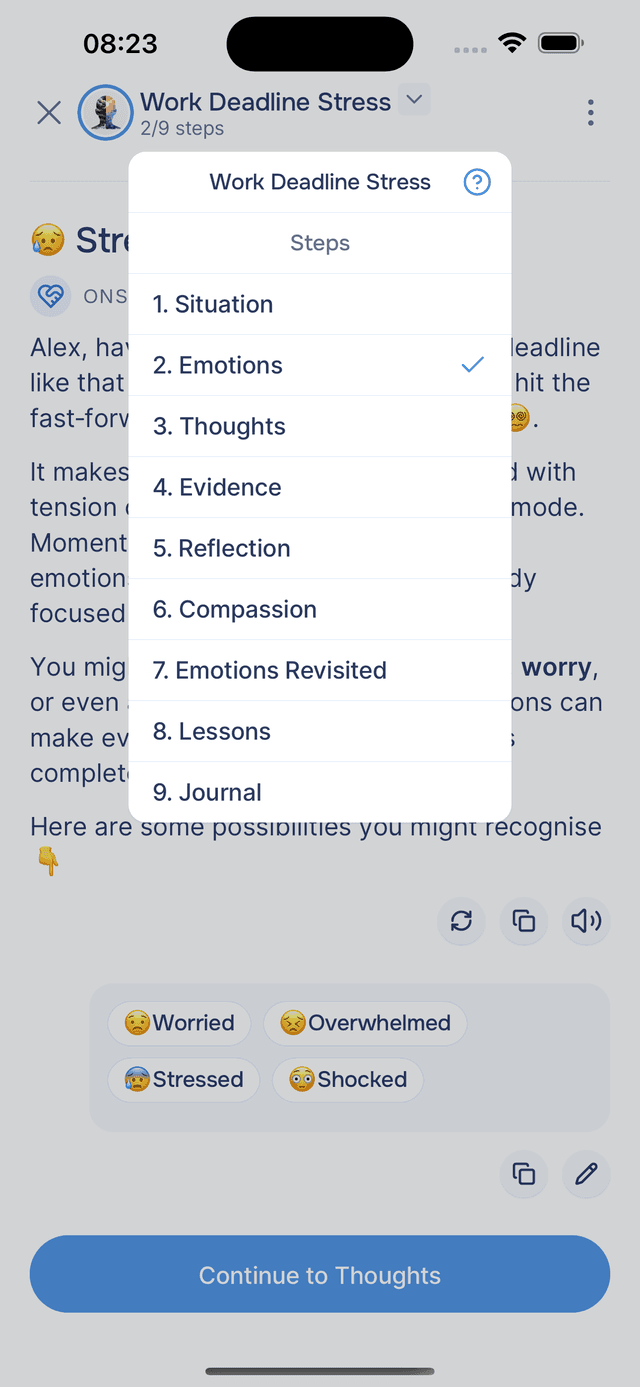
Tap the step counter in the header to open the navigation menu. From there you can see which steps are complete, which is current, and jump back to any earlier step to review what was said. Some experiences also group steps under topic headings, so you can see the overall shape of the conversation at a glance.
Types of Interactions
During an experience, you might encounter:
- Text input — type your response and tap to send
- Voice recording — tap to speak your response instead of typing
- Multiple choice — select from options the AI presents, sometimes as scrollable cards
- Ratings and surveys — rate something on a scale or complete a short questionnaire
- Action buttons — tap suggested actions like saving a reflection to your journal or moving to the next topic
This variety keeps things engaging and lets you respond in whatever way feels most comfortable. For a full breakdown of each type, see Interactive Elements.
Status Tags
Your guide's responses stream in real time, word by word. While it is working, a status tag appears below the guide name:
- 🛡️ Keeping you safe... — a brief safety check is running on your message before the response begins
- ✨ Personalizing... — Onsen is reviewing your profile and conversation history to tailor its response to you specifically
- 💬 Crafting... — the main response is being generated and is about to start streaming
If you want to interrupt mid-response, tap the stop button.
Thinking
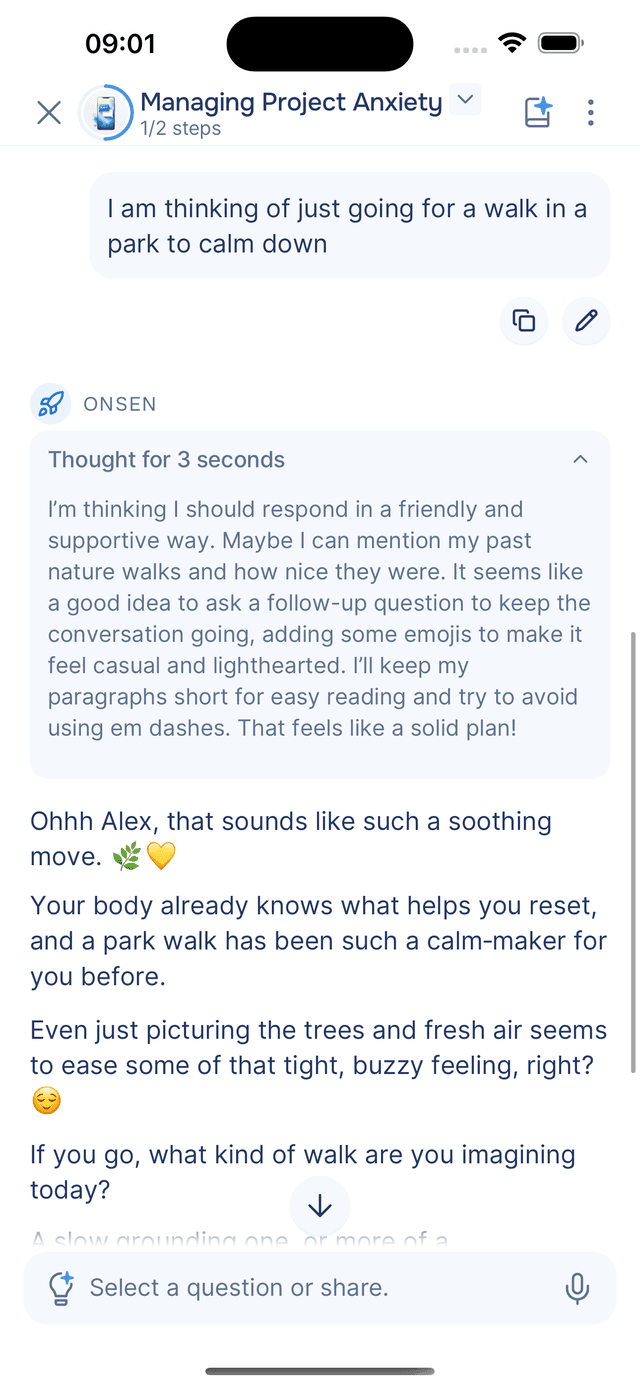
On some responses you may see a Thinking... section appear above the reply. This is Onsen reasoning through your situation before writing — working out what you shared, what would be most helpful, and how to frame its response. You can tap it to expand and read through the reasoning, or leave it collapsed. Once the response is complete, it updates to show how long Onsen spent thinking (for example, "Thought for 8 seconds").
Safety
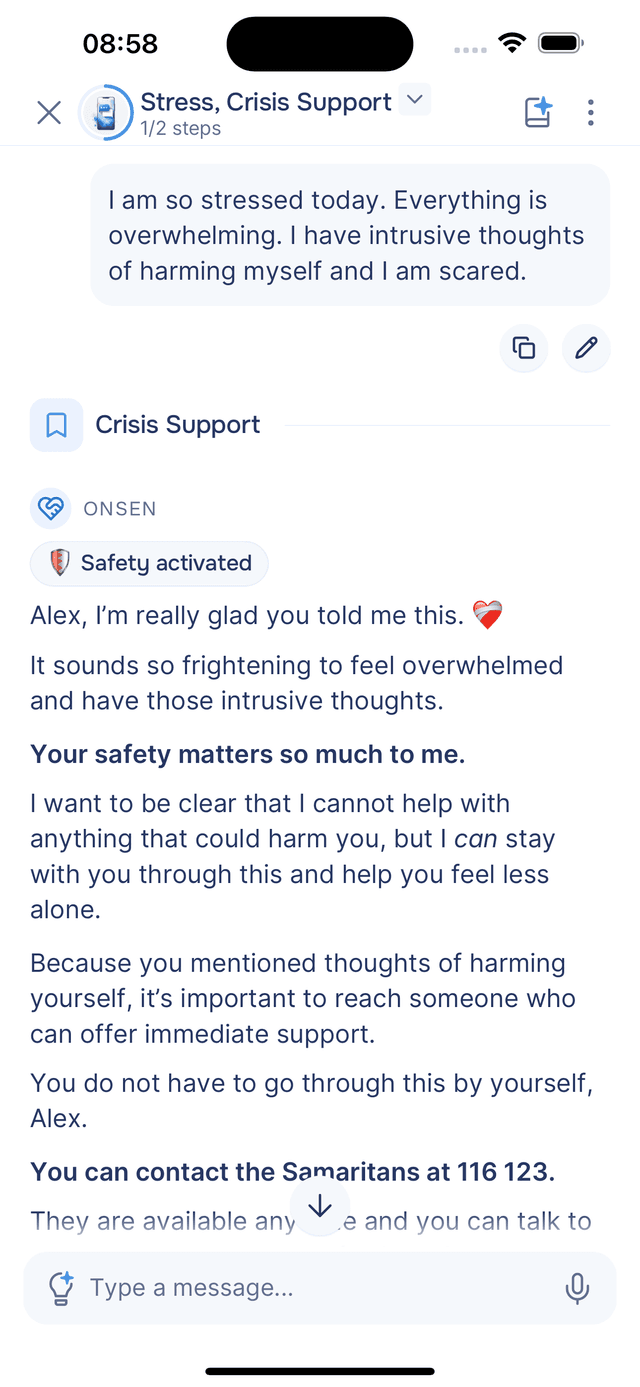
Onsen runs a safety check on every message before generating a response. This happens in the background and you will usually not notice it. If a message is flagged, the normal response is replaced with a safe, supportive reply and the status tag changes:
- 🛡️ Activating safety... — the safety system has flagged your message and is preparing a response
- 🛡️ Safety activated — the message was flagged and a safety response has been sent instead
The safety system is there to keep the space supportive and appropriate — it is not a judgment of you or your intentions.
Listening to Responses
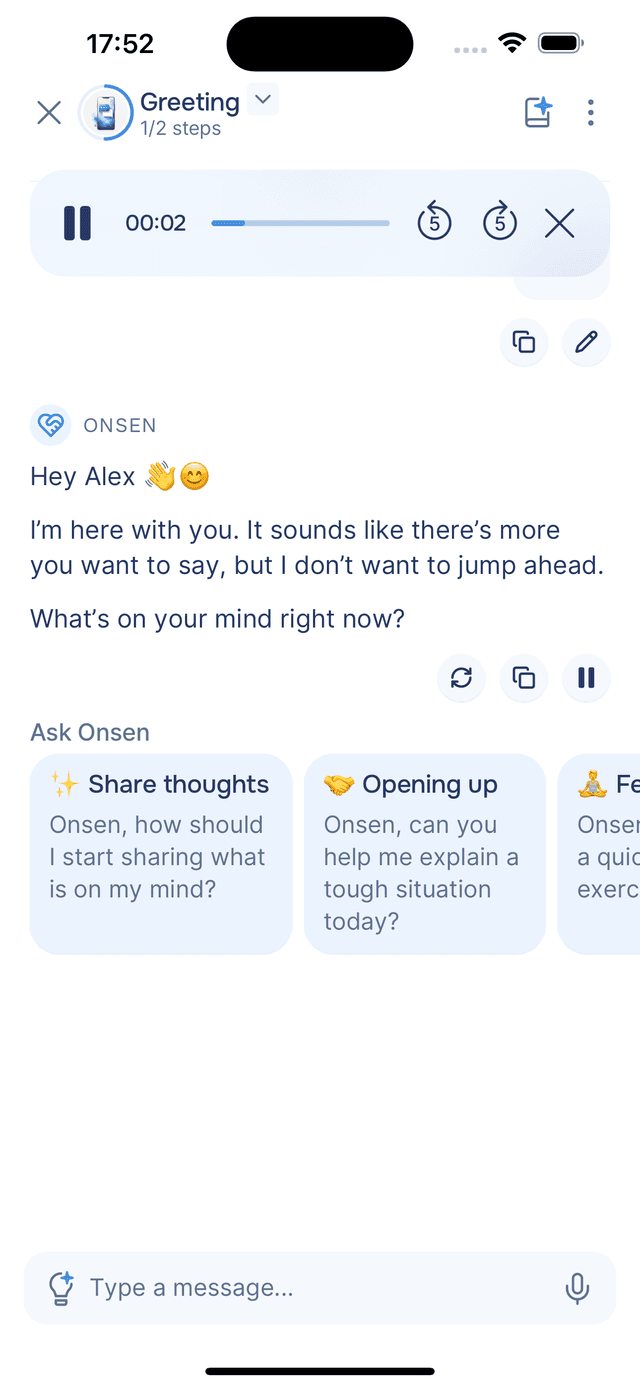
You can have any AI response read aloud by tapping the speaker icon. A playback bar appears with play, pause, rewind, and skip controls. This is especially helpful during mindfulness or relaxation exercises where you may want to close your eyes and just listen.
Moving to the Next Step
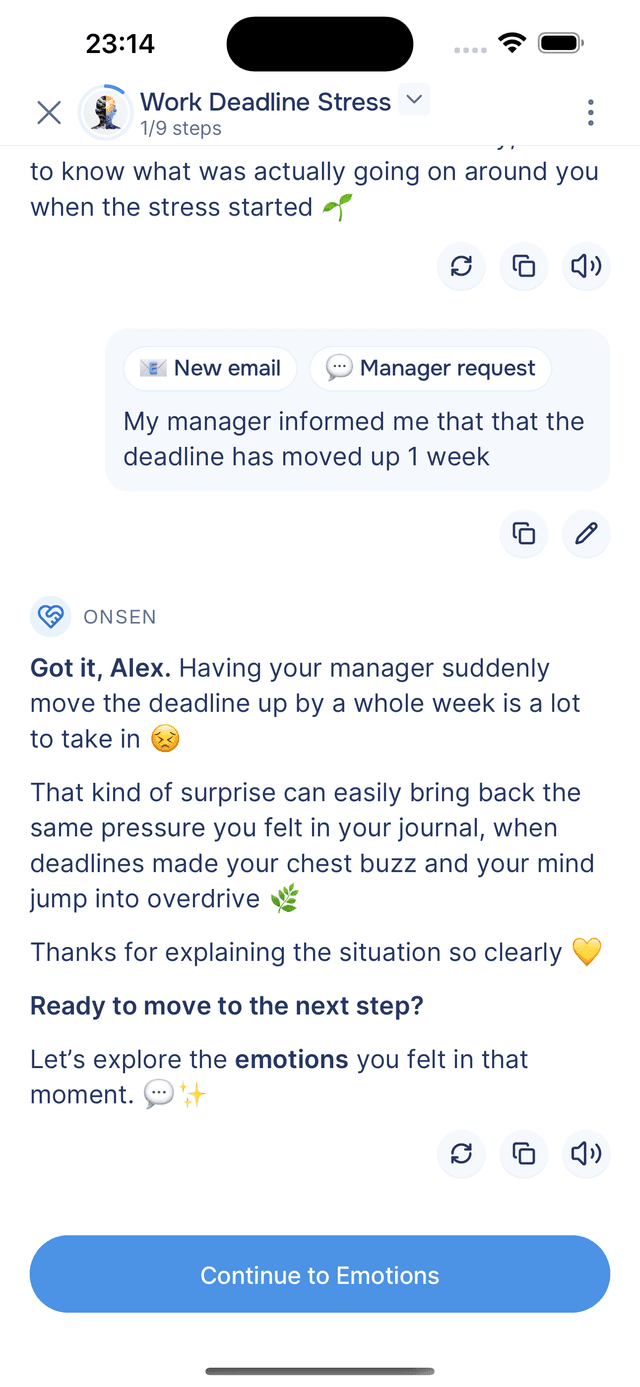
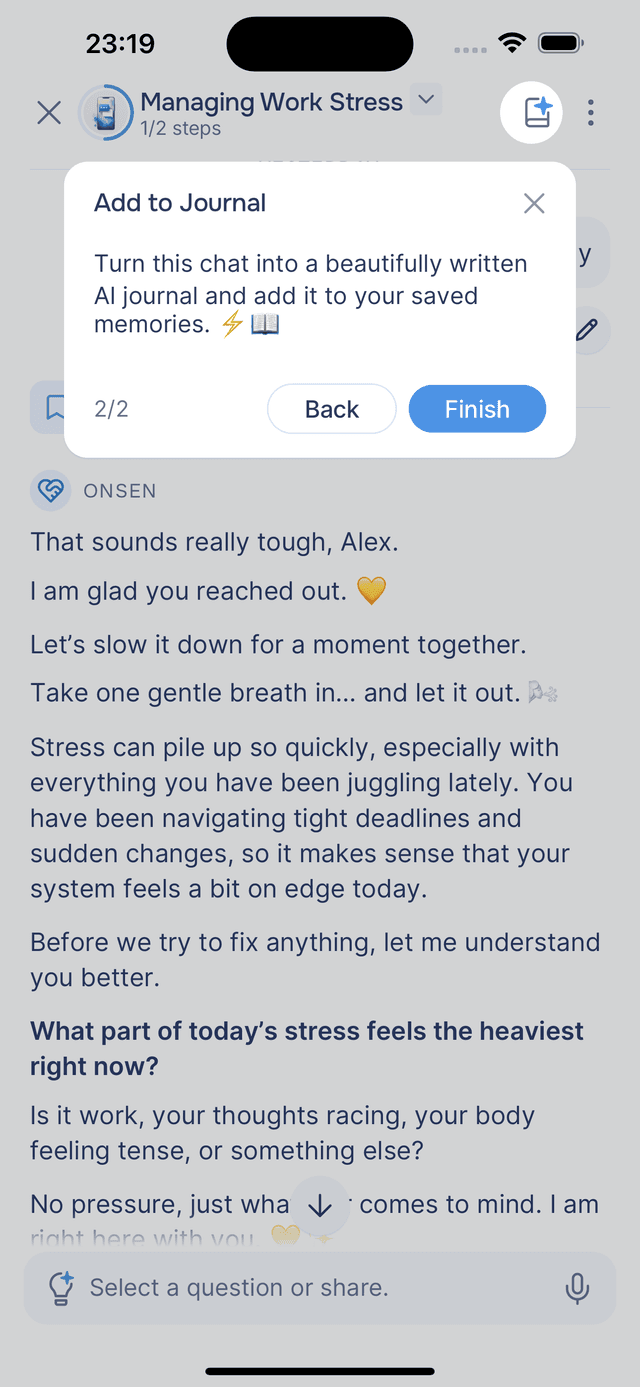
When a step wraps up, a Continue button appears at the bottom. Tap it to move forward. In some cases (like after a breathing exercise), it auto-advances after a short countdown. For chat-style experiences, you might see the Add to Journal button in the header instead, which saves the conversation as a journal entry.
Restarting a Step
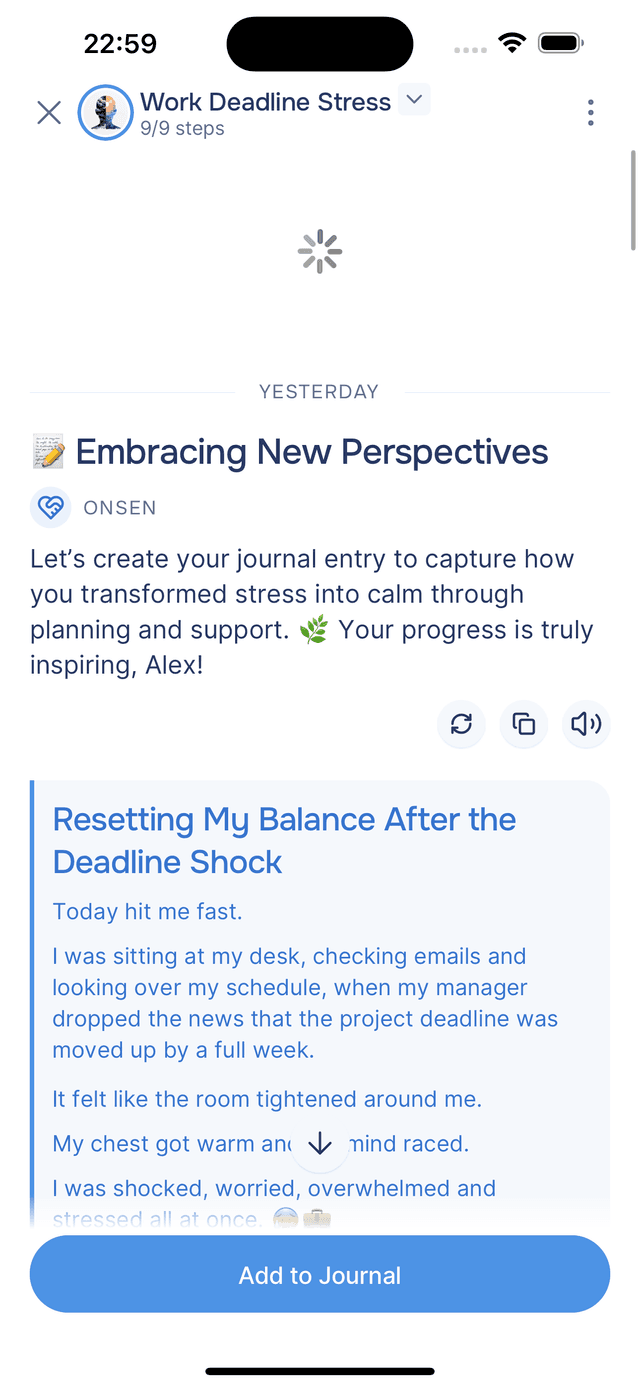
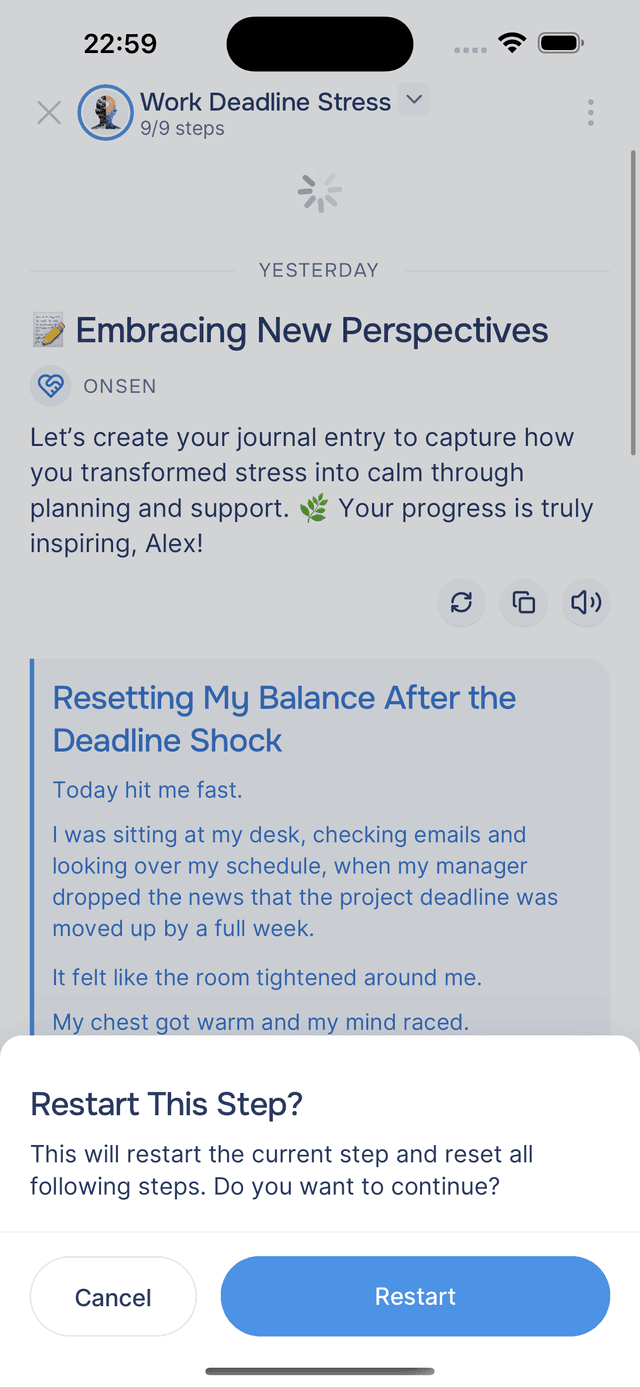
If you want to redo the current step — for example, to try a different response or repeat a breathing exercise — you can restart it in two ways:
- Swipe down when scrolled to the top of the chat to trigger a step refresh
- Tap the options icon and choose Restart step
Both options clear the current step's messages and start it fresh without affecting any earlier steps.
Experience Menu
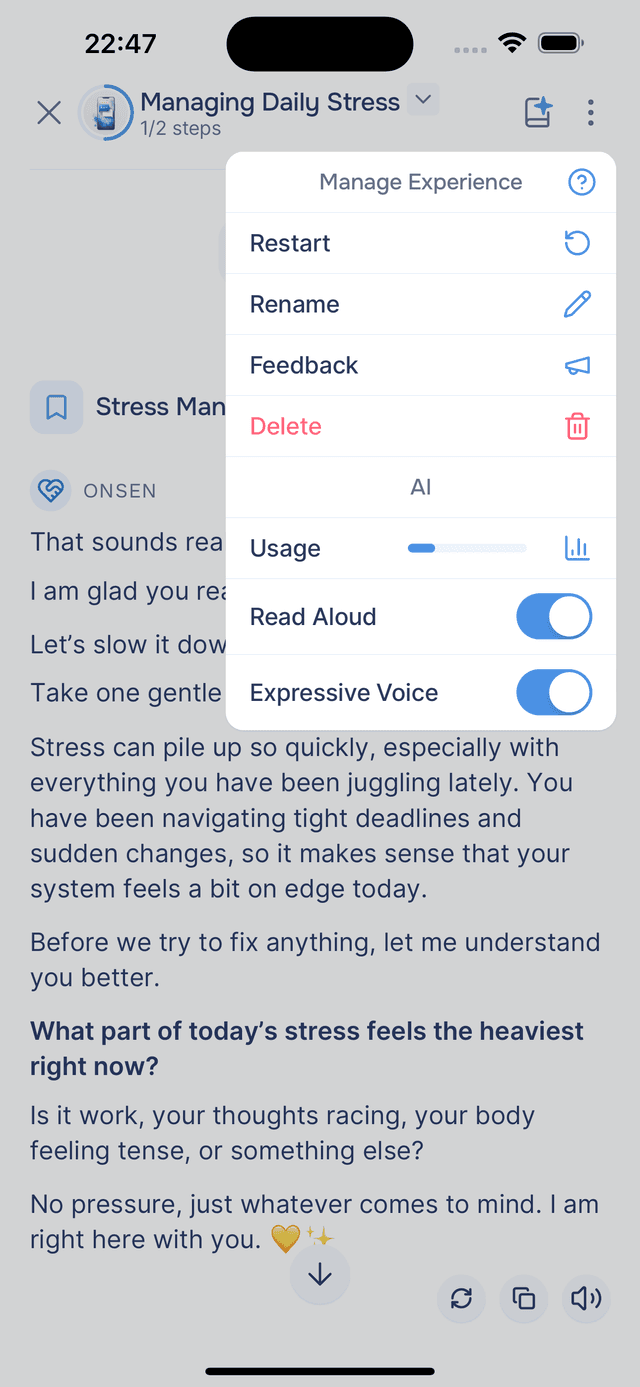
Tap the options icon in the top-right corner for additional options:
- Rename — give the experience a custom title
- Restart — start the experience over from the beginning
- Delete — remove it from your history
- Usage — view your current usage statistics
For more on managing your experiences, see Managing Your Chats.
Tips
- Respond honestly — the AI adapts to what you share, so the more open you are, the more relevant and helpful its guidance becomes.
- Use voice when it feels right — speaking can sometimes help you express things that are harder to type.
- Review earlier steps — tap the header to jump back and revisit any part of the conversation.