

Discover Experiences
Explore guided experiences by category, read what each one involves, and start one with a single tap.
Not sure where to start? The experience library has a range of guided experiences — from mindfulness meditations to cognitive exercises — sorted into a handful of categories so you can find something that fits your mood or your goal.
The Discover Tab
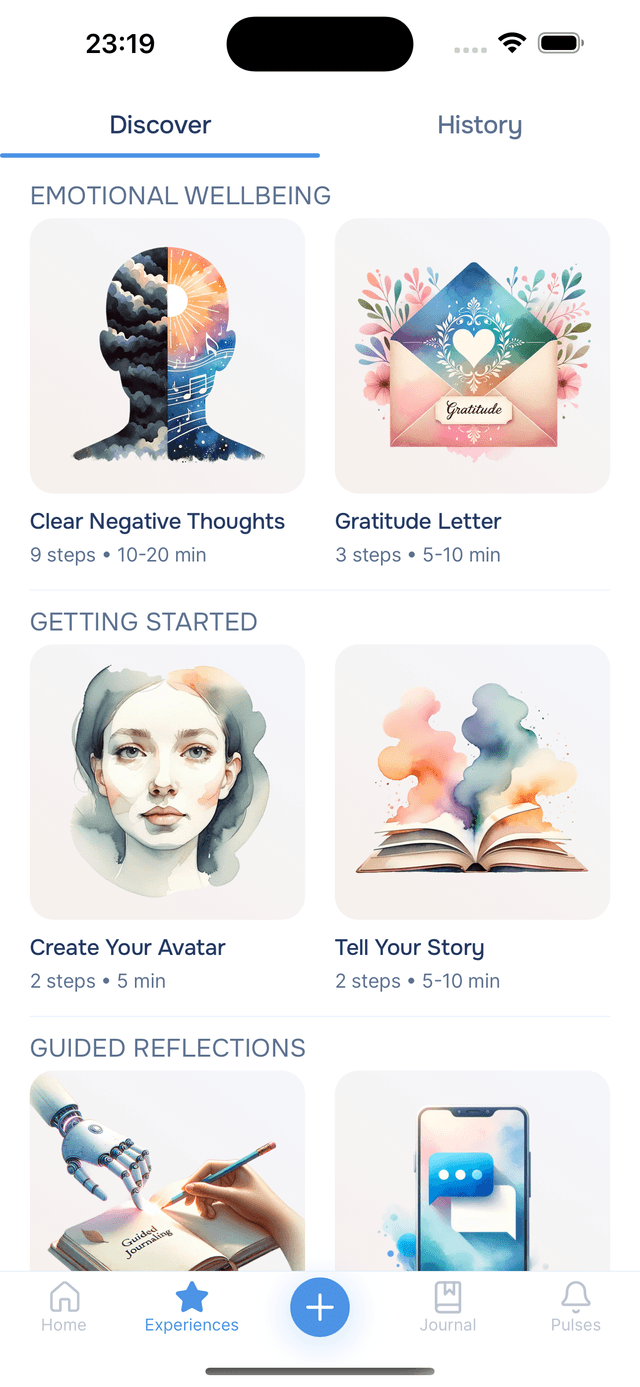
Tap the Experiences tab and you land on Discover. It opens with Popular: the experiences people have rated most often, in a row you can swipe along. It is a good place to start if you have never tried one.
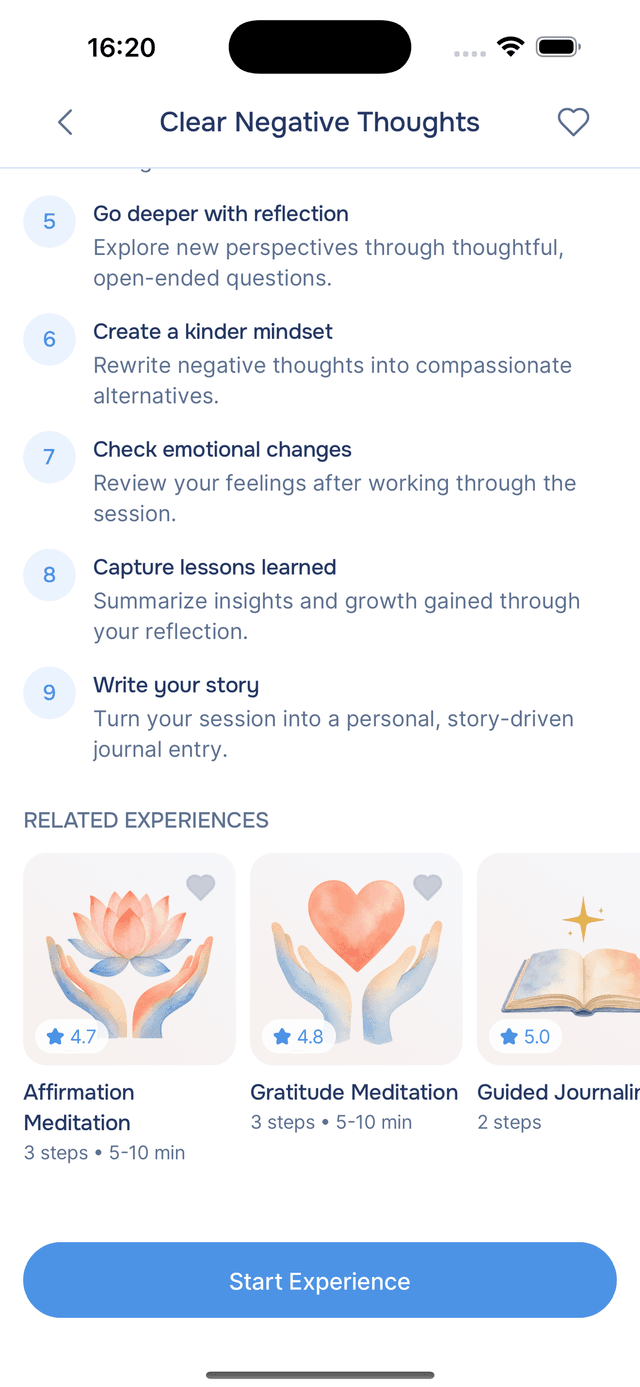
Each card shows the experience's artwork, its title, how many steps it has and roughly how long it takes. Cards also carry a rating once enough people have scored the experience, and a you can tap to save it to your favourites.
Browsing by Category
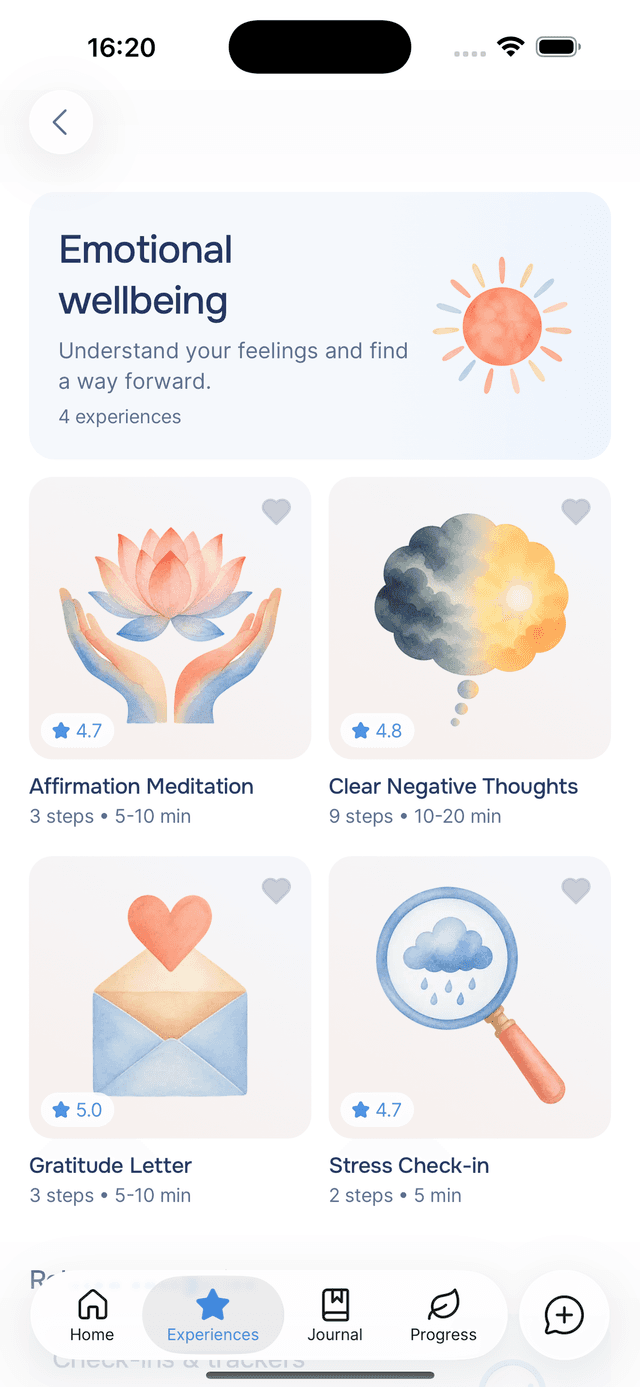
Under Popular, Categories groups the library by what each experience is for, such as Journaling & reflection, Emotional wellbeing and Mindfulness & meditation. Each category card has its own artwork, a line about what the category is for, and how many experiences it holds.
Tap a category to see everything in it. An experience can sit in more than one category when it fits both, so you will find it wherever you look. At the bottom, Related categories suggests where to go next.
Prefer to see the whole library at once? View All beside the Categories heading, or View all experiences at the bottom of Discover, opens every experience, grouped by category.
What to Expect from an Experience
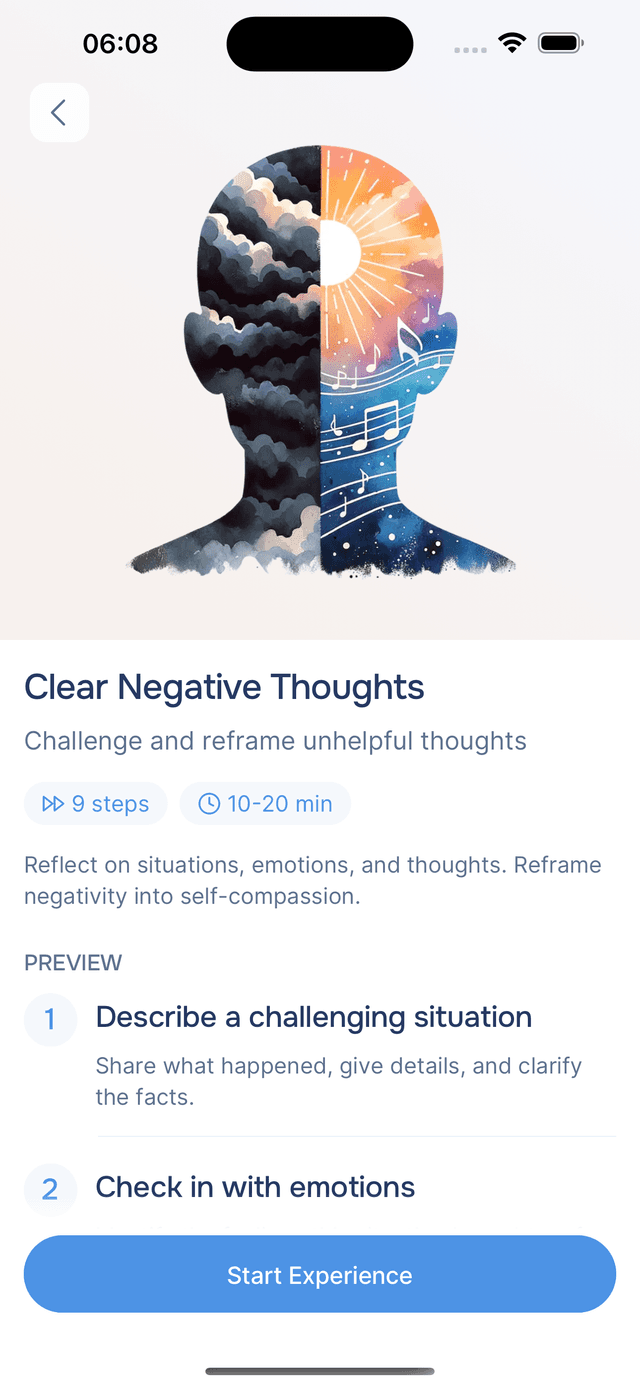
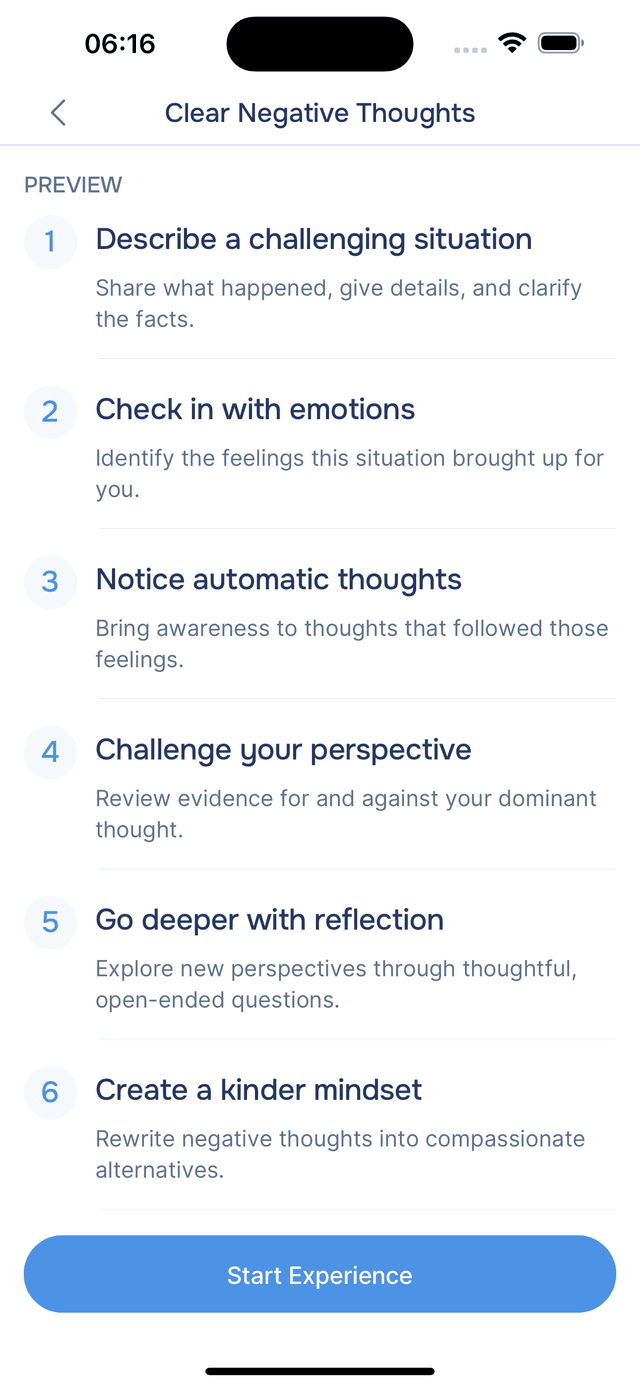
Tap any card to see the full details. You will find a description of the experience's purpose, a preview of each step, and how long it typically takes. This is a great way to decide if the experience is right for what you need right now.
When you are ready, tap Start Experience to begin. If you have started this experience before, you will see Continue Experience instead so you can pick up where you left off.
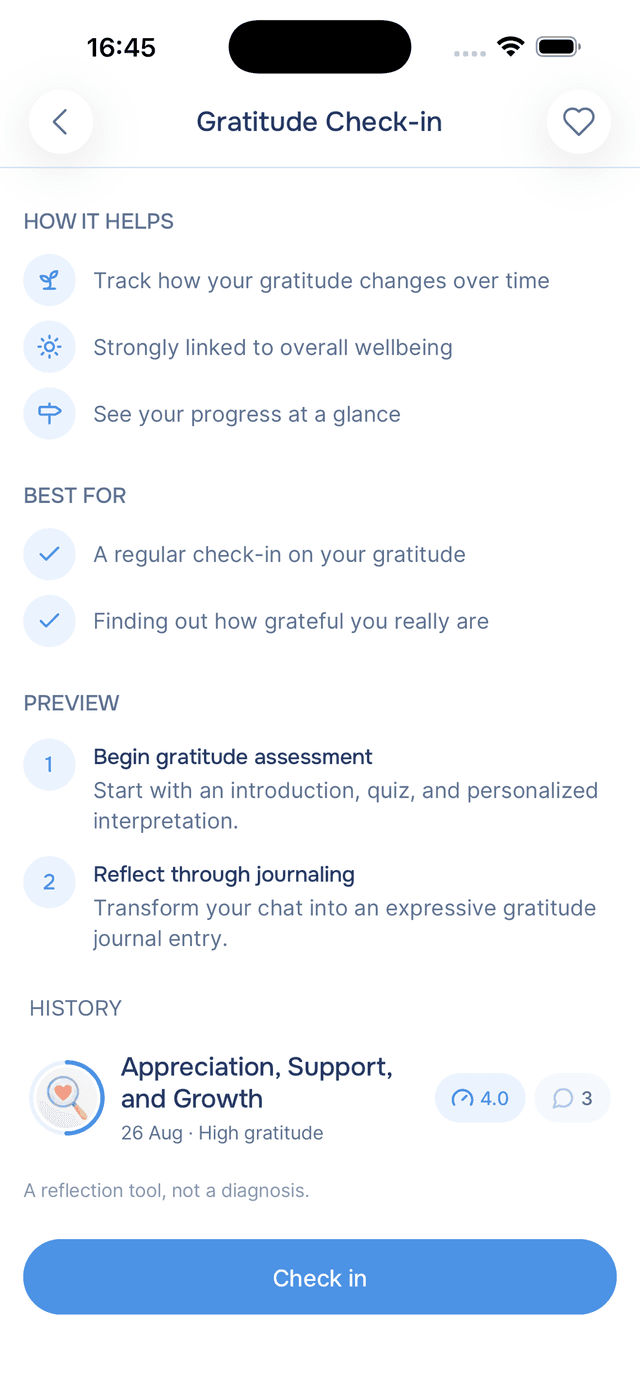
Check-ins open with a chart of your scores instead of a description, and the button reads Start the first time and Check in after that.
Related Experiences
Below an experience's steps, Related experiences suggests a few more that go well with it. Tap one to open it. Back returns you to the page you came from, exactly where you left it, so you can compare two without losing your place.
Your History With an Experience
Scroll past the steps and every experience shows its own History: every time you have run this one, newest first. Each row carries the experience artwork, the title your guide gave that run, and the date.
The pills on the right of a row are shortcuts into what that run produced. A bubble with a number tells you how long the conversation ran, and a book appears when the run became a journal entry, opening it. On a check-in there is also a gauge showing the score you got, and tapping it opens Your answers — the score, and the answer you gave to each question. Tapping the row itself reopens the conversation.
Tips
- Browse when you are not sure what you need — a category named for how you feel is often a better starting point than a title.
- Follow the related experiences — when one lands well, the suggestions at the bottom of its page are the natural next step.
- Check the step count — short on time? Look for experiences with fewer steps. Have a quiet evening? Try something longer and more immersive.
- Revisit favourites — you can run the same experience as many times as you like, and each one is unique because the AI adapts to where you are right now.
- Scroll to the history before you start — seeing what you wrote the last three times you ran an experience is often the reason to run it again.