

Managing Your Pulses
Select, mark as read, and delete notifications in bulk using edit mode.
Edit Mode
Need to tidy up your feed? There are two ways in. Long press any notification to enter edit mode with that one already selected, or tap Select in the header to start with a clean slate.
Either way the screen shifts to a selection view — each notification gets a radio button, and the header changes to show your selection count along with action buttons.
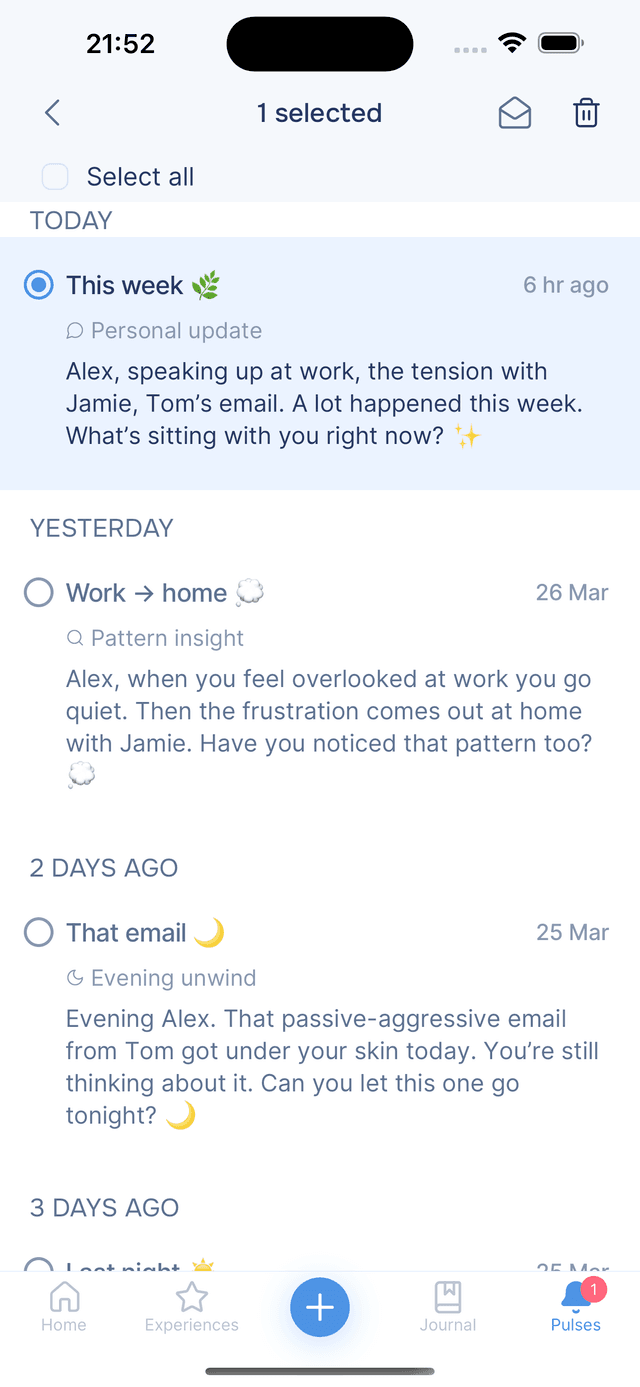
Selecting Notifications
Tap any notification to select or deselect it. At the top of the list, a Select all / Unselect all checkbox lets you grab everything at once — useful when you want to clear out a batch of older notifications.
The header shows how many notifications you have selected so you always know what you are about to act on.
Mark as Read or Unread
Tap the envelope icon in the header to toggle the read status of your selection. The icon changes depending on what you have selected: open envelope when marking as read, closed envelope when marking as unread. If all selected notifications are already read, they will be marked as unread — and vice versa. This is a quick way to clear the unread count without opening each notification individually, or to flag something as unread so you remember to come back to it.
Deleting Notifications
Tap the trash icon in the header to permanently delete all selected notifications. Deleted notifications cannot be recovered, so use this for Pulses you no longer need.
Exiting Edit Mode
Tap the button in the top-left corner, or deselect everything, to return to the normal feed view.
Tips
- Long press to get started — edit mode is always one long press away on any notification, and the header button gets you there without selecting anything first.
- Use Select all for spring cleaning — mark everything as read in one tap, or delete old notifications you have already seen.
- Mark as unread to bookmark — if a Pulse caught your eye but you are not ready to act on it, mark it as unread so it stands out next time you open your Pulses.